Campaign Performance Digest agent
Campaign Performance Digest is an agent in Mark (Optimizely Agent Platform). It summarizes the performance of your sent Smart Campaigns in Optimizely Campaign, flags unusual results, and recommends follow-up actions.
- Challenge – Campaign metrics live in individual campaign reports. Marketers compare the numbers by hand to see which campaigns worked and what to do next.
- Agent outcome – The agent creates a Hypertext Markup Language (HTML) canvas report with summary cards, bar charts, a metrics table, an anomalies callout, and recommended next actions.
- Value – Marketers read a decision-ready report in minutes and share it as is.
Required Optimizely products
The Campaign Performance Digest agent requires Optimizely Campaign.
Install agent
Note
Mark Administrators, Agent Builders, and users with the Add, edit, and install specialized agents attribute for a custom role can add agents to their organization's Mark instance. See Add users and set permissions.
The Campaign Performance Digest agent is an Optimizely-managed agent, so it is automatically installed in your instance.
You can manage and run the agent from the Directory.
- Go to Directory > Agents.
- (Optional) Enter Campaign Performance Digest or use the drop-down list filters to narrow the list.
- Click on the Campaign Performance Digest agent.
- Click Run or Manage.
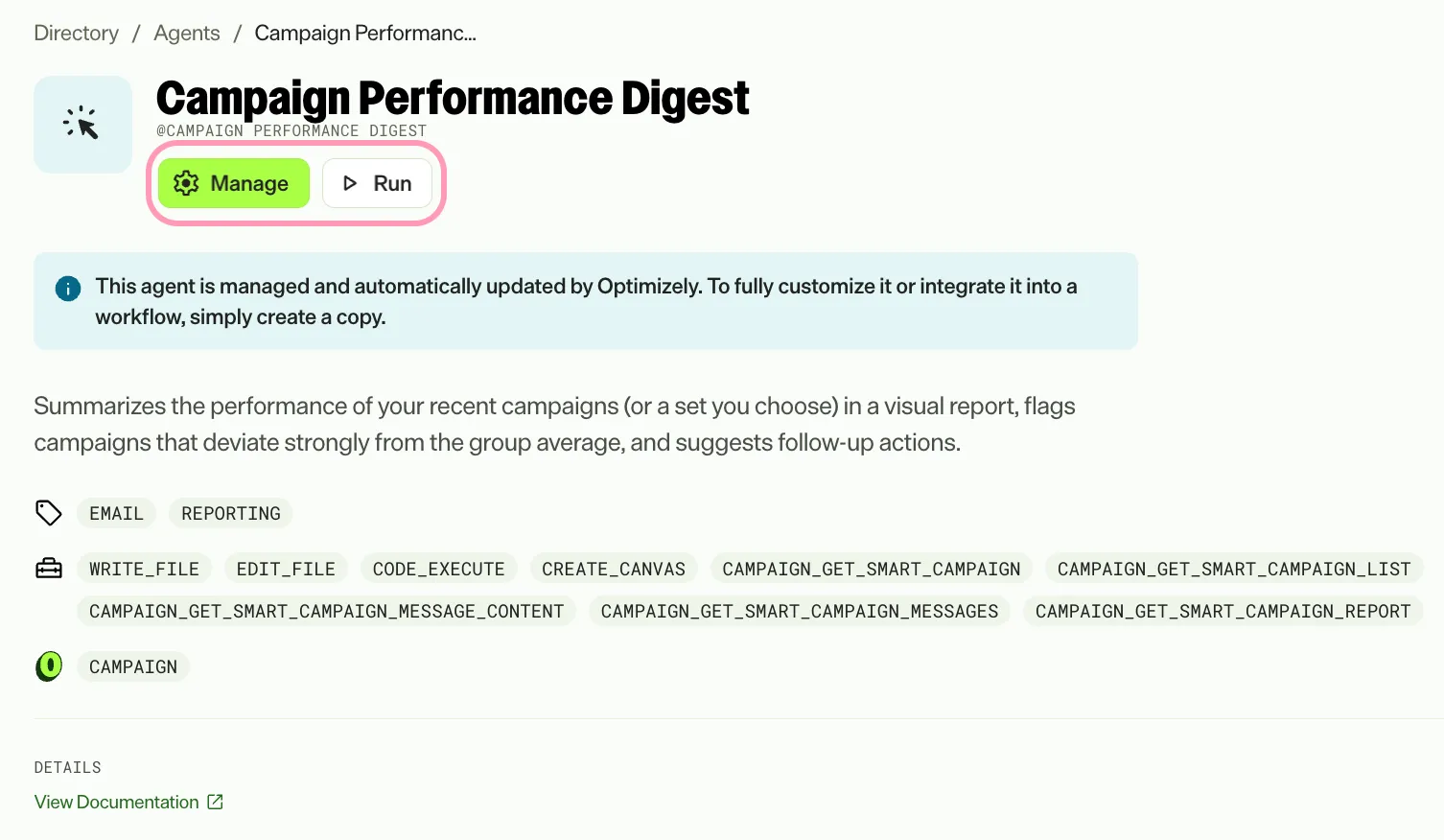
If Install is grayed out, connect the required Optimizely products to your Mark instance first.
Use the agent
In Mark chat, enter @campaign_performance_digest. By default, the agent analyzes your five most recently sent Smart Campaigns. Alternatively, enter a plain request, such as Summarize the performance of my last 10 campaigns.
The agent analyzes only sent Smart Campaigns. It has read-only access to Optimizely Campaign and does not edit, send, or schedule campaigns.
To choose the campaigns to analyze, provide one of the following. If you provide more than one, the agent uses the first in this order:
- Campaign IDs or campaign names
- A date range, such as last 30 days
- A number of campaigns, such as last 10 campaigns
To lead the report with specific metrics, enter a focus metric: opens, clicks, conversions, or unsubscribes.
The agent retrieves the following for each campaign:
- Send date
- Audience size
- Delivery rate
- Open rate
- Click rate
- Effective unique click rate
- Conversion rate
- Unsubscribe rate
- Bounce rate
The effective unique click rate is the percentage of unique clicks in relation to unique opens.
If a metric is not available for a campaign, the report says so.
If fewer than two campaigns match your request, the agent asks you to broaden the scope instead of creating a one-line report.
The agent creates an interactive HTML canvas report with the following sections:
- Header – The report title, the scope of the analysis, and the generation date.
- Summary cards – The average open rate, average click rate, average unsubscribe rate, and total audience reached. If you enter a focus metric, its card displays first.
- Bar charts – A chart of the open rate and a chart of the click rate for each campaign. The report highlights the best performer. If you enter a focus metric, its chart displays first.
- Detailed table – One row for each campaign, with a column for every metric.
- Anomalies callout – Each campaign with a metric 30% or more above or below the group average, with a short explanation. If no campaign meets this threshold, the callout says that no anomalies were detected.
- Recommended next actions – Two to four specific actions based on the data.
The agent only recommends actions. It does not create tests. Ask follow-up questions about the report in the same chat.
To use the Campaign Performance Digest agent in a workflow agent, add the agent to your workflow. See Create a workflow agent.
Default agent details
The following are the default details for the Campaign Performance Digest agent. After you install the agent in your Mark instance, customize these details for your organization's needs.
See Manage agents for instructions.
Input variables
The Campaign Performance Digest agent takes the following inputs:
- (Optional) Campaign ID – A list of campaign IDs to analyze.
- (Optional) Campaign Names – A list of campaign names to analyze.
- (Optional) Date Range – A period to analyze, such as last 30 days. The agent uses it when you do not specify campaigns.
- (Optional) Number of Campaigns – The number of most recently sent Smart Campaigns to analyze, such as last 10 campaigns. The default is five.
- (Optional) Focus Metric – A list of metrics, such as opens, clicks, conversions, or unsubscribes. The report leads with these metrics.
Tools
The Campaign Performance Digest agent uses the following tools to process your request:
- campaign_get_smart_campaign
- campaign_get_smart_campaign_list
- campaign_get_smart_campaign_message_content
- campaign_get_smart_campaign_messages
- campaign_get_smart_campaign_report
- code_execute
- create_canvas
- edit_file
- write_file
Default configuration
The agent uses the following default configuration:
- Inference level – Balanced, which provides reliable answers with additional reasoning.
- Files – None.
- Output – Text.
Note
If you use Opti ID, administrators can turn off generative AI in the Opti ID Admin Center. See Turn generative AI off across Optimizely applications.