Smart Campaign Design agent
Smart Campaign Design is an agent in Mark (Optimizely Agent Platform). It reads a campaign brief and generates an Optimizely Campaign flow architecture.
- Challenge – Campaign managers must manually translate marketing campaign briefs into multi-segment email flows with proper node logic, timing, and testing.
- Agent outcome – The agent generates a complete Smart Campaign flow architecture in an interactive canvas. The architecture includes node sequences, A/B test variants, timing, recipient lists, key performance indicators (KPIs), and Urchin Tracking Module (UTM) parameters. It also includes a master send schedule with inventory-velocity monitoring checkpoints.
- Value – Campaign managers accelerate campaign deployment and prevent configuration errors in Optimizely Campaign.
Required Optimizely products
The Smart Campaign Design agent requires Optimizely Campaign.
Install agent
Note
Mark Administrators, Agent Builders, and users with the Add, edit, and install specialized agents attribute for a custom role can add agents to their organization's Mark instance. See Add users and set permissions.
Install the agent from the Directory.
- Go to Directory > Agents.
- (Optional) Enter Smart Campaign Design or use the drop-down list filters to narrow the list.
- Click Install on Smart Campaign Design to add it to your Mark instance.
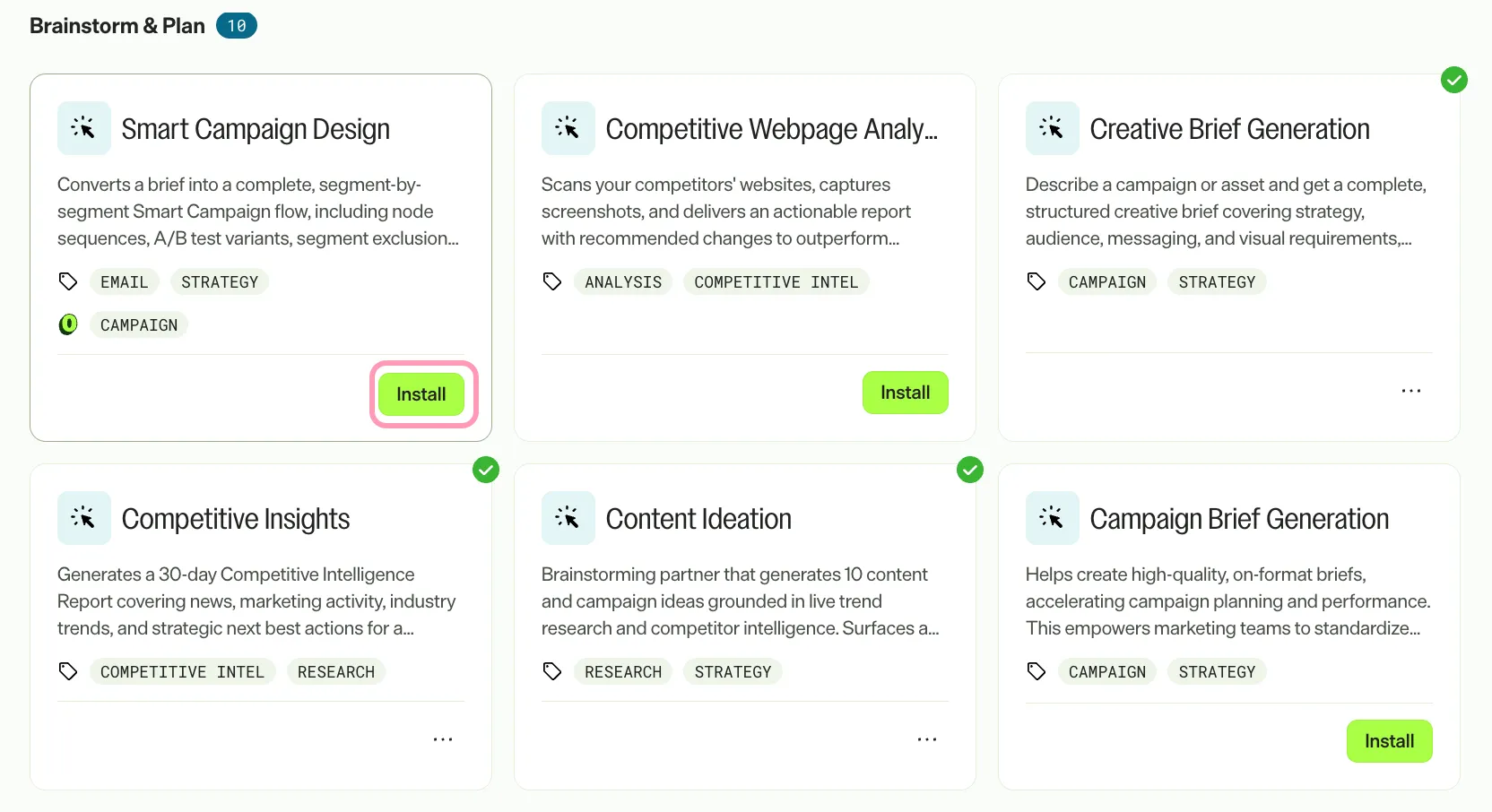
If Install is disabled, connect the required Optimizely products to your Mark instance first.
Use the agent
Go to Mark chat, enter @smart_campaign_design, and provide the following details:
- (Optional) campaign_brief – URL to the campaign brief artifact, or an uploaded file.
Note
Provide a URL to an existing campaign brief artifact, such as one created with the Campaign Brief Generation agent. Alternatively, upload the brief as a file. Or paste the brief into the chat, and the agent skips the search and goes straight to flow design. To search your workspace artifacts instead, run the agent without parameters.
If the agent finds more than one campaign brief, it lists them. It waits for you to confirm which one to use. If it finds none, it asks you to paste or upload one. If the brief is ambiguous, the agent asks one to four clarifying questions with concrete options. It waits for your answers before continuing.
The agent delivers an interactive canvas with a tab for each email flow, flowcharts, and node sequences. A Send Schedule tab contains the master send schedule and inventory monitoring checkpoints. The agent also logs an audit protocol table at the end of its response.
To use the Smart Campaign Design agent in a workflow agent, add the agent to your workflow. See Create a workflow agent.
Default agent details
The Smart Campaign Design agent has the following default details. After you install the agent in your Mark instance, customize these details for your organization's needs.
See Manage agents for instructions.
Input variables
The Smart Campaign Design agent accepts the following input:
- (Optional) campaign_brief
Tools
The Smart Campaign Design agent uses the following tools to process your request:
- rag_retrieve_from_canvas
- get_canvas
- get_primary_chat_messages
- create_canvas
- write_file
- ask_user_question
Default configuration
The agent uses the following default configuration:
- Inference level – Complex, which provides advanced reasoning and detail.
- Files – None.
- Output – Text.
Note
If you use Opti ID, administrators can turn off generative AI in the Opti ID Admin Center. See Turn generative AI off across Optimizely applications.