Webinar Outline agent
Webinar Outline is an Optimizely Opal agent that turns a webinar topic and optional notes into a structured outline with timed sections, speaker talking points, engagement moments, and pre-webinar and post-webinar checklists.
- Challenge – Building a webinar agenda from scratch requires balancing timing, audience engagement, and post-event follow-up across multiple documents.
- Agent outcome – A complete, timed webinar outline with speaking phrases, polls, chat prompts, Q&A plans, and a pre-webinar and post-webinar checklist on a shared canvas.
- Value – Marketing teams launch webinars faster with a consistent structure adapted to lead generation, education, onboarding, or community goals.
Install agent
Note
Opal Administrators, Agent Builders, and users with the Add, edit, and install specialized agents attribute for a custom role can add agents to their organization's Optimizely Opal instance. See Add users and set permissions.
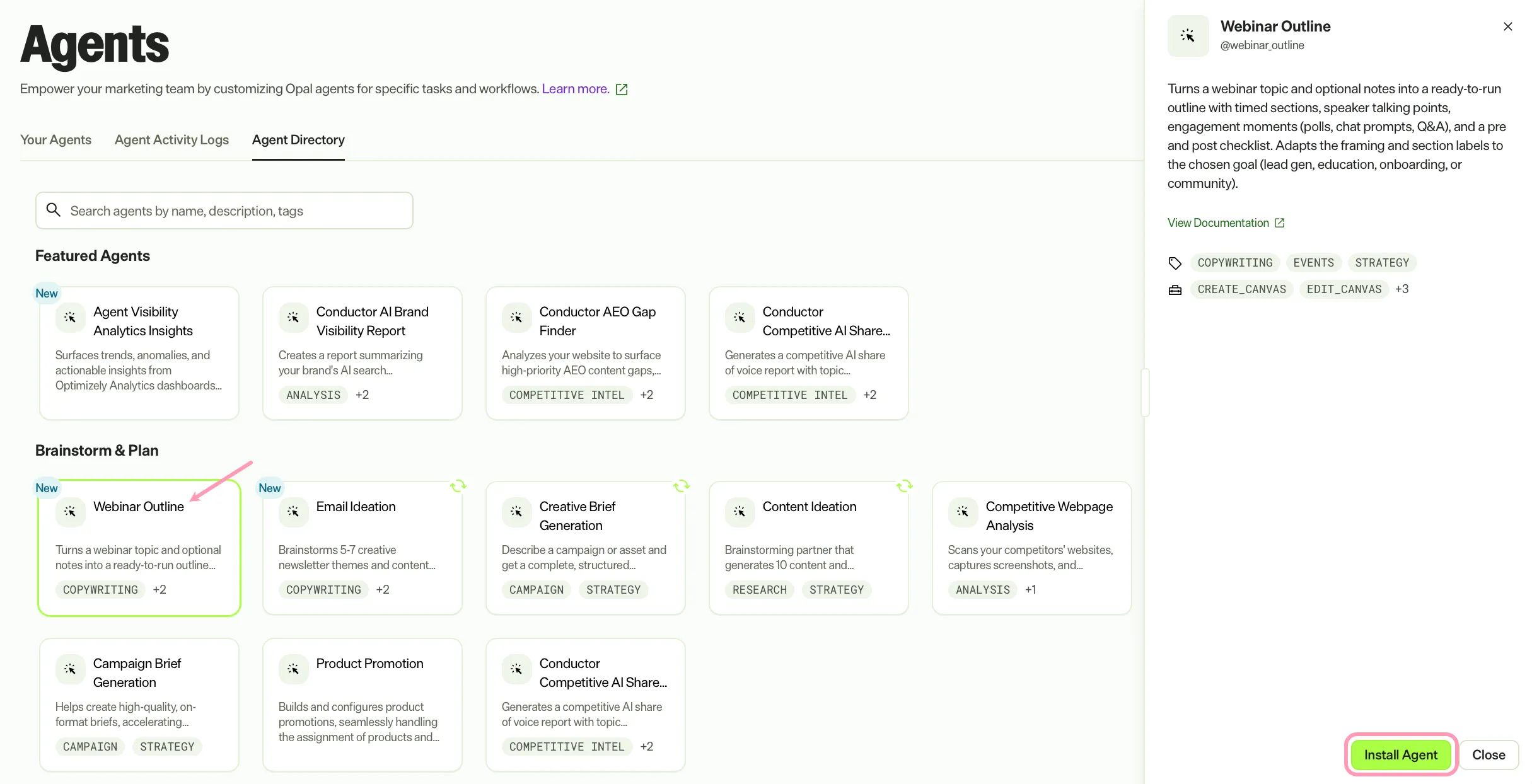
Install the agent from the Opal Agent Directory.
- Go to Agents > Agent Directory.
- Select Webinar Outline.
- Click Install Agent to add it to your Opal instance.
Use the agent
In Opal Chat, enter @webinar_outline and provide the following information:
- topic – The topic for your webinar.
- (Optional) notes – Attach any relevant notes as files.
The agent asks a series of preference questions about audience, goal, format, duration, and post-webinar actions, then delivers a complete timed outline on a shared canvas.
To use the Webinar Outline agent in a workflow agent, drag the Webinar Outline agent into your workflow. See Create a workflow agent.
Details
These are the default settings for the Webinar Outline agent. After you install the agent in your Opal instance, customize these settings for your organization's needs. See Manage agents.
Input variables
The Webinar Outline agent uses the following inputs:
- topic
- (Optional) notes
Tools
The Webinar Outline agent uses the following tools to process your request:
- create_canvas
- edit_canvas
- reasoning_step
- ask_user_question
- browse_web
Additional details
The Webinar Outline agent uses the following default configuration:
- Inference level – Standard. The agent provides fast, efficient responses.
- Files – None.
- Output – Text.
Note
If you use Opti ID, administrators can turn off generative AI in the Opti ID Admin Center. See Turn generative AI off across Optimizely applicationsTurn generative AI off across Optimizely applications.