SEO Metadata Optimization agent
SEO Metadata Optimization is an Optimizely Opal agent that analyzes a webpage's Search Engine Optimization (SEO) metadata, identifies optimization opportunities, and delivers prioritized recommendations for meta titles, descriptions, and OpenGraph tags.
- Challenge – Optimizing SEO metadata for content to improve search engine visibility can be difficult.
- Agent outcome – The agent analyzes existing SEO metadata, identifies areas for improvement, and recommends specific updates or changes to the metadata.
- Value – Improved SEO metadata leads to better search engine rankings, increased organic traffic, and a more effective digital presence.
Install agent
Note
Opal Administrators, Agent Builders, and users with the Add, edit, and install specialized agents attribute for a custom role can add agents to their organization's Optimizely Opal instance. See Add users and set permissions.
Install the agent from the Opal Agent Directory.
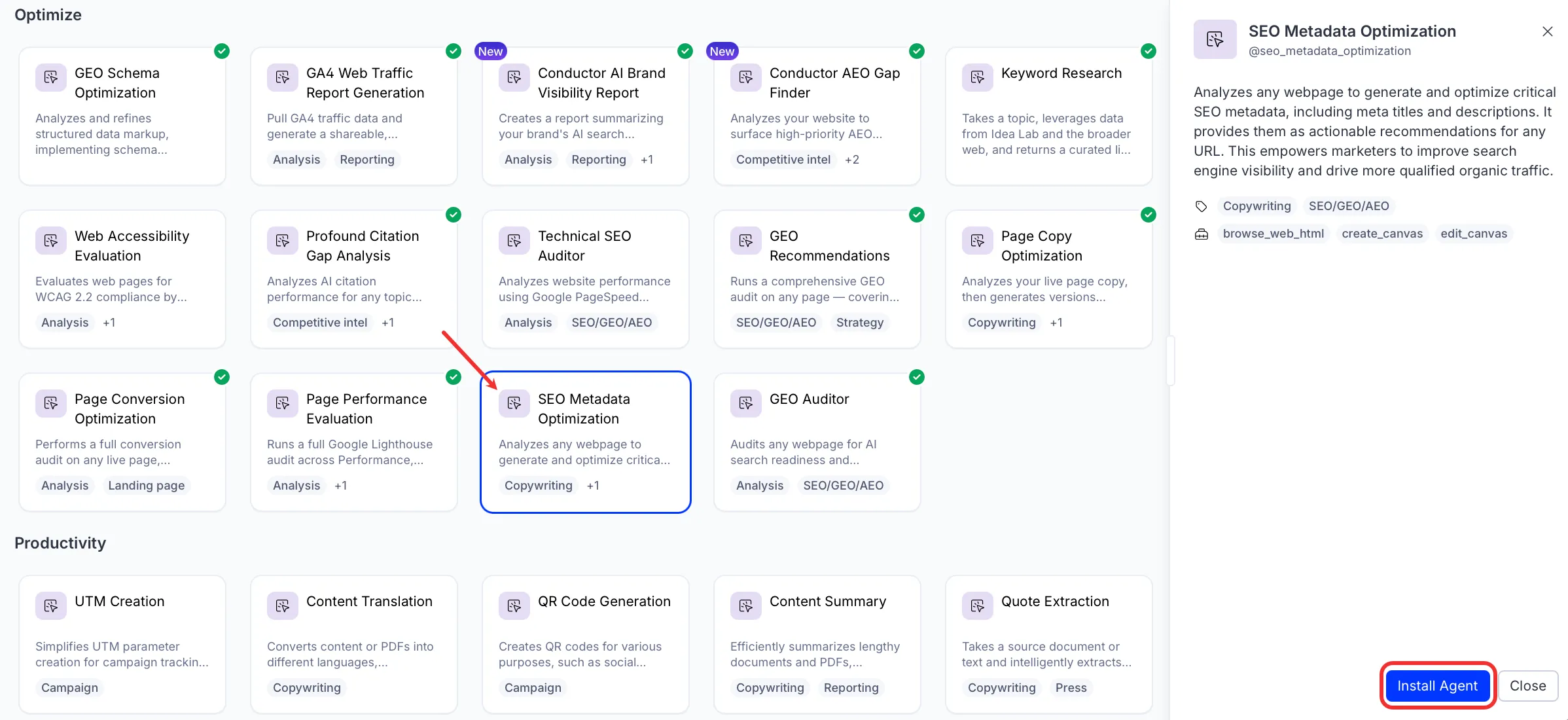
- Go to Agents > Agent Directory.
- Select SEO Metadata Optimization.
- Click Install Agent to add it to your Opal instance.
Use the agent
In Opal Chat, enter @seo_metadata_optimization and provide the following details:
- URL – The URL to analyze for SEO metadata.
The agent creates a Canvas with an SEO metadata audit report covering meta titles, meta descriptions, and OpenGraph tags, grouped by priority with keyword analysis and rewrite suggestions. When Opal has access to Optimizely Content Management System (SaaS), the agent applies approved changes to the CMS (SaaS) content item automatically.
To use the SEO Metadata Optimization agent in a workflow agent, drag and drop it into your workflow. See the Create a workflow agent.
Details
The following are the default details of the SEO Metadata Optimization agent. After you install the agent in your Opal instance, you can customize these details based on your organization's needs. See Manage agents for instructions.
Input variables
- URL
Tools
The SEO Metadata Optimization agent uses the following tools internally to process your request:
- browse_web_html
- create_canvas
- edit_canvas
Additional details
The agent uses the following default configuration:
- Inference level – Pro. Provides maximum reasoning depth.
- Files – None.
- Output – Text.
Note
If you use Opti ID, administrators can turn off generative AI in the Opti ID Admin Center. See Turn generative AI off across Optimizely applicationsTurn generative AI off across Optimizely applications.