Page Conversion Optimization agent
Page Conversion Optimization is an agent in Mark (Optimizely Agent Platform). It performs a full conversion audit on any live web page. The agent returns a prioritized list of fixes ordered by expected conversion impact.
- Challenge – Teams often rely on gut instinct when deciding what to change on a page to improve conversions. Without a structured audit process, optimization efforts scatter, miss high-impact fixes, and waste resources on low-impact changes.
- Agent outcome – The agent delivers a prioritized action plan listing evidence-backed fixes by expected conversion impact. This replaces subjective decision-making with a structured audit.
- Value – Teams move faster and optimize smarter. By focusing on the highest-impact changes, teams eliminate guesswork, accelerate experimentation, and maximize the return on every optimization effort.
Install agent
Note
Mark Administrators, Agent Builders, and users with the Add, edit, and install specialized agents attribute for a custom role can add agents to their organization's Mark instance. See Add users and set permissions.
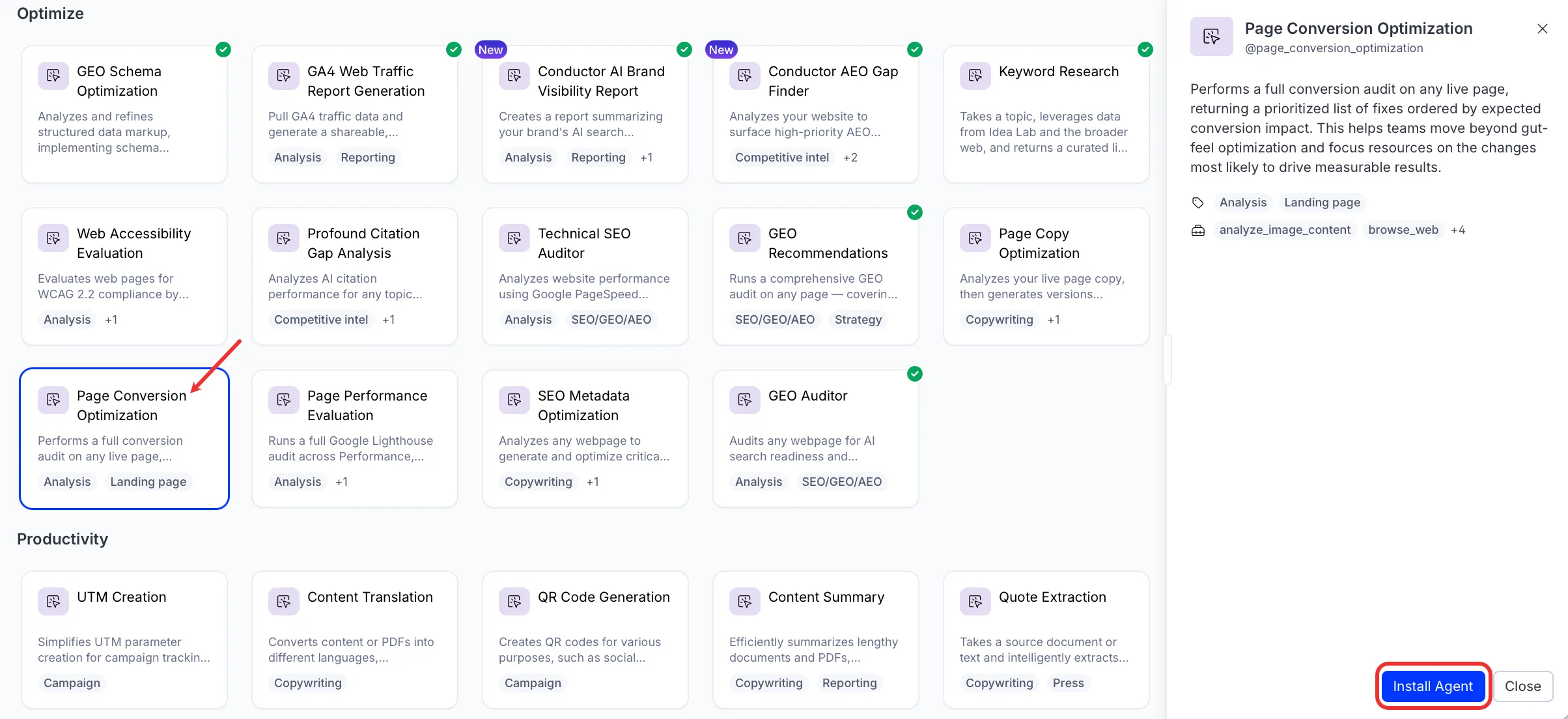
Install the agent from the Directory.
- Go to Directory > Agents.
- (Optional) Enter Page Conversion Optimization or use the drop-down list filters to narrow the list.
- Click Install on Page Conversion Optimization to add it to your Mark instance.
Use the agent
In Mark chat, enter @page_conversion_optimization and provide the following details:
- Page URL – Enter the URL of your page.
- (Optional) Additional Details – Additional instructions, such as a mobile-only assessment.
The agent delivers a canvas with a prioritized list of conversion fixes. The agent rates the fixes across six dimensions and orders them by estimated conversion impact.
To use the Page Conversion Optimization agent in a workflow agent, add it to your workflow. See Create a workflow agent.
Default agent details
These are the default details for the Page Conversion Optimization agent. After you install the agent in your Mark instance, customize these details for your organization's needs. See Manage agents for instructions.
Input variables
The Page Conversion Optimization agent takes the following input:
- Page URL
- (Optional) Additional Details
Tools
The Page Conversion Optimization agent uses the following tools internally to process your request:
- analyze_image_content
- browse_web
- browse_web_html
- create_canvas
- reasoning_step
- take_webpage_screenshot
Default configuration
The agent uses the following default configuration:
- Inference level – Balanced, which provides reliable answers with additional reasoning.
- Files – None.
- Output – Text.
Note
If you use Opti ID, administrators can turn off generative AI in the Opti ID Admin Center. See Turn generative AI off across Optimizely applications.