Keyword Research agent
Keyword Research is an Optimizely Opal agent that takes a topic, uses data from Optimizely Content Marketing Platform (CMP) Idea Lab and the broader web, and returns a curated list of keywords to maximize content visibility and search traffic.
- Challenge – Identifying the most effective keywords to maximize content visibility and search traffic requires extensive research and analysis.
- Agent outcome – Researches keywords to maximize content visibility and search traffic rankings.
- Value – Improved Search Engine Optimization (SEO), increased visibility, higher rankings.
Required Optimizely products
Optimizely Content Marketing Platform
Install agent
Note
Opal Administrators, Agent Builders, and users with the Add, edit, and install specialized agents attribute for a custom role can add agents to their organization's Optimizely Opal instance. See Add users and set permissions.
Install from Agent Directory
Install the agent from the Opal Agent Directory.
- Go to Agents > Agent Directory.
- Select Keyword Research.
- Click Install Agent to add it to your Opal instance.
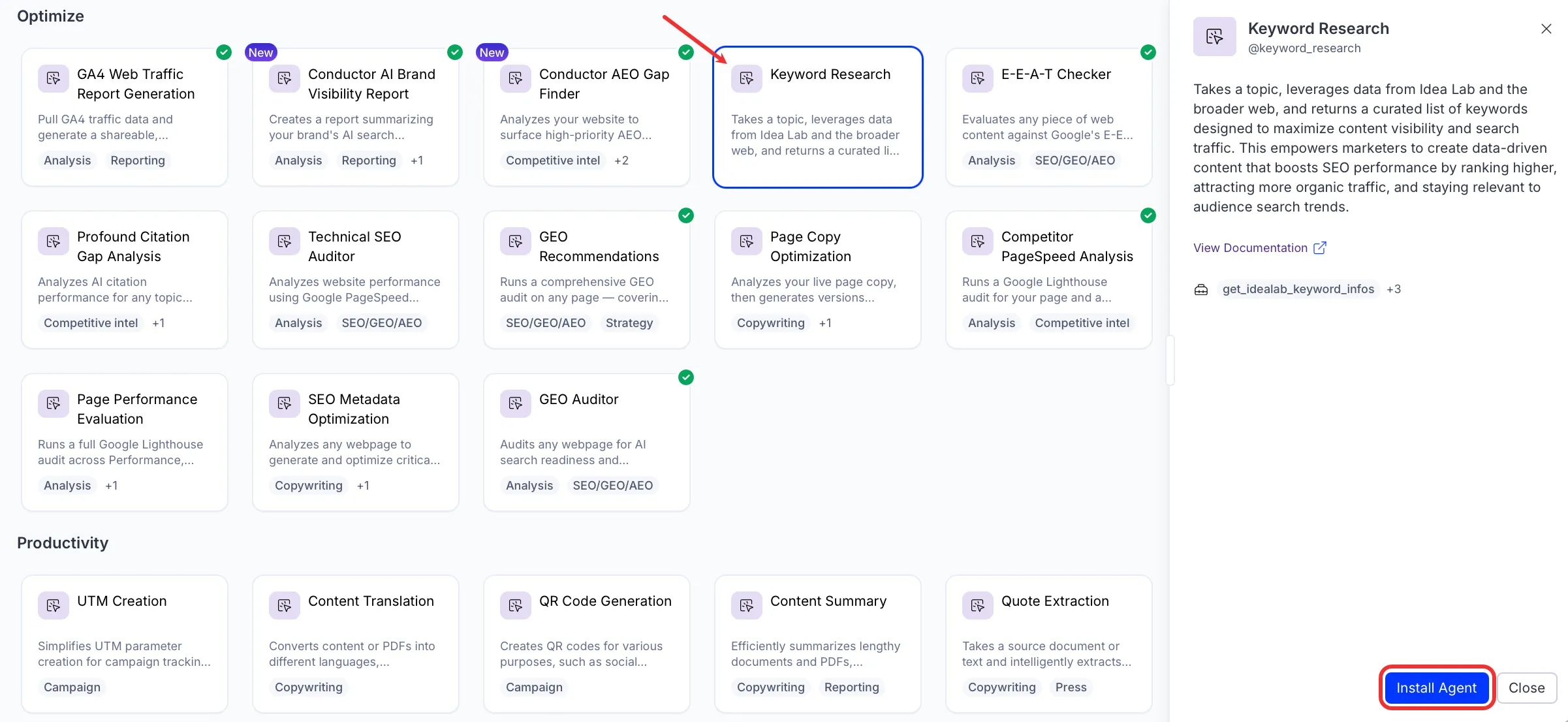
If Install Agent is in a disabled state, ensure that the Optimizely Content Marketing Platform is connected to your Opal instance.
Configure skills
Keyword Research uses skills about your company, products, target personas, competitors, and existing keywords to tailor its output. Create the following skills before running the agent. Use each sample link as a starting point.
- Your products and services – Sample products and services skill
- Your target personas – Sample persona skill
- Your competitor details – Sample competitor skill
- Your tracked keywords – Sample tracked keyword skill
Use the agent
In Opal Chat, enter @keyword_research and provide the following details:
- topic – Enter the topic or theme to research keywords for.
The agent returns a curated keyword list grouped by funnel stage, with search intent, target personas, and search volume, plus analysis of why each keyword was selected.
To use the Keyword Research agent in a workflow agent, drag and drop it into your workflow. See Create a workflow agent.
Details
These are the default details for the Keyword Research agent. After you install the agent in your Opal instance, customize these details for your organization's needs. See Manage agents for instructions.
Input variables
The Keyword Research agent takes the following input:
- topic
Tools
The Keyword Research agent uses the following tools internally to process your request:
- get_idealab_keyword_infos
- get_idealab_keyword_keyword_questions
- get_idealab_keyword_related_keywords
- search_web
Additional details
The agent uses the following default configuration:
- Inference level – Balanced. Provides reliable answers with additional reasoning.
- Files – None.
- Output – Text.
Note
If you use Opti ID, administrators can turn off generative AI in the Opti ID Admin Center. See Turn generative AI off across Optimizely applicationsTurn generative AI off across Optimizely applications.