Newsletter Body Editor agent
Newsletter Body Editor is an agent in Mark (Optimizely Agent Platform). It drafts email body copy based on a topic, target audience, and preferred brand voice.
- Challenge – Writing high-conversion email copy requires specialized copywriting skills and significant time.
- Agent outcome – The agent delivers a structured email draft in a canvas. The draft includes a headline, hook, body, and call-to-action.
- Value – Accelerate email production cycles and increase click-through rates with conversion-focused copy.
Install agent
Note
Mark Administrators, Agent Builders, and users with the Add, edit, and install specialized agents attribute for a custom role can add agents to their organization's Mark instance. See Add users and set permissions.
Install the agent from the Directory.
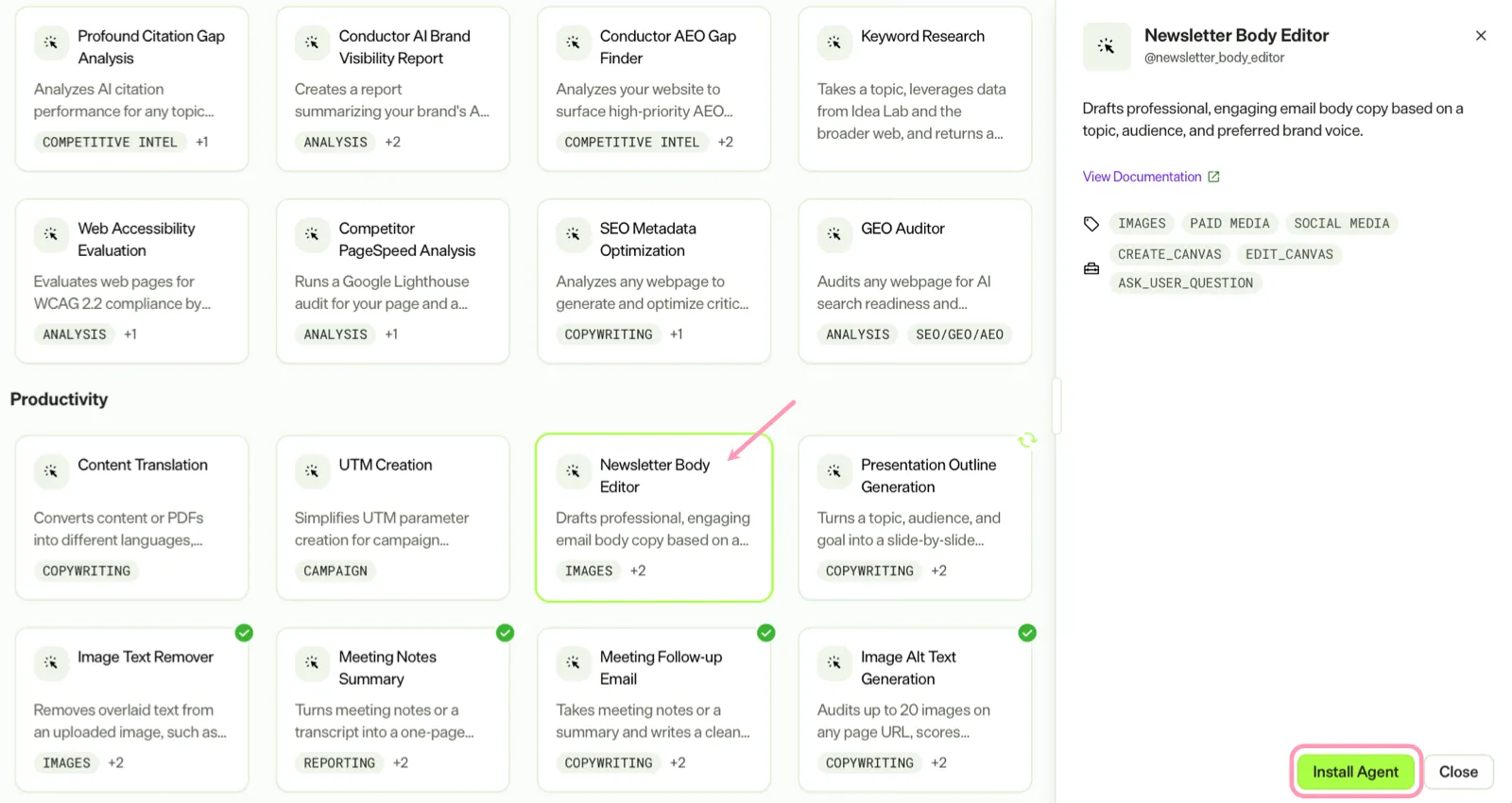
- Go to Directory > Agents.
- (Optional) Enter Newsletter Body Editor or use the drop-down list filters to narrow the list.
- Click Install on Newsletter Body Editor to add it to your Mark instance.
Use the agent
In Mark chat, enter @newsletter_body_editor and provide the following details:
- Topic – The subject of the email (for example, Summer Product Launch).
- Target Audience – The intended recipients (for example, New Subscribers or VIP Customers).
- (Optional) Tone – The brand voice for the email (for example, Professional or Quirky).
- (Optional) Key Points – The three main items to mention in the email.
- (Optional) Text File – A file containing old email copy for reference.
The agent delivers a formatted email draft in a canvas. The draft includes a headline, hook, body, and call-to-action section.
To use the Newsletter Body Editor agent in a workflow agent, add it to your workflow. See Create a workflow agent.
Default agent details
These are the default details for the Newsletter Body Editor agent. After you install the agent in your Mark instance, customize these details for your organization's needs. See Manage agents.
Input variables
The Newsletter Body Editor agent takes the following input:
- Topic
- Target Audience
- (Optional) Tone
- (Optional) Key Points
- (Optional) Text File
Tools
The Newsletter Body Editor agent uses the following tools to process your request:
- create_canvas
- edit_canvas
- ask_user_question
Default configuration
The agent uses the following default configuration:
- Inference level – Balanced, which provides reliable answers with additional reasoning.
- Files – None.
- Output – Text.
Note
If you use Opti ID, administrators can turn off generative AI in the Opti ID Admin Center. See Turn generative AI off across Optimizely applications.