Meeting Notes Summary agent
Meeting Notes Summary is an agent in Mark (Optimizely Agent Platform). It turns meeting notes or a transcript into a one-page summary. The summary includes key decisions, action items by owner, and a parking lot.
- Challenge – Manually writing meeting notes takes time and often produces incomplete or inconsistent records.
- Agent outcome – The agent produces a one-page summary. It lists key decisions, action items by named owner, and a parking lot for open questions.
- Value – Teams get a ready-to-share meeting record without manual write-up work and stay aligned on outcomes and next steps.
Install agent
Note
Mark Administrators, Agent Builders, and users with the Add, edit, and install specialized agents attribute for a custom role can add agents to their organization's Mark instance. See Add users and set permissions.
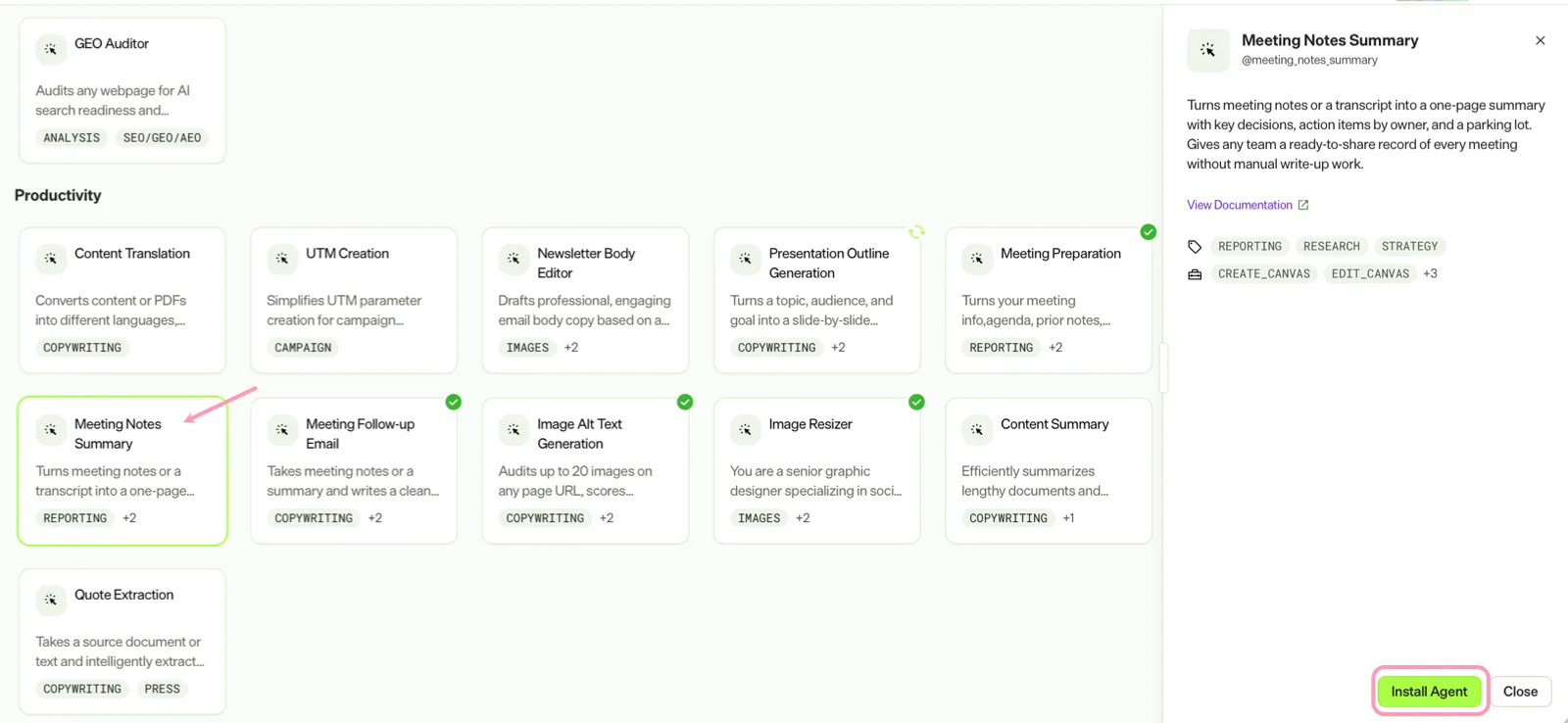
Install the agent from the Directory.
- Go to Directory > Agents.
- (Optional) Enter Meeting Notes Summary or use the drop-down list filters to narrow the list.
- Click Install on Meeting Notes Summary to add it to your Mark instance.
Use the agent
In Mark chat, enter @meeting_notes_summary and provide the following details:
- (Optional) Meeting title or Info – Enter the meeting name or identifying information.
- (Optional) Notes or transcript – Upload a transcript or meeting notes file.
Provide at least a meeting title or a notes file so the agent can produce the summary. The agent also searches calendar meetings by keyword when you do not attach a file.
The agent delivers a markdown summary in a canvas. The summary includes attendees and a topic-by-topic summary. It also includes an action items table with owners and a parking lot for open questions.
To use the Meeting Notes Summary agent in a workflow agent, add it to your workflow. See Create a workflow agent.
Default agent details
These are the default details for the Meeting Notes Summary agent. After you install the agent in your Mark instance, customize these details for your organization's needs. See Manage agents for instructions.
Input variables
The Meeting Notes Summary agent takes the following input:
- (Optional) Meeting title or Info
- (Optional) Notes or transcript
Tools
The Meeting Notes Summary agent uses the following tools internally to process your request:
- create_canvas
- edit_canvas
- outlook_calendar_list_meetings
- teams_transcripts_get_content
- teams_transcripts_list
The Meeting Notes Summary agent uses optional external tools from Microsoft. See Microsoft 365 connector tools for information.
Default configuration
The agent uses the following default configuration:
- Inference level – Balanced, which provides reliable answers with additional reasoning.
- Files – None.
- Output – Text.
Note
If you use Opti ID, administrators can turn off generative AI in the Opti ID Admin Center. See Turn generative AI off across Optimizely applications.