Meeting Follow-up Email agent
Meeting Follow-up Email is an agent in Mark (Optimizely Agent Platform). It takes meeting notes, a summary, or a transcript. It produces a structured follow-up email with decisions, action items, and next steps.
- Challenge – Teams spend time writing follow-up emails after meetings and often miss key decisions or action items.
- Agent outcome – The agent produces a ready-to-send follow-up email. The email includes the meeting title, date, attendees, key decisions, owned action items, and next steps.
- Value – Faster post-meeting communication ensures accountability and keeps projects moving forward.
Install agent
Note
Mark Administrators, Agent Builders, and users with the Add, edit, and install specialized agents attribute for a custom role can add agents to their organization's Mark instance. See Add users and set permissions.
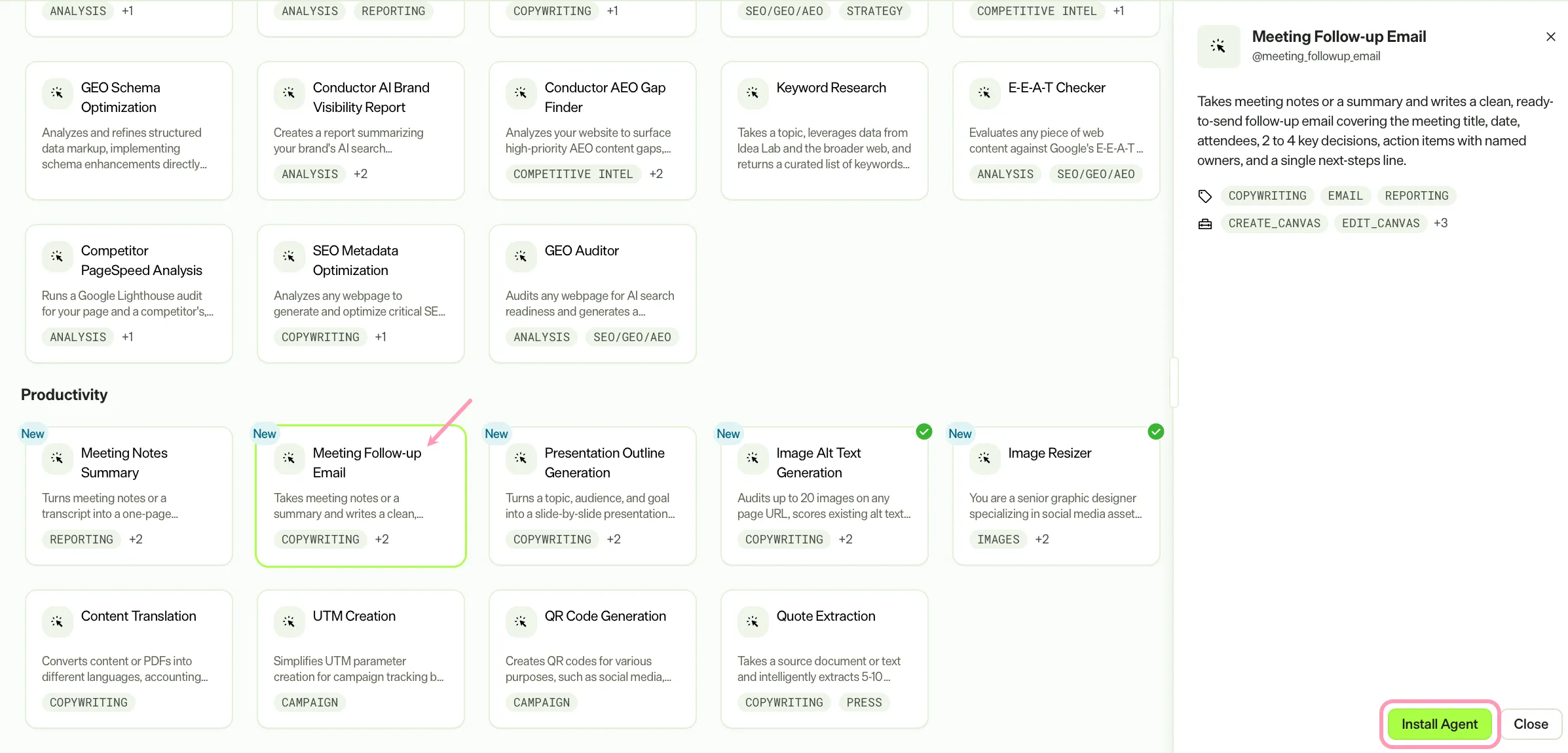
Install the agent from the Directory.
- Go to Directory > Agents.
- (Optional) Enter Meeting Follow-up Email or use the drop-down list filters to narrow the list.
- Click Install on Meeting Follow-up Email to add it to your Mark instance.
Use the agent
In Mark chat, enter @meeting_followup_email and provide the following details:
- (Optional) Meeting Info – Attach meeting notes, upload a transcript or summary file, or add meeting details as text.
- (Optional) Tone – Set the tone for the email. For example, formal, casual, or professional.
Note
Provide at least meeting notes, a transcript, or a meeting name. The agent uses one of these to identify the meeting and draft the follow-up email.
The agent delivers a plain-text follow-up email in chat. The email includes a subject line, recipients, key outcomes, action items with named owners, and next steps.
To use the Meeting Follow-up Email agent in a workflow agent, add it to your workflow. See Create a workflow agent.
Default agent details
These are the default details for the Meeting Follow-up Email agent. After you install the agent in your Mark instance, customize these details for your organization's needs. See Manage agents for instructions.
Input variables
The Meeting Follow-up Email agent takes the following input:
- (Optional) Meeting Info
- (Optional) Tone
Tools
The Meeting Follow-up Email agent uses the following tools internally to process your request:
- create_canvas
- edit_canvas
- teams_transcripts_get_content
- teams_transcripts_list
- outlook_calendar_list_meetings
The Meeting Follow-up Email agent uses optional external tools from Microsoft. See Microsoft 365 connector tools for information.
Default configuration
The agent uses the following default configuration:
- Inference level – Balanced, which provides reliable answers with additional reasoning.
- Files – None.
- Output – Text.
Note
If you use Opti ID, administrators can turn off generative AI in the Opti ID Admin Center. See Turn generative AI off across Optimizely applications.