GA4 Web Traffic Report Generation agent
GA4 Web Traffic Report Generation is an Optimizely Opal agent that pulls Google Analytics 4 (GA4) traffic data and delivers an executive-ready HTML report with period-over-period metrics, top pages, channel breakdowns, and recommended actions.
- Challenge – Pulling multiple reports manually to understand traffic trends, user behavior, and conversion performance is time-consuming and difficult.
- Agent outcome – Surfaces traffic trends, user behavior, and conversion performance. The agent automatically compares period-over-period performance and identifies growth signals and optimization opportunities.
- Value – Insights are delivered in an executive-ready format, accelerating data-driven decision-making.
Prerequisites
Before using the GA4 Web Traffic Report Generation agent, an Opal administrator must first configure the Google Analytics (GA4) connector tools using Optimizely Connect Platform (OCP). See the GA4 connector tools documentation for instructions.
Install agent
Note
Opal Administrators, Agent Builders, and users with the Add, edit, and install specialized agents attribute for a custom role can add agents to their organization's Optimizely Opal instance. See Add users and set permissions.
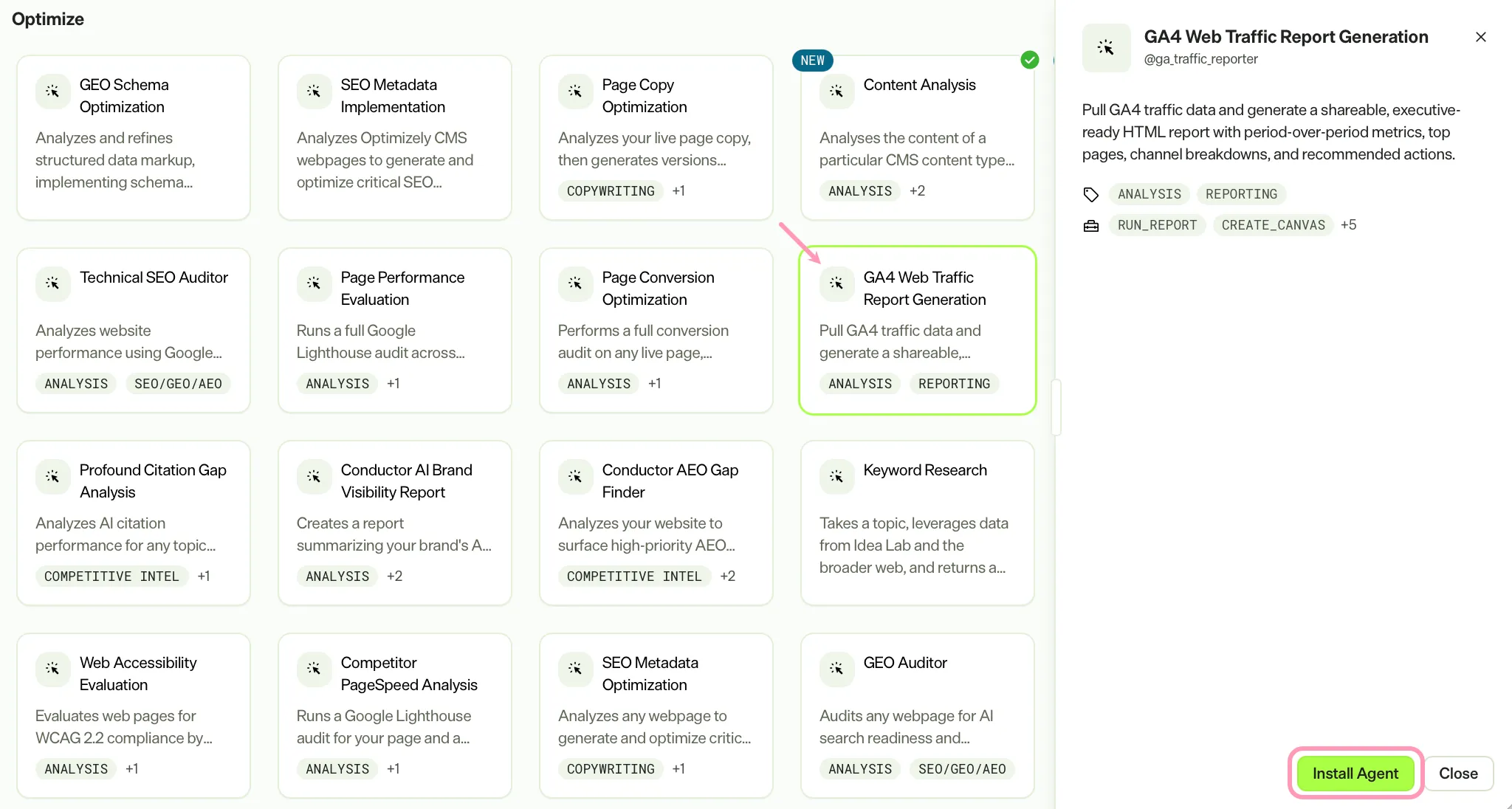
Install the agent from the Opal Agent Directory.
- Go to Agents > Agent Directory.
- Select GA4 Web Traffic Report Generation agent.
- Click Install Agent to add the agent to your Opal instance.
Use the agent
In Opal Chat, enter @ga_traffic_reporter and provide the following details:
- (Optional) Date Range – Specify a date range in YYYY-MM-DD to YYYY-MM-DD format. If omitted, the agent defaults to the last 30 complete days, excluding today.
- (Optional) Domain – Enter the hostname to filter results by (for example, optimizely.com). Leave blank to include all domains.
The agent delivers a self-contained HTML performance report as a canvas, with period-over-period metrics, top pages by sessions, channel attribution, and a prioritized action plan.
To use the GA4 Web Traffic Report Generation agent in a workflow agent, drag and drop it into your workflow. See the Create a workflow agent.
Details
These are the default details of the GA4 Web Traffic Report Generation agent. After you install the agent in your Opal instance, you can customize these details based on your organization's needs. See Manage agents for instructions.
Input variables
The GA4 Web Traffic Report Generation agent takes the following input:
- (Optional) Date Range
- (Optional) Domain
Tools
The GA4 Web Traffic Report Generation agent uses the following tools internally to process your request:
- run_report
- create_canvas
- get_custom_dimensions_and_metrics
- get_dimensions
- get_metrics
- get_property_id
- lookup_dimension_metric_names
Additional details
The agent uses the following default configuration:
- Inference level – Pro. Provides maximum reasoning depth.
- Files – None.
- Output – Text.
Note
If you use Opti ID, administrators can turn off generative AI in the Opti ID Admin Center. See Turn generative AI off across Optimizely applicationsTurn generative AI off across Optimizely applications.