GEO Auditor agent
GEO Auditor is an agent in Mark (Optimizely Agent Platform). It audits any webpage for AI search readiness. The agent generates a Generative Engine Optimization (GEO) report covering AI crawler accessibility, Core Web Vitals, schema markup, content structure, and citation readiness.
- Challenge – Manually conducting comprehensive audits, obtaining actionable insights, and prioritized plans for AI search readiness is complex and time-consuming.
- Agent outcome – The agent generates a GEO report covering AI crawler accessibility, Core Web Vitals, schema markup, content structure, and citation readiness. The report includes a prioritized action plan.
- Value – Improves visibility in AI-powered search engines with repeatable GEO checks across any page type.
Install agent
Note
Mark Administrators, Agent Builders, and users with the Add, edit, and install specialized agents attribute for a custom role can add agents to their organization's Mark instance. See Add users and set permissions.
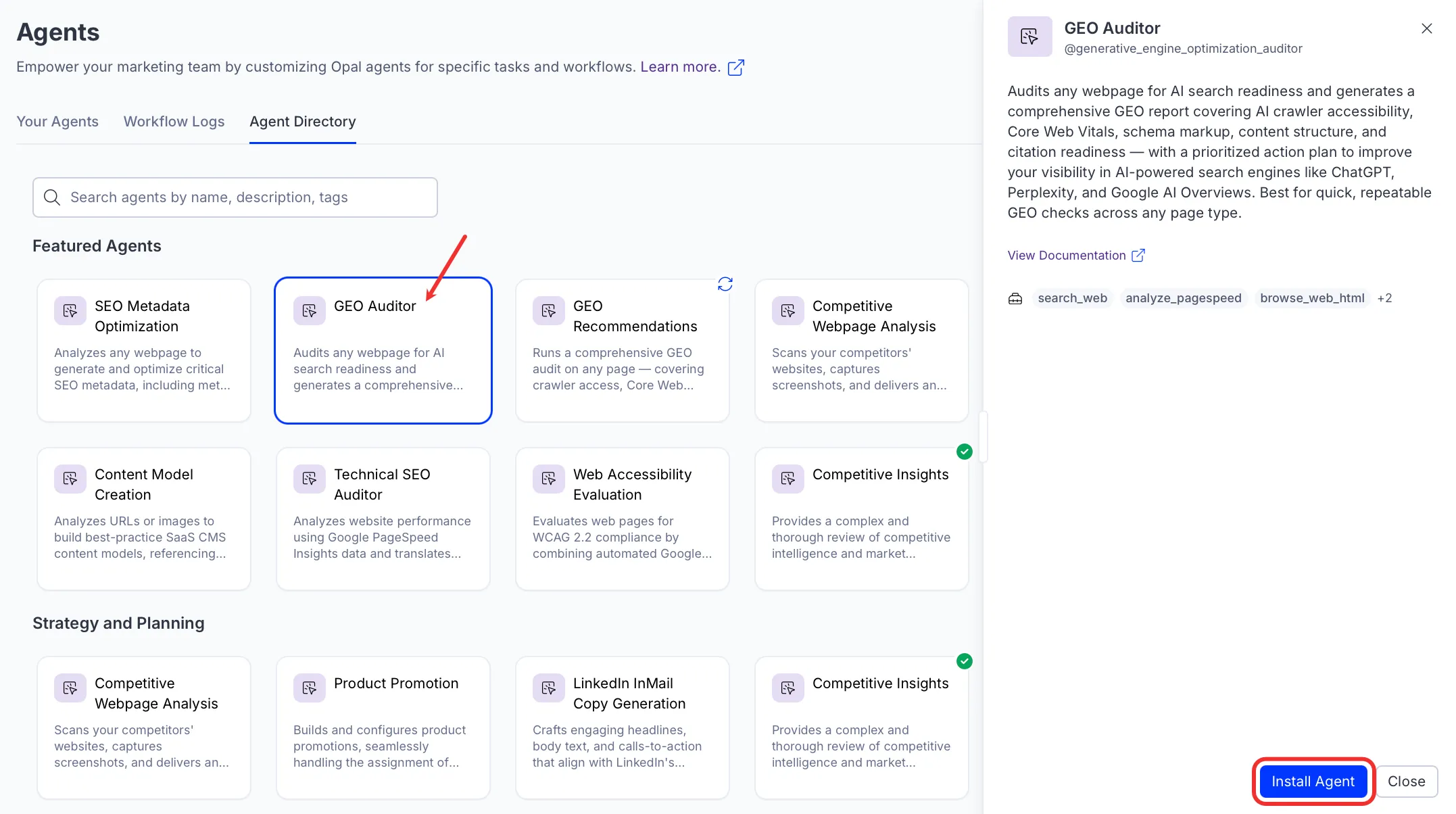
Install the agent from the Directory.
- Go to Directory > Agents.
- (Optional) Enter GEO Auditor or use the drop-down list filters to narrow the list.
- Click Install on GEO Auditor to add it to your Mark instance.
Use the agent
In Mark chat, enter @generative_engine_optimization_auditor and provide the following details:
- URL – Enter the URL of the web page to audit.
The agent delivers a GEO report as a canvas. The report covers AI crawler accessibility, Core Web Vitals, schema markup, content structure, citation readiness, and a prioritized action plan.
To use the GEO Auditor agent in a workflow agent, add it to your workflow. See the create a workflow agent.
Default agent details
These are the default details of the GEO Auditor agent. After you install the agent in your Mark instance, customize these details for your organization's needs. See Manage agents for instructions.
Input variables
The GEO Auditor agent takes the following input:
- URL
Tools
The GEO Auditor agent uses the following tools internally to process your request:
- search_web
- analyze_pagespeed
- browse_web_html
- create_canvas
- browse_web
- edit_canvas
Default configuration
The agent uses the following default configuration:
- Inference level – Pro, which provides maximum reasoning depth.
- Files – None.
- Output – Text.
Note
If you use Opti ID, administrators can turn off generative AI in the Opti ID Admin Center. See Turn generative AI off across Optimizely applications.