Eye Tracking Auditor agent
Eye Tracking Auditor is an Optimizely Opal agent that analyzes predictive eye-tracking maps to identify visual hierarchy issues in email designs.
- Challenge – Marketers struggle to identify where subscriber attention drops or diverges from primary calls to action.
- Agent outcome – The agent generates an interactive canvas audit with visual hierarchy findings and prioritized recommendations.
- Value – Teams optimize email layouts and improve click-through rates before sending campaigns.
Required Optimizely products
Optimizely Campaign
The agent analyzes the results of an eye tracking test. In Optimizely Campaign, go to Analytics > Eye Tracking Test to create a test and view its perception map, heat map, and hot spots results. See Eye Tracking TestingEye Tracking Testing.
Install agent
Note
Opal Administrators, Agent Builders, and users with the Add, edit, and install specialized agents attribute for a custom role can add agents to their organization's Optimizely Opal instance. See Add users and set permissions.Add users and set permissions.
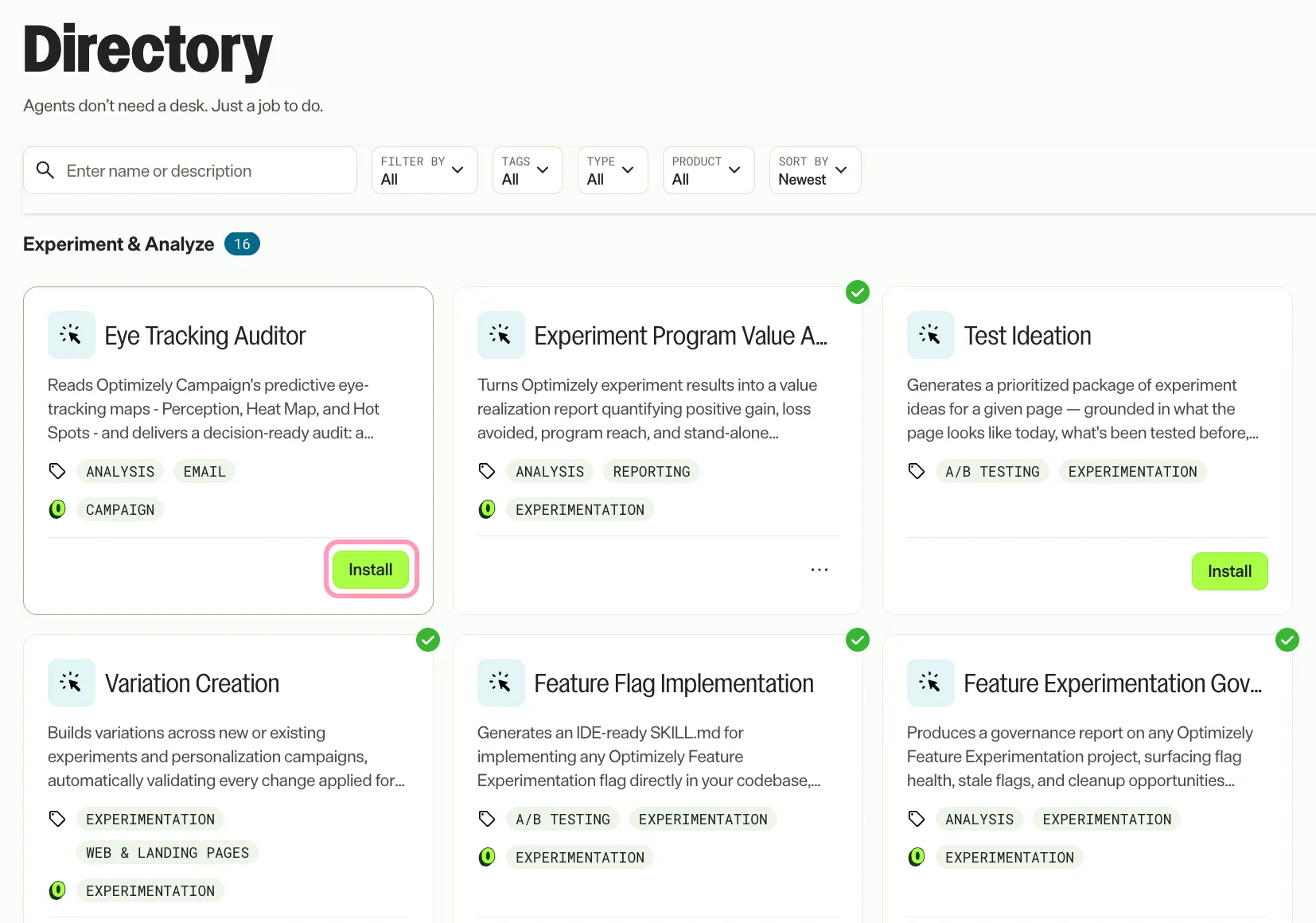
Install the agent from the Opal Agent Directory.
- Go to Agents > Agent Directory.
- Select Eye Tracking Auditor.
- Click Install Agent to add the agent to your Opal instance.
Use the agent
In Opal Chat, enter @eye_tracking_auditor and provide the following details:
- primary_objectives – Main elements that subscribers must see. If you leave this blank, the agent asks for it instead of guessing.
- (Optional) perception_map – Perception map file showing blurred first-look views. The filename usually starts with coverage_.
- (Optional) heat_map – Heat map file showing gaze density zones. The filename usually starts with heatmap_.
- (Optional) hot_spots – Hot spots map file showing numerical focus points. The filename usually starts with transitionpredictor_.
- (Optional) subject_line – Subject line used for the email. If you omit it, the agent skips the hook-alignment check and says so.
Note
Upload all three maps for a full audit. If you upload fewer than three, the agent stops, reports which maps are missing, and asks you to confirm before it runs a partial audit.
The agent delivers an interactive Markdown canvas audit detailing subscriber attention patterns, visual hierarchy risks, and prioritized layout recommendations.
The canvas is titled "Eye-Tracking Audit: [Email Name] - V[N]" and includes the following sections:
- At a Glance – A 3-second test verdict (Pass, Partial, or Fail), hook alignment, the maps analyzed, the biggest risk, and the impact on your goal.
- Maps Analyzed – Clickable thumbnails of the maps you supplied.
- What the Maps Show – A findings table of up to six rows that shows how each element affects your goal.
- What to Do Next – Two to four prioritized fixes. Each fix includes the change to make, an A/B test hypothesis, and the principle behind it.
The chat reply is limited to the headline result and the most important fix. The audit is based on predictive eye-tracking data from Optimizely Campaign, not live subscriber behavior. The agent does not flag the magenta and pink focus markers on the Hot Spots map as design issues, because Optimizely Campaign adds them to show predicted focus points.
To re-test after you update your email, upload the new maps in the same conversation. The agent detects the re-test, increments the version (V2, V3, and so on), and produces a standalone audit that does not reference earlier rounds.
To use the Eye Tracking Auditor agent in a workflow agent, drag the agent into your workflow. See Create a workflow agent.
Details
The Eye Tracking Auditor agent has the following default details. After you install the agent in your Opal instance, customize these details for your organization's needs.
See Manage agents for instructions.
Input variables
The Eye Tracking Auditor agent takes the following input:
- primary_objectives
- (Optional) perception_map
- (Optional) heat_map
- (Optional) hot_spots
- (Optional) subject_line
Tools
The Eye Tracking Auditor agent uses the following tools to process your request:
- analyze_image_content
- get_file_metadata
- retrieve_file_from_gcs_uri
- create_canvas
Additional details
The agent uses the following default configuration:
- Inference level – Standard. Provides fast, efficient responses.
- Files – None.
- Output – Text.
Note
If you use Opti ID, administrators can turn off generative AI in the Opti ID Admin Center. See Turn generative AI off across Optimizely applicationsTurn generative AI off across Optimizely applications.