Email Ideation agent
Email Ideation is an Optimizely Opal agent that brainstorms five to seven newsletter themes and content angles tailored to a business niche and current goals.
- Challenge – Content marketers spend too much time staring at blank briefs before generating newsletter ideas.
- Agent outcome – Five to seven story-driven email concepts with hooks, Call to Actions (CTAs), subject lines, and a creative brief.
- Value – Structured, goal-aligned newsletter themes move content marketers from ideation to execution faster.
Install agent
Note
Opal Administrators, Agent Builders, and users with the Add, edit, and install specialized agents attribute for a custom role can add agents to their organization's Optimizely Opal instance. See Add users and set permissions.
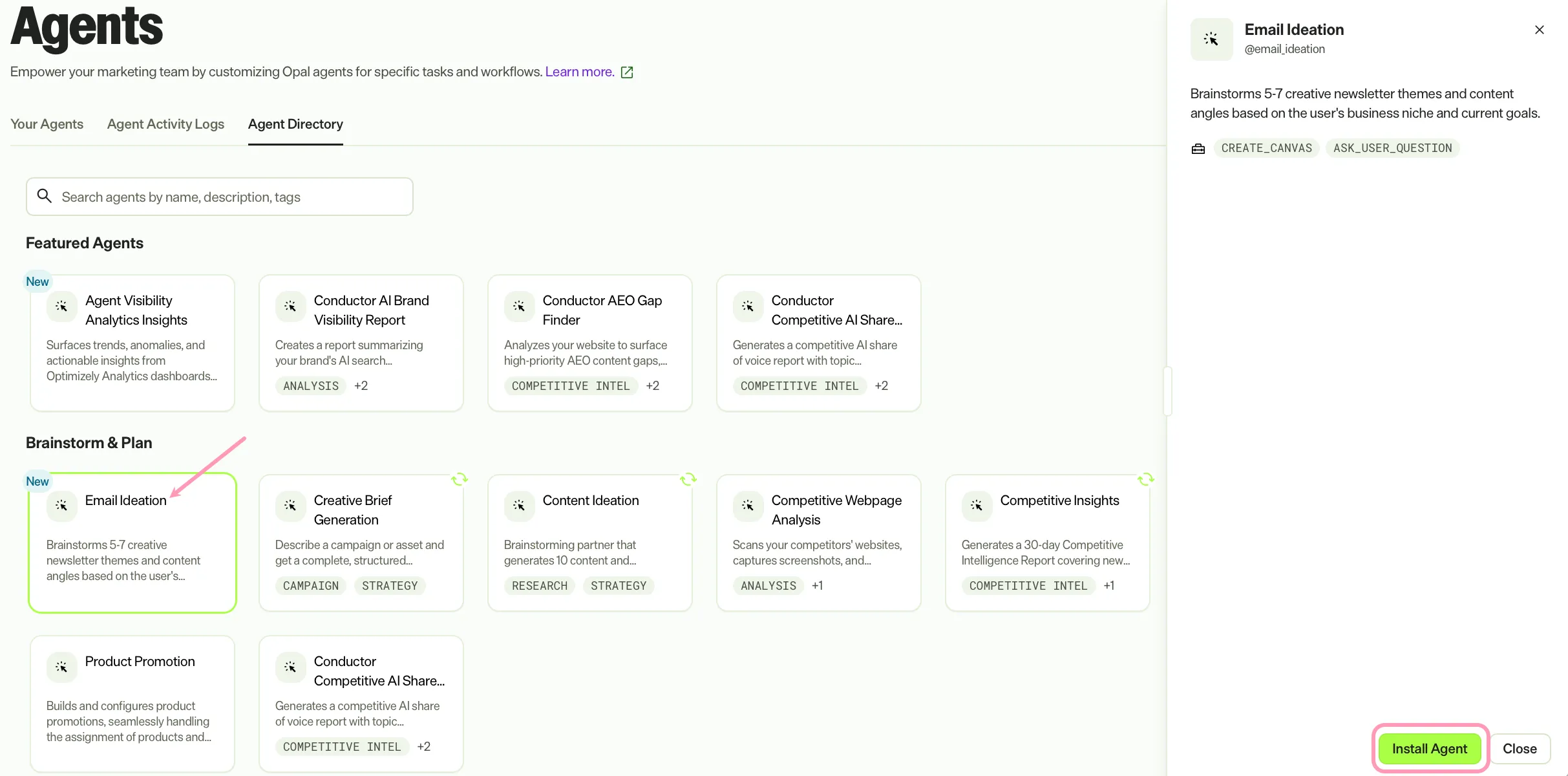
Install the agent from the Opal Agent Directory.
- Go to Agents > Agent Directory.
- Select Email Ideation.
- Click Install Agent to add it to your Opal instance.
Use the agent
In Opal Chat, enter @email_ideation and provide the following information:
- Current Focus – The current business goal or objective. For example, clear summer inventory or e_ducate on a new feature_.
- (Optional) Time of Year – The relevant season or event. For example, Black Friday or Back to School.
The agent delivers five to seven newsletter concepts with hooks, subject lines, CTA strategies, and a creative brief presented in a canvas.
To use the Email Ideation agent in a workflow agent, drag and drop it in your workflow. See Create a workflow agent.
Details
The Email Ideation agent uses the following default settings. After you install the agent in your Opal instance, customize these settings for your organization's needs. See Manage agents.
Input variables
The Email Ideation Agent agent uses the following inputs:
- Current Focus
- (Optional) Time of Year
Tools
The Email Ideation agent uses the following tools:
- create_canvas
- ask_user_question
Additional details
The Email Ideation agent uses the following default configuration:
- Inference level – Balanced. The agent provides reliable answers with additional reasoning.
- Files – None.
- Output – Text.
Note
If you use Opti ID, administrators can turn off generative AI in the Opti ID Admin Center. See Turn generative AI off across Optimizely applicationsTurn generative AI off across Optimizely applications.