Email Content Translation agent
Email Content Translation is an Optimizely Opal agent that translates a full email in Optimizely Campaign (body, subject line, preview text, and image alt-text) into a target language. The agent displays the original and translation side-by-side in a canvas.
- Challenge – Manually translating email content while keeping accuracy, cultural relevance, and brand voice across languages is slow and error-prone.
- Agent outcome – The agent retrieves the full email and translates the body, subject, preview, and alt-text, then shows the original and translation side-by-side.
- Value – Faster, consistent email translation that preserves accuracy, cultural relevance, and brand voice.
Required Optimizely products
Optimizely Campaign
Install agent
Note
Opal Administrators, Agent Builders, and users with the Add, edit, and install specialized agents attribute for a custom role can add agents to their organization's Optimizely Opal instance. See Add users and set permissions.
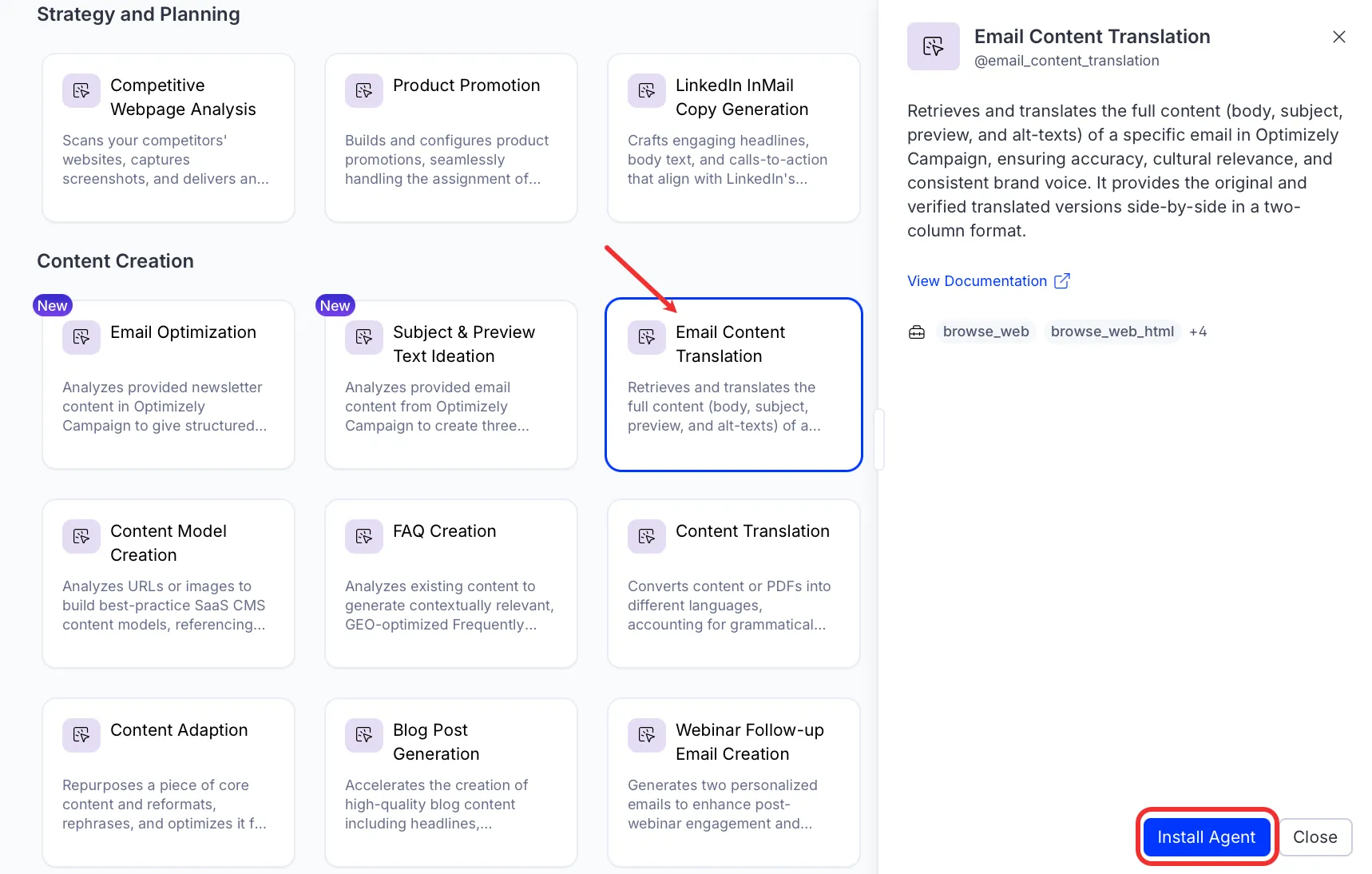
Install the agent from the Opal Agent Directory.
- Go to Agents > Agent Directory.
- Select Email Content Translation.
- Click Install Agent to add it to your Opal instance.
Note
If Install Agent is disabled, ensure you have the Required Optimizely products connected to your Opal instance.
Use the agent
In Opal Chat, enter @email_content_translation and optionally provide the following details:
- (Optional) target_language – The target language for the translation, for example French, German, or es-ES.
- (Optional) campaignName – Name of the Smart Campaign to translate.
- (Optional) campaignId – ID of the Smart Campaign to translate.
- (Optional) mailingId – ID of the mailing within the campaign.
- (Optional) transactionalMailId – ID of the transactional mail.
- (Optional) transactionalmessageId – ID of the child message within the transactional mail.
- (Optional) website_url – URL of the online version of the email.
Note Provide a target language, and identify the email in one of three ways: a Smart Campaign (campaignName or campaignId, plus mailingId), a transactional mail (transactionalMailId and transactionalmessageId), or a website_url.
The agent displays the original and translated content side-by-side in a canvas. The canvas contains a two-column table with the original email in one column and the translation in the other. Click Copy on any line to copy that text, or Copy all to copy the full translation.
To use the Email Content Translation agent in a workflow agent, drag and drop it into your workflow. See Create a workflow agent.
Details
These are the default details of the Email Content Translation agent. After you install the agent in your Opal instance, you can customize these details based on your organization's needs. See Manage agents for instructions.
Input variables
The Email Content Translation agent takes the following input:
- (Optional) campaignId
- (Optional) campaignName
- (Optional) mailingId
- (Optional) target_language
- (Optional) transactionalMailId
- (Optional) transactionalmessageId
- (Optional) website_url
Tools
The Email Content Translation agent uses the following tools internally to process your request:
- browse_web
- browse_web_html
- campaign_get_smart_campaign
- campaign_get_smart_campaign_message_content
- campaign_get_smart_campaign_list
- campaign_get_smart_campaign_messages
- campaign_get_transactional_mail_message_content
- campaign_get_transactional_mail_messages
- campaign_get_transactional_mail
- campaign_get_transactional_mail_list
- create_canvas
Additional details
The agent uses the following default configuration:
- Inference level – Balanced. Provides reliable answers with additional reasoning.
- Files – agentstyling_20260429.html. Canvas styling template.
- Output – Text.
Note
If you use Opti ID, administrators can turn off generative AI in the Opti ID Admin Center. See Turn generative AI off across Optimizely applicationsTurn generative AI off across Optimizely applications.