Content Refresh Analysis agent
Content Refresh Analysis is an agent in Mark (Optimizely Agent Platform). It audits your website in Content Management System (SaaS). The agent finds outdated content and reviews it against compliance guidelines. It reports what needs attention to improve Search Engine Optimization (SEO) and site credibility.
Optimizely built the agent for regulated industries such as legal, compliance, and finance. Anyone can use it by providing their own guideline files.
- Challenge – Identifying which content on your website is outdated, underperforming, or no longer relevant is difficult. This leads to a stale user experience, lower search visibility, and inefficient content management.
- Agent outcome – The agent reviews your content against a set of guidelines. It produces a prioritized list of pieces that need attention. Each piece has a suggestion to refresh, update, or archive.
- Value – A fresh, high-performing website with less effort, better SEO, stronger engagement, and content that stays current.
Required Optimizely products
The Content Refresh Analysis agent requires a Content Management System (SaaS) account with content from Optimizely Graph in it.
Install agent
Note
Mark Administrators, Agent Builders, and users with the Add, edit, and install specialized agents attribute for a custom role can add agents to their organization's Mark instance. See Add users and set permissions.
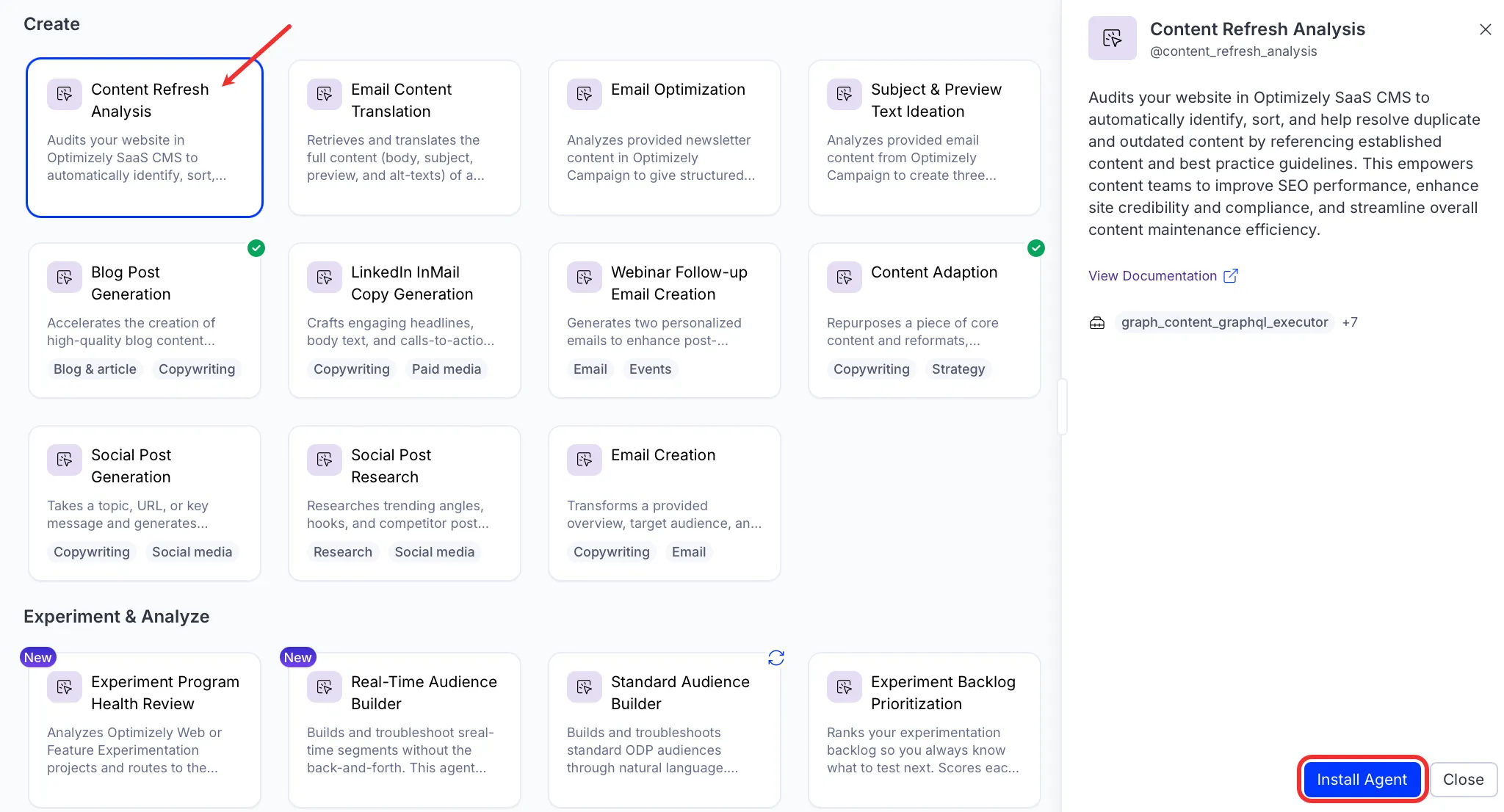
Install the agent from the Directory.
- Go to Directory > Agents.
- (Optional) Enter Content Refresh Analysis or use the drop-down list filters to narrow the list.
- Click Install on Content Refresh Analysis to add it to your Mark instance.
Note
If Install is disabled, ensure you have the Required Optimizely products connected to your Mark instance.
Use the agent
In Mark chat, enter @content_refresh_analysis and provide the following optional details:
- (Optional) Timeframe – Flags content not modified within this period. Use days, weeks, months, or years. Defaults to one year.
- (Optional) Urls – Specific URLs to analyze. Otherwise, the agent reviews all URLs.
- (Optional) Email Addresses – Email addresses the email report goes to.
The agent produces a compliance report in a canvas and displays it in the chat. The report includes an executive summary with an overall compliance score and issues flagged by severity. It has sections for tone of voice, accessibility, clarity, and regulations. The agent also lists outdated pages with their URLs and last-modified dates.
To use the Content Refresh Analysis agent in a workflow agent, add it to your workflow. See the Create a workflow agent.
Default agent details
These are the default details of the Content Refresh Analysis agent. After you install the agent in your Mark instance, customize these details for your organization's needs. See Manage agents for instructions.
Input variables
The Content Refresh Analysis agent takes the following input:
- (Optional) Timeframe
- (Optional) Urls
- (Optional) Email Addresses
Tools
The Content Refresh Analysis agent uses the following tools internally to process your request:
- graph_content_graphql_executor
- graph_content_search_tool
- graph_content_type_schema
- send_email
- create_canvas
- browse_web
- convert_to_pdf
- edit_canvas
Default configuration
The agent uses the following default configuration:
- Inference level – Complex, which provides advanced reasoning and detail.
- Files – The agent includes default guideline files (Design file.html and COBS 4 Communicating with clients, including financial promotions.pdf). To use your own, see Customize the guideline files.
- Output – Text.
Customize the guideline files
The agent includes default guideline files for financial-services compliance. To review content against your own standards, replace the default files with your own. Use custom files only when the default files do not cover your use case.
- Go to Agents > Your Agents and select Content Refresh Analysis.
- In the Files section, click Delete on each default file you want to remove.
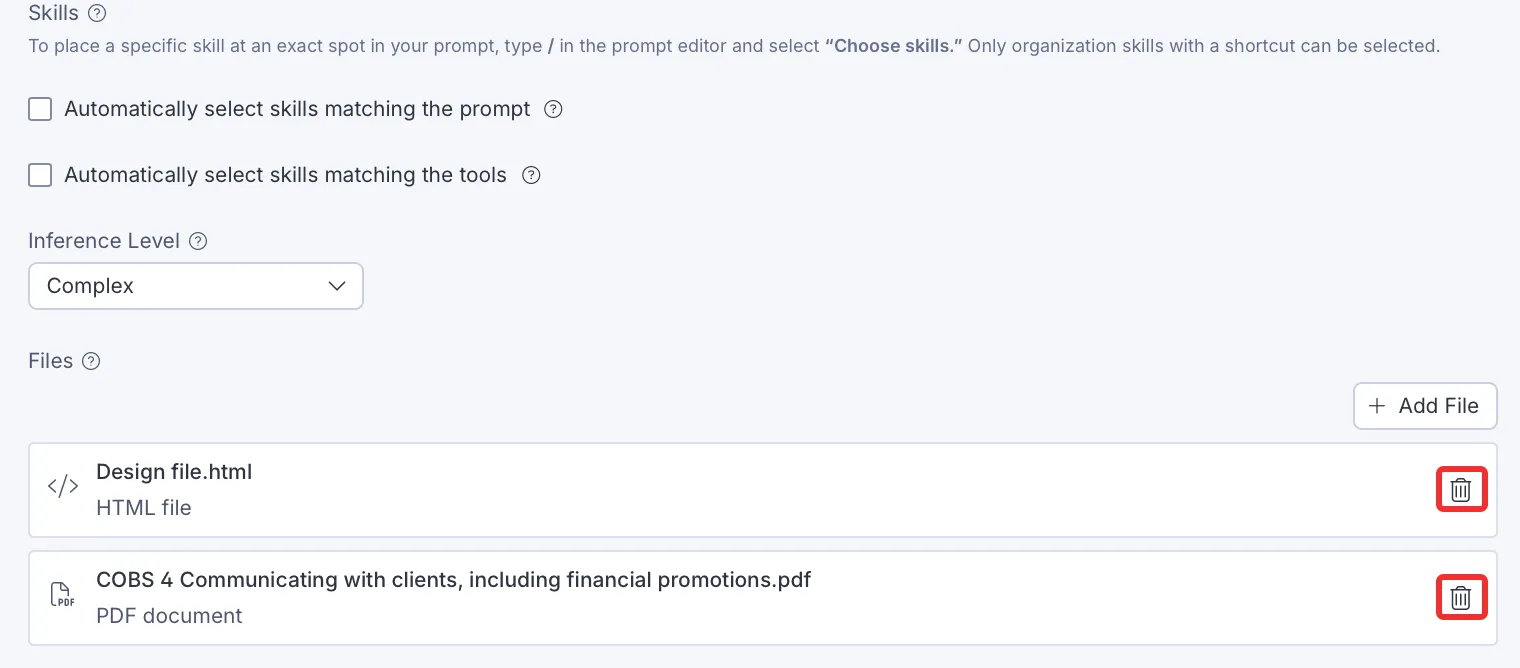
- Click Add File.

- Upload your files.
- Click Update to save your agent.
Note
If you use Opti ID, administrators can turn off generative AI in the Opti ID Admin Center. See Turn generative AI off across Optimizely applications.