Email Creation agent
Email Creation is an agent in Mark (Optimizely Agent Platform). It creates marketing emails from a brief overview, target audience, and call-to-action.
- Challenge – Crafting marketing emails that consistently capture attention, drive engagement, and convert readers requires significant time, creativity, and expertise.
- Agent outcome – High-performing marketing email.
- Value – Engaging content, higher conversions, measurable impact.
Install agent
Note
Mark Administrators, Agent Builders, and users with the Add, edit, and install specialized agents attribute for a custom role can add agents to their organization's Mark instance. See Add users and set permissions.
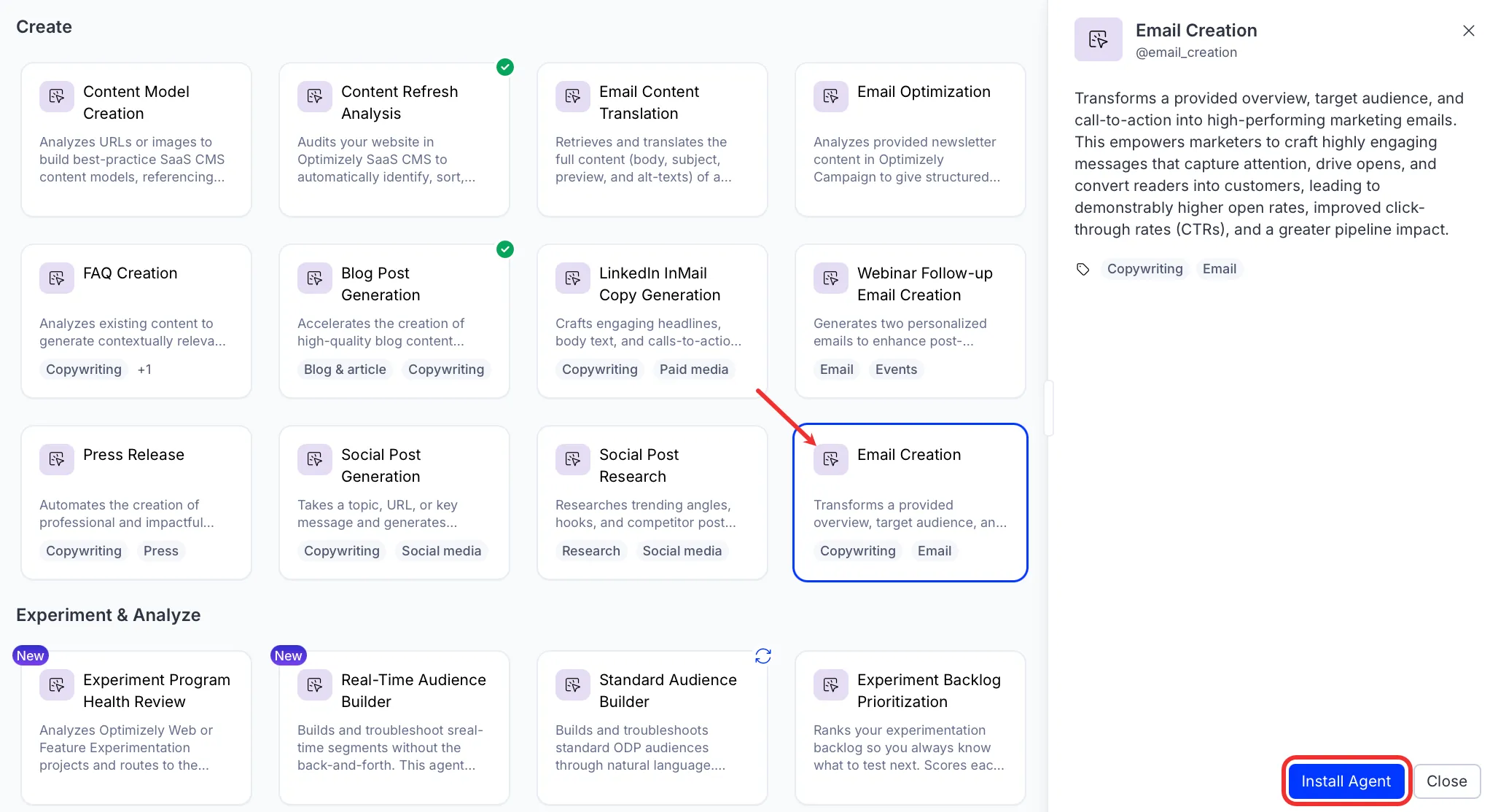
Install the agent from the Directory.
- Go to Directory > Agents.
- (Optional) Enter Email Creation or use the drop-down list filters to narrow the list.
- Click Install on Email Creation to add it to your Mark instance.
Use the agent
In Mark chat, enter @email_creation and provide the following details:
- overview – Overview of what the email is about.
- target audience – Target audience for the email.
- (Optional) call to action – What you want readers to do after reading the email.
The agent drafts a marketing email. The email includes three subject line options, preview text, and a P.S. line. The body copy includes a call-to-action.
To use the Email Creation agent in a workflow agent, add it to your workflow. See the Create a workflow agent.
Default agent details
These are the default details of the Email Creation agent. After you install the agent in your Mark instance, customize these details for your organization's needs. See Manage agents for instructions.
Input variables
The Email Creation agent takes the following input:
- overview
- target audience
- (Optional) call to action
Tools
None.
Default configuration
The agent uses the following default configuration:
- Inference level – Balanced, which provides reliable answers with additional reasoning.
- Files – None.
- Output – Text.
Note
If you use Opti ID, administrators can turn off generative AI in the Opti ID Admin Center. See Turn generative AI off across Optimizely applications.