Competitive Webpage Analysis agent
Competitive Webpage Analysis is an agent in Mark (Optimizely Agent Platform). It compares competitor webpages against your own. The agent captures screenshots of each page and recommends specific changes to improve your page.
- Challenge – You need to understand your competitors, identify effective strategies in the market, and stay ahead.
- Agent outcome – Returns a report comparing your page against competitors, with screenshots and prioritized recommendations.
- Value – A clear view of what works in your market and specific changes to outperform competitors.
Required Optimizely products
The Competitive Webpage Analysis agent requires either Optimizely Web Experimentation or Optimizely Feature Experimentation.
Install agent
Note
Mark Administrators, Agent Builders, and users with the Add, edit, and install specialized agents attribute for a custom role can add agents to their organization's Mark instance. See Add users and set permissions.
Install the agent from the Directory.
- Go to Directory > Agents.
- (Optional) Enter Competitive Webpage Analysis or use the drop-down list filters to narrow the list.
- Click Install on Competitive Webpage Analysis to add it to your Mark instance.
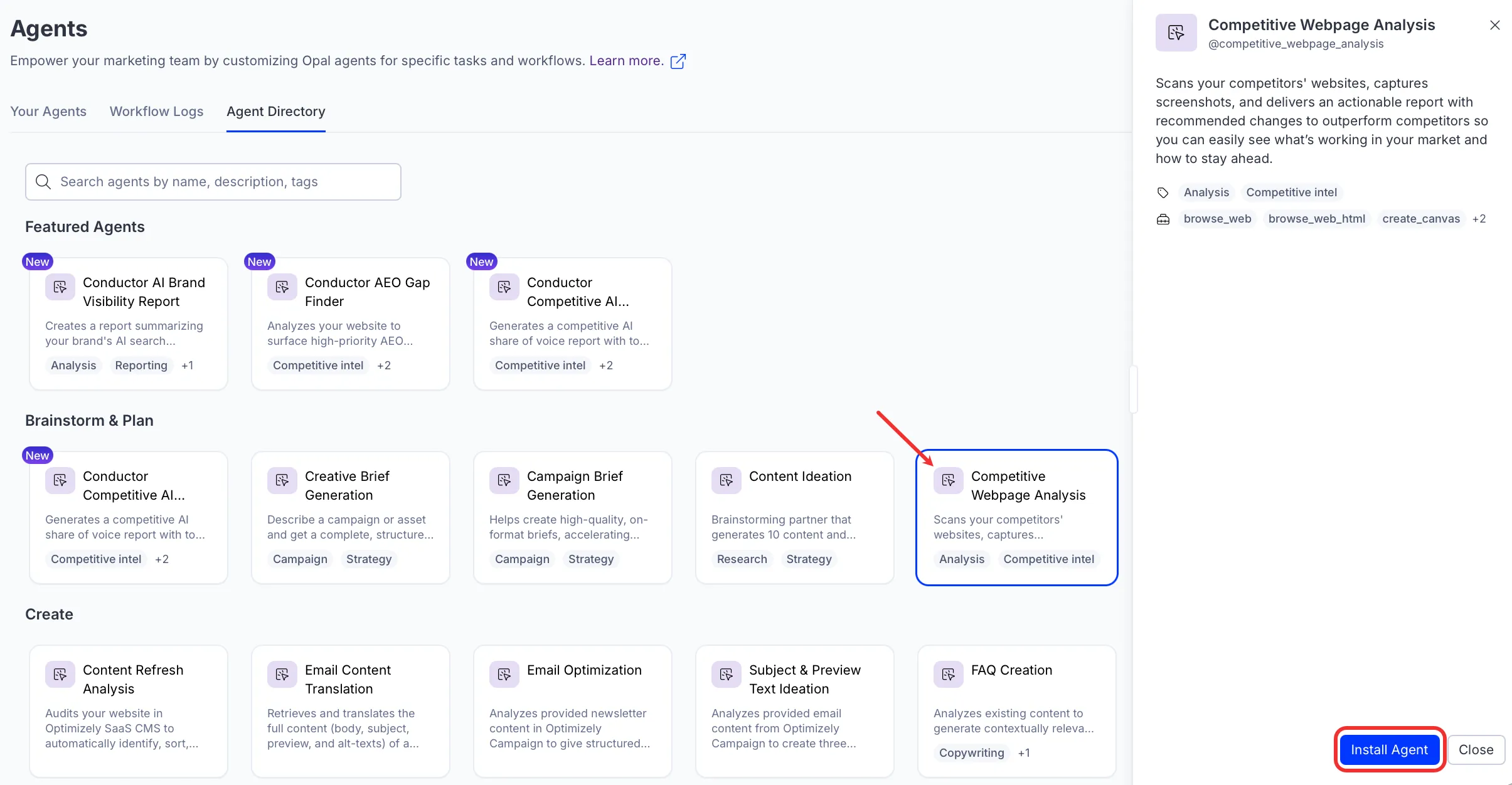
Note
If Install is disabled, ensure you have the Required Optimizely products connected to your Mark instance.
Use the agent
In Mark chat, enter @competitive_webpage_analysis and provide the following details:
- Competitors – One or more competitors to assess, as URLs, company names, or domains, for example Acme Corp or acme.com.
- Your Page – One or more URLs of your pages to benchmark against.
- (Optional) Page Type – The type of page to evaluate, such as landing page, home page, or product page. Leave blank to let the agent infer the page type from your page URL.
- (Optional) Priority Lens – The angle to emphasize in the analysis, such as call to action (CTA) conversion optimization, brand and messaging, or trust and credibility. Leave blank for a balanced analysis across all dimensions.
The agent returns the report as a canvas (an interactive document in Mark chat that you can edit alongside Mark). The report includes the following:
- Executive summary
- Key insights
- Competitive landscape overview
- Best practices observed across competitors
- Strengths, weaknesses, opportunities, and threats (SWOT) analysis
- Prioritized recommendations
- Screenshots of each page analyzed
The agent also saves the report as a Hypertext Markup Language (HTML) file.
To use the Competitive Webpage Analysis agent in a workflow agent, add it to your workflow. See Create a workflow agent.
Default agent details
These are the default details for the Competitive Webpage Analysis agent. After you install the agent in your Mark instance, customize these details for your organization's needs. See Manage installed agents for instructions.
Input variables
The Competitive Webpage Analysis agent takes the following input variables:
- Competitors
- Your Page
- (Optional) Page Type
- (Optional) Priority Lens
Tools
The Competitive Webpage Analysis agent uses the following tools internally to process your request:
- browse_web
- browse_web_html
- create_canvas
- take_webpage_screenshot
- write_content_to_file
Default configuration
The agent uses the following default configuration:
- Inference level – Complex, which provides advanced reasoning and detail.
- Files – None.
- Output – Text.
Note
If you use Opti ID, administrators can turn off generative AI in the Opti ID Admin Center. See Turn generative AI off across Optimizely applications.