Case Study Generation agent
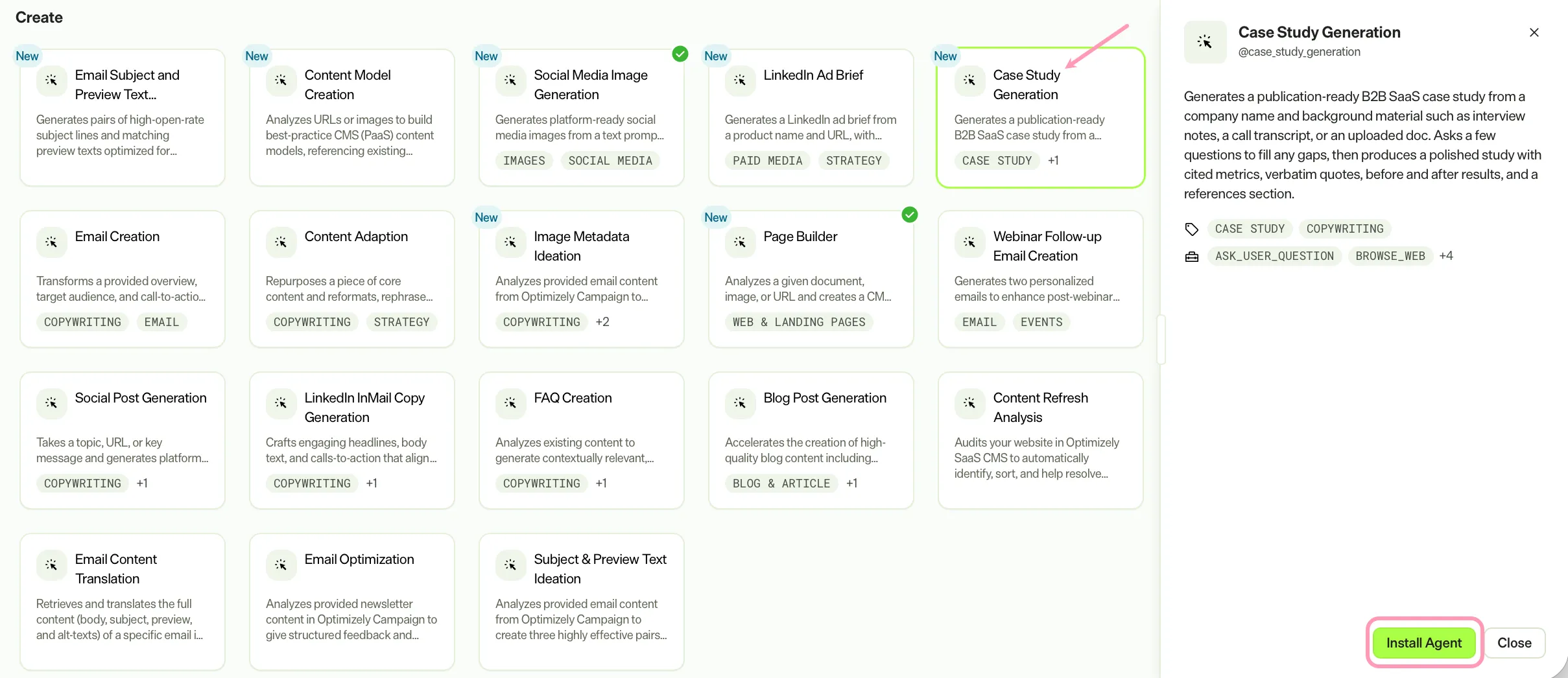
Case Study Generation is an agent in Mark (Optimizely Agent Platform). It generates a publication-ready B2B software as a service (SaaS) case study. The agent uses a company name and background material.
- Challenge – Writing a case study demands hours of research, interviewing, and formatting before a draft is ready for review.
- Agent outcome – The agent produces a polished case study with cited metrics, verbatim quotes, before-and-after results, and a references section.
- Value – The agent reduces case study production time from days to minutes, accelerating sales enablement and content marketing pipelines.
Install agent
Note
Mark Administrators, Agent Builders, and users with the Add, edit, and install specialized agents attribute for a custom role can add agents to their organization's Mark instance. See Add users and set permissions.
Install the agent from the Directory.
- Go to Directory > Agents.
- (Optional) Enter Case Study Generation or use the drop-down list filters to narrow the list.
- Click Install on Case Study Generation to add it to your Mark instance.
Use the agent
In Mark chat, enter @case_study_generation and provide the following details:
- (Optional) Company Name – The customer company.
- (Optional) Case Background – A PDF, Word doc, or transcript to upload.
Both parameters are optional. Provide a company name, a background file, or both. The agent asks clarifying questions to fill any gaps.
The agent produces a publication-ready case study as a canvas with cited metrics, verbatim quotes, before-and-after results, and a references section.
To use the Case Study Generation agent in a workflow agent, add it to your workflow. See Create a workflow agent.
Default agent details
The Case Study Generation agent uses the following default details. After you install the agent in your Mark instance, customize these details for your organization's needs. See Manage agents for instructions.
Input variables
The Case Study Generation agent takes the following input:
- (Optional) Company Name
- (Optional) Case Background
Tools
The Case Study Generation agent uses the following tools to process your request:
- ask_user_question
- browse_web
- create_canvas
- edit_canvas
- reasoning_step
- search_web
Default configuration
The agent uses the following default configuration:
- Inference level – Complex, which provides advanced reasoning and detail.
- Files – None.
- Output – Text.
Note
If you use Opti ID, administrators can turn off generative AI in the Opti ID Admin Center. See Turn generative AI off across Optimizely applications.