Web Accessibility Evaluation agent
Web Accessibility Evaluation is an Optimizely Opal agent that evaluates a webpage for WCAG 2.2 compliance using Google Lighthouse and manual standards analysis.
- Challenge – Manually checking website URLs against WCAG 2.2 accessibility standards and Google Lighthouse is a complex and specialized task.
- Agent outcome – Comprehensive report detailing the overall accessibility scores with recommendations.
- Value – Accessibility compliance, improved inclusivity.
See Web Accessibility Evaluation on Optimizely Academy.
Install agent
Note
Opal Administrators, Agent Builders, and users with the Add, edit, and install specialized agents attribute for a custom role can add agents to their organization's Optimizely Opal instance. See Add users and set permissions.
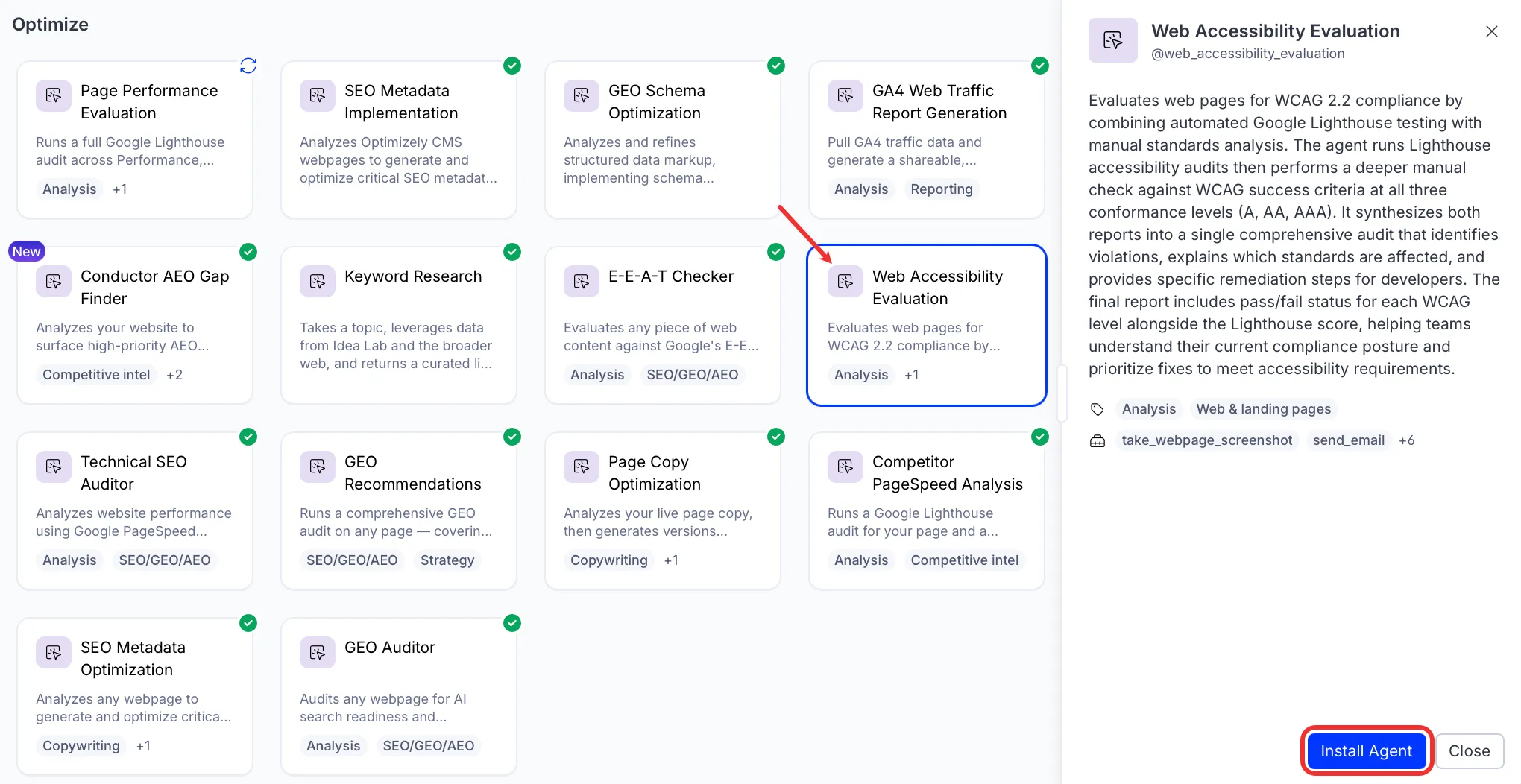
Install the agent from the Opal Agent Directory.
- Go to Agents > Agent Directory.
- Select Web Accessibility Evaluation.
- Click Install Agent to add it to your Opal instance
Use the agent
In Opal Chat, enter @web_accessibility_evaluation and provide the following details:
- URL – The URL to audit for accessibility.
The agent delivers a PDF accessibility report by email and provides a download link. The report covers WCAG 2.2 violations with remediation steps, Google Lighthouse scores, and WCAG 2.2 Level AA compliance status.
To use the Web Accessibility Evaluation agent in a workflow agent, drag and drop it into your workflow. See Create a workflow agent.
Details
These are the default details for the Web Accessibility Evaluation agent. After you install the agent in your Opal instance, you can customize these details based on your organization's needs. See Manage agents for instructions.
Input variables
The Web Accessibility Evaluation agent takes the following input:
- URL
Tools
The Web Accessibility Evaluation agent uses the following tools internally to process your request:
- take_webpage_screenshot
- send_email
- convert_to_pdf
- read_file_content
- write_content_to_file
- browse_web_html
- browse_web
- analyze_pagespeed
Additional details
The agent uses the following default configuration:
- Inference level – Balanced. Provides reliable answers with additional reasoning.
- Files – None.
- Output – Text.
Note
If you use Opti ID, administrators can turn off generative AI in the Opti ID Admin Center. See Turn generative AI off across Optimizely applicationsTurn generative AI off across Optimizely applications.