Content Summary agent
Content Summary is an agent in Mark (Optimizely Agent Platform). It summarizes documents and text. It extracts key findings and recommendations into a structured brief.
- Challenge – Extracting key information and summarizing lengthy documents, especially Portable Document Format (PDF) files, is a time-consuming manual process.
- Agent outcome – Analyzes and summarizes complex, long PDF files.
- Value – Time saved, improved comprehension.
Install agent
Note
Mark Administrators, Agent Builders, and users with the Add, edit, and install specialized agents attribute for a custom role can add agents to their organization's Mark instance. See Add users and set permissions.
Install the agent from the Directory.
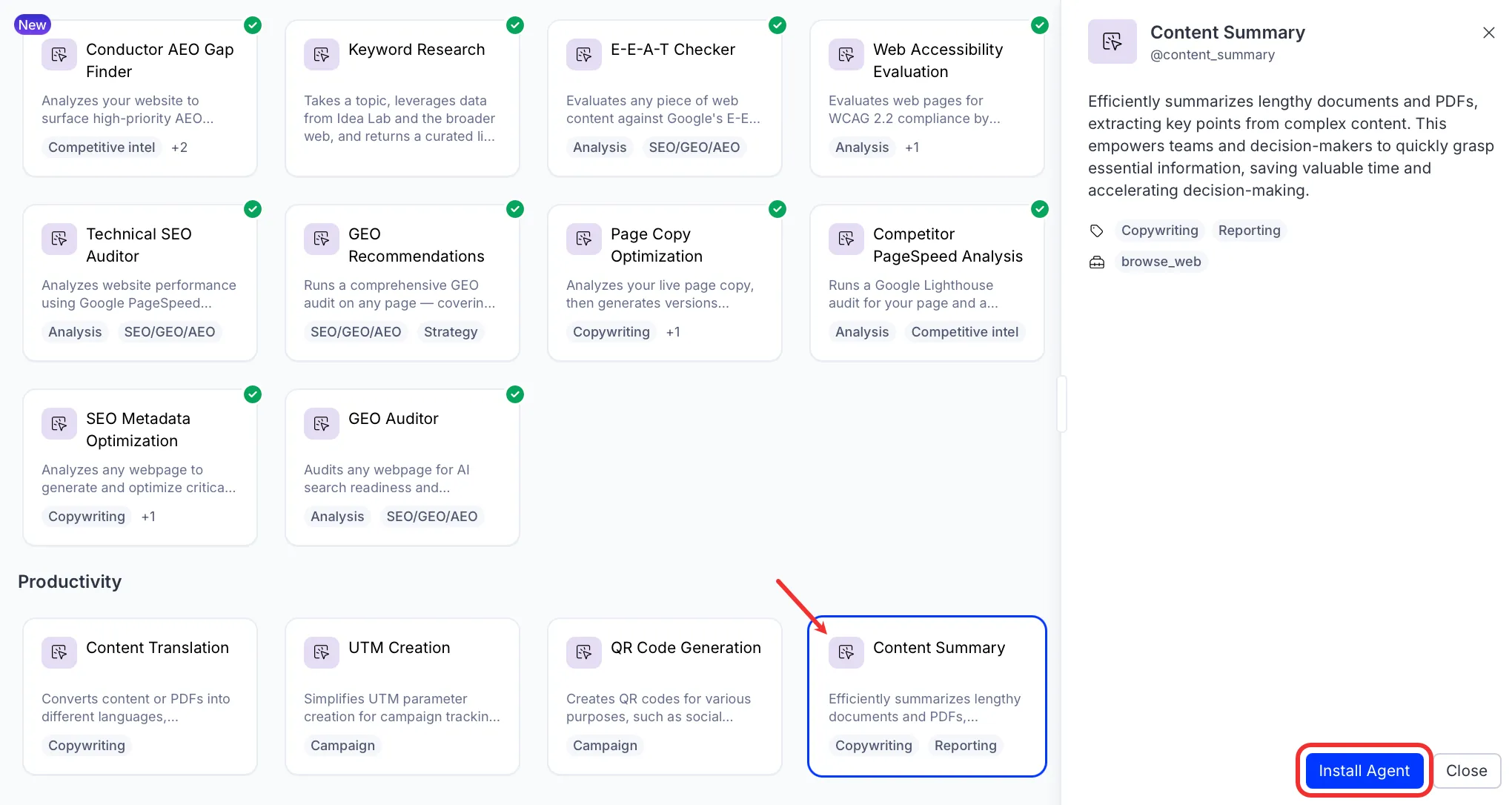
- Go to Directory > Agents.
- (Optional) Enter Content Summary or use the drop-down list filters to narrow the list.
- Click Install on Content Summary to add it to your Mark instance.
Use the agent
In Mark chat, enter @content_summary and provide the following details:
- (Optional) content – Text content or a URL to summarize.
- (Optional) file – A document file to summarize.
Provide at least one of content or file.
The agent delivers a structured text summary of up to 300 words. The summary covers the content's purpose, key findings, and recommendations.
To use the Content Summary agent in a workflow agent, add it to your workflow. See Create a workflow agent.
Default agent details
These are the default details for the Content Summary agent. After you install the agent in your Mark instance, you can customize these details based on your organization's needs. See Manage agents for instructions.
Input variables
The Content Summary agent takes the following input:
- (Optional) content
- (Optional) file
Tools
The Content Summary agent uses the following tools internally to process your request:
- browse_web
Default configuration
The agent uses the following default configuration:
- Inference level – Balanced, which provides reliable answers with additional reasoning.
- Files – None.
- Output – Text.
Note
If you use Opti ID, administrators can turn off generative AI in the Opti ID Admin Center. See Turn generative AI off across Optimizely applications.