Content Translation agent
Content Translation is an agent in Mark (Optimizely Agent Platform). It translates text, files, and URLs into a target language. It preserves brand terminology and adapts cultural references.
- Challenge – Translating content for global audiences is time-consuming and requires specialized expertise. Teams must preserve brand terminology, cultural nuance, and grammatical accuracy.
- Agent outcome – Converts content or Portable Document Format (PDF) files into different languages with cultural adaptation.
- Value – Global reach, accurate communication, and streamlined efforts.
Install agent
Note
Mark Administrators, Agent Builders, and users with the Add, edit, and install specialized agents attribute for a custom role can add agents to their organization's Mark instance. See Add users and set permissions.
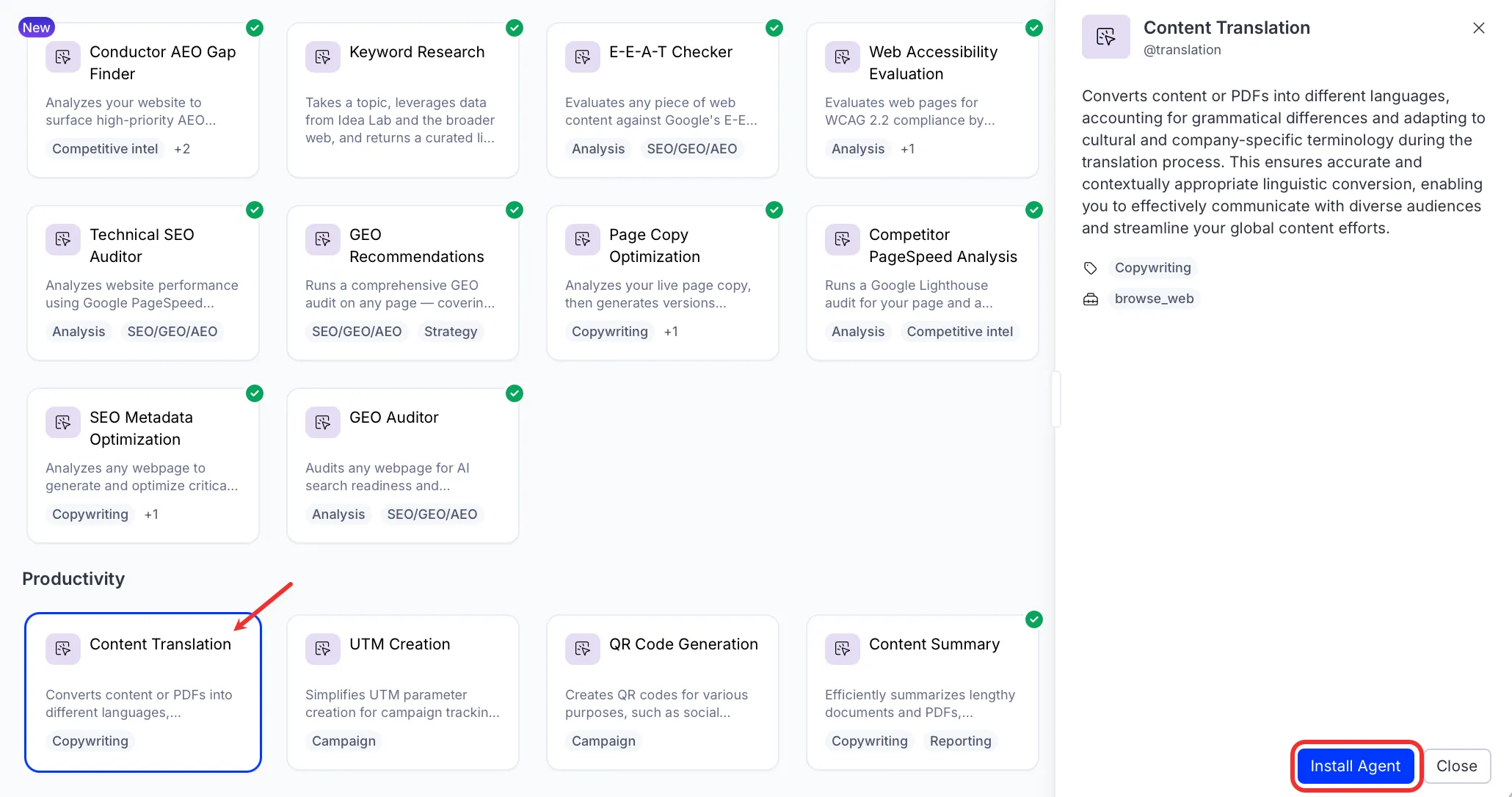
Install the agent from the Directory.
- Go to Directory > Agents.
- (Optional) Enter Content Translation or use the drop-down list filters to narrow the list.
- Click Install on Content Translation to add it to your Mark instance.
Configure skill
Configure a skill (organization or personal) with your term-base or language dictionary for consistent terminology:
- In the Core Skill section, add your term-base entries.
- In the When to use section, select Keywords or phrases and specify the language pairs this instruction applies to.
For example, copy the Sample-Translation-Termbase.German.txt file attached to this article into Core Skill. Then enter When translating from English to German in When to use.
Use the agent
In Mark chat, enter @translation and provide the following details:
- language – Language to translate to.
- (Optional) content – Text content or a URL to translate.
- (Optional) file – A document file to translate.
Provide at least one of content or file.
The agent delivers the translated content as text, preserving the original formatting, tone, and brand terminology.
To use the Content Translation agent in a workflow agent, add it to your workflow. See Create a workflow agent.
Default agent details
These are the default details for the Content Translation agent. After you install the agent in your Mark instance, customize these details for your organization's needs. See Manage agents for instructions.
Input variables
The Content Translation agent takes the following input:
- language
- (Optional) content
- (Optional) file
Tools
The Content Translation agent uses the following tools internally to process your request:
- browse_web
Default configuration
The agent uses the following default configuration:
- Inference level – Balanced, which provides reliable answers with additional reasoning.
- Files – None.
- Output – Text.
Note
If you use Opti ID, administrators can turn off generative AI in the Opti ID Admin Center. See Turn generative AI off across Optimizely applications.