Target Group Guidance agent
Target Group Guidance is an agent in Mark (Optimizely Agent Platform). It creates a visual, step-by-step guide for building a target group in Optimizely Campaign.
- Challenge – Mixed logic, action filters, and nested condition groups make target groups difficult to configure in the Campaign UI.
- Agent outcome – An interactive HTML canvas that includes step cards, UI row mockups, a progress tracker, and a visual logic flow.
- Value – Teams configure accurate target groups faster and reduce segmentation errors before they send mailings.
Required Optimizely products
The Target Group Guidance agent requires Optimizely Campaign.
Install agent
Note
Mark Administrators, Agent Builders, and users with the Add, edit, and install specialized agents attribute for a custom role can add agents to their organization's Mark instance. See Add users and set permissions.
The Target Group Guidance agent is an Optimizely-managed agent, so it is automatically installed in your instance.
You can manage and run the agent from the Directory.
- Go to Directory > Agents.
- (Optional) Enter Target Group Guidance or use the drop-down list filters to narrow the list.
- Click on the Target Group Guidance agent.
- Click Run or Manage.
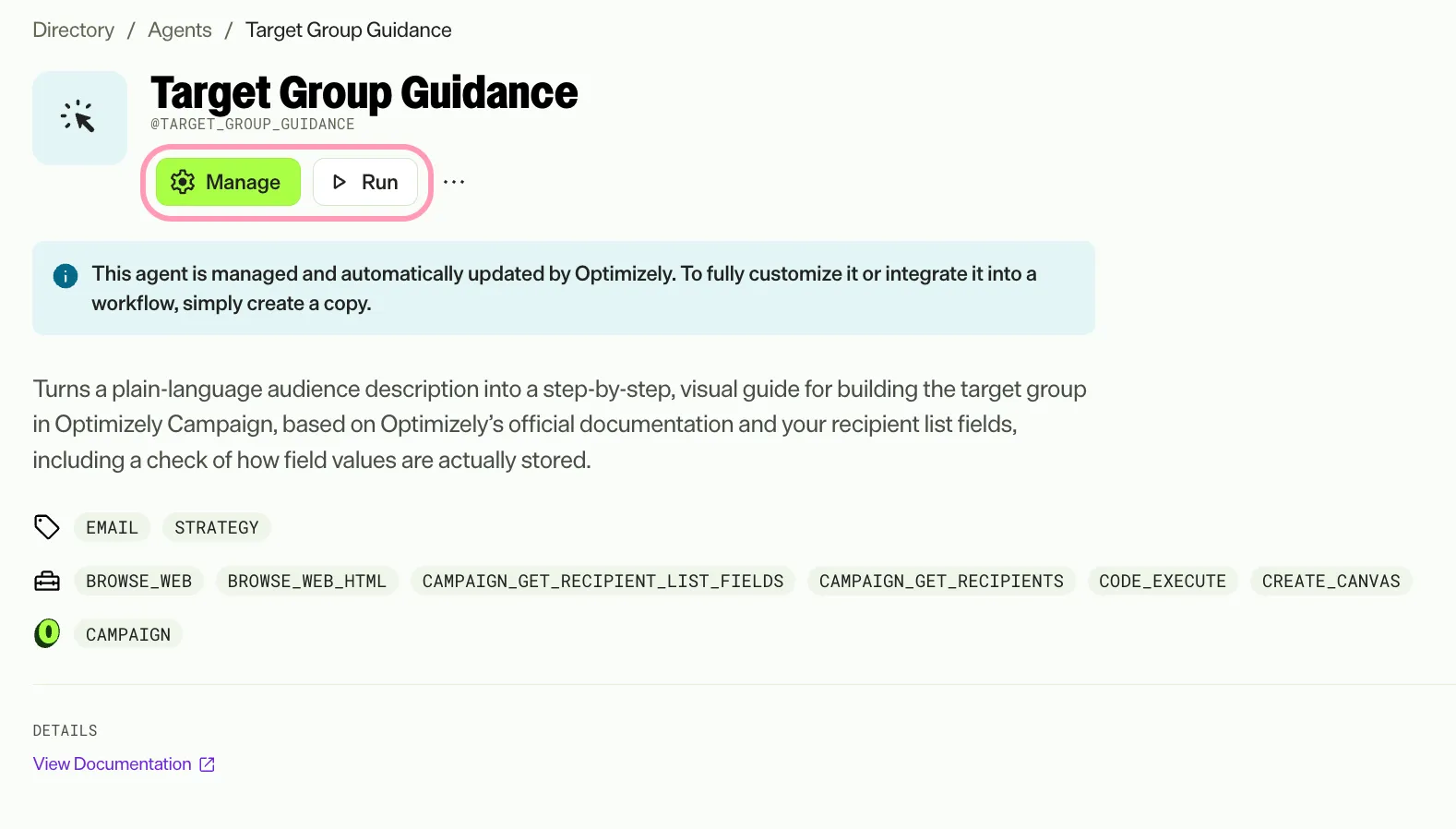
If Install is grayed out, connect the required Optimizely products to your Mark instance first.
Use the agent
In Mark chat, enter @target_group_guidance and provide the following details:
- target_group_description – Description of the desired target group.
- (Optional) recipient_list_id – ID of the recipient list to use with the target group. The agent retrieves the list fields to identify the values to filter.
The agent creates an interactive HTML canvas that contains the target group setup guide. The canvas includes a blueprint, a conditions breakdown, numbered configuration steps, a visual logic flow, and tips. When you provide recipient_list_id, the agent checks a sample of stored field values to match their format. In Mark chat, the agent returns a summary with the suggested target group name and the canvas link.
To use the Target Group Guidance agent in a workflow agent, add it to your workflow. See Create a workflow agent.
Default agent details
These are the default details for the Target Group Guidance agent. After you install the agent in your Mark instance, customize these details for your organization's needs. See Manage agents for instructions.
Input variables
The Target Group Guidance agent takes the following input:
- target_group_description
- (Optional) recipient_list_id
Tools
The Target Group Guidance agent uses the following tools to process your request:
- browse_web
- browse_web_html
- campaign_get_recipient_list_fields
- campaign_get_recipients
- code_execute
- create_canvas
Default configuration
The agent uses the following default configuration:
- Inference level – Standard, which provides fast responses.
- Files – None.
- Output – Text.
Note
If you use Opti ID, administrators can turn off generative AI in the Opti ID Admin Center. See Turn generative AI off across Optimizely applications.