Social Media Image Generation agent
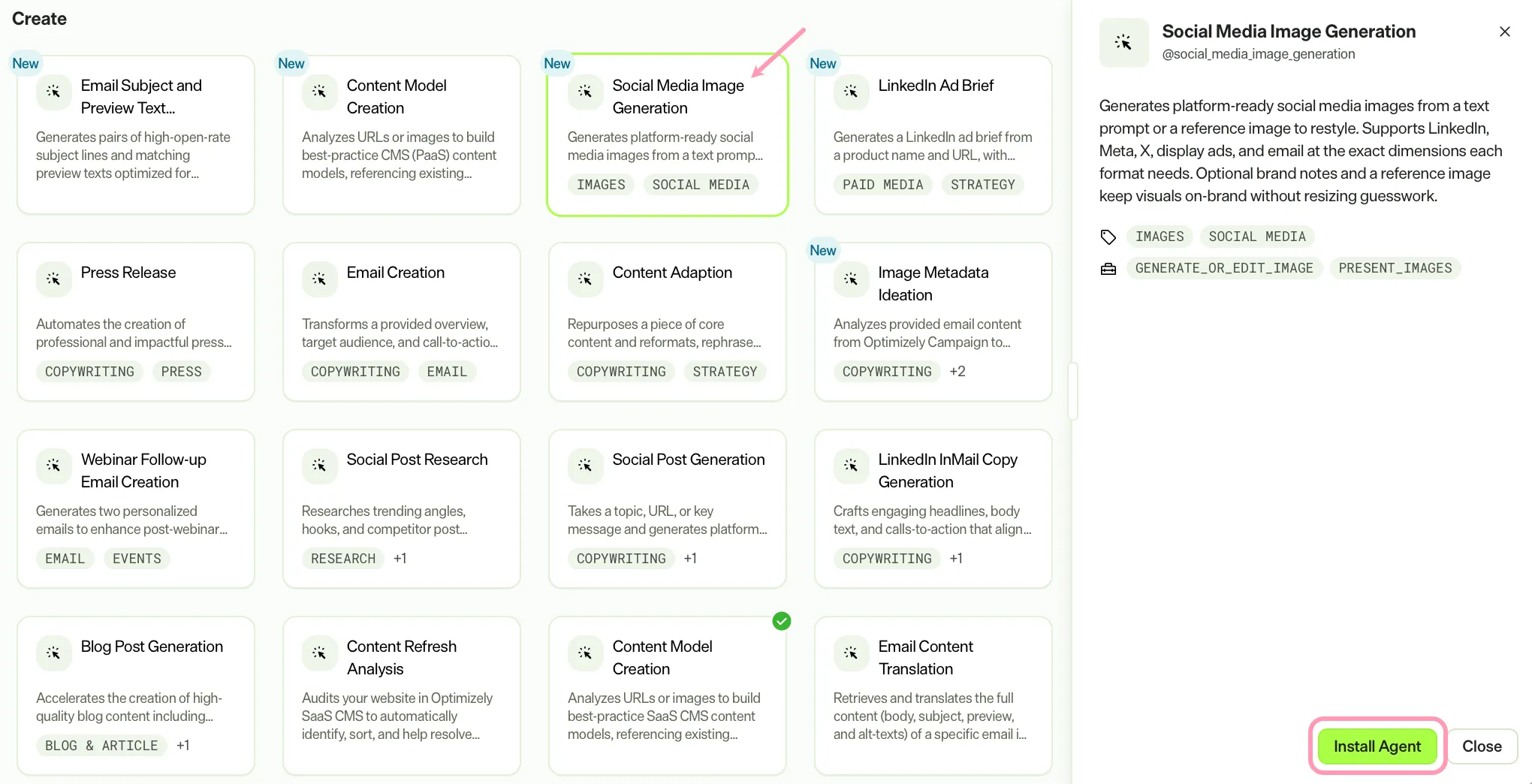
Social Media Image Generation is an agent in Mark (Optimizely Agent Platform). It generates platform-ready social media images from a text prompt or reference image at exact dimensions for each supported format.
- Challenge – Creating correctly sized social media images for multiple platforms requires manual resizing and format-specific knowledge.
- Agent outcome – The agent generates a platform-ready image at exact dimensions for LinkedIn, Meta, X, display ads, or email.
- Value – The agent eliminates resizing guesswork and accelerates visual content production across channels.
Install agent
Note
Mark Administrators, Agent Builders, and users with the Add, edit, and install specialized agents attribute for a custom role can add agents to their organization's Mark instance. See Add users and set permissions.
Install the agent from the Directory.
- Go to Directory > Agents.
- (Optional) Enter Social Media Image Generation or use the drop-down list filters to narrow the list.
- Click Install on Social Media Image Generation to add it to your Mark instance.
Use the agent
In Mark chat, enter @social_media_image_generation and provide the following details:
- Platform & Format – The target platform and image format, such as LinkedIn Single Image, Meta Feed, or X Header.
- Image Prompt – A description of the desired image.
- (Optional) Reference Image – An uploaded image to restyle or adapt.
- (Optional) Brand Notes – Image or brand guidelines to follow.
The agent generates an image at the exact pixel dimensions for the selected platform and format. It then presents the image for review.
To use the Social Media Image Generation agent in a workflow agent, add it to your workflow. See Create a workflow agent.
Default agent details
These are the default details for the Social Media Image Generation agent. After you install the agent, customize these details for your organization's needs. See Manage agents for instructions.
Input variables
The Social Media Image Generation agent takes the following input:
- Platform & Format
- Image Prompt
- (Optional) Reference Image
- (Optional) Brand Notes
Tools
The Social Media Image Generation agent uses the following tools to process your request:
- generate_or_edit_image
- present_images
Default configuration
The agent uses the following default configuration:
- Inference level – Balanced, which provides reliable answers with additional reasoning.
- Files – None.
- Output – Text.
Note
If you use Opti ID, administrators can turn off generative AI in the Opti ID Admin Center. See Turn generative AI off across Optimizely applications.