Restriction Group Creation agent
The Restriction Group Creation agent is an Optimizely Opal agent that creates product restriction groups in Optimizely Configured Commerce through a step-by-step wizard.
- Challenge – Setting up a restriction group requires multiple admin API calls, exact OData filters, and manual UUID lookups.
- Agent outcome – The agent validates the group name, previews matching customers and products, and creates the restriction group with direct associations or rule-based criteria.
- Value – Commerce teams define customer and product restrictions accurately without hand-building API requests.
Required Optimizely products
Optimizely Configured Commerce
Install agent
Note
Opal Administrators, Agent Builders, and users with the Add, edit, and install specialized agents attribute for a custom role can add agents to their organization's Optimizely Opal instance. See Add users and set permissions.
Install the agent from the Opal Agent Directory.
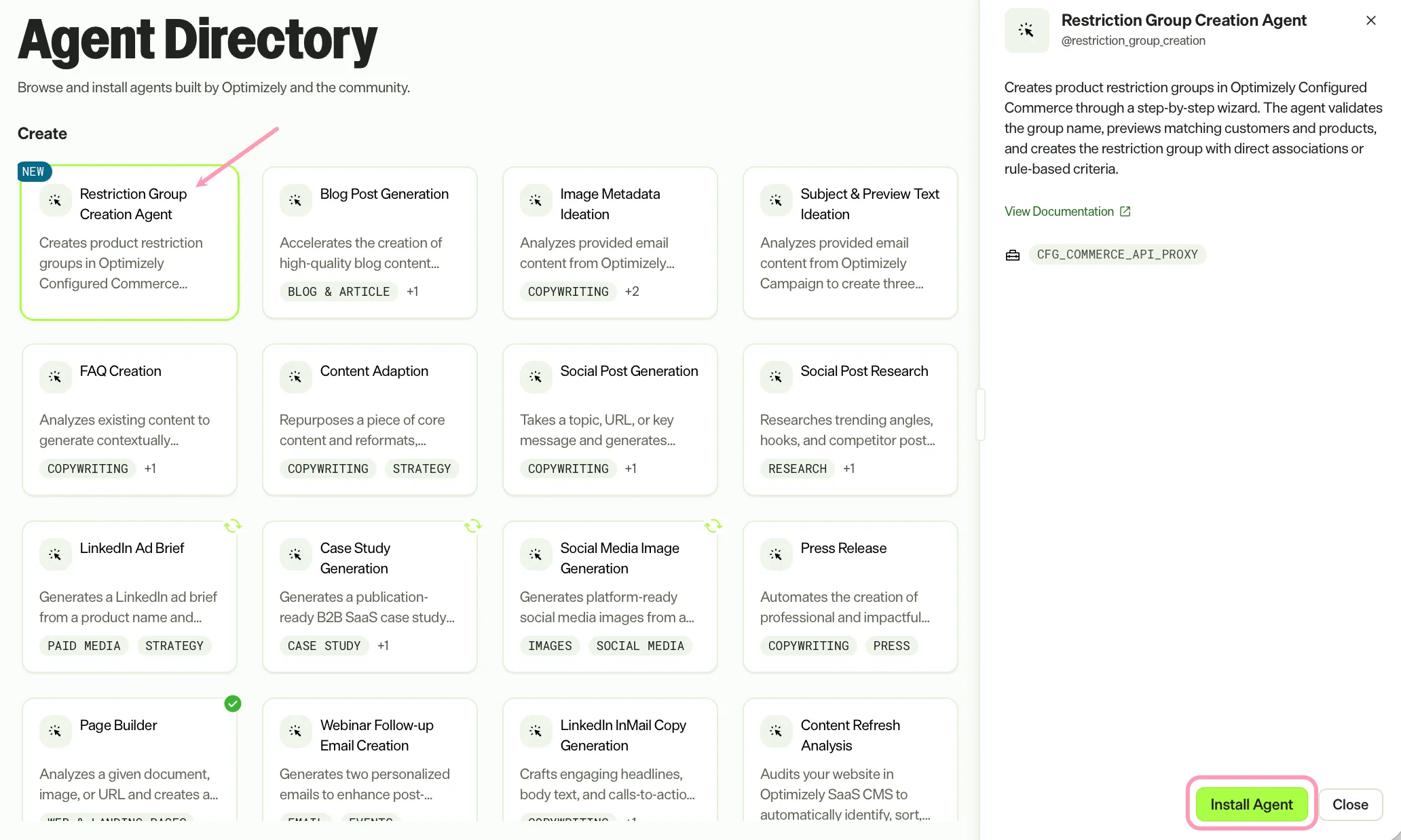
- Go to Agents > Agent Directory.
- Select Restriction Group Creation Agent.
- Click Install Agent to add it to your Opal instance.
Use the agent
In Opal Chat, enter @restriction_group_creation and provide the following details:
- (Optional) groupName – Name for the restriction group, up to 255 characters.
- (Optional) description – Description for the restriction group, up to 2048 characters.
- (Optional) restrictionType – Type of restriction: Hide, Show, or Show Only.
- (Optional) customerScope – Customer scope as comma-separated customer numbers, for example, WEB001000, WEB001001, or natural language criteria such as customers in California.
- (Optional) productScope – Product scope as comma-separated product numbers, for example, ABC123, DEF456, or natural language criteria such as Acme brand products.
Every parameter is optional. The agent prompts for each missing value during the conversation. Provide groupName, restrictionType, customerScope, and productScope to skip the collection steps.
The agent returns a text summary with the group name, group ID, restriction type, customer scope, product scope, and activation status. The agent creates every restriction group in an inactive state for review in the Commerce Admin Console.
To use the Restriction Group Creation Agent in a workflow agent, drag and drop it into your workflow. See Create a workflow agent.
Details
These are the default details for the Restriction Group Creation Agent. After you install the agent in your Opal instance, customize these details for your organization's needs. See Manage agents.
Input variables
The Restriction Group Creation Agent takes the following input:
- (Optional) groupName
- (Optional) description
- (Optional) restrictionType
- (Optional) customerScope
- (Optional) productScope
Tools
The Restriction Group Creation Agent uses the following tools internally to process your request:
- cfg_commerce_api_proxy
Additional details
The agent uses the following default configuration:
- Inference level – Complex. Provides advanced reasoning and detail.
- Files – None.
- Output – Text.
Note
If you use Opti ID, administrators can turn off generative AI in the Opti ID Admin Center. See Turn generative AI off across Optimizely applicationsTurn generative AI off across Optimizely applications.