Promotion Creation agent
Promotion Creation is an Optimizely Opal agent that guides merchandisers through creating promotions in Optimizely Configured Commerce.
- Challenge – Building a promotion in Configured Commerce requires configuring details, rule conditions, reward results, and website scope across four separate admin tabs.
- Agent outcome – The agent creates a promotion with its rules, results, and website assignments, then returns a summary of the configuration.
- Value – Merchandisers configure promotions through conversation instead of manual admin setup, with validation at each step.
Required Optimizely products
The Promotion Creation agent requires Optimizely Configured Commerce.
Install agent
Note
Opal Administrators, Agent Builders, and users with the Add, edit, and install specialized agents attribute for a custom role can add agents to their organization's Optimizely Opal instance. See Add users and set permissions.Add users and set permissions.
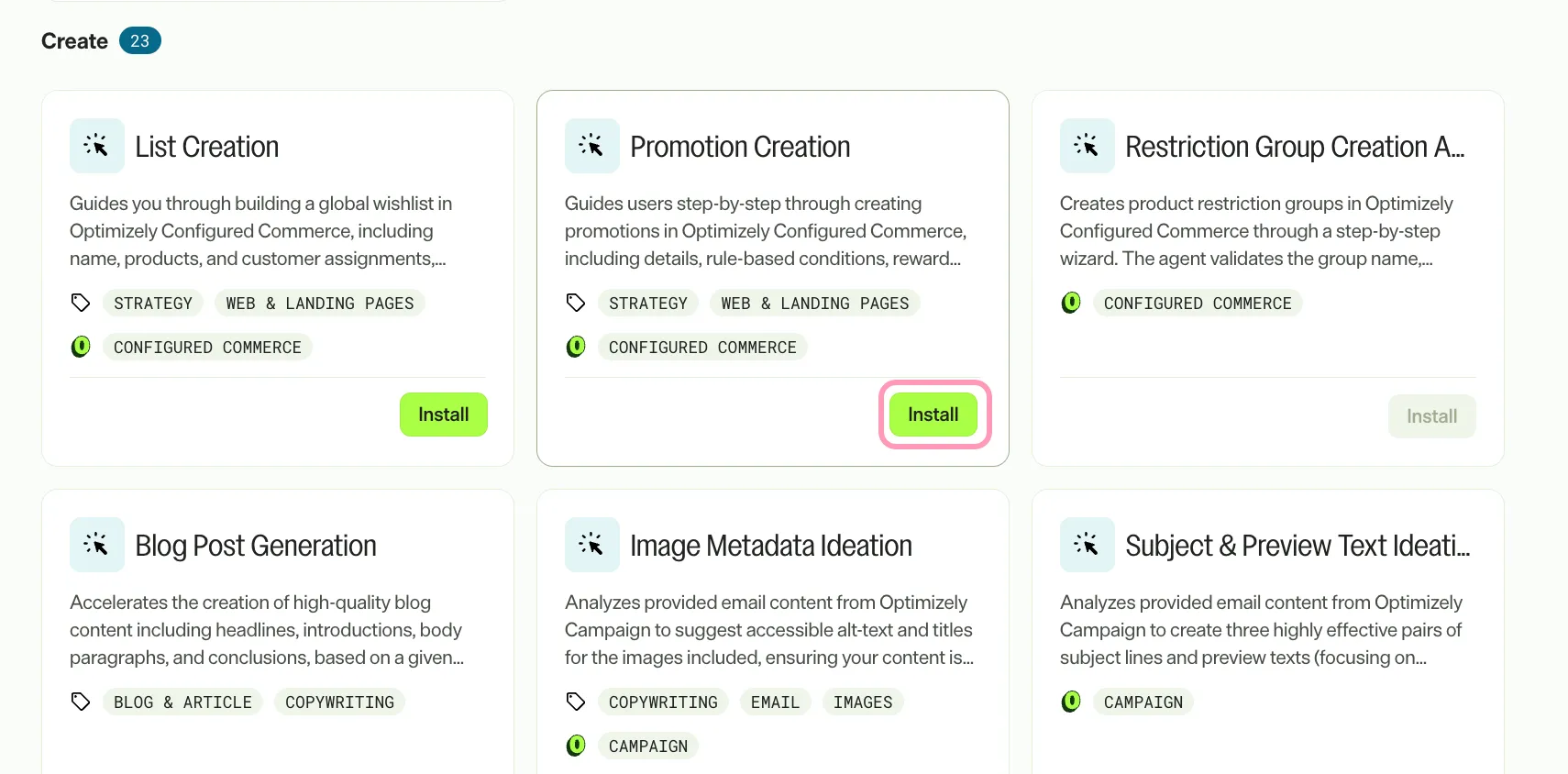
Install the agent from the Opal Agent Directory.
- Go to Agents > Agent Directory.
- Select Promotion Creation.
- Click Install Agent to add the agent to your Opal instance.
Use the agent
In Opal Chat, enter @promotion_creation.
The agent takes no input variables. Describe the promotion in your first message, or let the agent guide you. If you include details such as a name, promo code, rank, dates, rules, results, or website scope, the agent skips the matching questions.
The agent collects the configuration across four tabs in this order: Details, Rules, Results, and Websites. It asks for a promotion name, a rank, and an activation date first, one question at a time. After each tab, the agent restates its interpretation, flags anything it inferred, and waits for your confirmation before it continues.
The agent reads the available conditions and rewards from your Configured Commerce environment, so it offers only what your environment supports. It resolves terms such as products, brands, and customers to platform IDs. When a term matches more than one item, the agent lists up to five options and tells you how many matched. Narrow the term to see the rest.
The agent creates the promotion as soon as you confirm the details, then saves the rules, results, and website assignments to it. The agent only creates promotions. It does not edit or delete them. If a later step fails, the promotion already exists, and the agent reports its ID.
The agent returns a Markdown summary of the created promotion. The summary includes the promotion ID, name, promo code, rank, activation window, live status, rules, results, website assignments, and next steps.
To use the Promotion Creation agent in a workflow agent, drag and drop the agent into your workflow. See Create a workflow agent.
Details
The following are the default details for the Promotion Creation agent. After you install the agent in your Opal instance, customize these details for your organization's needs.
See Manage agents for instructions.
Input variables
None.
Tools
The Promotion Creation agent uses the following tools to process your request:
- cfg_commerce_api_proxy
Additional details
The agent uses the following default configuration:
- Inference level – Complex, which provides advanced reasoning and detail.
- Files – None.
- Output – Text.
Note
If you use Opti ID, administrators can turn off generative AI in the Opti ID Admin Center. See Turn generative AI off across Optimizely applicationsTurn generative AI off across Optimizely applications.