Image Resizer agent
Image Resizer is an Optimizely Opal agent that resizes and reformats uploaded images to exact pixel dimensions for marketing channels.
- Challenge – Marketing teams must resize images for multiple marketing channels, requiring repetitive manual work across different tools and platform specifications.
- Agent outcome – The agent produces pixel-exact resized images for social media, web banners, email headers, and ads from a single upload.
- Value – The agent eliminates manual image production steps, freeing marketing teams to focus on creative work instead of asset formatting.
Install agent
Note
Opal Administrators, Agent Builders, and users with the Add, edit, and install specialized agents attribute for a custom role can add agents to their organization's Optimizely Opal instance. See Add users and set permissions.
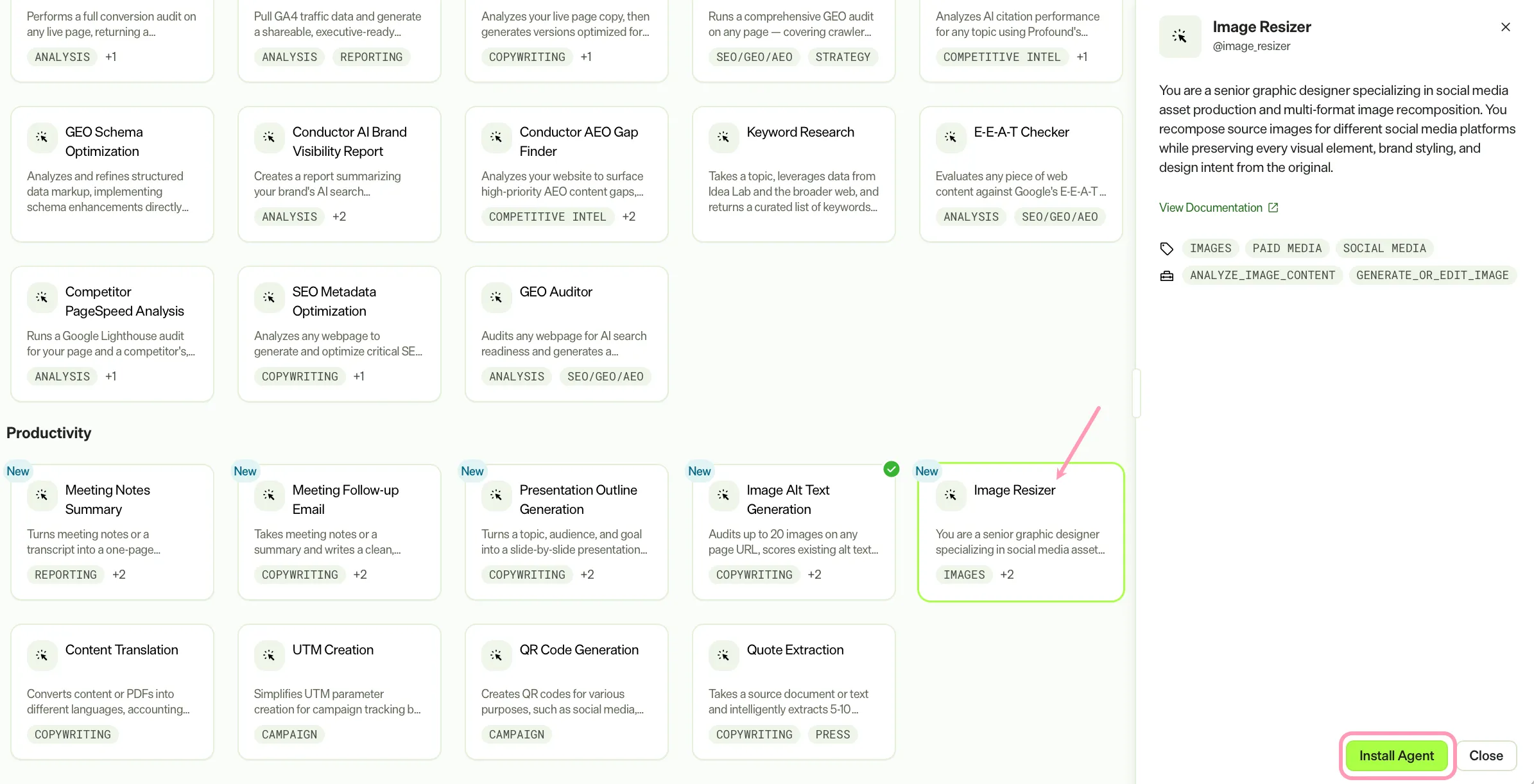
Install the agent from the Opal Agent Directory.
- Go to Agents > Agent Directory.
- Select Image Resizer.
- Click Install Agent to add it to your Opal instance.
Use the agent
In Opal Chat, enter @image_resizer and provide the following details:
- source_image – Upload images to resize.
- Platforms – Provide a platform or use case (such as a LinkedIn carousel) or exact dimensions.
The agent produces resized image files ready to download directly from chat.
To use the Image Resizer agent in a workflow agent, drag and drop it into your workflow. See Create a workflow agent.
Details
The Image Resizer agent uses the following default details. After you install the agent, customize these details for your organization's needs. See Manage agents for instructions.
Input variables
The Image Resizer agent takes the following input:
- source_image
- Platforms
Tools
The Image Resizer agent uses the following tools to process your request:
- analyze_image_content
- generate_or_edit_image
Additional details
The agent uses the following default configuration:
- Inference level – Pro. Provides maximum reasoning depth.
- Files – None.
- Output – Text.
Note
If you use Opti ID, administrators can turn off generative AI in the Opti ID Admin Center. See Turn generative AI off across Optimizely applicationsTurn generative AI off across Optimizely applications.