Image Metadata Ideation agent
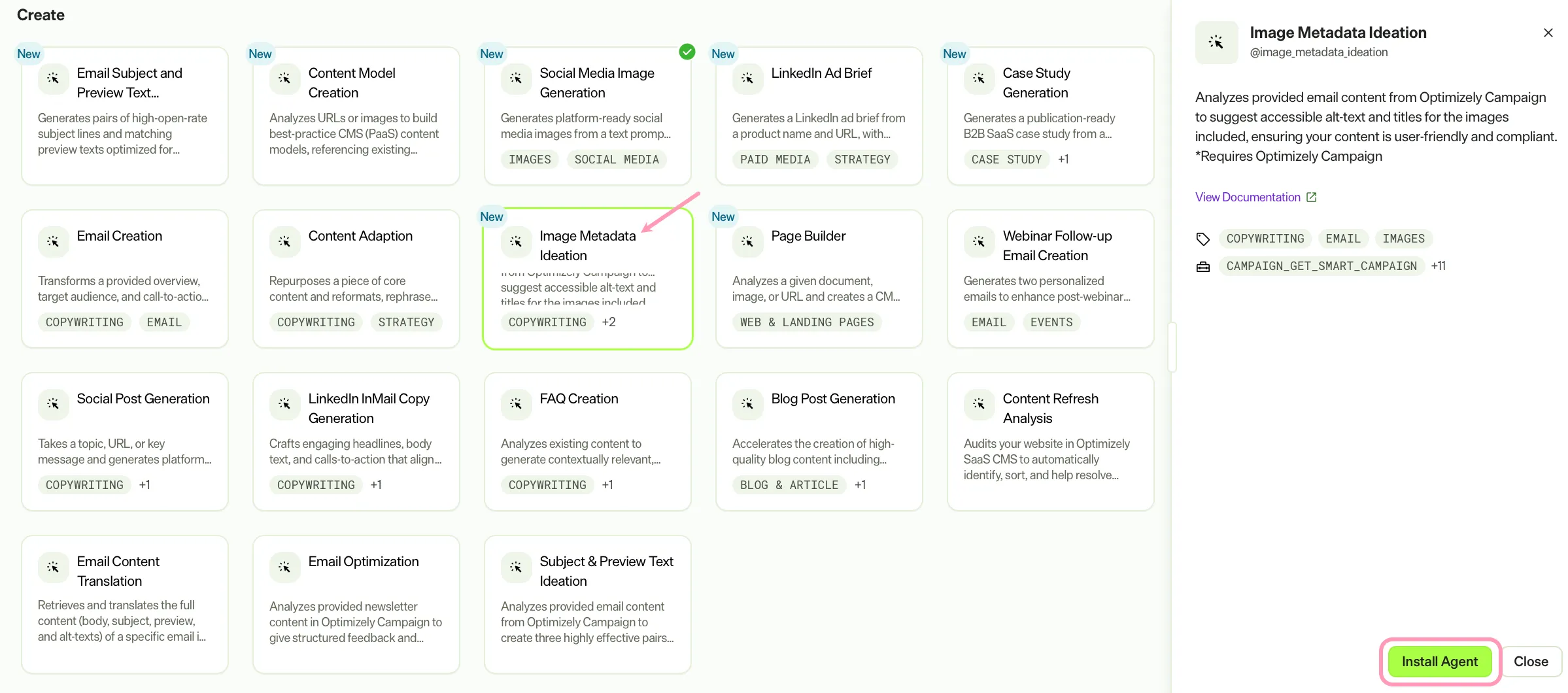
Image Metadata Ideation is an agent in Mark (Optimizely Agent Platform). It analyzes provided email content from Optimizely Campaign to suggest accessible alt-text and titles for the images included. The agent helps ensure your content is user-friendly and compliant.
- Challenge – Email images often lack compliant, context-aware alt-text and titles, which reduces accessibility and deliverability.
- Agent outcome – The agent scans each image in an email and categorizes its purpose. It then generates Web Content Accessibility Guidelines (WCAG)-compliant alt-text and title suggestions in an interactive canvas.
- Value – Streamline accessibility compliance for email campaigns without manual image-by-image auditing.
Required Optimizely products
The Image Metadata Ideation agent requires Optimizely Campaign.
Install agent
Note
Mark Administrators, Agent Builders, and users with the Add, edit, and install specialized agents attribute for a custom role can add agents to their organization's Mark instance. See Add users and set permissions.
Install the agent from the Directory.
- Go to Directory > Agents.
- (Optional) Enter Image Metadata Ideation or use the drop-down list filters to narrow the list.
- Click Install on Image Metadata Ideation to add it to your Mark instance.
Note
If Install is disabled, connect the required Optimizely products to your Mark instance first.
Use the agent
In Mark chat, enter @image_metadata_ideation and provide one of the following details:
- (Optional) campaignName – The name of a Smart Campaign.
- (Optional) campaignId – The ID of a Smart Campaign.
- (Optional) mailingId – The ID of a mailing belonging to a Smart Campaign.
- (Optional) emailUrl – The URL of the online version of the email.
- (Optional) transactionalMailId – The ID of a Transactional Mail.
- (Optional) transactionalMailName – The name of a Transactional Mail.
Provide at least one parameter to identify the email content. For Smart Campaigns, use campaignName or campaignId. For Transactional Mails, use transactionalMailName or transactionalMailId. For an online version of the email, use emailUrl.
The agent delivers an interactive Hypertext Markup Language (HTML) canvas containing a table of all images found in the email. Each image includes a categorized purpose, suggested alt-text, and suggested title.
To use the Image Metadata Ideation agent in a workflow agent, add it to your workflow. See Create a workflow agent.
Default agent details
These are the default details for the Image Metadata Ideation agent. After you install the agent in your Mark instance, customize these details for your organization's needs. See Manage agents.
Input variables
The Image Metadata Ideation agent takes the following input:
- (Optional) campaignName
- (Optional) campaignId
- (Optional) mailingId
- (Optional) emailUrl
- (Optional) transactionalMailId
- (Optional) transactionalMailName
Tools
The Image Metadata Ideation agent uses the following tools to process your request:
- campaign_get_smart_campaign
- campaign_get_smart_campaign_list
- campaign_get_smart_campaign_message_content
- campaign_get_smart_campaign_messages
- analyze_image_content
- browse_web
- create_canvas
- browse_web_html
- campaign_get_transactional_mail
- campaign_get_transactional_mail_list
- campaign_get_transactional_mail_message_content
- campaign_get_transactional_mail_messages
Default configuration
The agent uses the following default configuration:
- Inference level – Standard, which provides fast responses.
- Files – None.
- Output – Text.
Note
If you use Opti ID, administrators can turn off generative AI in the Opti ID Admin Center. See Turn generative AI off across Optimizely applications.