Heatmap Analysis agent
Heatmap Analysis is an Optimizely Opal agent that transforms a provided heatmap image and URL into precise, tailored test ideas.
- Challenge – Creating high-quality test ideas is difficult.
- Agent outcome – Analyzes your webpage based on the heatmap and URL you provide, and generates test ideas to optimize it.
- Value – Rapidly pinpoint high-impact optimization opportunities and reduce the time required to translate user behavior data into testable experiments.
See Heatmap Analysis Agent in Optimizely Academy for more information.
Install agent
Note
Opal Administrators, Agent Builders, and users with the Add, edit, and install specialized agents attribute for a custom role can add agents to their organization's Optimizely Opal instance. See Add users and set permissions.
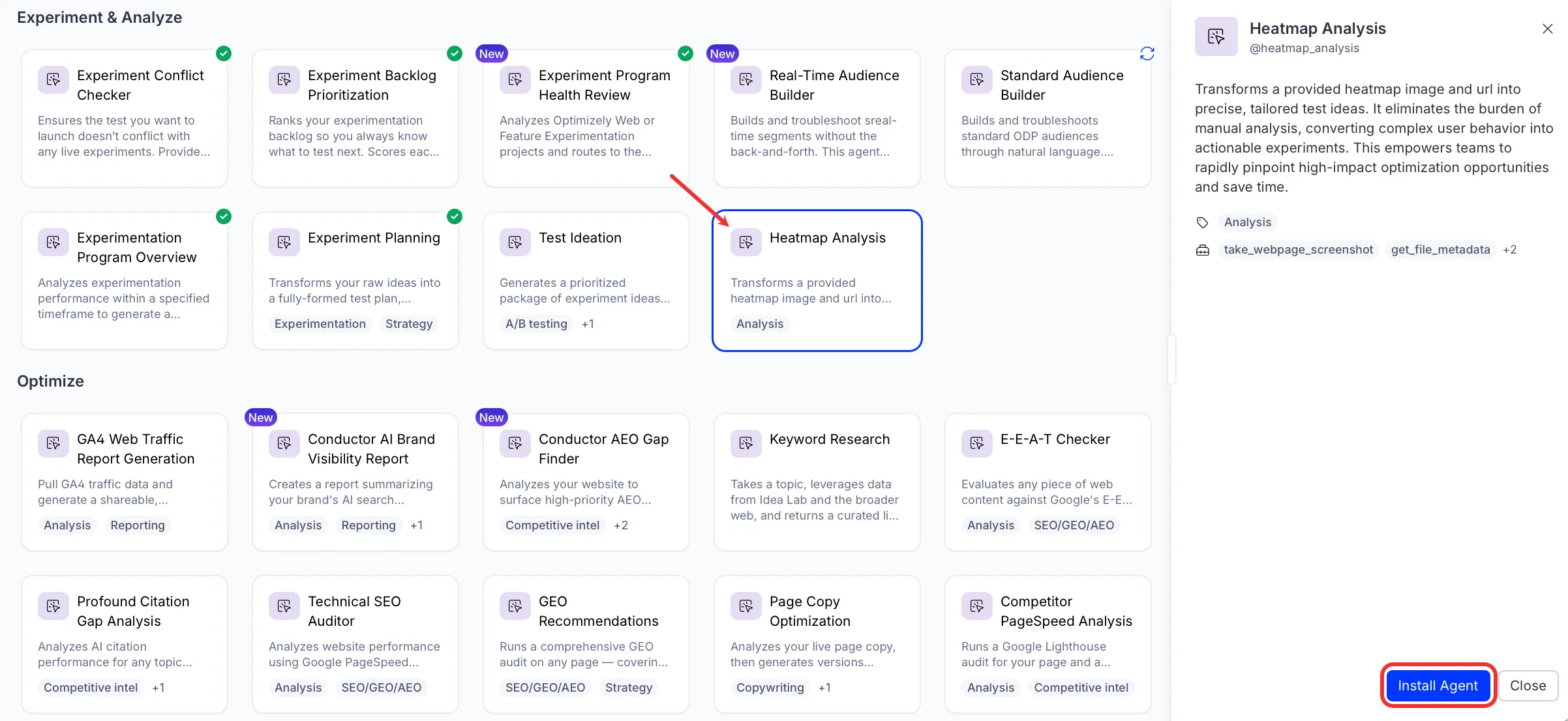
Install the agent from the Opal Agent Directory.
- Go to Agents > Agent Directory.
- Select Heatmap Analysis.
- Click Install Agent to add it to your Opal instance.
Use the agent
In Opal Chat, enter @heatmap_analysis and provide the following details:
- url – The page being analyzed.
- heatmap – Heatmap image of the page you're analyzing.
The Heatmap Analysis agent returns a prioritized list of conversion rate optimization (CRO) test ideas. The list contains key findings, ranked opportunities, and a test backlog organized by quick wins, medium bets, and bold bets.
To use the Heatmap Analysis agent in a workflow agent, drag and drop it into your workflow. See the Create a workflow agent.
Details
The following are the default details of the Heatmap Analysis agent. After you install the agent in your Opal instance, you can customize these details based on your organization's needs. See Manage agents for instructions.
nput variables
The Heatmap Analysis agent takes the following input:
- url
- heatmap
Tools
The Heatmap Analysis agent uses the following tools internally to process your request:
- take_webpage_screenshot
- get_file_metadata
- read_file_content
- retrieve_file_from_gcs_uri
Additional details
The agent uses the following default configuration:
- Inference level – Balanced. Provides reliable answers with additional reasoning.
- Files – None.
- Output – Text.
Note
If you use Opti ID, administrators can turn off generative AI in the Opti ID Admin Center. See Turn generative AI off across Optimizely applicationsTurn generative AI off across Optimizely applications.