Feature Flag Implementation agent
Feature Flag Implementation is an agent in Mark (Optimizely Agent Platform). It generates a portable SKILL.md file. The file implements an Optimizely Feature Experimentation flag in a codebase.
- Challenge – Developers implement feature flags by hand and guess at flag keys, variable types, and version-specific SDK methods.
- Agent outcome – The agent produces a self-contained SKILL.md file. The file includes the resolved flag entities, ordered implementation steps, copy-ready SDK snippets, guardrails, and a verification checklist.
- Value – Coding assistants implement the flag correctly on the first attempt, shortening implementation time and preventing runtime failures from incorrect keys.
Required Optimizely products
The Feature Flag Implementation agent requires Optimizely Feature Experimentation.
Install agent
Note
Mark Administrators, Agent Builders, and users with the Add, edit, and install specialized agents attribute for a custom role can add agents to their organization's Mark instance. See Add users and set permissions.
Install the agent from the Directory.
- Go to Directory > Agents.
- (Optional) Enter Feature Flag Implementation or use the drop-down list filters to narrow the list.
- Click Install on Feature Flag Implementation to add it to your Mark instance.
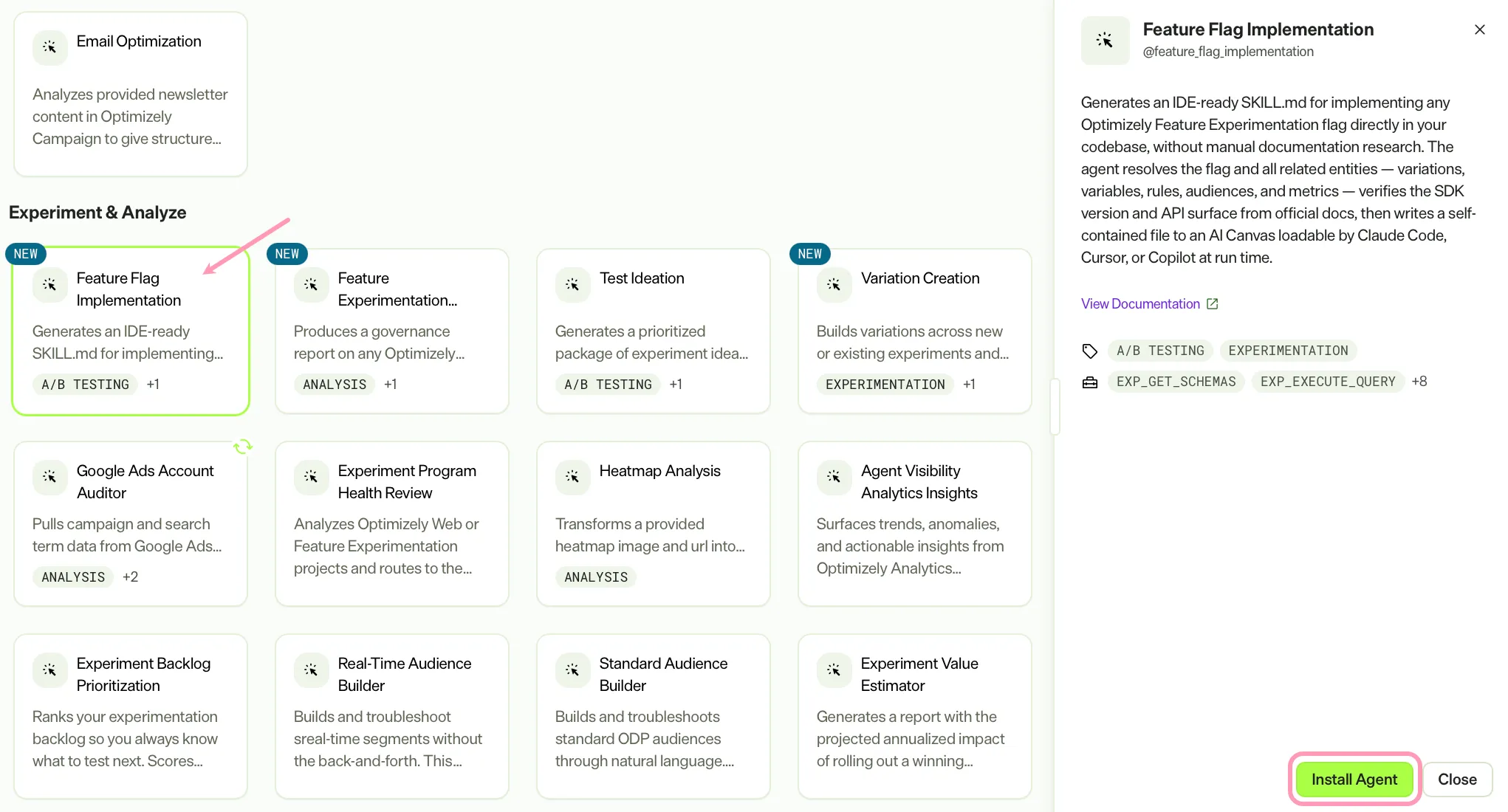
If Install is disabled, connect the required Optimizely products to your Mark instance first.
Use the agent
In Mark chat, enter @feature_flag_implementation and provide the following details:
- Flag Name – The human-readable name of the flag, such as Free Shipping Hero. The agent searches for matching flags in the resolved project and displays the matches. It asks for confirmation before it generates the skill. If the search returns multiple matches, the agent asks which flag to use.
- (Optional) Project Name – The human-readable name of the Feature Experimentation project, such as Web Store FX. Provide this value or the Project ID. If the name is partial or matches more than one project, the agent lists the matches. It then asks which project to use.
- (Optional) Project ID – The Feature Experimentation project ID as a string, such as 5362402791784448. This is optional when you provide Project Name instead. Pass the value as a string to avoid precision loss on large IDs.
- (Optional) SDK Language & Version (optional) – The SDK language and, when known, the version, such as React v4, Python 5.x, or Node.js v5. The agent treats this value as a starting hint. The generated skill re-verifies the installed version from the codebase dependency manifest.
The agent returns a canvas with a downloadable SKILL.md file. Coding assistants such as Claude, Cursor, and GitHub Copilot discover and load the file because it follows the Agent Skills convention. The file includes an entity reference, ordered implementation steps, copy-ready SDK snippets, guardrails, and a verification checklist.
To use the Feature Flag Implementation agent in a workflow agent, add it to your workflow. See Create a workflow agent.
Default agent details
These are the default details for the Feature Flag Implementation agent. After you install the agent, customize these details for your organization's needs. See Manage agents for instructions.
Input variables
The Feature Flag Implementation agent takes the following inputs:
- Flag Name
- (Optional) Project Name
- (Optional) Project ID
- (Optional) SDK Language & Version (optional)
Tools
The Feature Flag Implementation agent uses the following tools to process your request:
- exp_get_schemas
- exp_execute_query
- exp_search_fx_sdk_docs
- create_canvas
- code_execute
- edit_file
- write_file
- search_files
- list_files
- read_file
Default configuration
The agent uses the following default configuration:
- Inference level – Standard, which provides fast responses.
- Files – None.
- Output – Text. A portable, self-contained SKILL.md file that follows the Agent Skills convention. The file has YAML Ain't Markup Language (YAML) frontmatter with a name and description, followed by a Markdown body. Any large language model (LLM) coding assistant, such as Claude, Cursor, or Copilot, can discover and load the file to implement the Feature Experimentation flag in code. The file includes an entity reference, ordered implementation steps, copy-ready SDK snippets, guardrails, and a verification checklist.
Note
If you use Opti ID, administrators can turn off generative AI in the Opti ID Admin Center. See Turn generative AI off across Optimizely applications.