Experiment Planning agent
Experiment Planning is an Optimizely Opal agent that transforms raw ideas into a fully formed experiment plan, complete with hypotheses, key metrics, risks, and critical assumptions.
- Challenge – A poorly planned test results in few learnings. Running quality tests means teams can get to deeper learning faster.
- Agent outcome – A fully-formed test plan with hypotheses, metrics, risks, and assumptions.
- Value – Create an experiment plan that enhances your team's overall testing framework.
Install agent
Note
Opal Administrators, Agent Builders, and users with the Add, edit, and install specialized agents attribute for a custom role can add agents to their organization's Optimizely Opal instance. See Add users and set permissions.
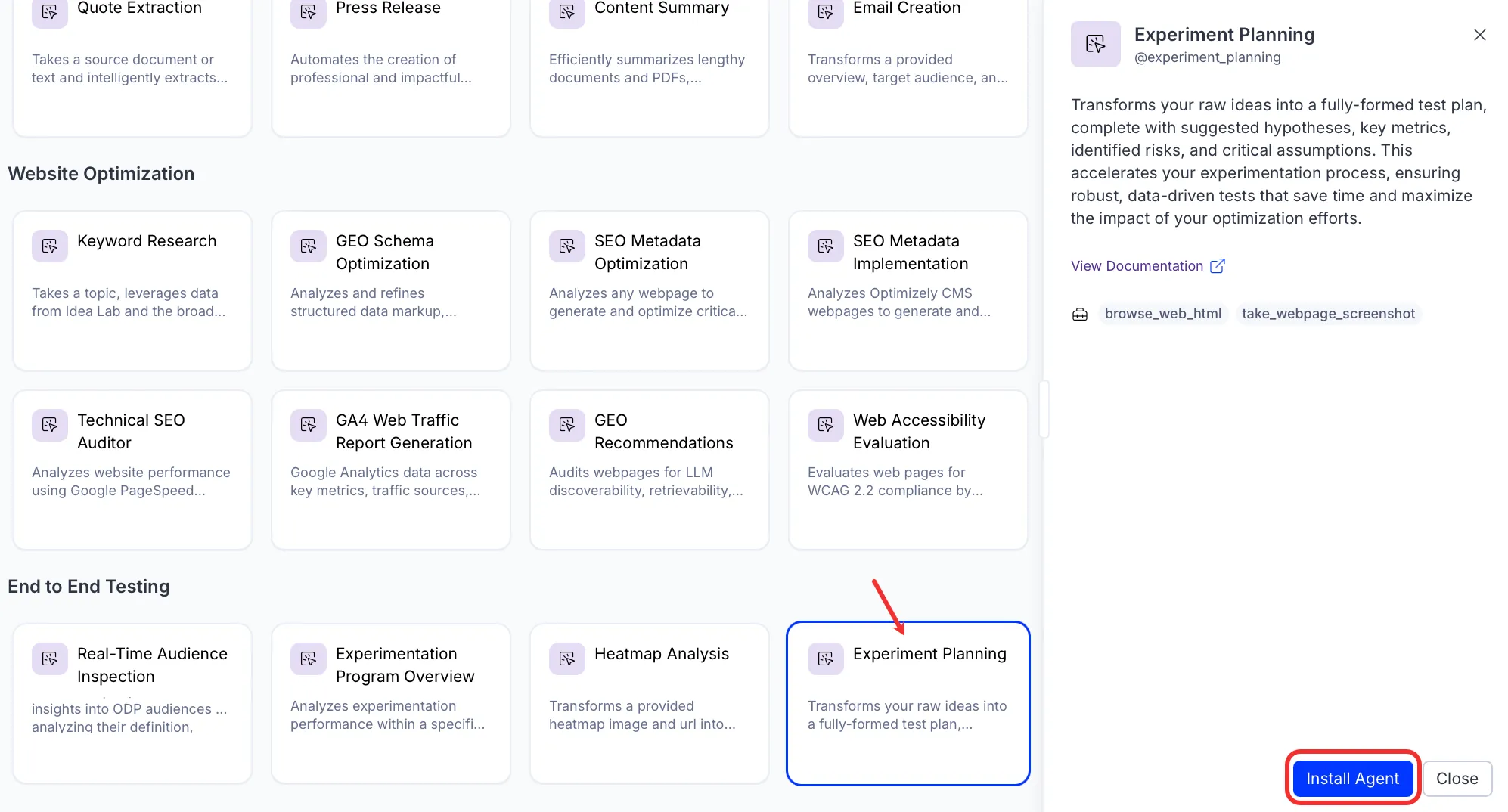
Install the agent from the Opal Agent Directory.
- Go to Agents > Agent Directory.
- Select Experiment Planning.
- Click Install Agent to add it to your instance.
Use the agent
In Opal Chat, enter @experiment_planning and provide one of the following details:
- URL – Page where the test will run.
- Test Idea – The idea or hypothesis you want to test.
The Experiment Planning agent returns a structured test plan in text, including a hypothesis, variant descriptions, targeting settings, a metrics table, statistical sizing guidance, risks, and assumptions.
To use the Experiment Planning agent in a workflow agent, drag and drop it into your workflow. See the Create a workflow agent.
Details
The following are the default details of the Experiment Planning agent. After you install the agent in your Opal instance, you can customize these details based on your organization's needs. See Manage agents for instructions.
Input variables
The Experiment Planning agent takes the following input:
- URL
- Test Idea
Tools
The Experiment Planning agent uses the following tools internally to process your request:
- browse_web_html
- take_webpage_screenshot
Additional details
The agent uses the following default configuration:
- Inference level – Complex. Provides advanced reasoning and detail.
- Files – None.
- Output – Text.
Note
If you use Opti ID, administrators can turn off generative AI in the Opti ID Admin Center. See Turn generative AI off across Optimizely applicationsTurn generative AI off across Optimizely applications.