UTM Creation agent
UTM Creation is an agent in Mark (Optimizely Agent Platform). It generates correctly formatted Urchin Tracking Module (UTM) links for campaign tracking.
- Challenge – Manually creating and ensuring the correctness of UTM parameters for campaign tracking is complex and prone to errors.
- Agent outcome – The agent automatically generates correctly formatted UTM links based on provided campaign details.
- Value – The agent ensures accurate attribution tracking, improves data quality, and simplifies campaign analysis.
Install agent
Note
Mark Administrators, Agent Builders, and users with the Add, edit, and install specialized agents attribute for a custom role can add agents to their organization's Mark instance. See Add users and set permissions.
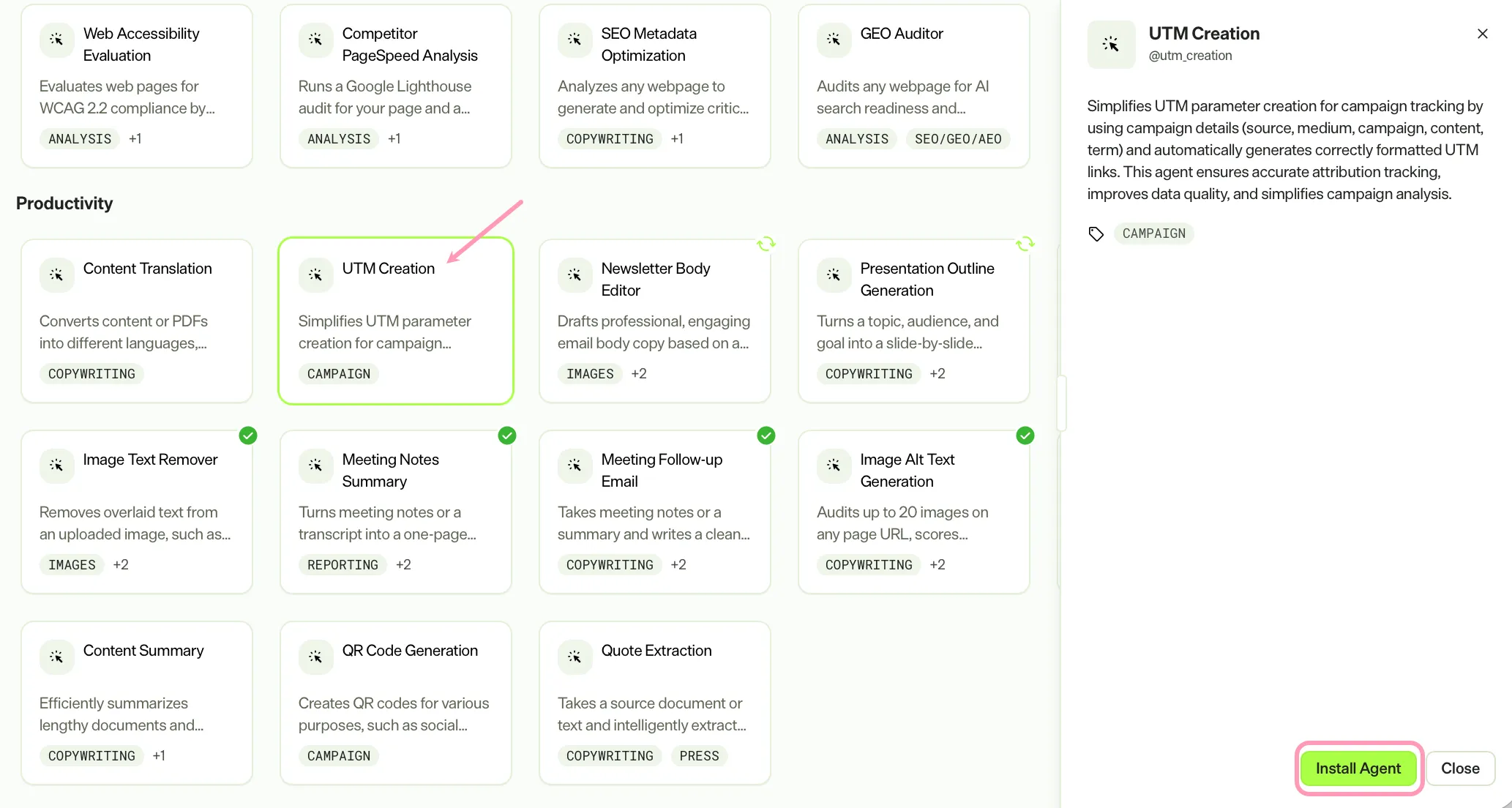
Install the agent from the Directory.
- Go to Directory > Agents.
- (Optional) Enter UTM Creation or use the drop-down list filters to narrow the list.
- Click Install on UTM Creation to add it to your Mark instance.
Use the agent
In Mark chat, enter @utm_creation and provide the following details:
- Campaign Name – Name of the asset or campaign you are promoting. For example, Winter Sale 2025 or New Product Launch.
- Landing Page URL – The final destination URL.
- (Optional) Channel – Marketing channel where the link is used, such as Email Newsletter, Facebook Ad, or Blog Post. If you provide none, the agent includes all channels.
- (Optional) Content – Additional content details. Add this to differentiate ads or elements within the same campaign. For example, banner-ad-top or text-link-sidebar.
The agent delivers a formatted UTM link for a single channel. When you specify no channel, it delivers a table of UTM links across all standard channels.
To use the UTM Creation agent in a workflow agent, add it to your workflow. See Create a workflow agent.
Default agent details
The following are the default details of the UTM Creation agent. After you install the agent in your Mark instance, you can customize these details based on your organization's needs. See Manage agents for instructions.
Input variables
The UTM Creation agent takes the following input:
- Campaign Name
- Landing Page URL
- (Optional) Channel
- (Optional) Content
Tools
None.
Default configuration
The agent uses the following default configuration:
- Inference level – Standard, which provides reliable answers.
- Files – None.
- Output – Text.
Note
If you use Opti ID, administrators can turn off generative AI in the Opti ID Admin Center. See Turn generative AI off across Optimizely applications.