LinkedIn InMail Copy Generation agent
LinkedIn InMail Copy Generation is an agent in Mark (Optimizely Agent Platform). It crafts headlines, body text, and calls-to-action for B2B outreach. The copy aligns with LinkedIn's professional audience and ad specifications.
- Challenge – Manually crafting engaging and compliant LinkedIn InMail copy for B2B outreach can be time-consuming and difficult. It requires copywriting expertise, knowledge of LinkedIn's professional audience, and adherence to ad specifications for effective B2B communication.
- Agent outcome – The agent generates optimized headlines, body text, and calls-to-action designed for LinkedIn InMail. They align with LinkedIn's professional audience and ad specifications for B2B outreach.
- Value – The agent streamlines content creation and saves time and resources. It helps ensure InMail messages are engaging, compliant, and effective for B2B outreach.
Install agent
Note
Mark Administrators, Agent Builders, and users with the Add, edit, and install specialized agents attribute for a custom role can add agents to their organization's Mark instance. See Add users and set permissions.
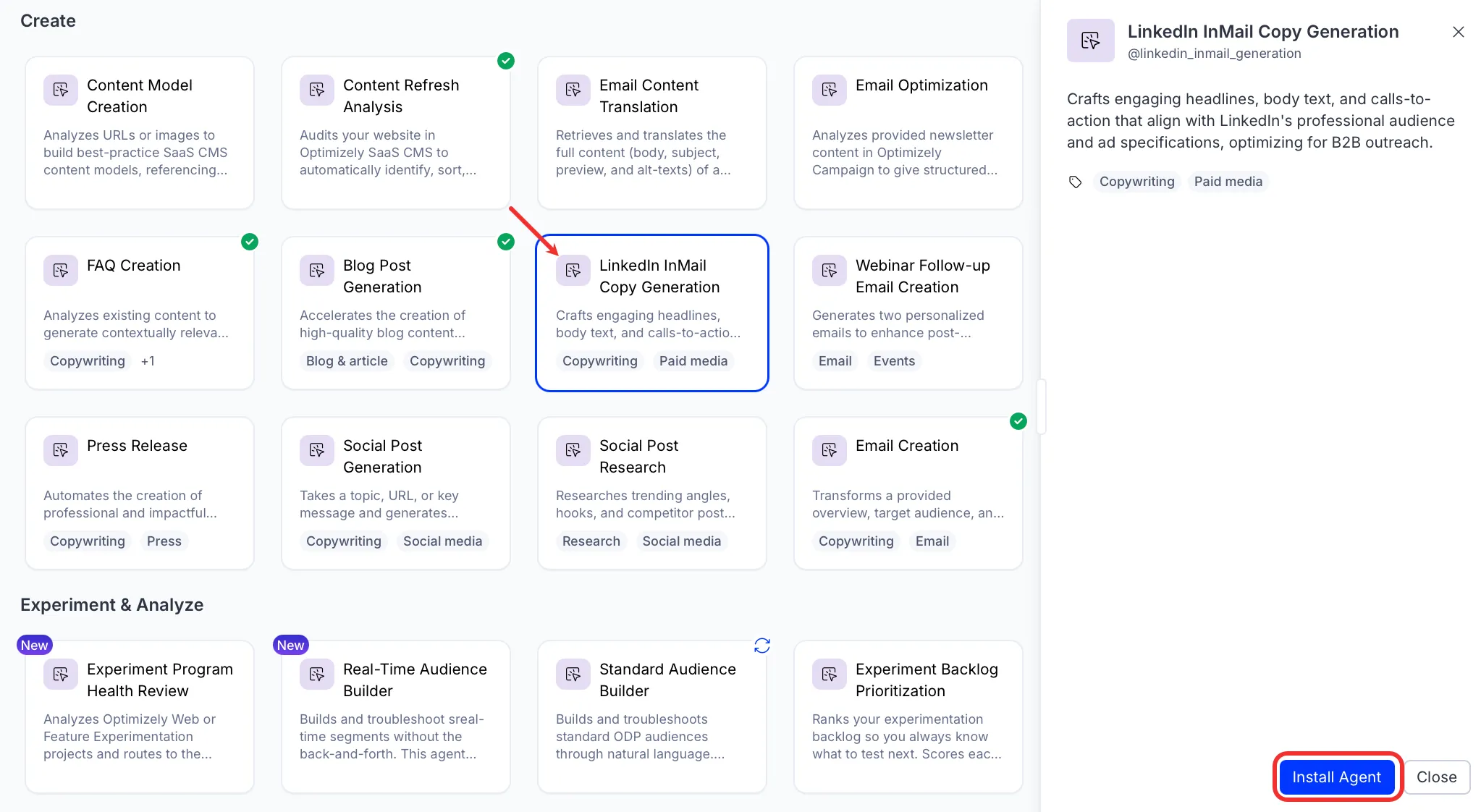
Install the agent from the Directory.
- Go to Directory > Agents.
- (Optional) Enter LinkedIn InMail Copy Generation or use the drop-down list filters to narrow the list.
- Click Install on LinkedIn InMail Copy Generation to add it to your Mark instance.
Use the agent
In Mark chat, enter @linkedin_inmail_generation and provide the following details:
- URL – Destination link in the body of the InMail.
- (Optional) Campaign Name – Name of the campaign. If not provided, the agent generates one automatically.
- (Optional) Sender – Sender of the InMail message.
- (Optional) Additional Guidance – Notes for creating the InMail.
The agent delivers a complete InMail draft. The draft includes a subject line, personalized message body, call-to-action, and destination URL with Urchin Tracking Module (UTM) parameters.
To use the LinkedIn InMail Copy Generation agent in a workflow agent, add it to your workflow. See the Create a workflow agent.
Default agent details
These are the default details of the LinkedIn InMail Copy Generation agent. After you install the agent in your Mark instance, you can customize these details based on your organization's needs. See Manage agents for instructions.
Input variables
The LinkedIn InMail Copy Generation agent takes the following input:
- URL
- (Optional) Campaign Name
- (Optional) Sender
- (Optional) Additional Guidance
Tools
The LinkedIn InMail Copy Generation agent does not use any Mark tools.
Default configuration
The agent uses the following default configuration:
- Inference level – Standard, which provides fast responses.
- Files – None.
- Output – Text.
Note
If you use Opti ID, administrators can turn off generative AI in the Opti ID Admin Center. See Turn generative AI off across Optimizely applications.