Variation Creation agent
Variation Creation is an Optimizely Opal agent that creates an experiment or personalization campaign and builds its variations.
- Challenge – Building experiment variations by hand requires manual work in the visual editor for every page change.
- Agent outcome – The agent creates the experiment or campaign, builds each variation, validates the changes, and returns a preview link.
- Value – Teams launch tests faster and spend less time on repetitive variation setup.
Prerequisites
To use the Variation Creation agent, ensure the following:
- You must have access to Optimizely Web Experimentation.
- Your Web Experimentation project's snippet must be added on the page to view the changes in preview. If the snippet is not already implemented on the page, you can use the Optimizely Web Companion Chrome extension to inject it. See Optimizely Web CompanionOptimizely Web Companion.
- You must add the following IP addresses to your allowlist:
- 35.222.134.123
- 34.171.204.197
Install agent
Note
Opal Administrators, Agent Builders, and users with the Add, edit, and install specialized agents attribute for a custom role can add agents to their organization's Optimizely Opal instance. See Add users and set permissions.
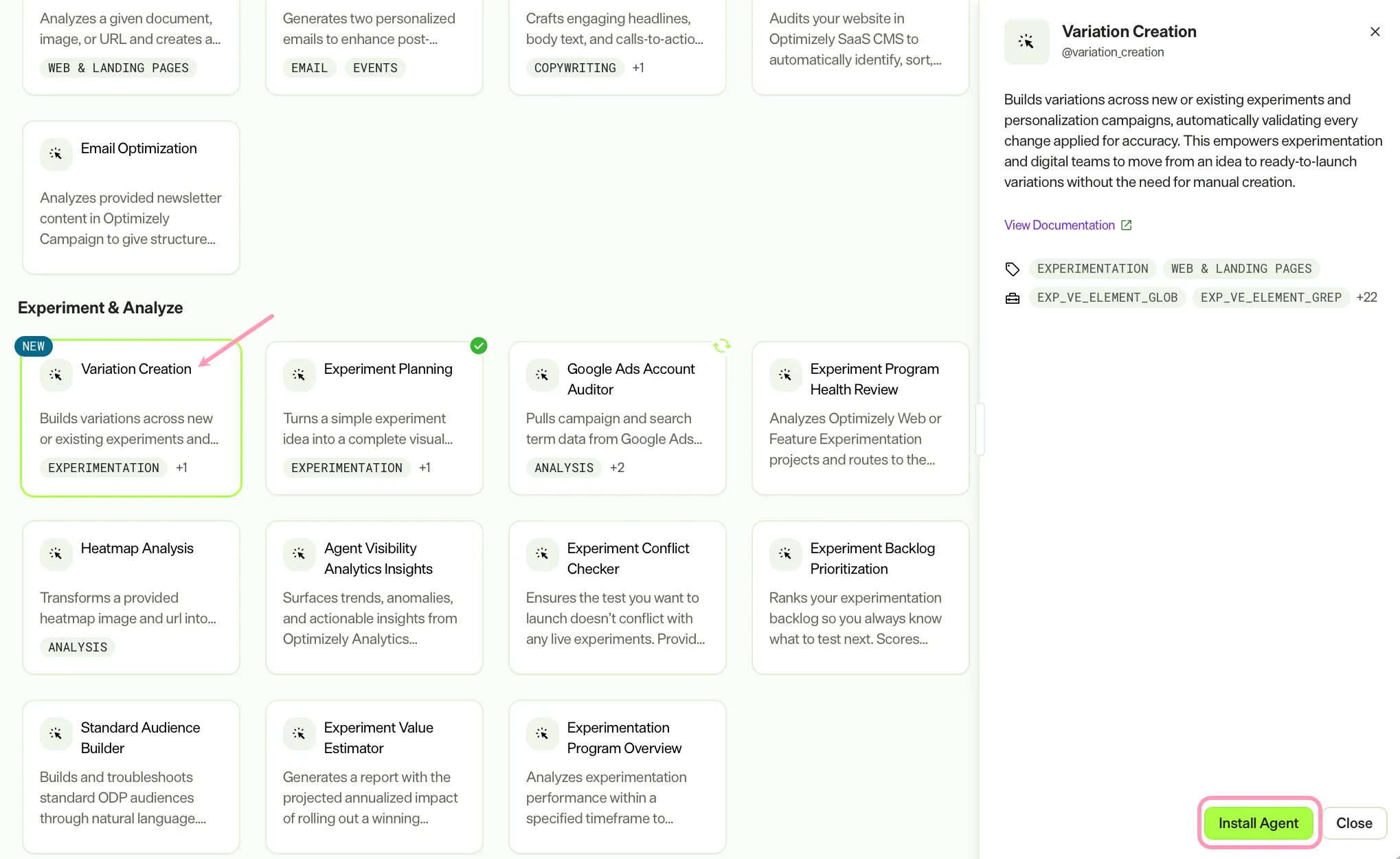
Install the agent from the Opal Agent Directory.
- Go to Agents > Agent Directory.
- Select Variation Creation.
- Click Install Agent to add it to your Opal instance.
Use the agent
In Opal chat, enter @variation_creation and provide the following details:
- Project Name – The project name where the experiment or campaign exists or is built.
- URL – Page URL.
- Variation Count – Number of variations to build.
- Instruction – Instruction for the variations to build.
- (Optional) Name – Experiment or campaign name. When the name matches an existing experiment or campaign in the project, the agent adds the new variations to it.
The agent opens a visual editor session for each variation, applies the changes, saves them, validates the result, and returns a preview link for each variation.
To use the Variation Creation agent in a workflow agent, drag and drop it into your workflow. See Create a workflow agent.
Details
These are the default details for the Variation Creation agent. The Variation Creation agent is an Optimizely-managed agent and you cannot update it. See Optimizely-managed agents overview.
Input variables
The Variation Creation agent takes the following input:
- Project Name
- URL
- Variation Count
- Instruction
- (Optional) Name
Tools
The Variation Creation agent uses the following tools to process your request:
- exp_ve_element_glob
- exp_ve_element_grep
- exp_ve_element_read
- exp_ve_element_tree
- exp_ve_revert_change
- exp_ve_validate_change
- exp_execute_query
- exp_ask_ui_card
- exp_idea_next_steps
- exp_list_ui_cards
- exp_ve_dispatch
- exp_ve_get_dispatch_schema
- execute_specialized_agent
- edit_file
- ask_user_question
- exp_get_entity_templates
- exp_manage_entity_lifecycle
- exp_ve_open_session
- exp_get_schemas
- exp_ve_apply_change
- exp_ve_get_change_schema
- exp_ve_save_changes
- exp_ve_list_pending_changes
- exp_capture_screenshot
Additional details
The agent uses the following default configuration:
- Inference level – Pro, which provides maximum reasoning depth.
- Files – None.
- Output – Text.
Note
If you use Opti ID, administrators can turn off generative AI in the Opti ID Admin Center. See Turn generative AI off across Optimizely applicationsTurn generative AI off across Optimizely applications.