Optimizely Web Companion
Optimizely Web Companion is a browser extension that opens the Visual Editor for Web Experimentation directly from your browser. It helps when the Visual Editor does not open normally. Some sites remove the query parameters from the URL as the page loads. Others drop the hash values the editor needs to launch. Either case leaves you on a blank or non-editor page. The extension launches the editor without relying on the URL. The editor opens on those sites with no website changes.
For editing, the extension only launches the editor. You edit, save, and publish in the Visual Editor on your site, the same as before. Use the extension when a site strips the URL and the Visual Editor does not open. For all other cases, launch the Visual Editor from app.optimizely.com as usual. The standard launch still works, and users who do not install the extension are not affected.
Mark (Optimizely Agent Platform) is an agent orchestration platform that helps you work smarter in Web Experimentation. Optimizely Web Companion also runs quality assurance (QA) on A/B experiments with Mark in your own browser session. The QA checks load your pages with your cookies and logged-in state, so they reach pages behind a login. See Run QA with Mark.
Prerequisites
Optimizely Web Companion requires the following:
- Google Chrome. Support for Microsoft Edge and Mozilla Firefox is planned.
- An Optimizely account with Web Experimentation.
- An Editor or Administrator role on the project you want to work in. See Manage collaborators.
- An Opti ID account.
- To run QA, access to Mark in Web Experimentation. See QA experiments with Optimizely Mark.
Optimizely Web Companion shows only the accounts, projects, and experiments you already have access to. It does not grant extra access.
Note
Some organizations restrict which browser extensions employees install. If you cannot install Optimizely Web Companion, contact your IT team to request approval.
Install the extension
- Open Optimizely Web Companion in the Chrome Web Store.
- Click Add to Chrome.
- Confirm the installation.
- Pin Optimizely Web Companion to your browser toolbar.
Log in
- Open Optimizely Web Companion from your browser toolbar.
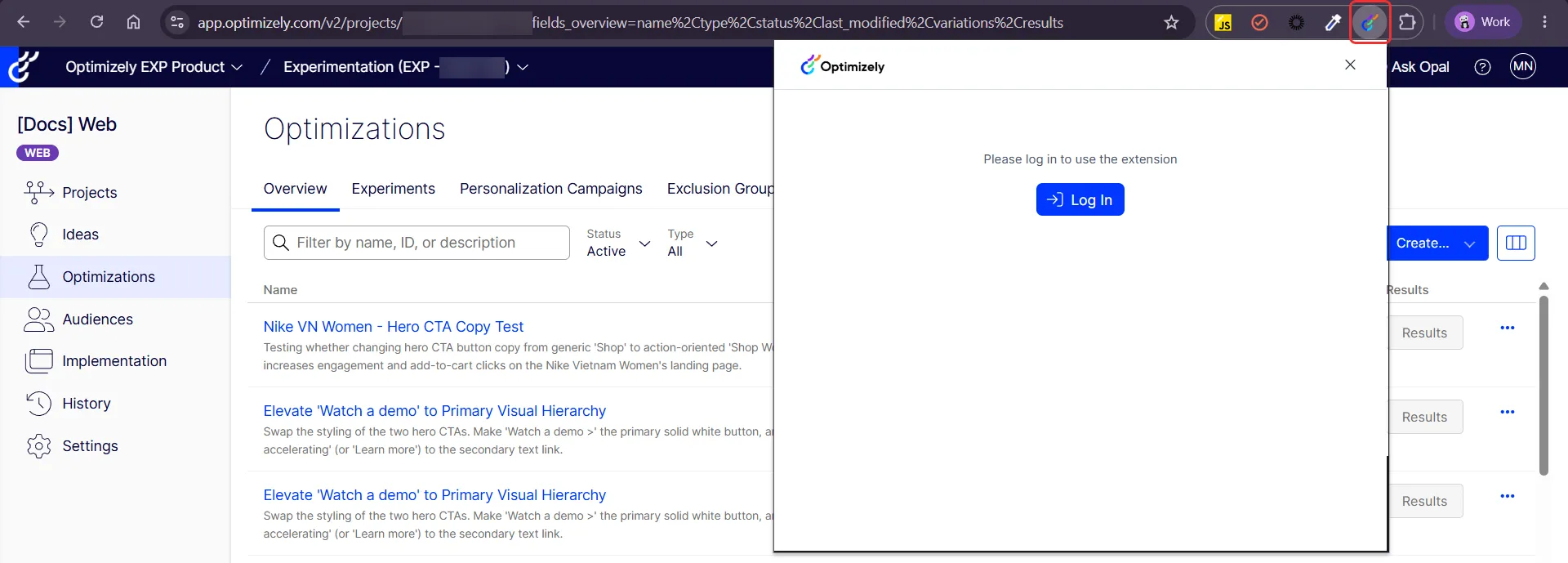
- Click Log In.
- Sign in with your Opti ID in the window that displays.
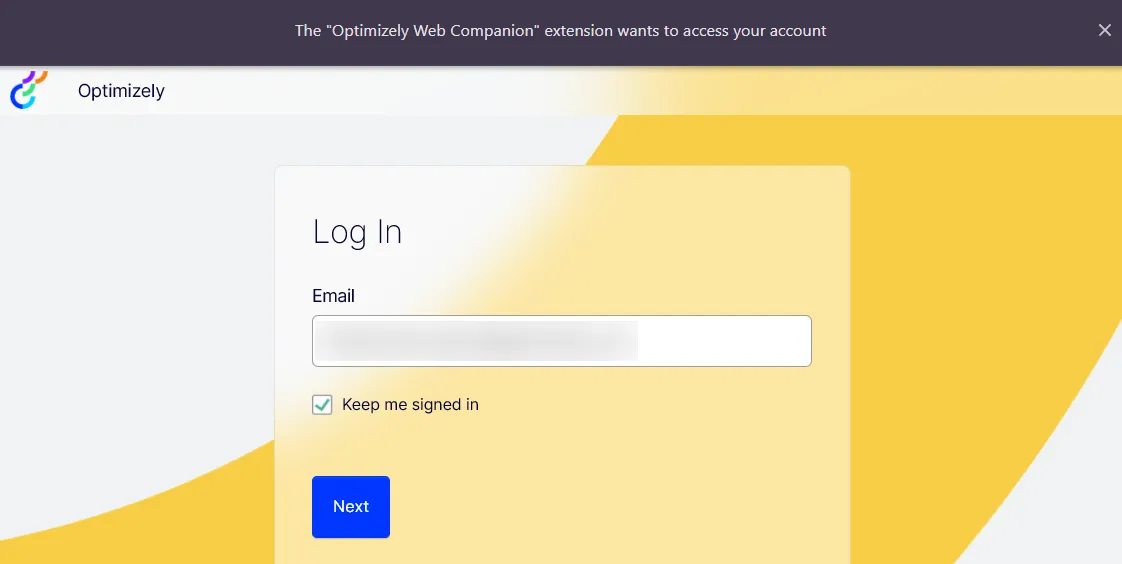
After you log in, Optimizely Web Companion takes a moment to load while it retrieves the accounts and projects you can access. You stay logged in until you log out or your session expires.
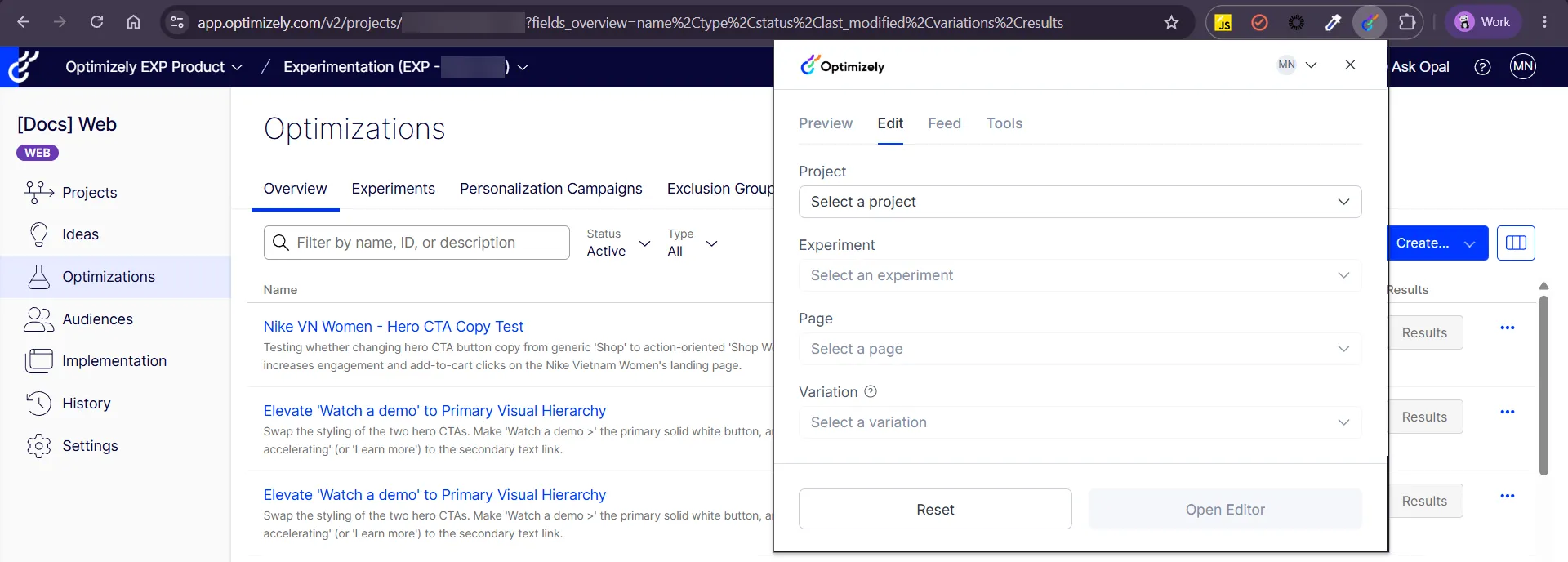
Open the Visual Editor
- Open Optimizely Web Companion.
- Click the Edit tab.
- Select the account you want to work in.
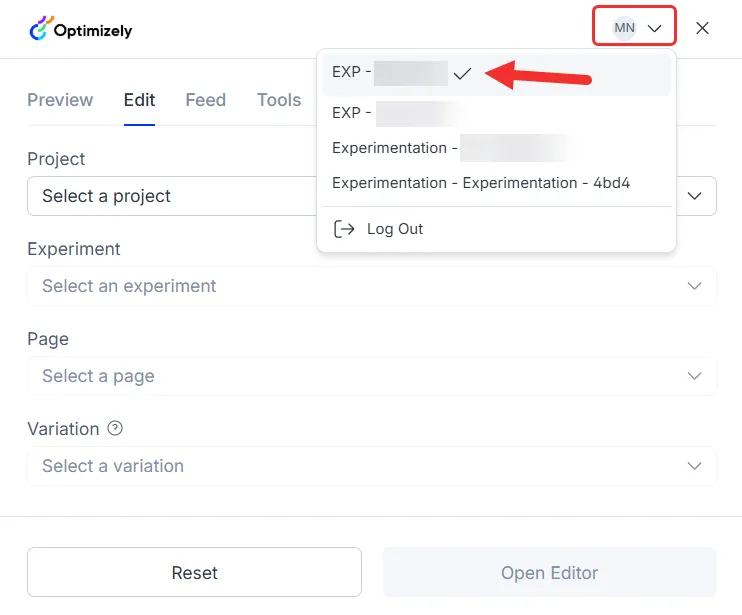
- Select a Project, an Experiment, a Page, and the Variation from the drop-down lists.
- Click Open Editor.
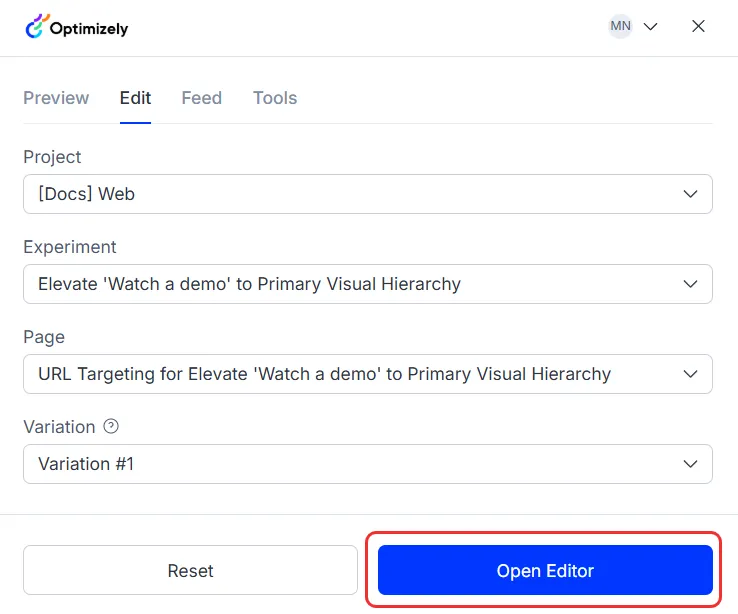
Each list becomes available after you select the one before it. To search a list, enter text in it.
Optimizely Web Companion opens a browser tab with the Visual Editor loaded on your page in the variation you selected. The editor loads as long as the Optimizely snippet is running on the page. The snippet is the Optimizely JavaScript that runs your experiments on the site.
To work in a different account, select another account before you choose a project. Optimizely Web Companion reloads the available projects and experiments for that account.
Click Reset to clear your selections and return to project selection.
Available projects and experiments
Optimizely Web Companion lists only the projects and experiments you can open in the Visual Editor. If a project or experiment is missing, confirm it meets these conditions:
- Project status – Only active projects display.
- Experiment status – Optimizely Web Companion lists running, paused, and not-started experiments. It does not list archived or concluded experiments.
Run QA with Mark
Run QA on an A/B experiment in your Chrome session so that Mark sees your pages as you do. Start a QA run from the extension's QA tab, or from the experiment in Web Experimentation with Browser QA. For Browser QA, see QA experiments with Optimizely Mark.
- Open Optimizely Web Companion.
- Select the QA tab.
- Select a Project and an Experiment from the drop-down lists.
- Select Run QA.
The popup closes, and Mark chat opens in the Chrome side panel. Mark chat starts a thread that asks the QA agent to QA the experiment. Until the run finishes, Run QA displays QA in progress and you cannot start another run.
The QA tab lists only A/B experiments.
What happens during a QA run
Learn what the extension does during a QA run so you can tell its tab apart from yours. Optimizely Web Companion runs the checks in your browser as follows:
- Browser tab – The extension loads your pages in one browser tab, in a green tab group named QA agent. The tab closes when the run finishes, and Chrome returns to the tab you were on.
- Debugging bar – Chrome displays a bar that says Optimizely Web Companion started debugging this browser. If you select Cancel on that bar, the check that is running fails.
- Cookies and storage – Some checks load a page as a first-time visitor. For those checks, the extension removes your cookies for that site and puts them back afterward. After each check, the extension removes the cookies the check added and restores the values the check changed.
Keep the side panel open until the run finishes. If you close the side panel or log out during a check, that check's cleanup does not finish.
Permissions and data
Optimizely Web Companion requests the access it needs to open the Visual Editor and run QA on any site:
- Access to all websites – Optimizely Web Companion injects the Visual Editor and runs on the customer site you open.
- Your Opti ID login – Optimizely Web Companion authenticates you through the extension. It grants no access beyond what your Optimizely user already has.
- Side panel – Optimizely Web Companion displays Mark chat in the Chrome side panel.
- Debugger – During a QA run, Optimizely Web Companion reads console errors and failed network requests and emulates a mobile viewport. It attaches only to the browser tab it opens for QA, never to your other tabs.
- Tab groups – Optimizely Web Companion groups its QA browser tab under QA agent, apart from your tabs.
Some sites have strict security policies that block the Visual Editor. To load the editor there, Optimizely Web Companion removes the Content Security Policy (CSP) header on the tab it opens. This change applies only to that tab.
Optimizely Web Companion sends product-usage events, such as Open Editor and Run QA clicks, to Optimizely to improve the product.
Log out
- Open Optimizely Web Companion.
- Click Log Out.
Logging out clears your selections and ends your Optimizely session for the extension. Logging out does not affect your experiments or data in Optimizely.
Troubleshoot
The Visual Editor does not load, or the page is blank
- Wait a moment. Optimizely Web Companion reloads the page one time when the editor does not load.
- Confirm the Optimizely snippet is installed and active on the page. The editor does not load when the snippet is missing, blocked, or not deployed in that environment.
- Confirm the page has a valid activation URL in its page settings.
An access or permissions error displays
- Log out and log back in to refresh your access, then try again.
- Confirm you have the Editor or Administrator role on the project.
An expected account, project, or experiment is missing
- Confirm you have the Editor or Administrator role on the project.
- Confirm your access in app.optimizely.com, or contact your Optimizely administrator.
- For the projects and experiments Optimizely Web Companion lists, see Available projects and experiments.
Browser QA does not start
If Browser QA cannot start, Web Experimentation displays one of the following error messages. Find the message and apply its fix:
- Unable to start Browser QA. Make sure the Optimizely Web Companion extension is installed. – Web Experimentation did not get a reply from the extension. Use Google Chrome, install Optimizely Web Companion, and turn the extension on. Then select Browser QA again.
- Not signed in to the extension – Optimizely Web Companion has no logged-in user. Log in to the extension, then select Browser QA again.
- Email doesn't match the signed-in user – The extension's logged-in user has a different email address. Log out of the extension and log in with the email address you use for Optimizely.
- A QA run is already in progress – The extension handles one QA run at a time. Wait for the run in the side panel to finish, then select Browser QA again.
- Couldn't open the side panel – Chrome did not open the side panel, so the run did not start. Select Browser QA again.
- Invalid message or sender – The extension accepts Browser QA requests only from app.optimizely.com. Start Browser QA from the Variations page of the experiment.
You cannot install the extension
- Some organizations block browser extensions. Contact your IT team to request approval.