Klaviyo remote MCP connector
The Klaviyo remote Model Context Protocol (MCP) connector in Mark (Optimizely Agent Platform) brings your Klaviyo email and SMS marketing data into Mark. Use Mark chat, agents, and workflows to build campaigns, analyze performance, audit flows, and target audiences from natural-language requests.
Note
Klaviyo manages the Klaviyo remote MCP. See the Klaviyo MCP server documentation in the Klaviyo Developer Portal for available tools and data.
First, a Mark administrator must connect the Klaviyo remote MCP to Mark. After the administrator adds the MCP server, individual Mark users and agent builders log in to Klaviyo to access their data from Mark. Administrators only need to add the Klaviyo remote MCP once.
Use cases
The following use cases show how you can use Klaviyo connector tools in Mark to build campaigns faster, compare channel performance, and act on predicted customer value.
Build a campaign from a one-line brief
Goal – Replace many clicks across Klaviyo screens with a review-and-approve step.
Draft a multichannel campaign – Use get_segments or create_segment to find or create the audience. Use upload_image_from_url and create_email_template or create_dnd_email_template to build the email, and create_campaign to create a single draft with both the email and the SMS message. Use create_coupon_code or bulk_create_coupon_codes and create_translation for unique codes and each language. Use render_email_template to preview the email with sample profiles and catch broken personalization, and then use schedule_campaign_message to schedule the send. Mark requires your explicit approval before it schedules or sends.
Example prompt: Build a Black Friday campaign for VIPs who bought in the last 90 days: an email plus an SMS reminder 4 hours later, unique 20%-off codes, English and Spanish. Draft only.
Compare email and SMS performance
Goal – Judge email and SMS side by side, without pulling numbers by hand.
Weekly performance digest – Use get_campaign_report and get_flow_report to pull results by channel, audience, and tag. Compare SMS with MMS to see whether the higher MMS cost pays off. Use query_metric_aggregates for daily trends to spot sudden changes in unsubscribes or bounces, and ask_analytics_question to investigate why a number moved.
This use case only reads data, so it is a safe first step to confirm that the connection can access real data.
Example prompt: Compare revenue per recipient, click rate, and unsubscribe rate for email and SMS over the last 30 days, by audience. Flag anything outside normal ranges.
Read A/B test results and roll out the winner
Goal – Make sure test results are read and winning versions are rolled out.
Test readout and rollout – Use get_campaign_report and get_flow_report to read A/B test results by variation. Ask Mark to summarize the winner and its lift, and use update_flow_action to update the flow email to the winning version. Before a test, use render_email_template to preview each version with several sample profiles.
The Klaviyo API cannot create a split inside a campaign, because each message holds exactly one version. Mark can draft the test versions and analyze the results, but you must set up the split in Klaviyo.
Example prompt: Summarize every A/B test from Q3, rank the winners by lift in conversion rate, and list which flow emails still use the losing version.
Audit flow health
Goal – Find weak steps, slow timing, and flows that never went live.
Abandoned cart, welcome, and browse abandonment flows – Use get_flows to list flows by status and trigger. Use get_flow_report to find where people drop off, and compare email and SMS steps. Use get_flow_action and get_flow_message to review step settings and content, and then use update_flow_action or update_flow to change delays, templates, or status after you approve.
Editing a transactional flow email turns it into a marketing email that needs review again. The tool warns you before it makes this change.
Example prompt: Audit all live flows: show each step's click and conversion rate, flag SMS steps with unsubscribe rates above 1%, and list flows still in draft.
Target by predicted customer value
Goal – Send to the people most likely to respond, and protect deliverability.
Win-back segment – Use get_profiles to read predicted lifetime value, churn risk, and expected next order date, and create_segment to build a segment such as high value and high churn risk. Check the segment size before sending, draft an email and SMS win-back offer with unique codes, and suppress contacts who never engage. Mark requires your explicit approval to suppress contacts.
Predictions are available only if your Klaviyo account qualifies for predictive analytics.
Example prompt: Create a segment of customers with predicted lifetime value in the top 20% and churn risk above 60%, tell me how many there are, and draft an email plus SMS win-back.
Connect the Klaviyo remote MCP to Mark
The first person to connect a third-party service to Mark should be an administrator of that service. Administrator access installs the complete set of tools, so Mark adds every available tool. If a non-administrator connects the service first, Mark installs only the tools that account can access.
Add Klaviyo connection
As a Mark administrator, complete the following steps:
- Go to Connectors in Mark.
- (Optional) Enter Klaviyo in the search bar to filter the connectors list.
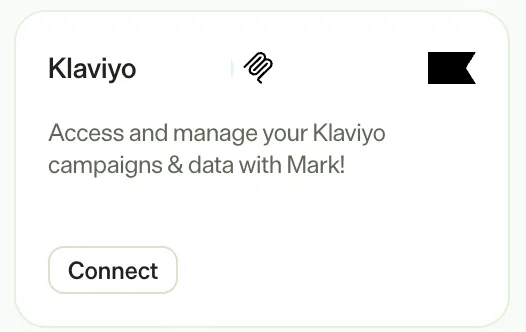
- Click Connect on the Klaviyo tile.
- Log in to Klaviyo.
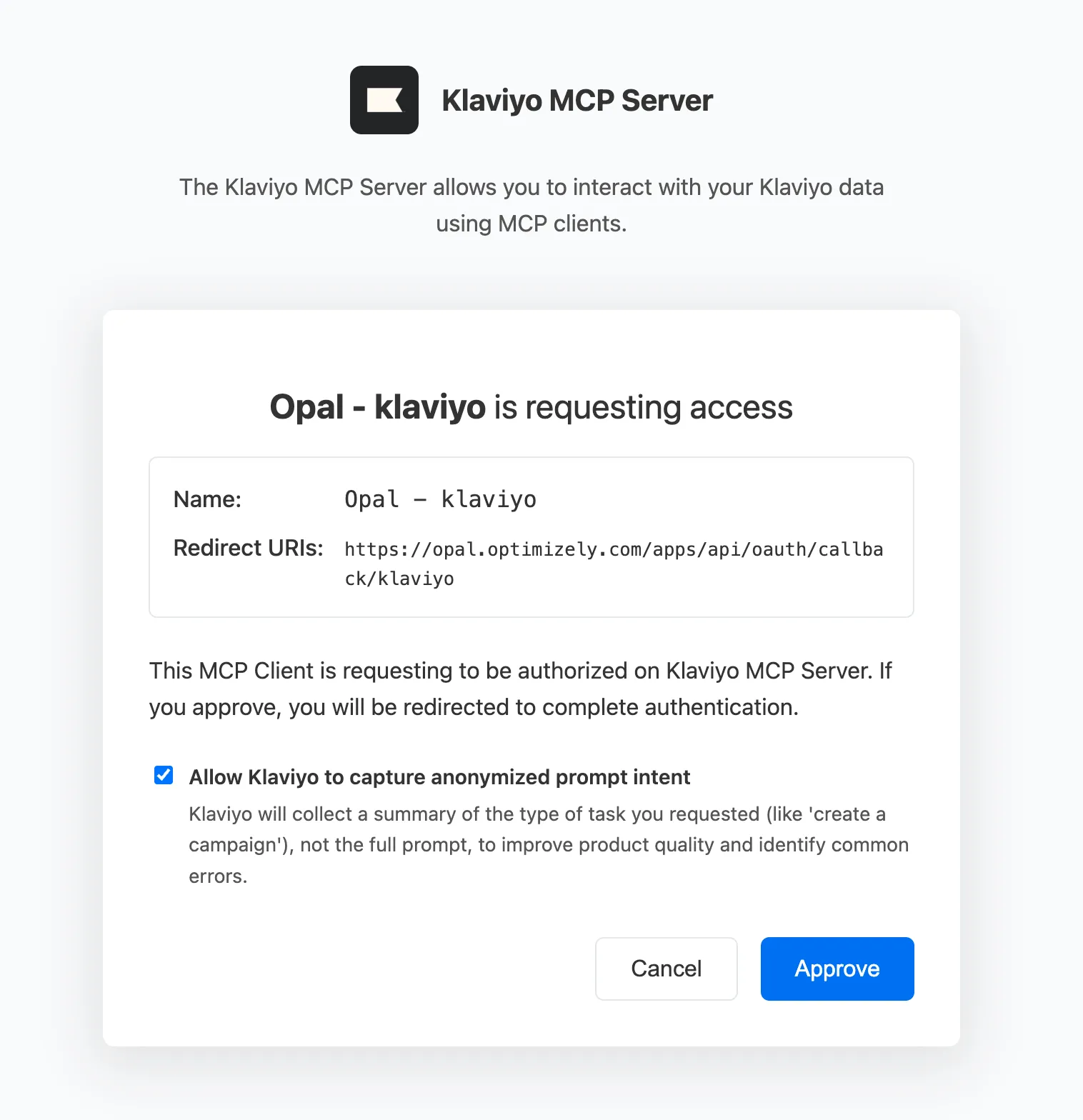
- On the access request screen, click Approve.
- Review the requested permissions, and then click Allow.
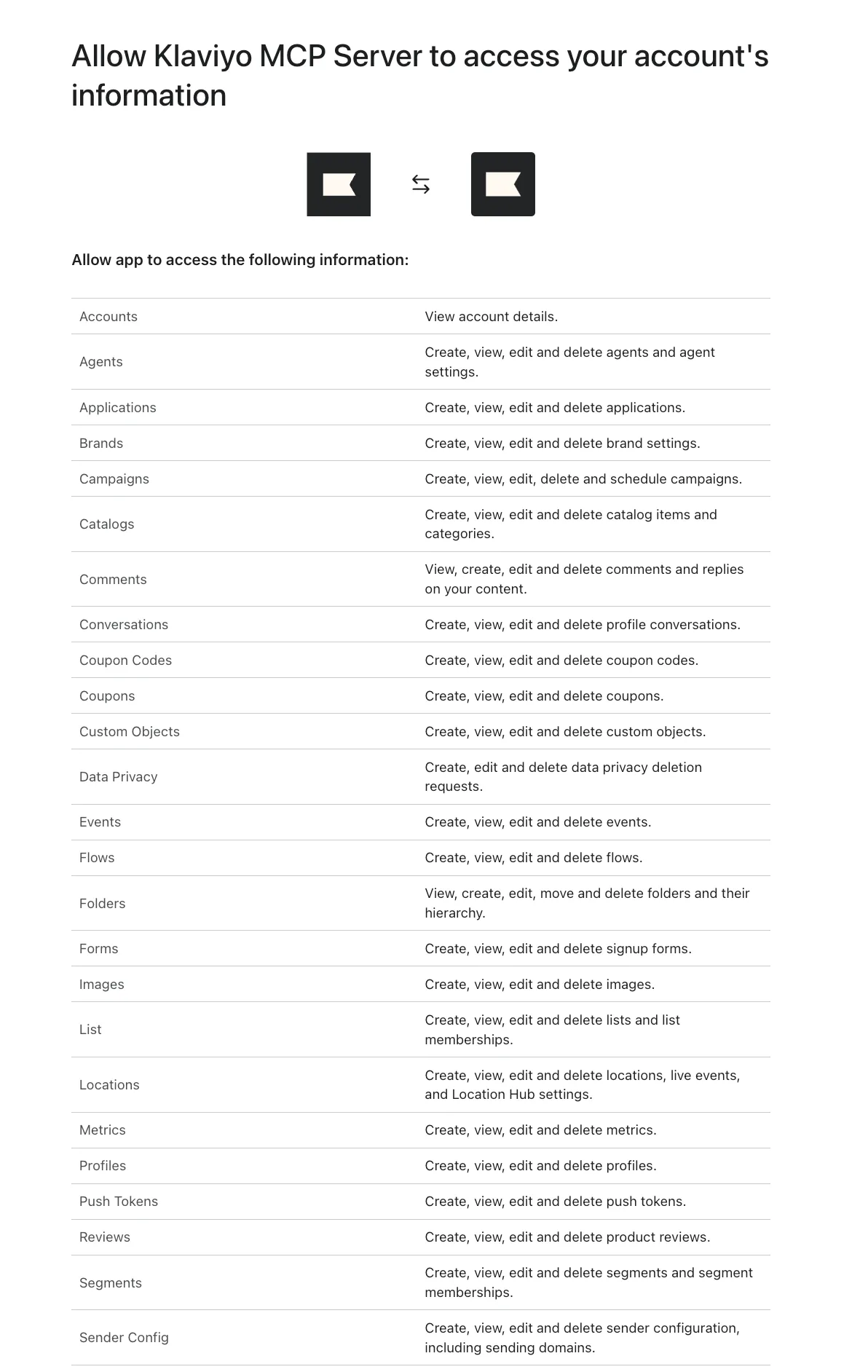
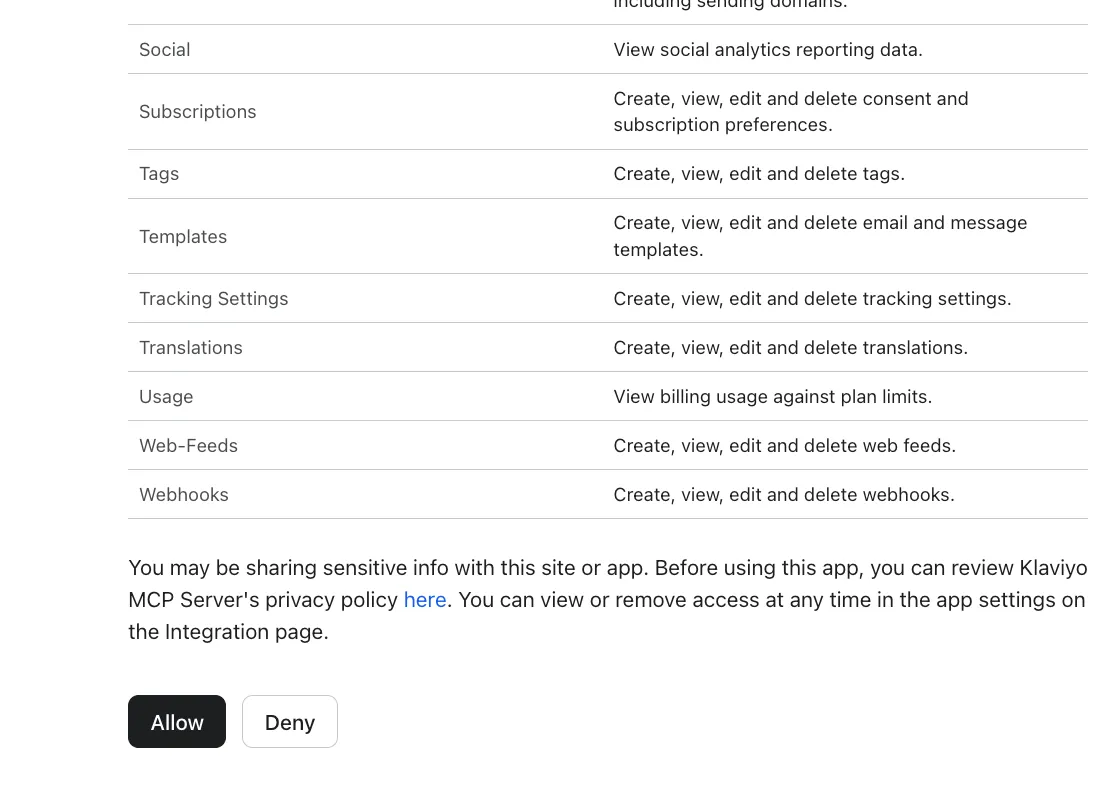
A confirmation message displays, and you can close the pop-up window.
Configure Mark tools
After adding the Klaviyo connection, Mark prompts you to select which tools to enable and optionally customize their display names.
As a Mark administrator, complete the following steps:
- Deselect any tools you do not want to add to Mark.
- (Optional) Update any tool's display name.
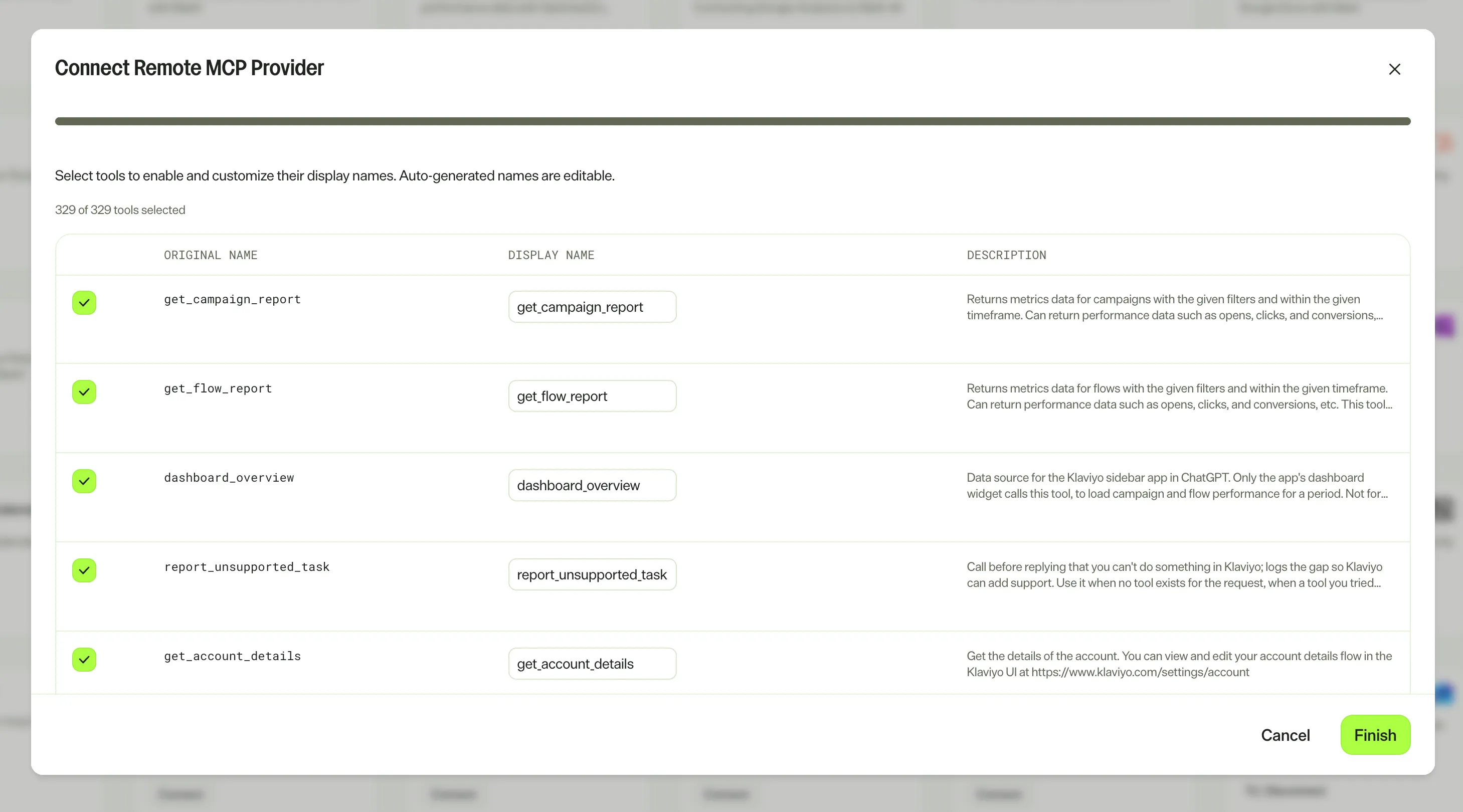
- Click Finish.
The Klaviyo tile displays Connect on the Connectors tab for Mark users to authenticate with their personal accounts.
To update the available tools or names, see Update tools.
Authenticate with Klaviyo
Each Mark user and agent builder logs in to Klaviyo individually to access their data from Mark. User-level authentication ensures you access only the data your Klaviyo account is authorized to view.
Before you begin, confirm that a Mark administrator has connected the Klaviyo remote MCP to Mark. Until an administrator connects it, the Klaviyo tile displays Contact admin instead of Connect and you cannot select it.
To authenticate, complete the following steps in Mark:
- Go to Connectors.
- (Optional) Enter Klaviyo in the search bar to filter the connectors list.
- Click Connect on the Klaviyo tile.
- Log in to Klaviyo.
Klaviyo connector tools
The available tools depend on which tools your administrator enabled. For the full list of tools, see the Klaviyo MCP server documentation in the Klaviyo Developer Portal.
The Klaviyo connector tools are grouped into the following categories:
- Launching campaigns – Create campaigns, build and assign email templates, upload images, and schedule or send campaign messages.
- Audiences – Create segments, and read segments, lists with profile counts, and profiles, including predicted lifetime value and churn risk.
- Offers and languages – Create coupon codes in bulk, translations, and universal content.
- Flows – List flows, read flow actions and messages, update flow actions and status, and create flows.
- Analysis – Pull campaign and flow reports by channel, audience, tag, A/B variation, and SMS or MMS, query metric trends over time, and ask plain-English analytics questions.
- Testing and QA – Preview an email template with sample personalization data.
Safety limits and data notes
- Approvals – Sending, scheduling, subscribing, and suppressing contacts stop for your explicit approval.
- Draft-only edits – You can edit a campaign's template only while the campaign is a draft.
- Access limits the data – Data that the connection is not allowed to read does not appear, so low numbers can reflect missing access rather than low volume.
- Two number sources do not match – Trend data counts events when they happened, while campaign and flow reports count from the send date. Do not compare the two directly.
Update tools
To rename, add, or remove tools, a Mark administrator must delete the Klaviyo tools registry and re-add it. Complete the following steps:
- Follow the steps in Delete a tool registry.
Note
If you use Opti ID, administrators can turn off generative AI in the Opti ID Admin Center. See Turn generative AI off across Optimizely applications.