Test a workflow agent
After you create a workflow agent in Mark (Optimizely Agent Platform), if you used Chat Input as the trigger, you can test it before deploying it.
Note
You cannot test agents that have Scheduler, Webhook, or Email triggers.
Access your agents
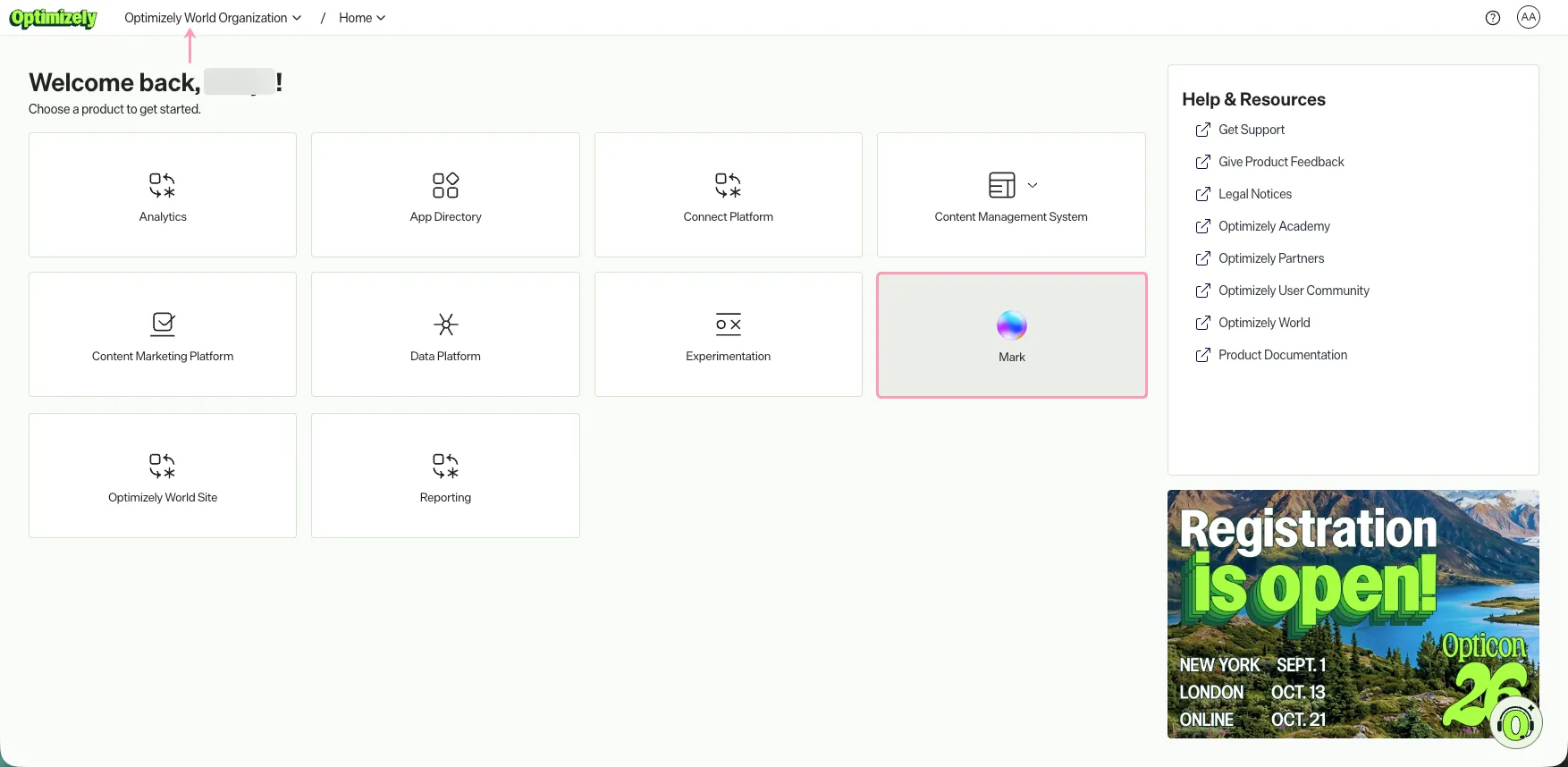
- Go to home.optimizely.com.
- Select your organization.
- Click Mark.
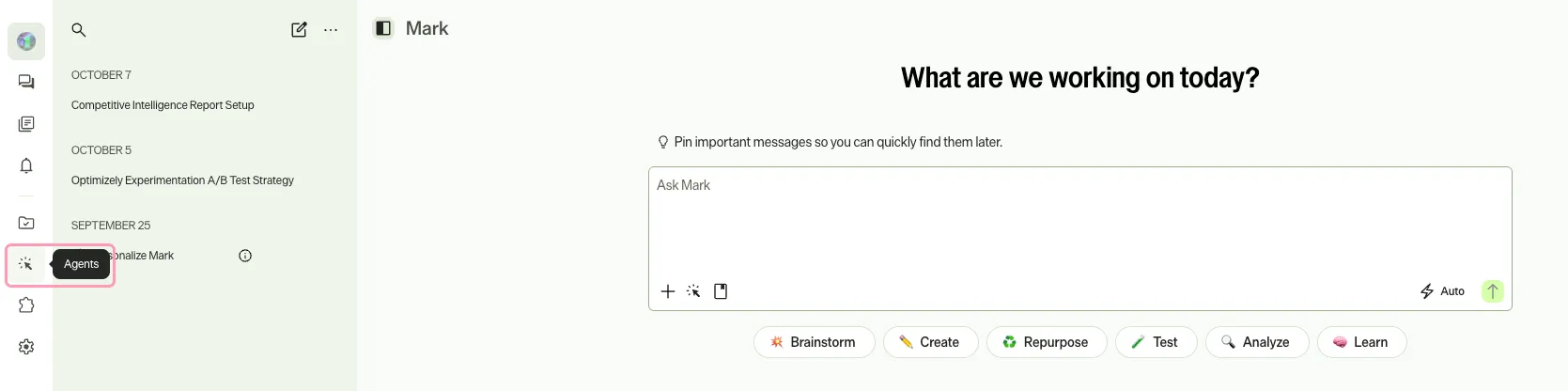
- Click Agents.
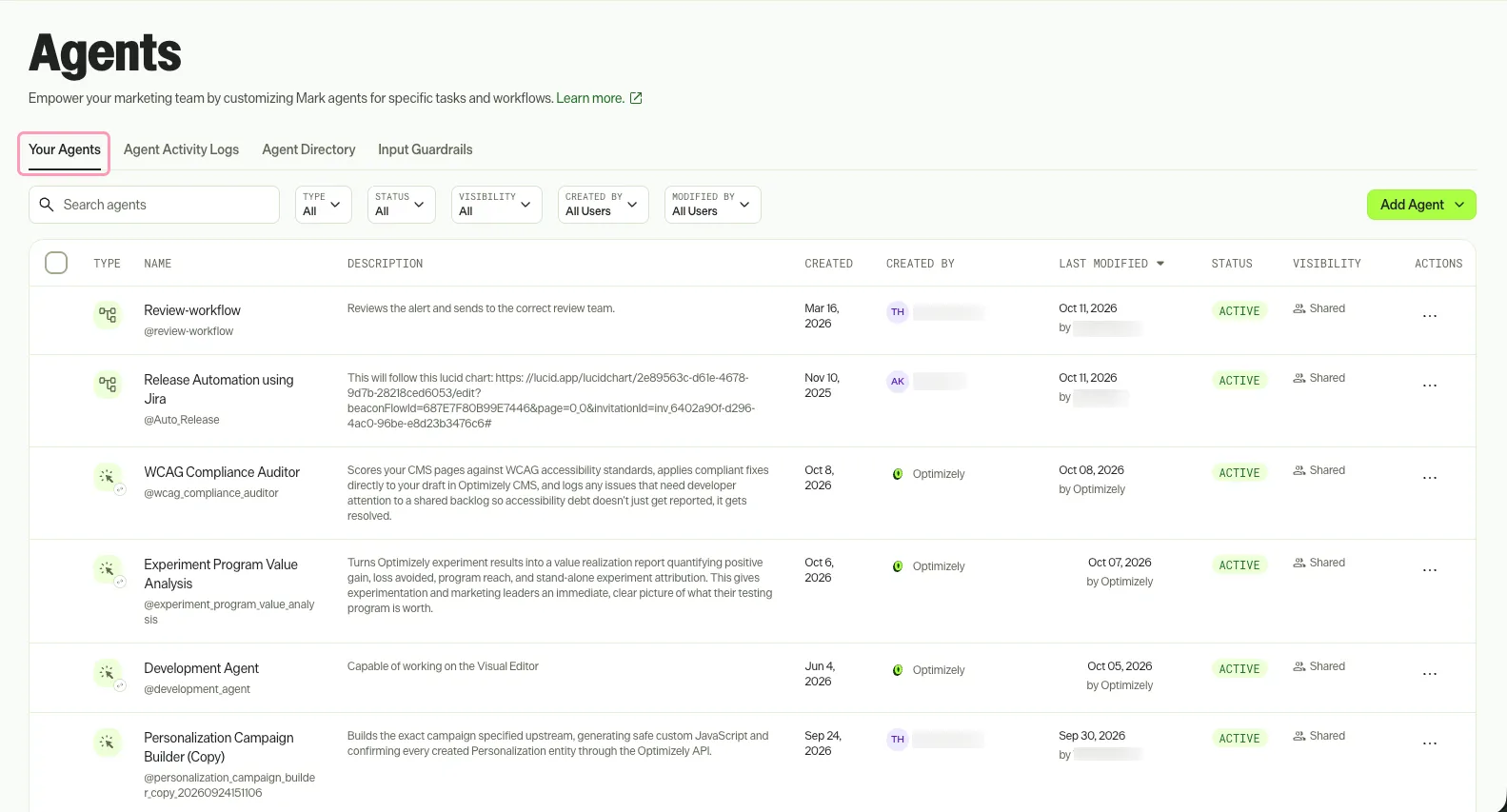
- Select the Your Agents tab.
Test run
To complete a Test Run of your workflow agent, complete the following steps:
- Follow the steps to Access your agents section.
- Click on the workflow agent or click More (...) > Edit Agent.
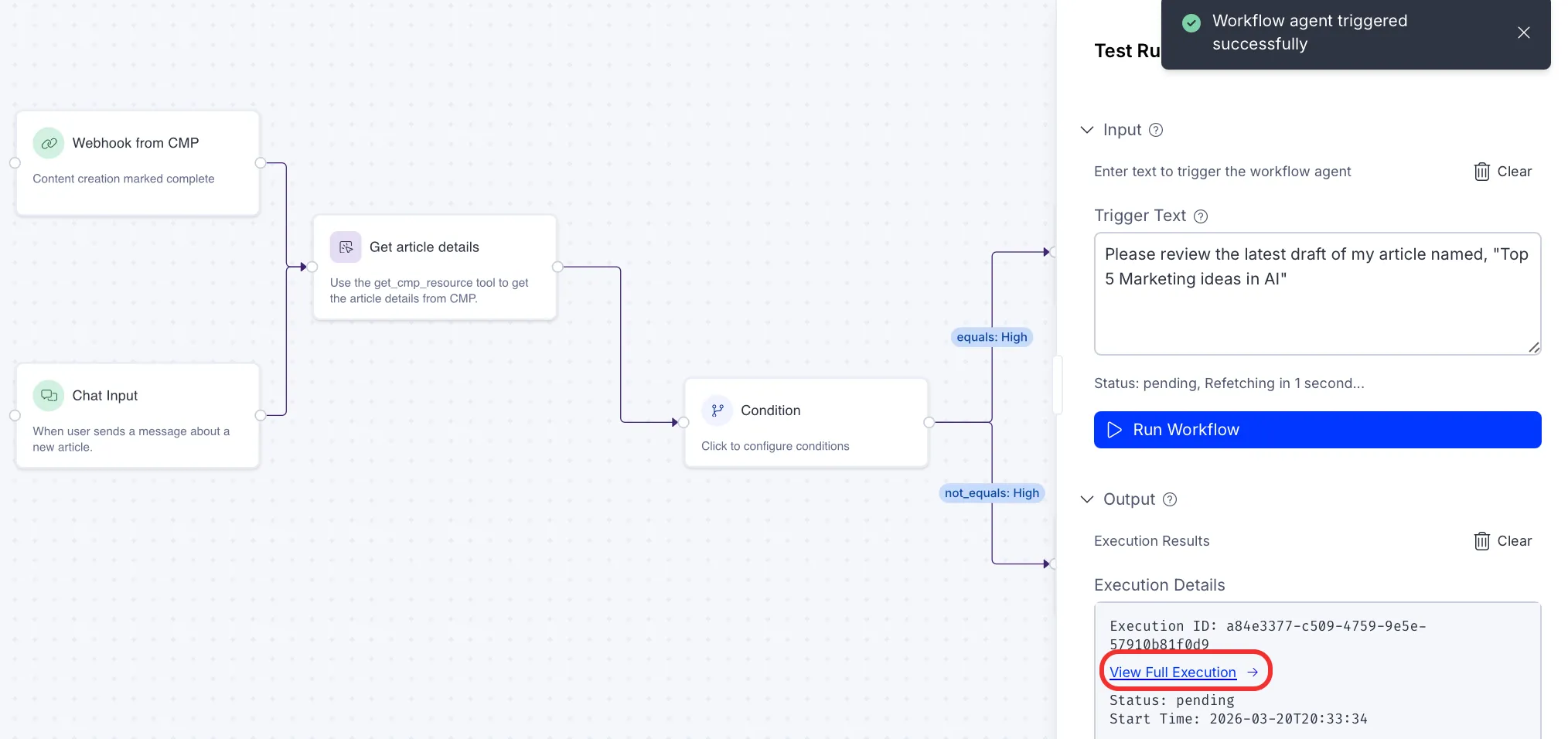
- Click Test.
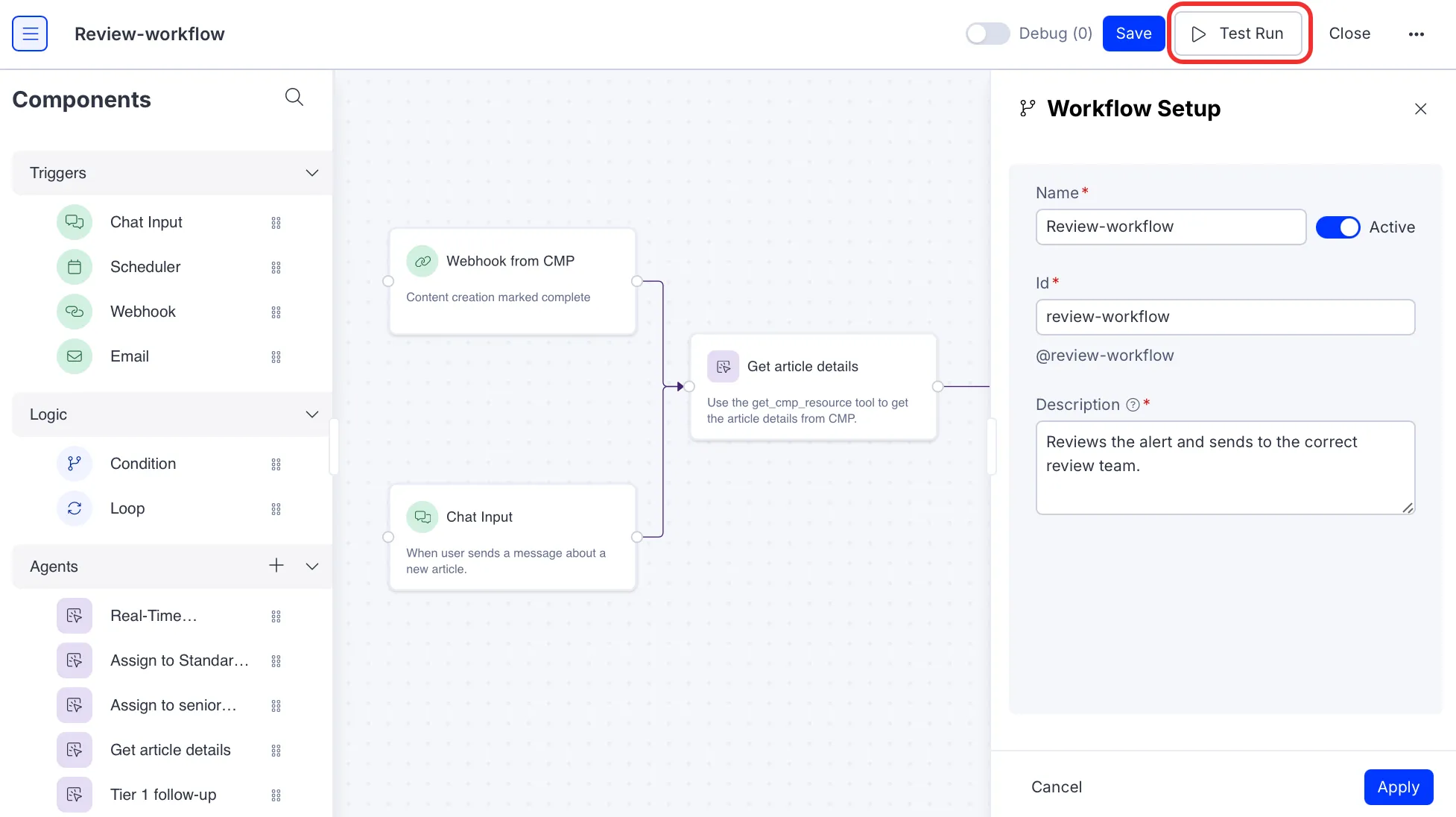
- Enter a message that would trigger your workflow agent.
- (Optional) Click Clear to reset the Trigger Text box.
- Click Run Workflow.
- (Optional) Click View Full Execution in the Test Run to open the Workflow Execution.
- (Optional) Click Clear to clear the Execution Results.
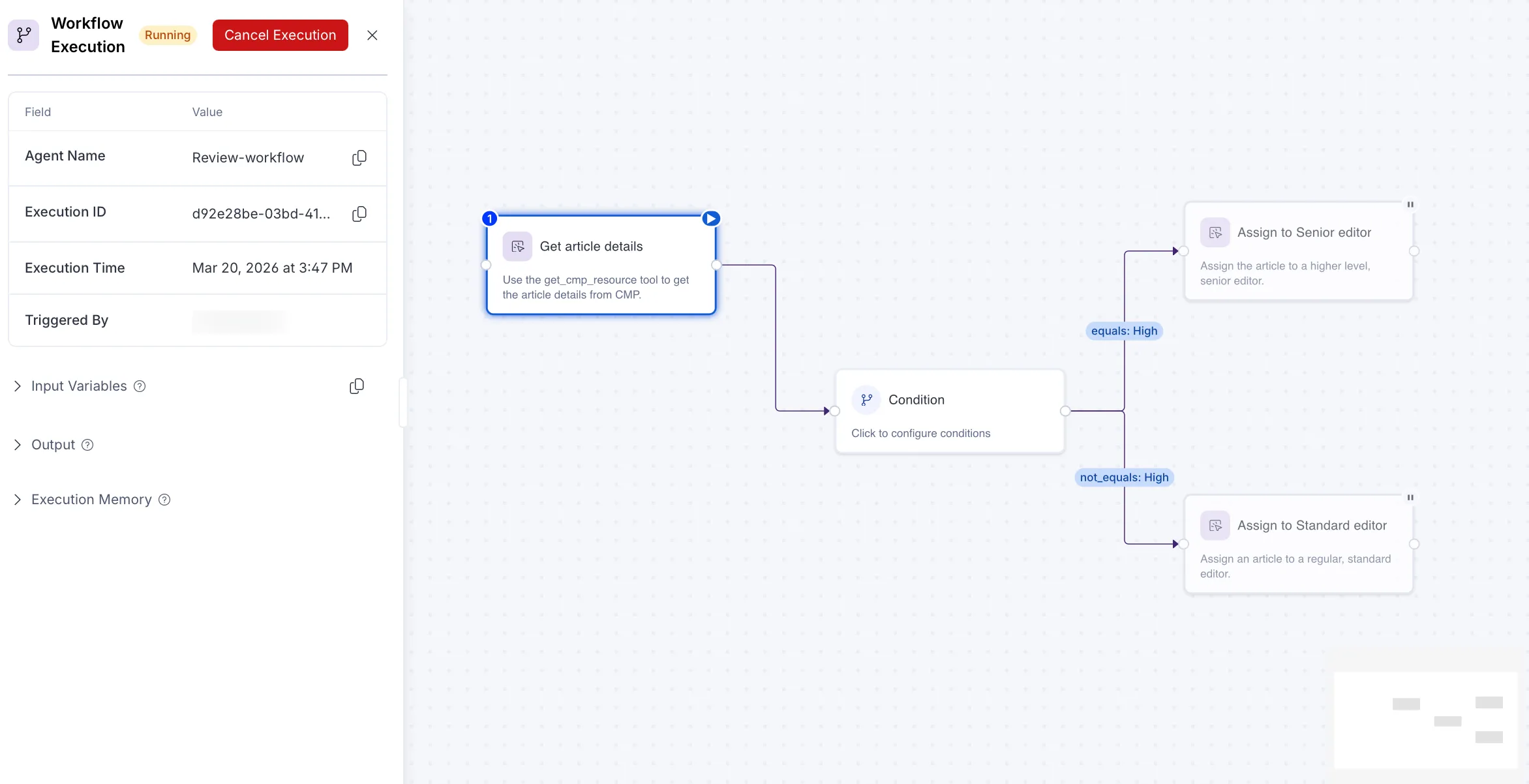
Workflow execution
The Workflow Execution displays the workflow agent's progress and status during execution.
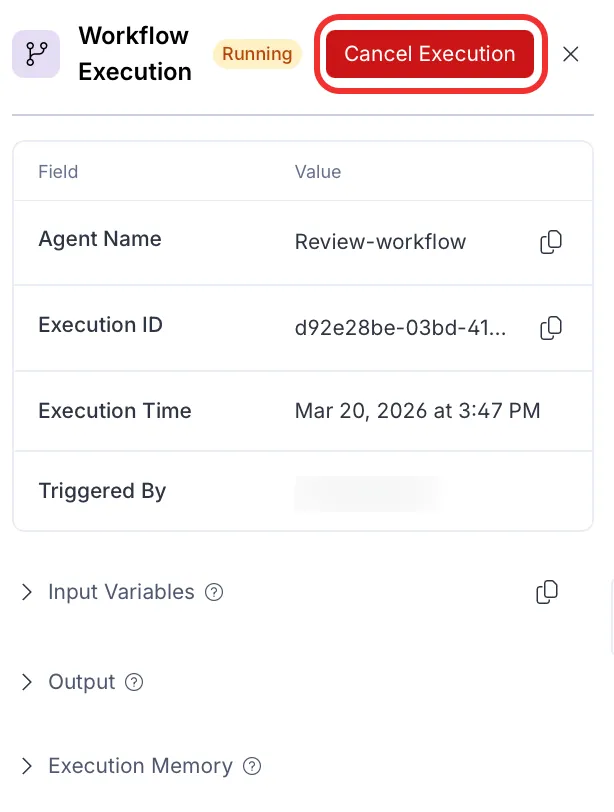
Click Cancel Execution to stop Mark's current run of the workflow agent.
Click Resume Execution to restart Mark's run of the workflow agent.

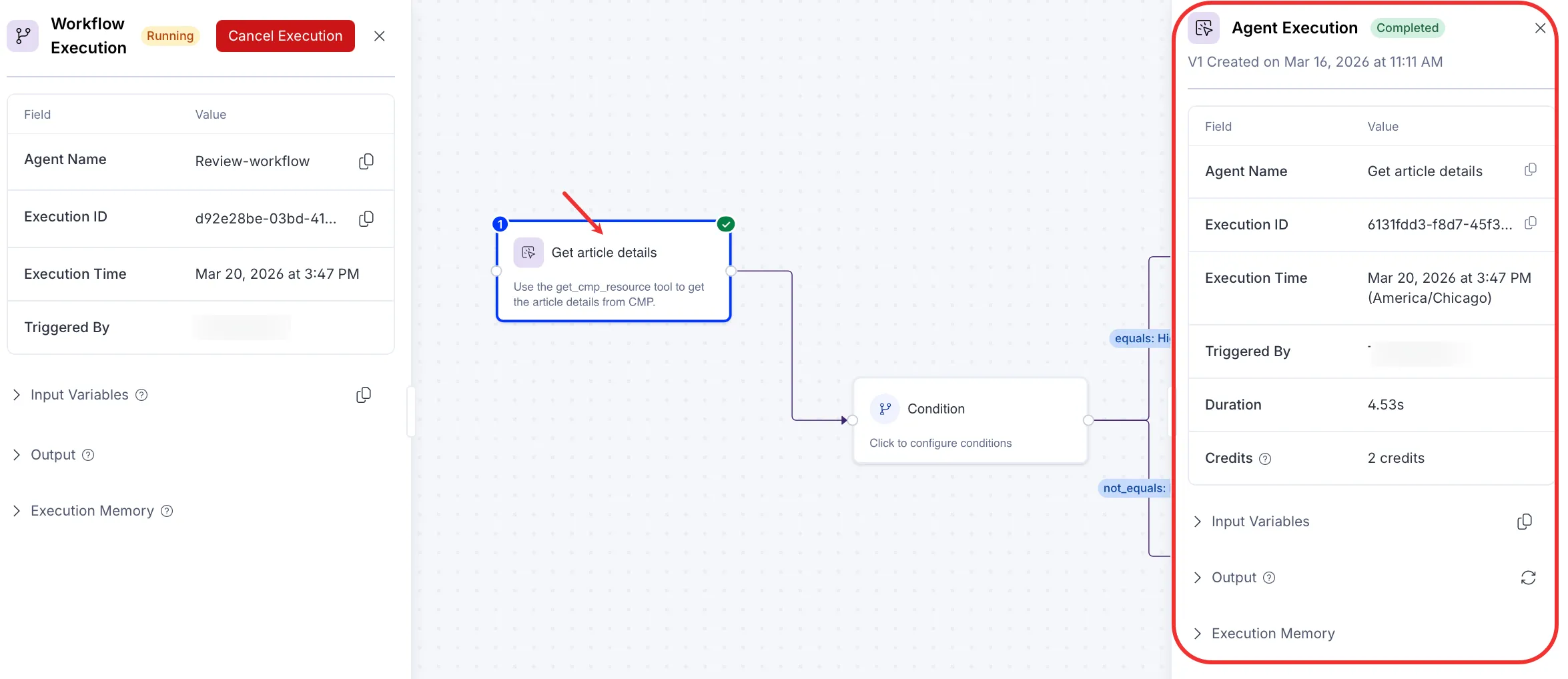
Click an individual agent to view its details when it reaches Completed status.
Note
If you use Opti ID, administrators can turn off generative AI in the Opti ID Admin Center. See Turn generative AI off across Optimizely applications.