Activate an input guardrail for your instance
Activate an input guardrail to enforce one content policy for your Optimizely Opal instance. The instance-level input guardrail applies to the requests Opal handles directly. To screen a specialized agent, assign a per-agent guardrail instead.
Prerequisites
The guardrail must already exist and have a trained model with the status Ready. To create and train one, see Create and train an input guardrail.
Activate the guardrail
To activate a guardrail for your instance, complete the following steps:
- Go to Settings > Chat > Active Input Guardrail.
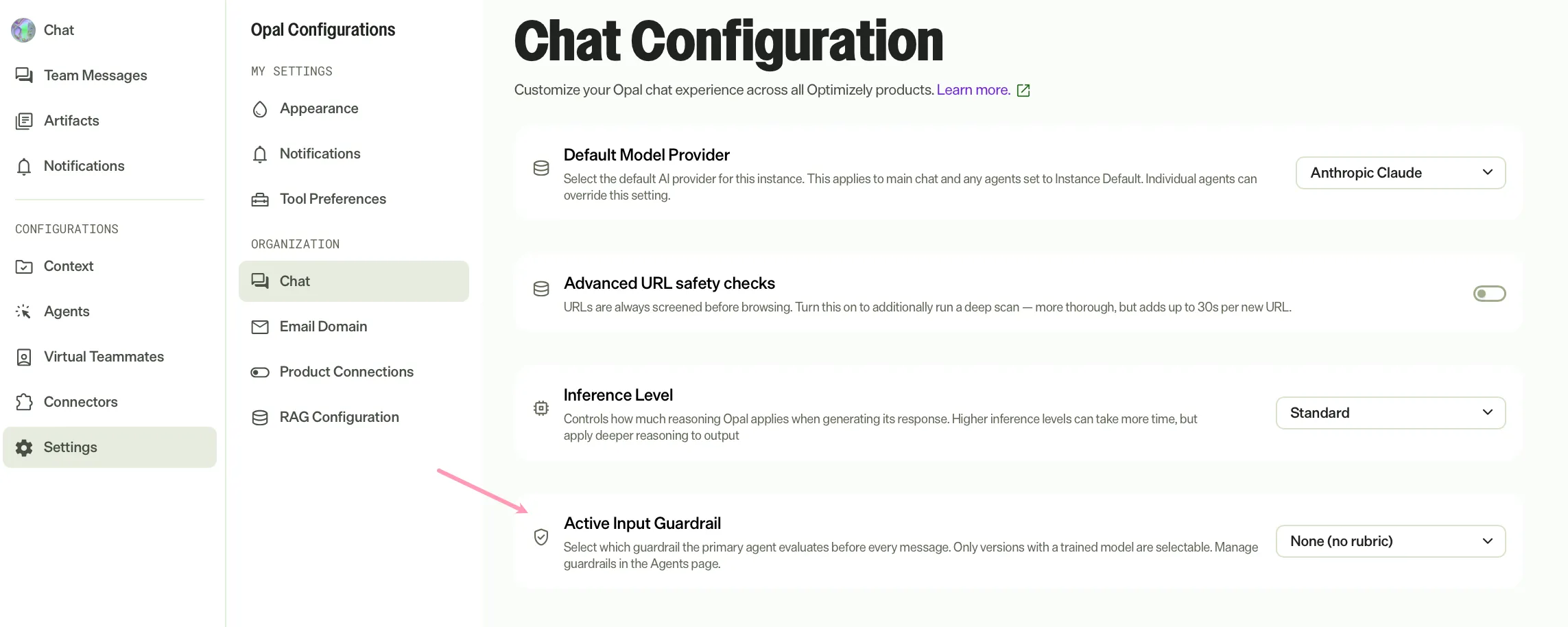
- Select the trained guardrail from the Active Input Guardrail drop-down list.
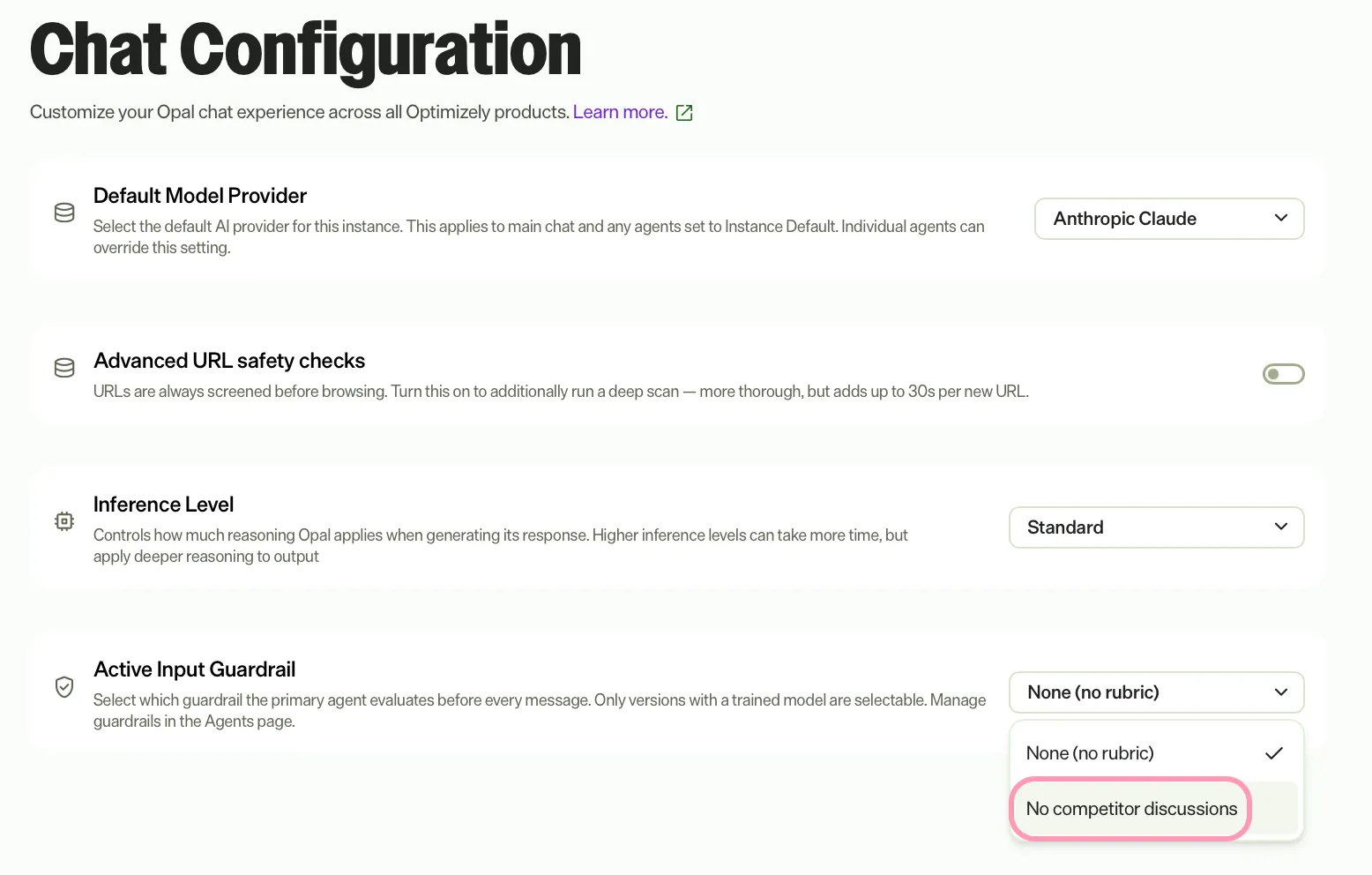
- Select the version from the Version drop-down list. Only versions with the status Ready display in this list.
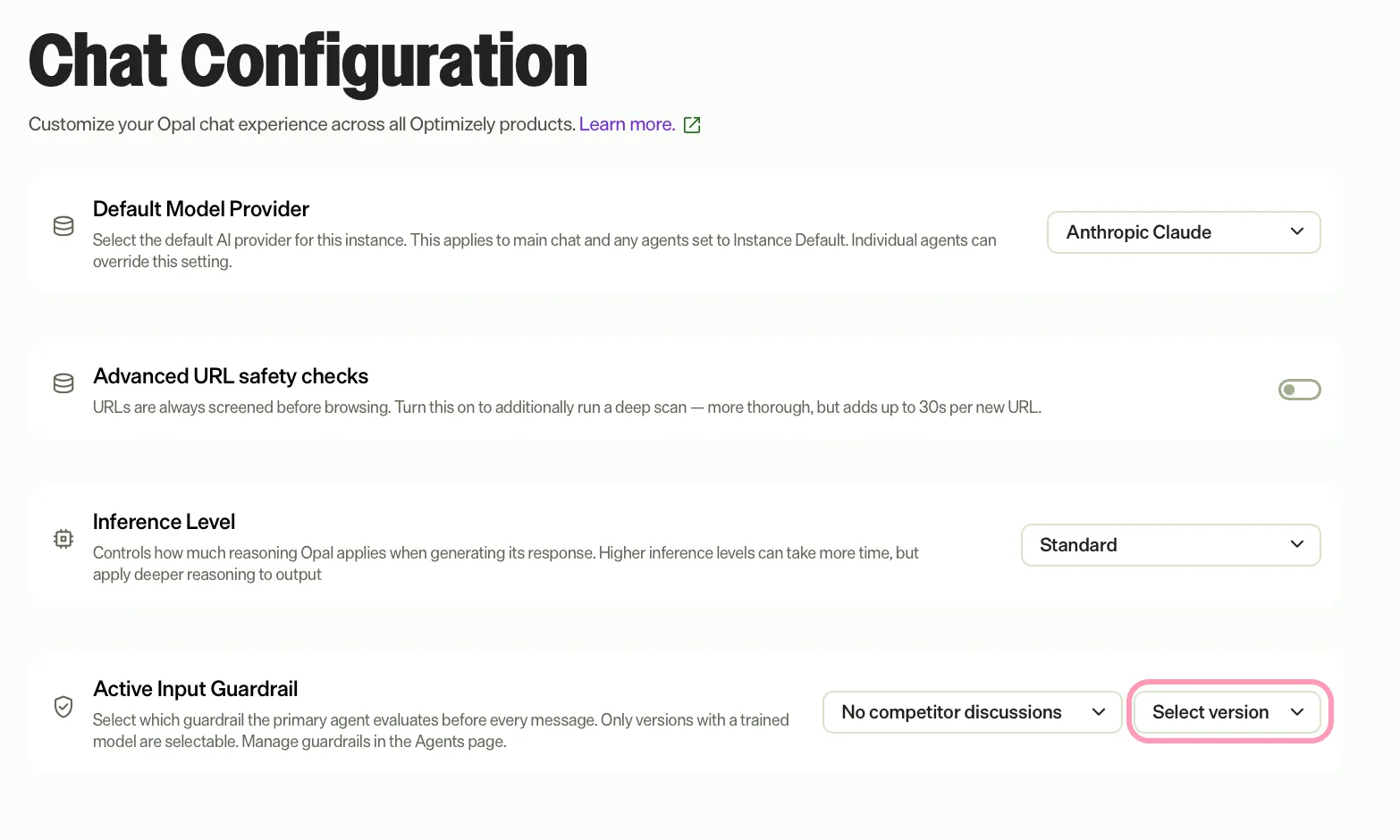
The guardrail takes effect immediately for all requests across your Opal instance.
Only one guardrail is active per instance at a time. Activating a new guardrail replaces the previously active one. To deactivate all guardrails, clear the selection in the Active Input Guardrail drop-down list.
Note
If you use Opti ID, administrators can turn off generative AI in the Opti ID Admin Center. See Turn generative AI off across Optimizely applicationsTurn generative AI off across Optimizely applications.