AI variation development agent
Products
- Optimizely Web Experimentation
- Optimizely Personalization
The availability of features may depend on your plan type. Reach out to your Customer Success Manager if you have any questions.
Optimizely Opal uses AI in the Visual Editor to help you modify and update existing website elements, create new ones, and generate and apply enhancement suggestions, while maintaining brand consistency by automatically retrieving page styles.
Powered by Opal, the variation development agent lets you make changes with natural language. You do not need to write custom code. The development agent also generates a variation for you in a few clicks. It uses the changes already made in your experiment's other variations to suggest what to build next. You can generate additional variations this way without repeating the same instructions each time.
For example, the development agent can complete the following tasks:
- Update a call-to-action's (CTA) styles with dynamic effects to increase clicks, while keeping brand guidelines.
- Add a butter bar with a sale promotion that includes a countdown timer.
- Provide suggestions to improve the menu layout for better discoverability.
- Generate different variants of a section of the page to accomplish a specific goal.
- Redesign a webpage based on a theme.
Note
The variation development agent is only available in the new Visual Editor.
Prerequisites
See Configure Web Experimentation for Opal and ensure you have the following prerequisites:
- You must log in through Opti ID.
- You must have your Web Experimentation or Personalization and Opal instance connected in the Product Connections.
- You must be using the new version of the Visual Editor.
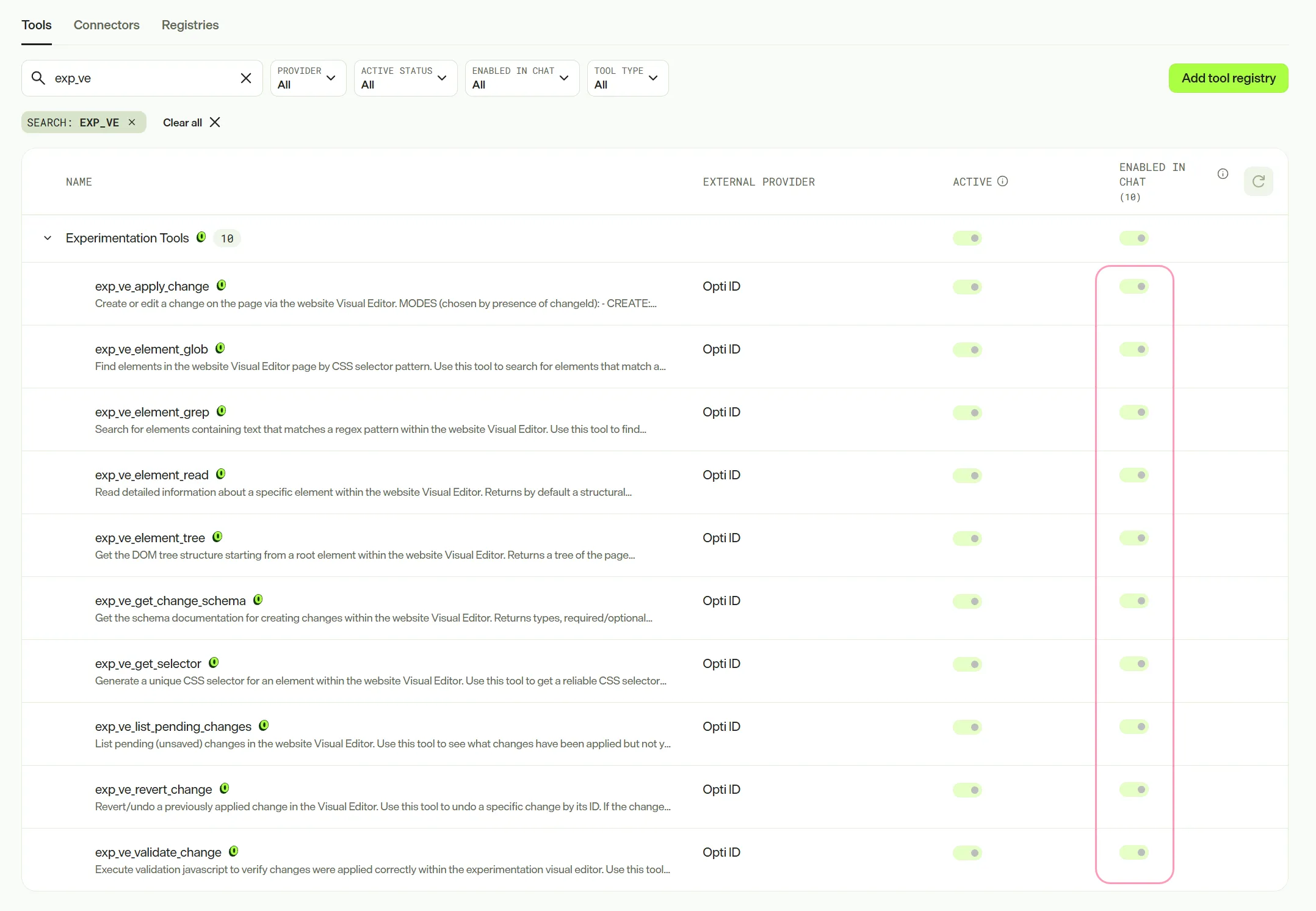
- You must have the following tools Enabled in Opal chat:
- exp_ve_apply_change
- exp_ve_element_glob
- exp_ve_element_grep
- exp_ve_element_read
- exp_ve_element_tree
- exp_ve_get_change_schema
- exp_ve_get_selector
- exp_ve_list_pending_changes
- exp_ve_revert_change
- exp_ve_validate_change
Use Opal to edit a variation in the Visual Editor
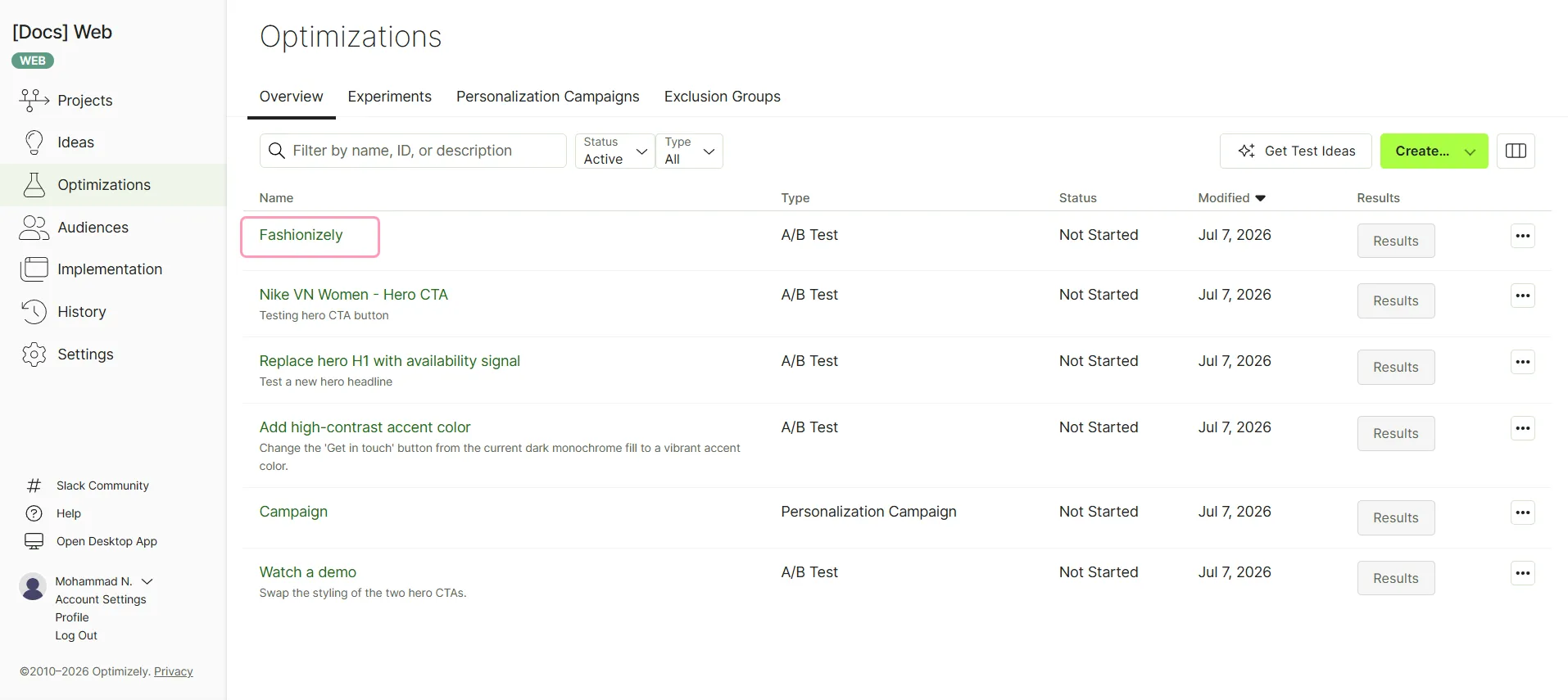
- Go to Optimizations and select an experiment or campaign.
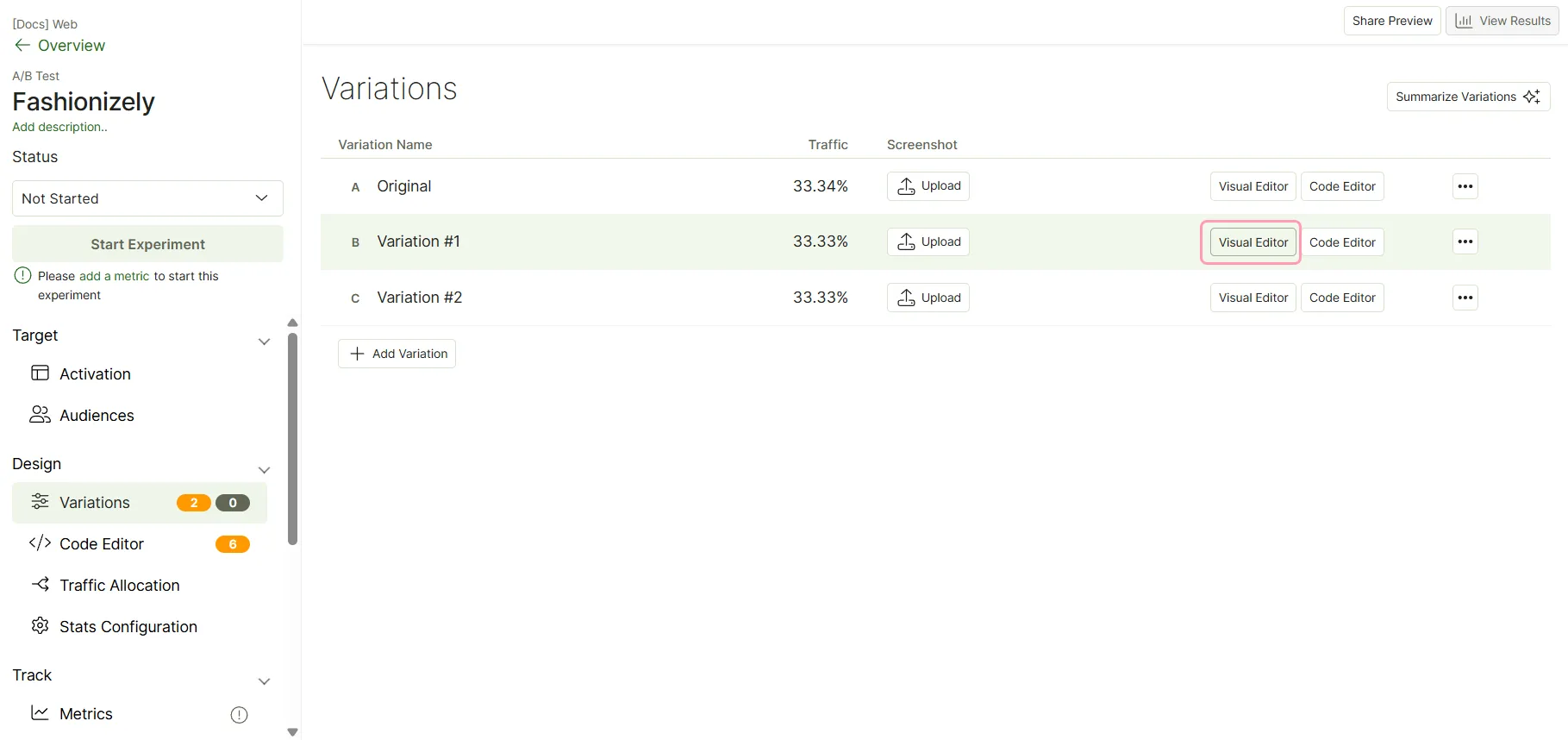
- Go to Design > Variations and click Visual Editor in that variation's row.
- Click Build Variation.
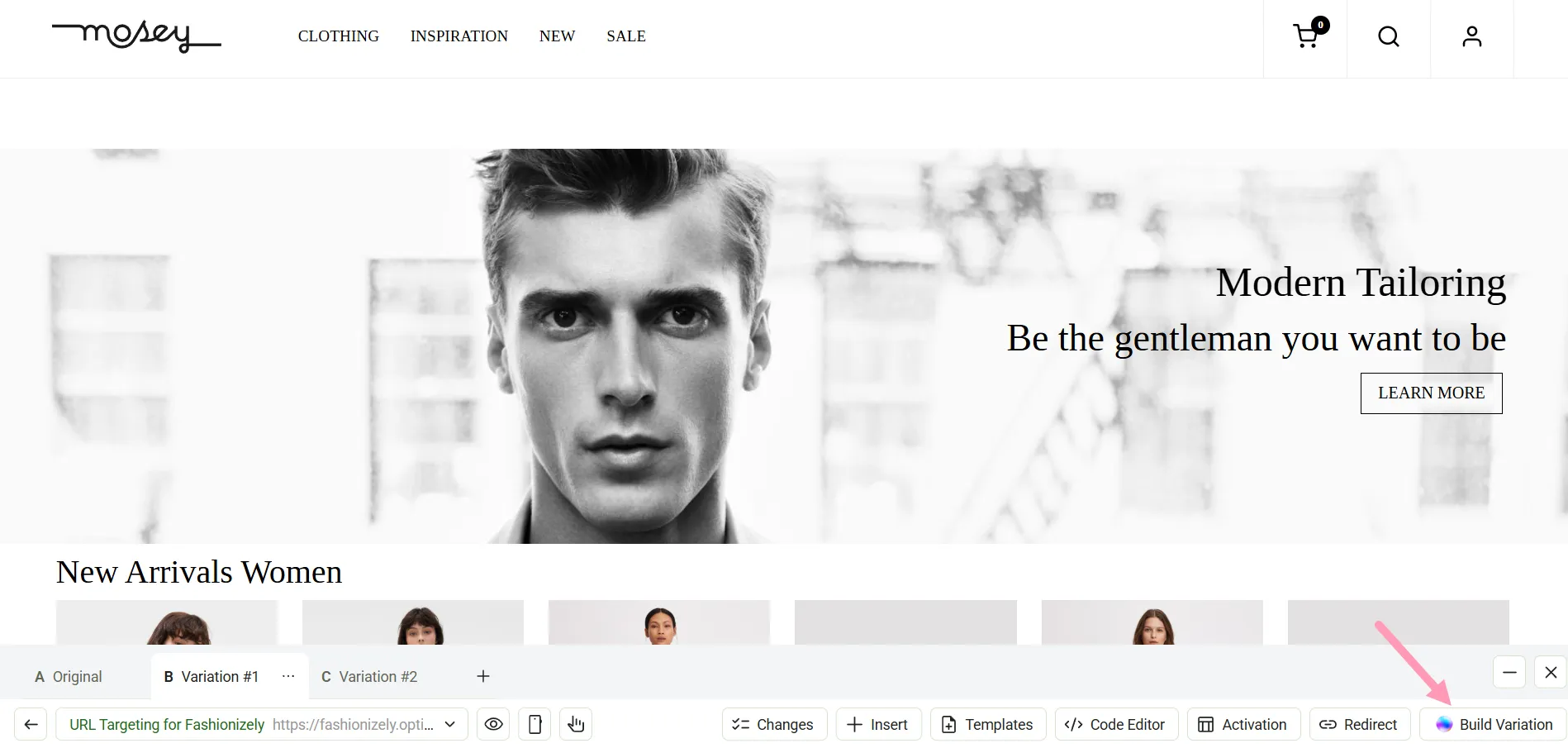
- Enter what you would like to change about the page, such as Improve the Get started button to increase more clicks. See Tips and tricks for help with effective prompt writing for Opal. Opal uses the Visual Editor to make the updates and validates the results.
- Click Save All if you like Opal's changes. If not, iterate with Opal until the changes look good or click Undo All to start over.
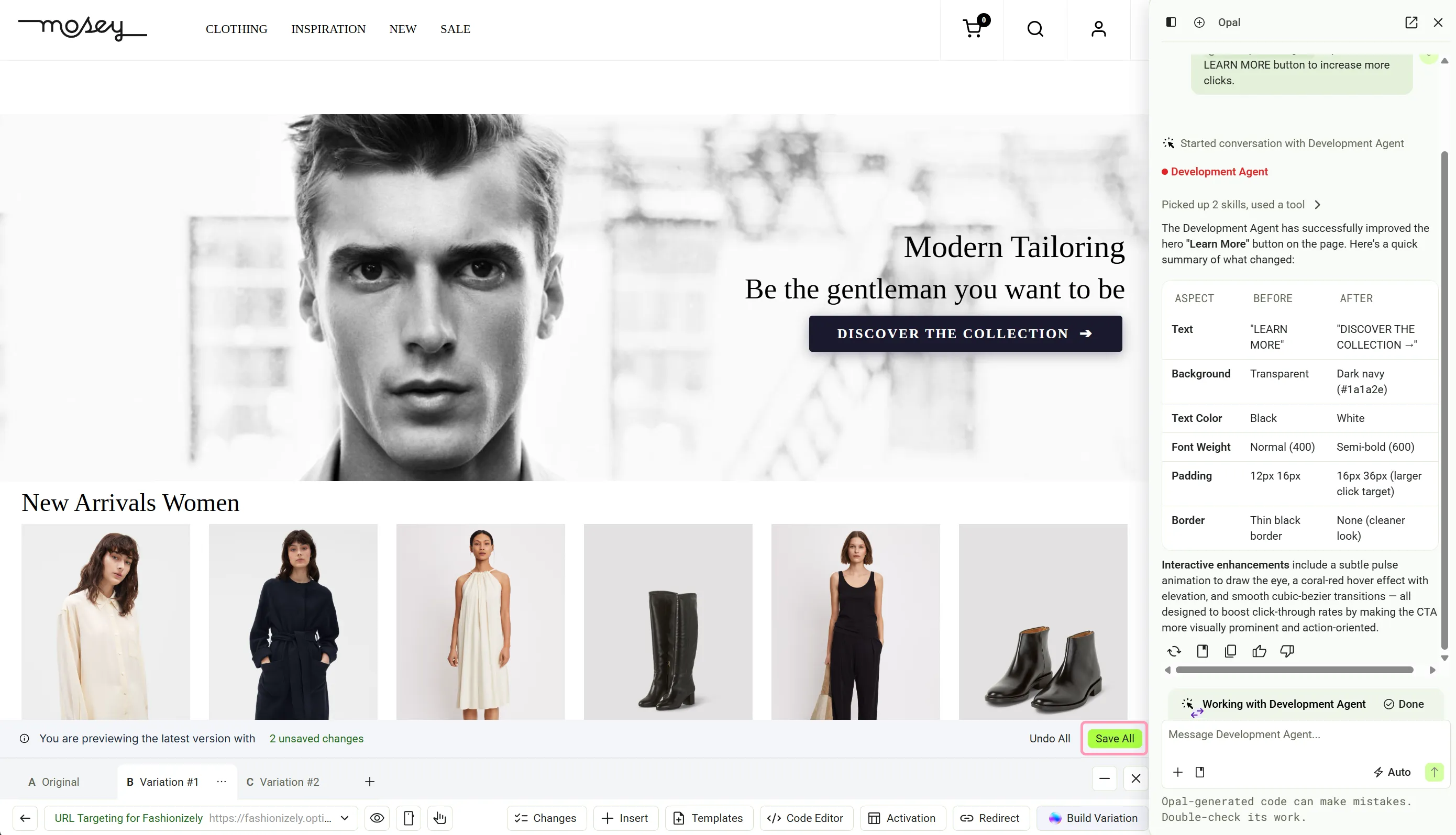
You can repeat this process to update anything on the site, including updates that require custom code to change, as Opal generates that custom code for you.
Generate a new variation with the development agent
Instead of building each variation from scratch, you can let the development agent create one for you. The agent reviews the changes already made in your experiment's other variations and it then suggests distinct, high-impact ideas for what to build next. Your role is to review and approve the changes.
- Open an experiment that has at least one variation with changes.
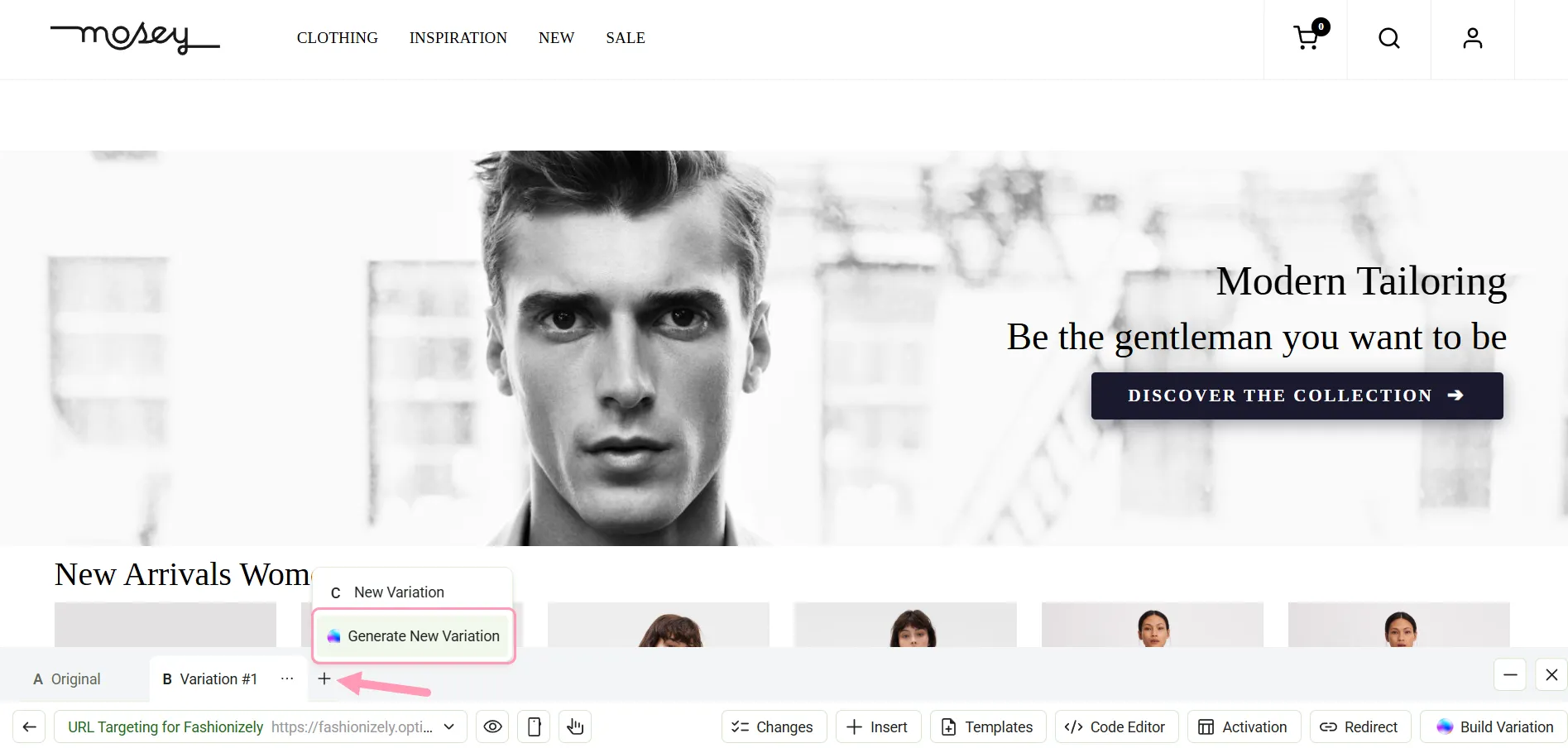
- In the variation bar, click + and select Generate New Variation. Optimizely creates a variation and starts the development agent.
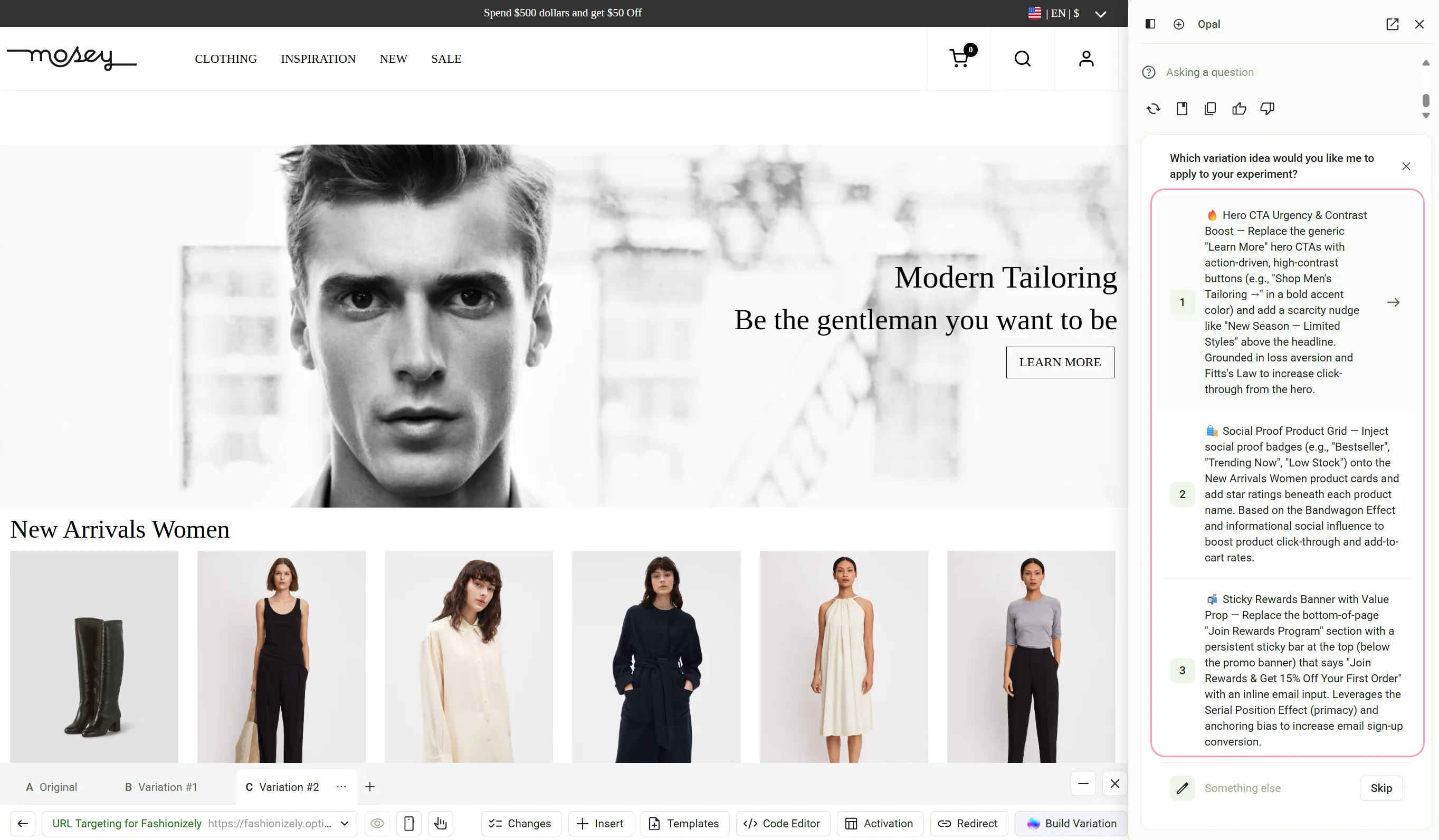
- Review the variation ideas the agent suggests, then do one of the following:
- Select a suggested idea for the agent to build.
- Click Something else to describe a different change.
- Click Skip to build the variation yourself.
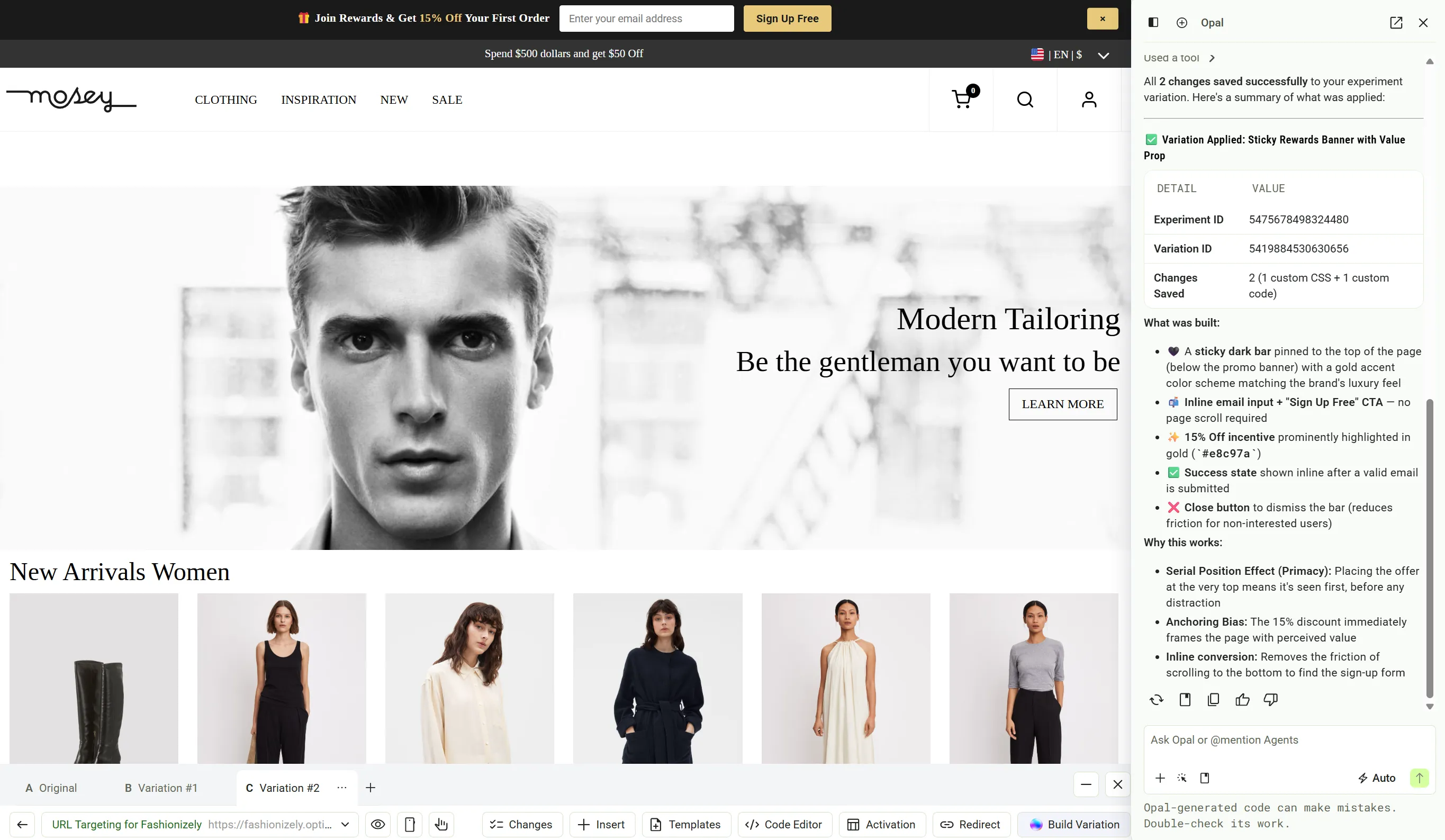
- Review the changes the agent applies, including the before-and-after comparison and the reasoning for each change.
- Click Save All to keep the changes, or Undo All to discard them.
How it works
- Context-aware suggestions – The agent uses the changes from your experiment's other variations as context. Its ideas complement what you have already tested instead of repeating it.
- High-impact focus – The agent targets high-impact areas such as the hero section and primary calls to action.
- Reviewer control – The agent applies the changes as a preview. Optimizely saves them only after you click Save All.
Tips and tricks
Use cases
The dev agent, powered by Opal, changes how you create and optimize digital experiences. By using natural language processing and maintaining brand consistency, it lets marketers and developers rapidly iterate, test, and personalize website elements without requiring extensive coding.
The following are key scenarios where the agent significantly enhances your workflow:
Example credit usage
The following figures represent the average number of Optimizely Opal credits consumed when calling the AI variation development agent for different use cases:
- Add a pop up modal to sign up to become a member – 30
- Add a promotional banner at the top that includes a coupon code that can be copied – 30
- Update the navigation bar so each button has a spacing of 12px – 70
- Update the menu to be more visually appealing with a goal to increase clicks – 70
- Add an enlargement effect to the product catalog items upon hover – 70
- Add a 24 hour countdown timer below the banner – 70
- Add a modal on the favorite icon displaying a message for visitors to add to the list of favorites – 70
- Introduce a "Why Buy From Us?" section highlighting unique selling propositions – 130
- Add an add-to-cart button on every product catalog – 130
- Make the navigation bar sticky so it persists even when I scroll down – 130
- Rearrange the menu and move the "Sale" button as the first item – 130
- Redesign the page with a more modern and visually driven layout that increases user engagement and conversion rates – 130
Important
Credit consumption is dependent on your webpage structure and scope of changes applied.
Troubleshoot
The following sections cover common errors you may encounter when using the variation development agent. Each issue includes the likely cause and steps to resolve it.
Note
Any code Opal generates is a custom code solution and falls outside the scope of Optimizely Support.
Connection lost
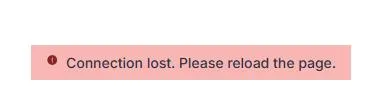
A Content Security Policy (CSP) on your website is blocking the connection. Resolve this by doing one of the following:
- Install the Optimizely Web companion extension and enable it.
- Add the required sources to your site's CSP header.
Unable to find the selector
This error is caused by disabled Opal tools. Enable the necessary tools.
Something unexpected happened
This error indicates that your Opal instance is not connected to your Experimentation or Personalization instance. To resolve it, an Opal Administrator must connect the correct Opal instance to your Experimentation or Personalization instance. See Get started with Optimizely Opal for administrators for steps on connecting products.
Note
If you use Opti ID, administrators can turn off generative AI in the Opti ID Admin Center. See Turn generative AI off across Optimizely applications.