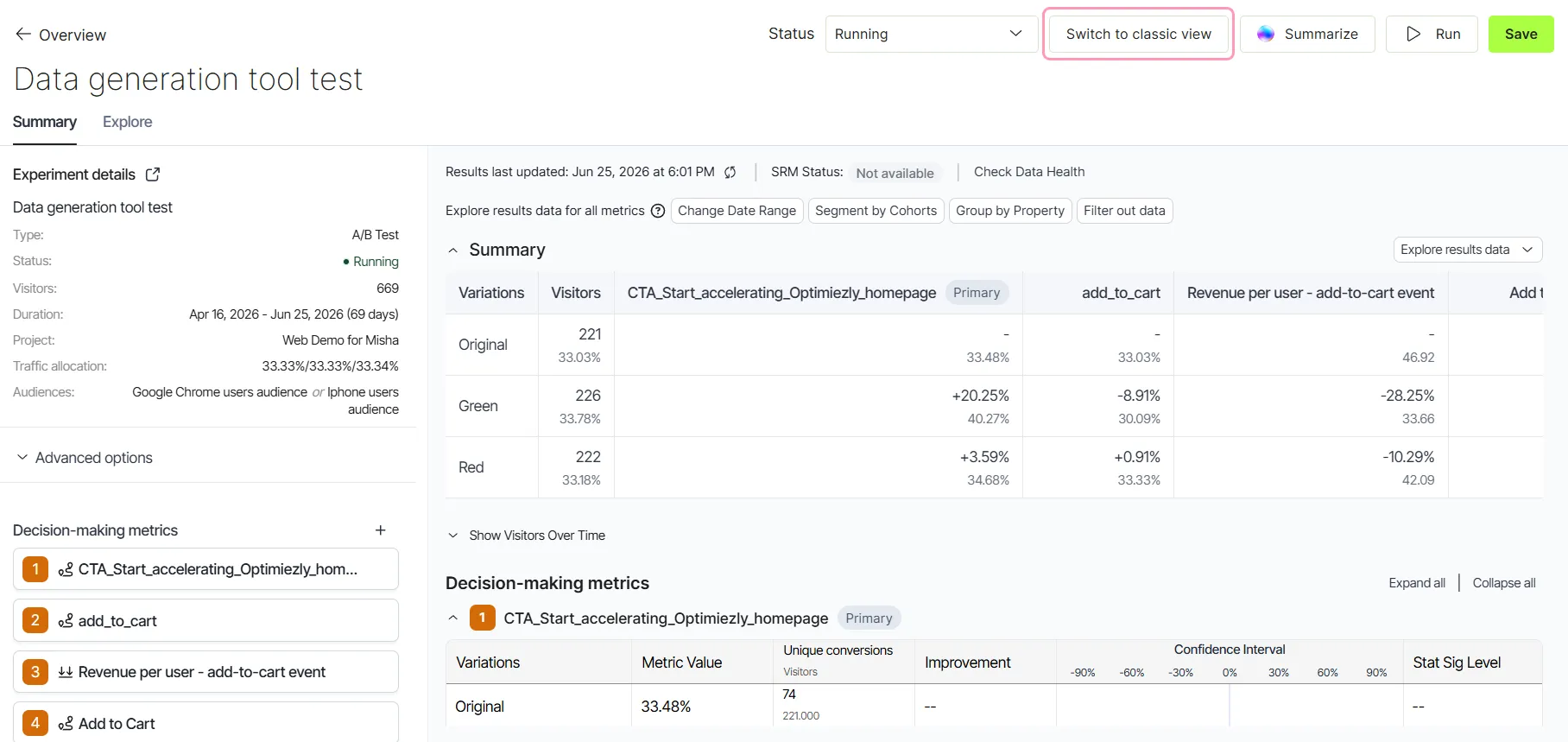
New A/B Results page overview
The new A/B Results page incorporates advanced statistical features (like CUPED, advanced outlier management, Frequentist fixed horizon, and Bayesian stats engines) and in-depth data explorations with an ability to annotate and save the explorations.
The new A/B Results page is available for Optimizely Web Experimentation and Optimizely Feature Experimentation using Opti ID. It is only available for manual A/B experiments. Stats Accelerator experiments and multivariate tests are not supported.
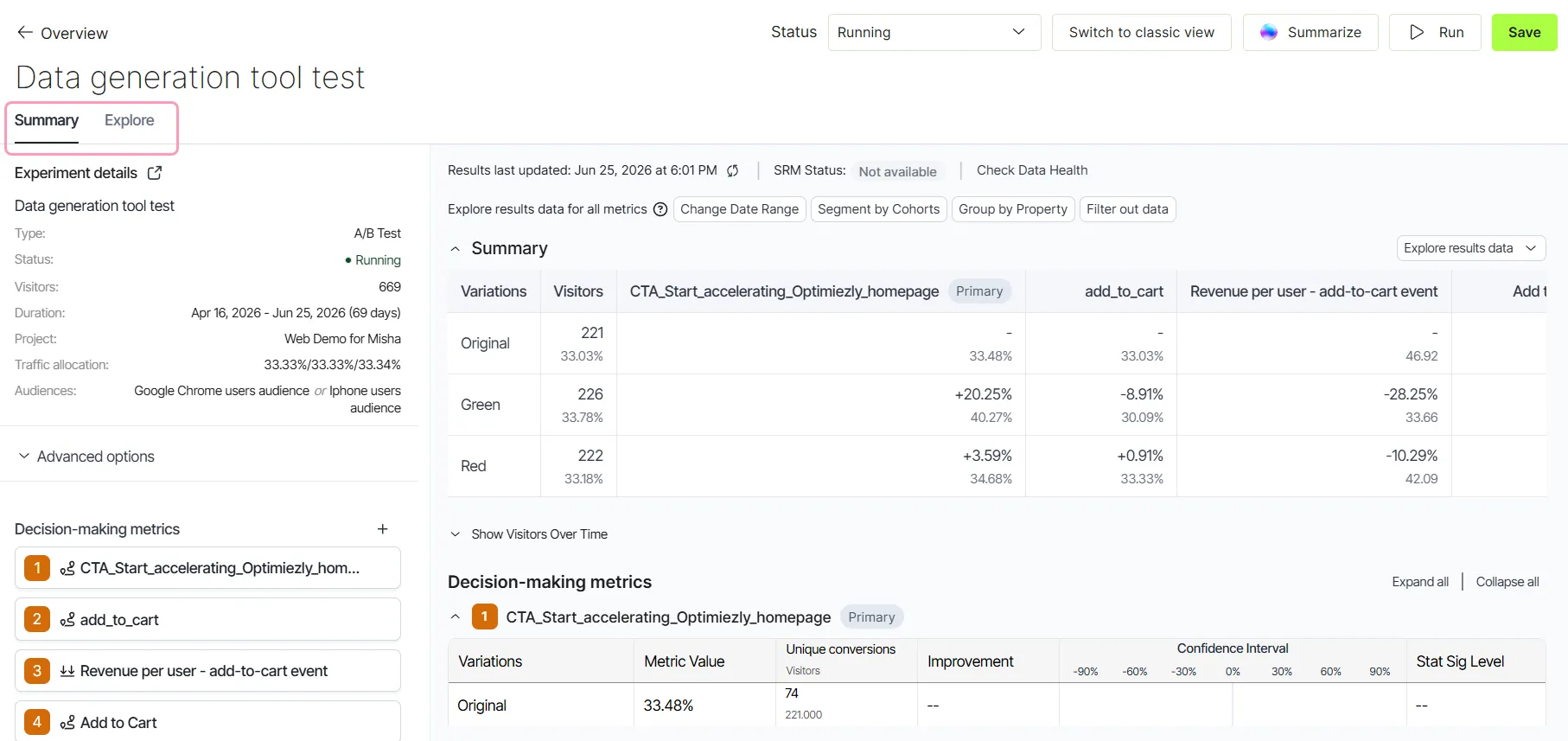
Summary and Explore
The results page has two tabs, each with a different goal:
- Summary tab – Get a quick read of your experiment and make a decision. It shows experiment details, your metrics, statistical calculations, and over-time graphs. See New A/B Results page Summary tab.
- Explore tab – Dig deeper into your data, build segmented views, and create a reporting dashboard you can share with your team. See New A/B Results page Explore tab.
Stats engines
The new A/B Results page supports three statistical approaches. You choose which one to use during experiment setup, and the results page calculates and displays results using that engine.
- Frequentist (fixed horizon) – Full statistical analysis is performed only once all required visitor data is collected. You commit to a fixed experiment duration up front, defined by a target sample size or number of days.
- Sequential – Results are updated as the new data is coming in and users can peek at the results. Flexible experiment duration lets you stop the experiment early or let it run longer.
- Bayesian – Offers flexible experiment duration and a different approach to results interpretation, letting you directly compare the probability of the variations being better than the baseline.
Access experiment results
Open the new results page from two places in each product.
Web Experimentation
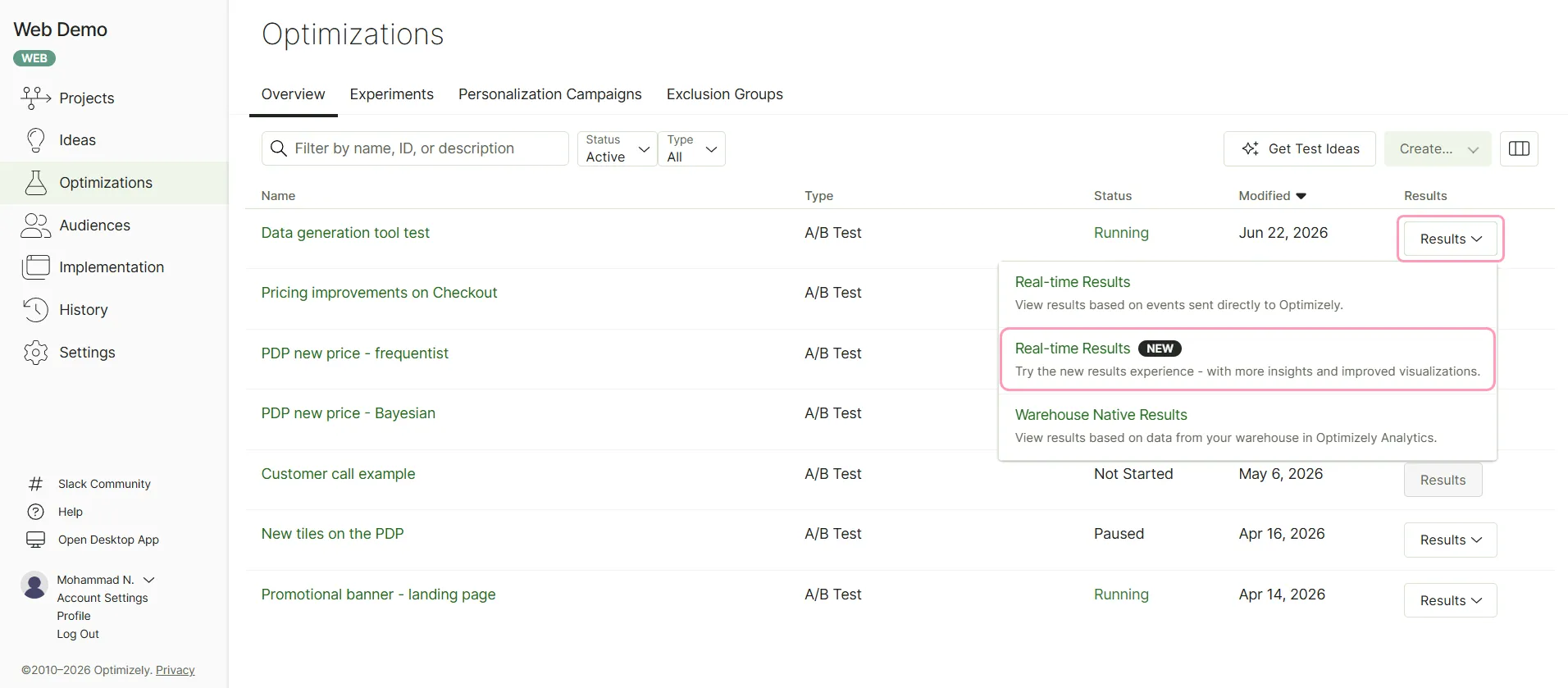
- From experiment list – Go to Optimizations > Overview > Results > Real-time Results (New Version).
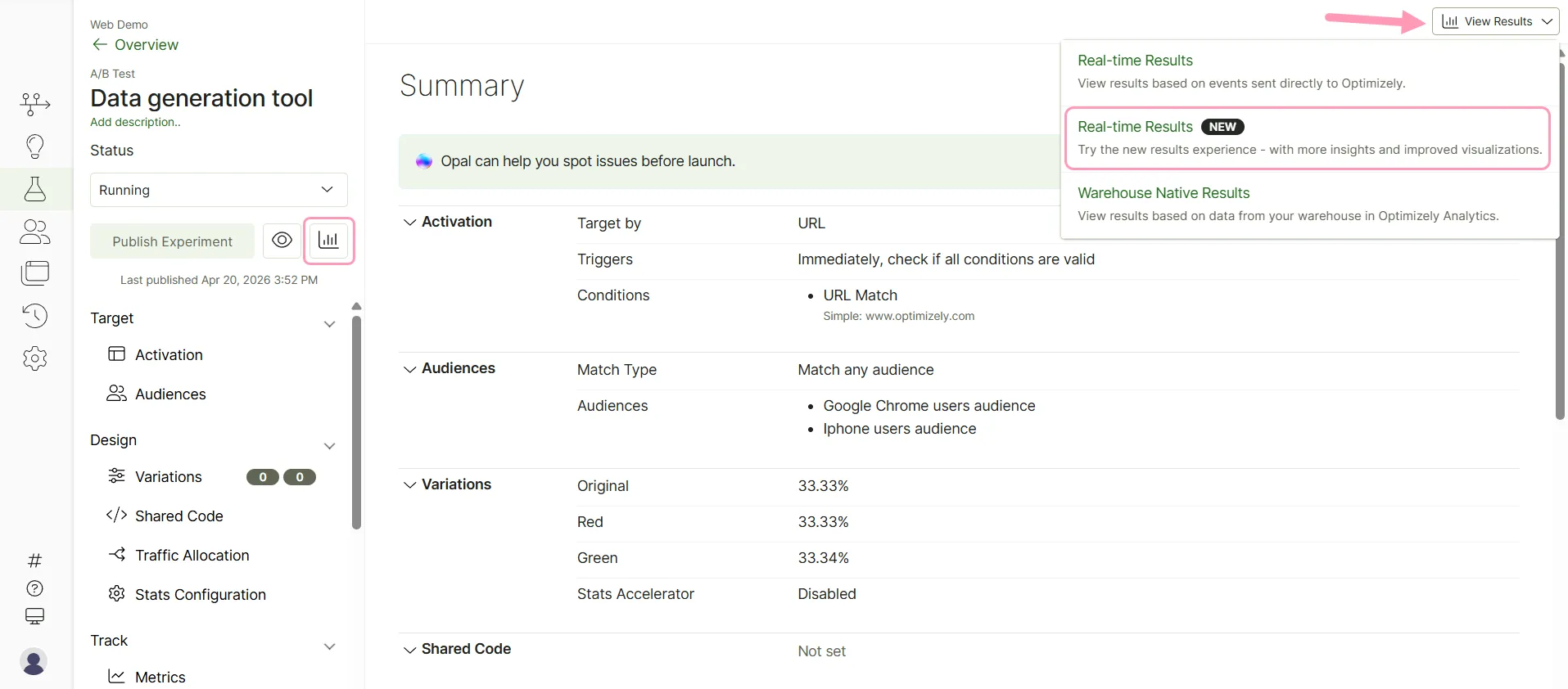
- From experiment setup – Select your experiment and click View Results > Real-time Results (New Version) or click the Results icon.
Feature Experimentation
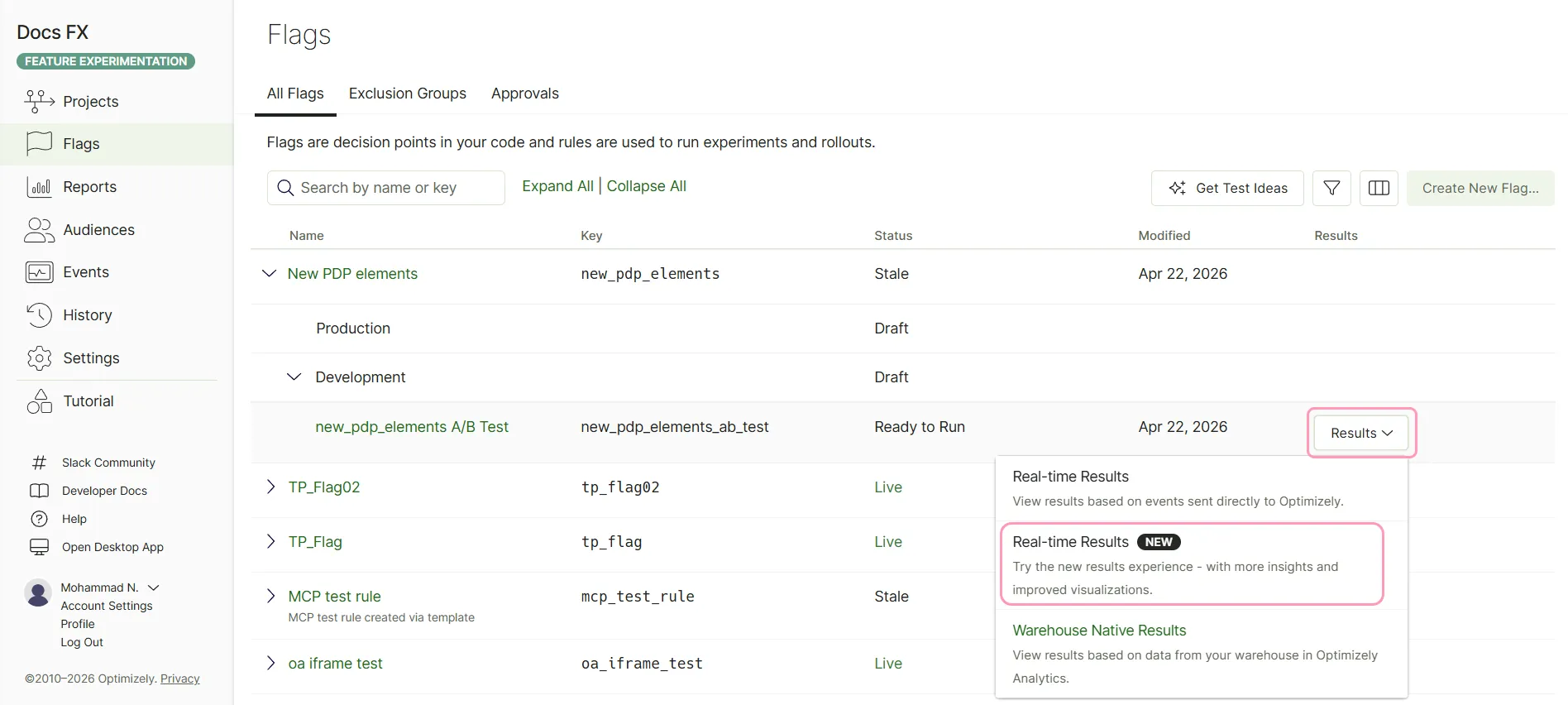
- From flags list – Go to Flags > All Flags > Results > Real-time Results (New Version).
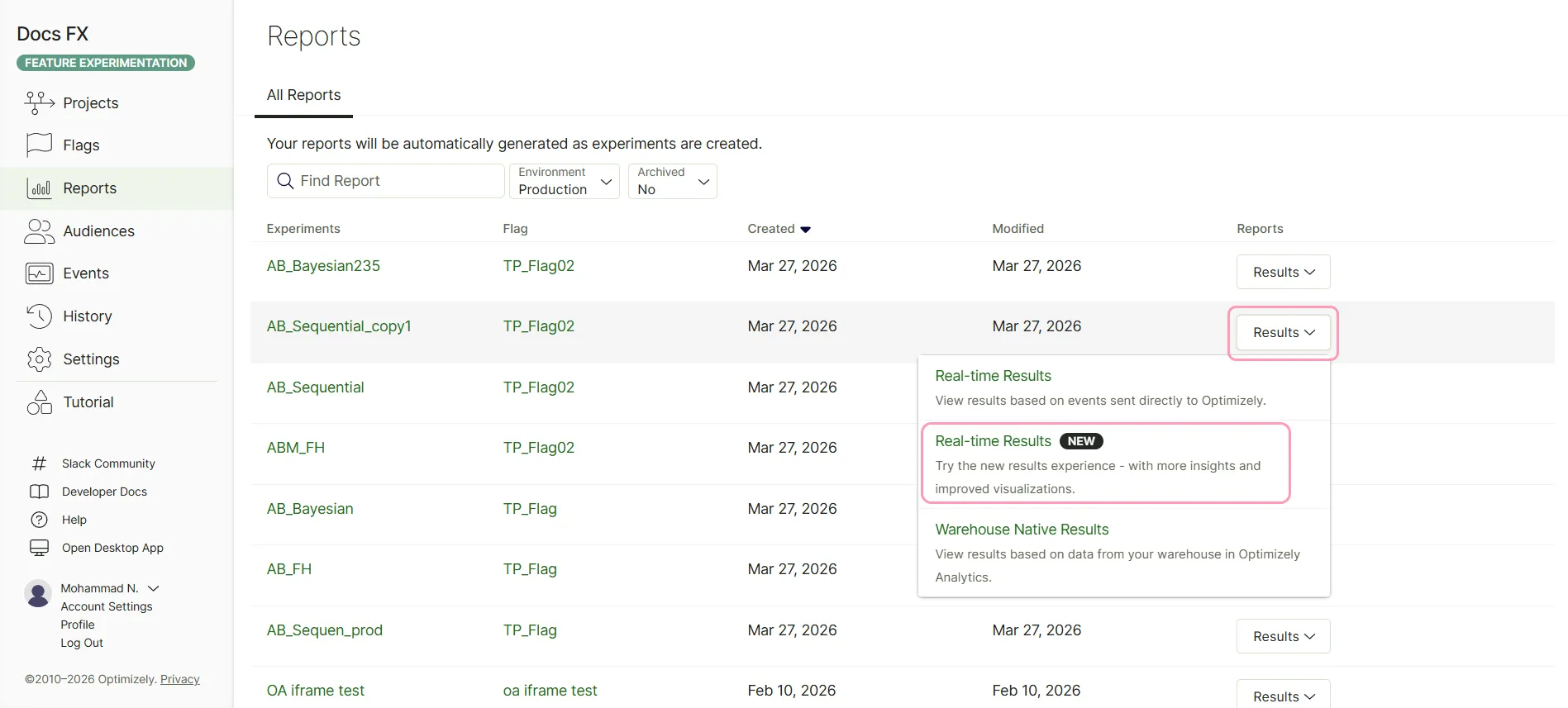
- From flag setup – Go to Flags and select your flag. Select the environment. Click Results > Real-time Results (New Version).
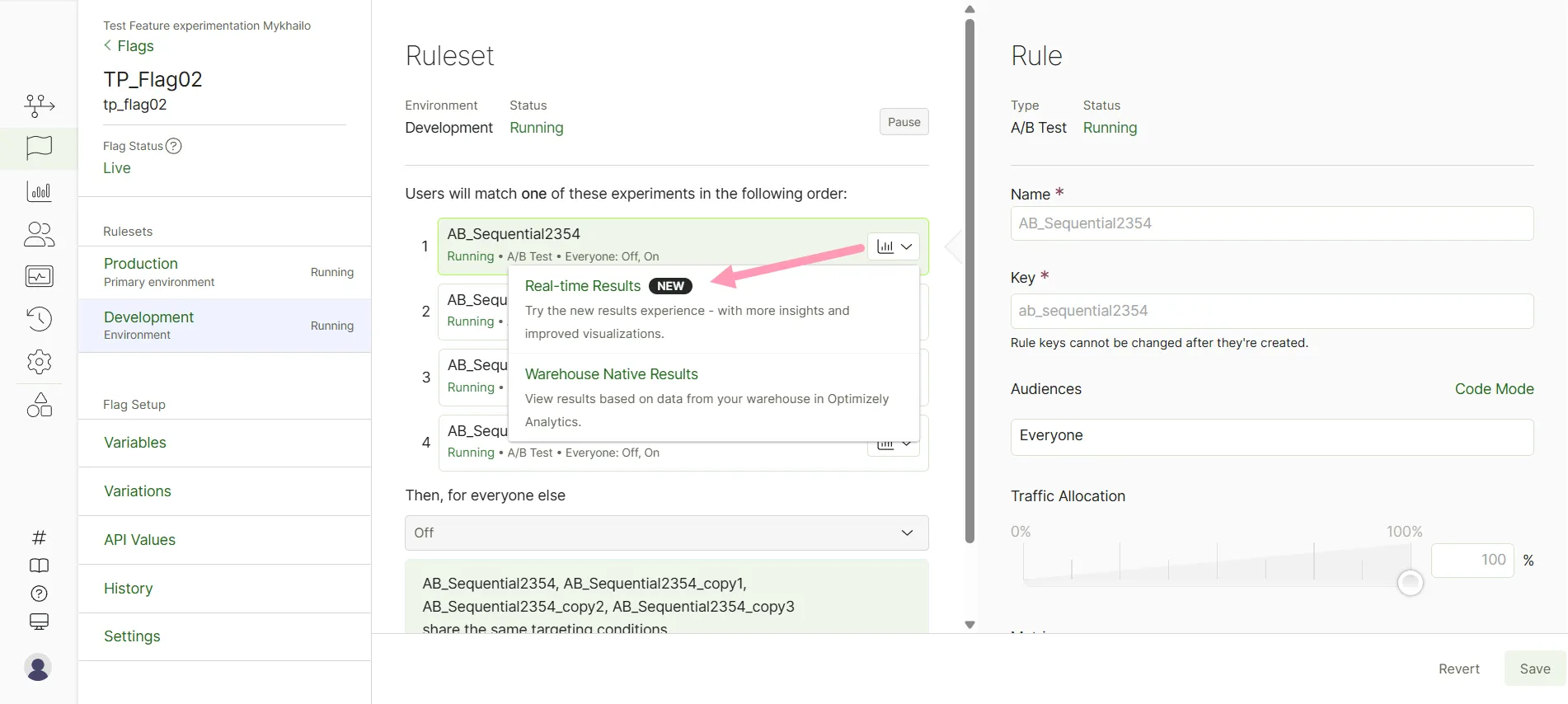
- From reports page – Go to Reports > Results > Real-time Results (New Version).
Results page controls
The following controls are available:
- Status – Shows the experiment status and lets you change it to Running, Pause, Conclude, or Archive. See Manage experiments and campaigns in Web Experimentation or Flag statuses in Feature Experimentation.
- Summarize – Generates an Opal summary of the results on the page. See Summarize results.
- Run – Recalculates the results after a query change (for example, toggling CUPED or editing a metric). A banner prompts you to click Run or press Ctrl+Enter (Cmd+Enter on Mac).
- Save – Saves your changes.
- Switch to classic view – Switch to the classic experience of the results page.