Share and collaborate
You can share any object in the Analytics catalog with other users or groups if you have share privileges. For more details on authorization and access control, see Authorization and access control.
View current access levels
Click Share to see who can access an object. The window lists each user and group with their access level.
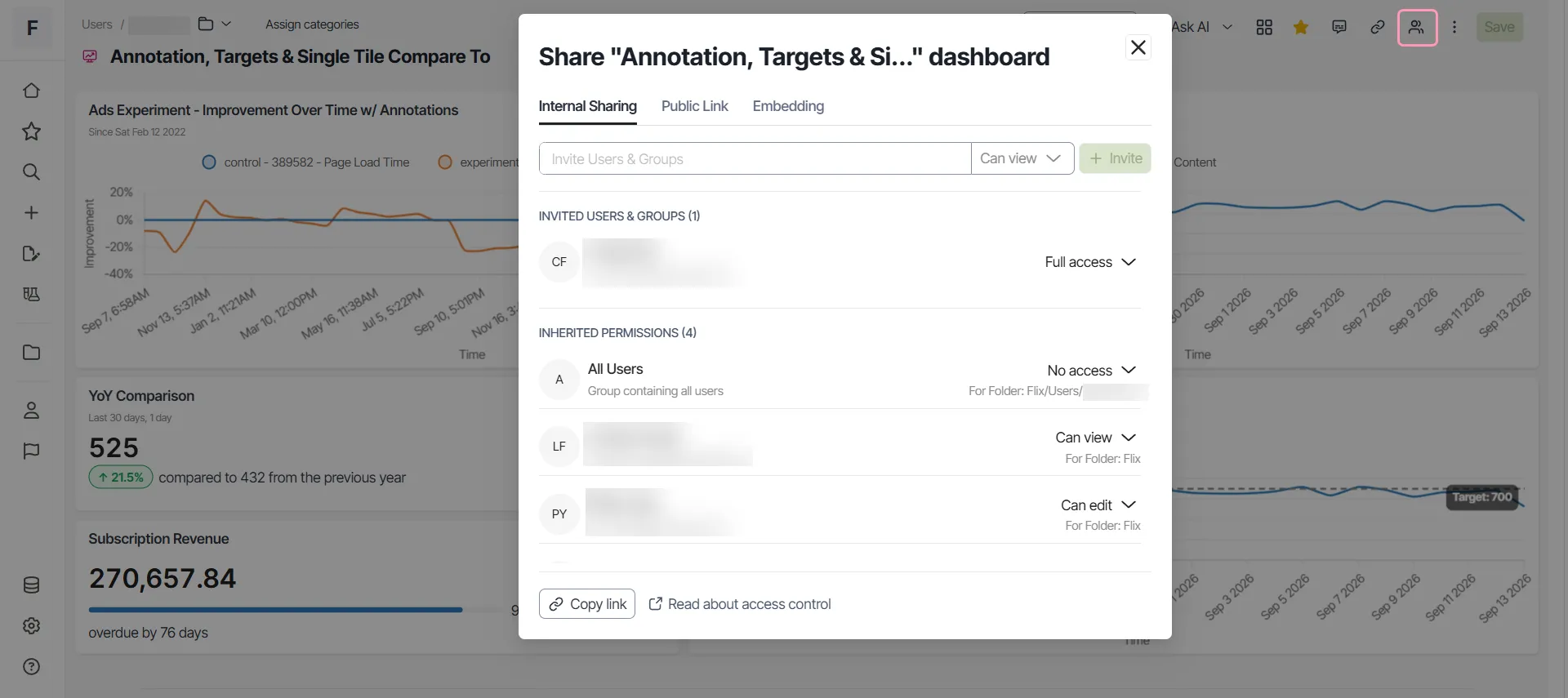
Analytics assigns the access level shown here directly to the object. Some users hold implicit access through their role. An Org Admin reaches everything, for example, and the window does not show that access.
Share privilege
You have share privilege for an object if you have Can Edit access level for that object.
Share objects
To share objects with other users and groups, complete the following:
- Click Share.
- Enter the names of users or groups you want to share the object with.
- Select the access level.
- Click Invite.
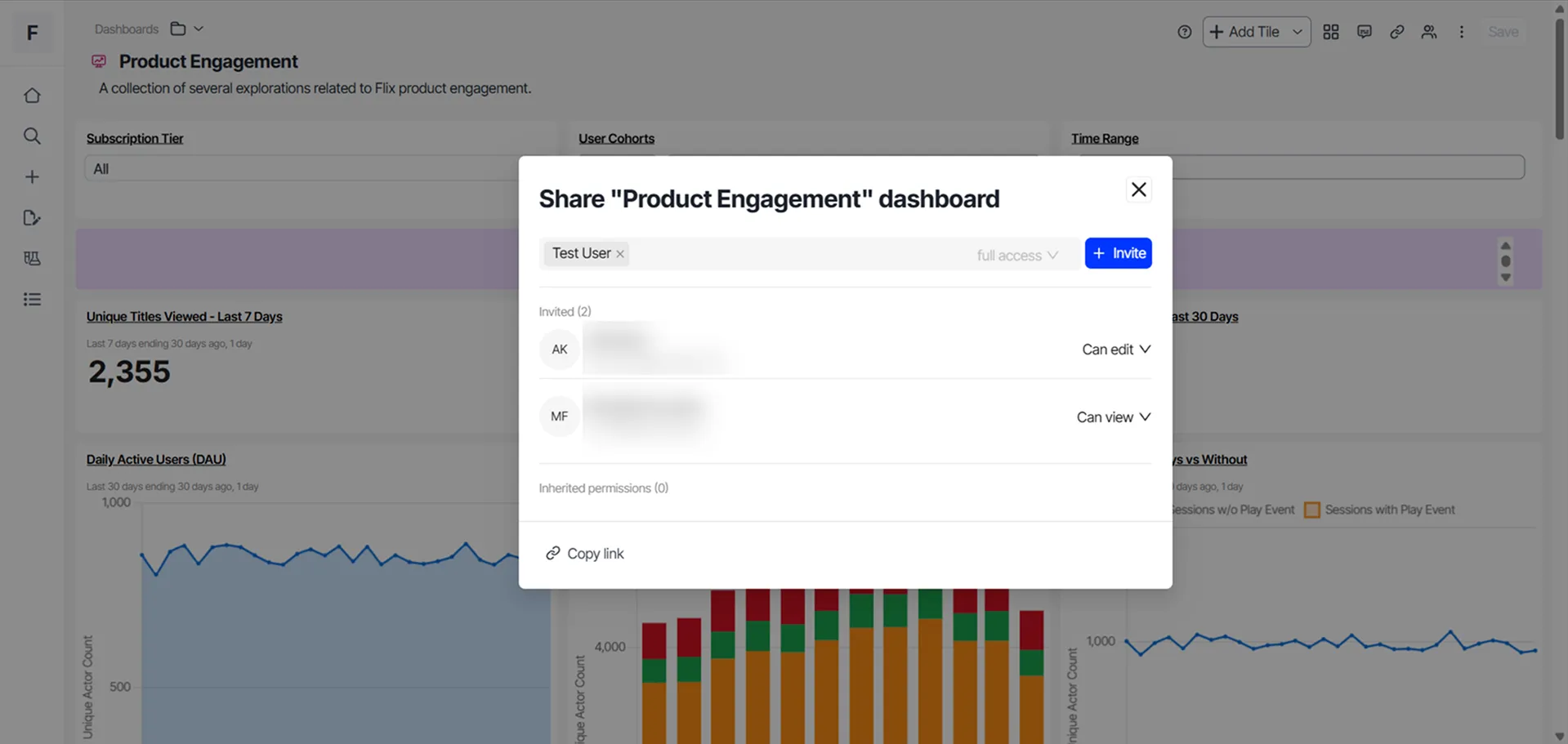
After Analytics sends the invites, the window lists each user and group with their access level. You can also remove access from the Share window. To do so, click the access level and select Withdraw permissions.
Collaborate with comments
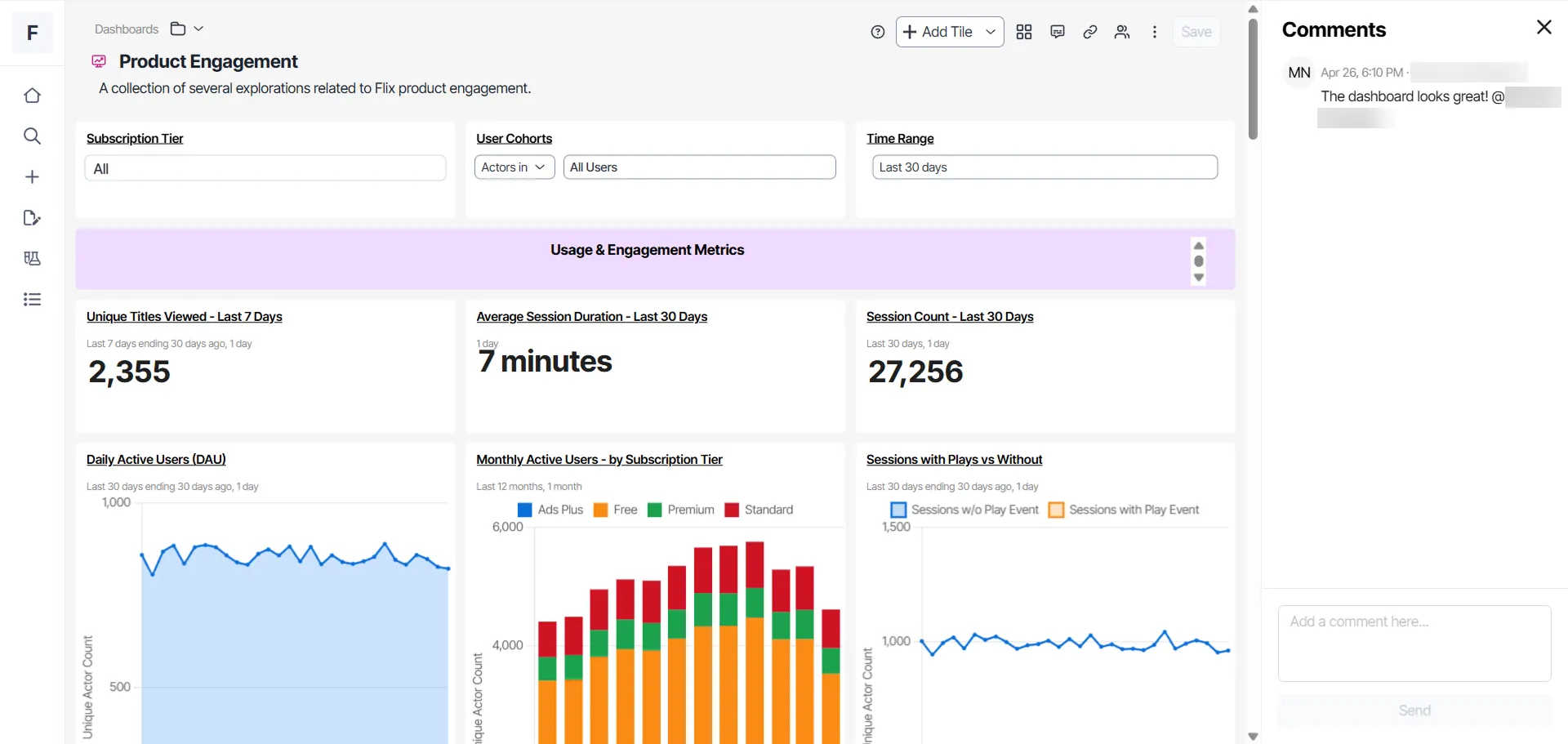
You can comment on tiles, dashboards, and explorations to collaborate with your team. In addition to commenting, you can mention other users in your organization. To post comments, complete the following:
- Click Comment.
- Type your comment in the text field.
- (Optional) To mention specific users, type @ and select from the list of users.
- Click Send. Your comment is visible to everyone with view access on the dashboard or exploration.
Embed an exploration in another page
You can embed an exploration in another web page, wiki, or internal portal from the Embedding tab in the Share window. The embedded visualization stays live and reflects the exploration's current configuration. Embedding is only available for explorations and dashboards.
Embedding does not make a visualization public. Optimizely Analytics enforces access per viewer, so the embed renders only for signed-in users who have access to the exploration. Viewers without access do not see the visualization.
- Open the exploration you want to embed.
- Click Share.
- Select the Embedding tab.
- Copy the embed code:
- Click Copy iframe code to copy a ready-to-use iframe snippet. Paste the snippet into the HTML of the page where you want the visualization to display.
- Click Copy source link to copy the direct embed URL. Use this link to reference the visualization without the iframe wrapper.
- Paste the code or link into your destination.
The iframe snippet uses responsive width and height, so the visualization fills the container it sits in.
Share experiment results with a public link
You can share experiment results outside your organization. Anyone with the link can view the results in read-only mode without an Analytics account. Add a password and an expiration date to keep the results available only to the users and timeframe you intend.
Public links work for experiment results and dashboards. For dashboard links, see View and favorite dashboards.
A public link removes access checks. Anyone who holds the link views the results without signing in. Optimizely does not control who receives the link after you send it. Add a password when the results contain sensitive data.
Before you begin
Before you create a public link for experiment results, you must meet the following conditions:
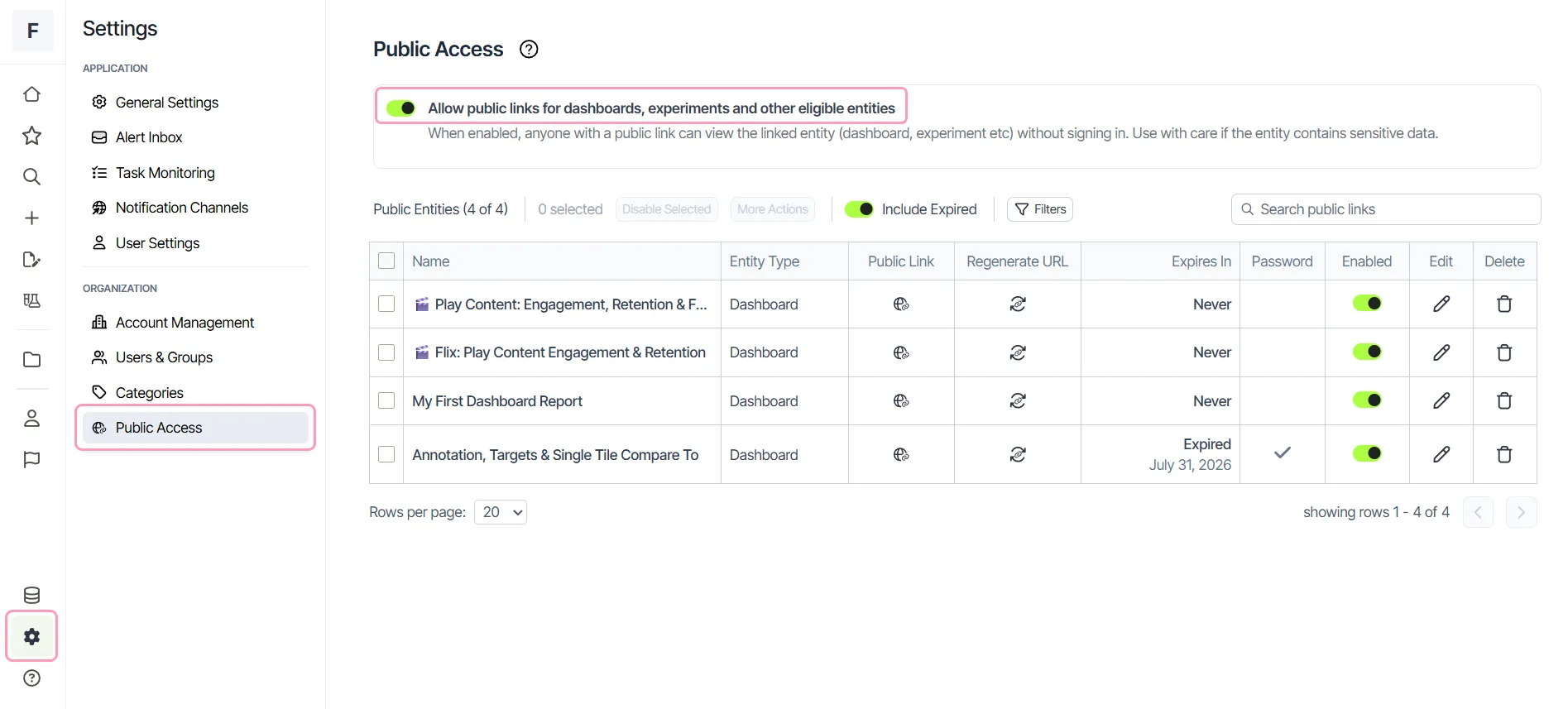
- Enable public links – An administrator must enable public links for the application on the Public access page. Until then, the Share window shows the tab as Public Link (inactive). To enable Public Access, go to Settings > Public Access and turn on Allow public links for dashboards, experiments and other eligible entities. This setting applies only to Optimizely Analytics. The New A/B Results page in Web Experimentation and Feature Experimentation does not require it.
- Share privilege on the experiment – You hold Can Edit access on the experiment, which grants the share privilege. See Authorization and access control.
Create a public link for experiment results
To generate the public link and copy it, follow these steps:
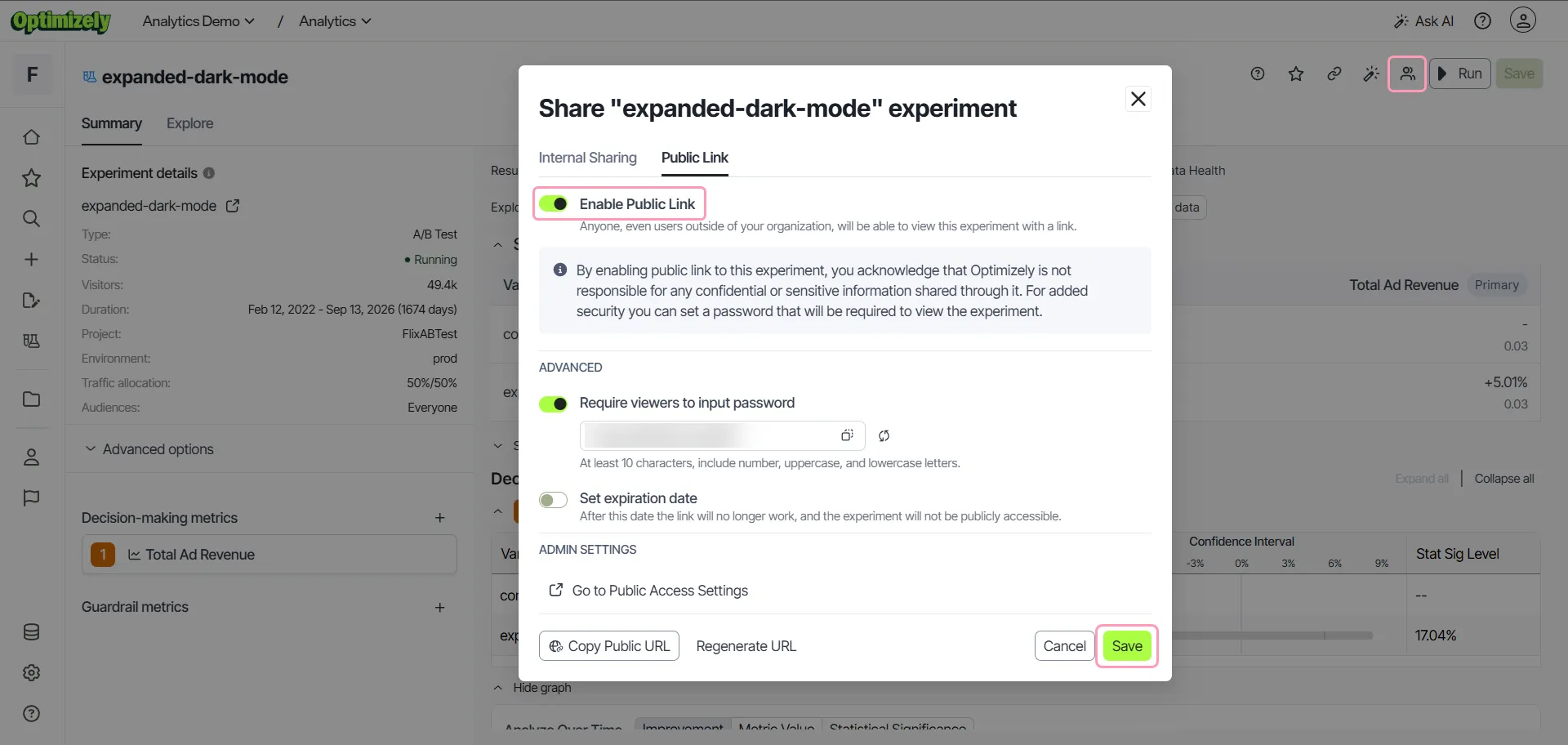
- Go to Experiments and open the experiment whose results you want to share. See Experiment analysis.
- Click Share.
- Click the Public Link tab.
- Turn on Enable Public Link. Analytics generates the link.
- Optionally, require a password or set an expiration date. For information, see Require a password and Set an expiration date.
- Click Save.
- Click Copy Public URL.
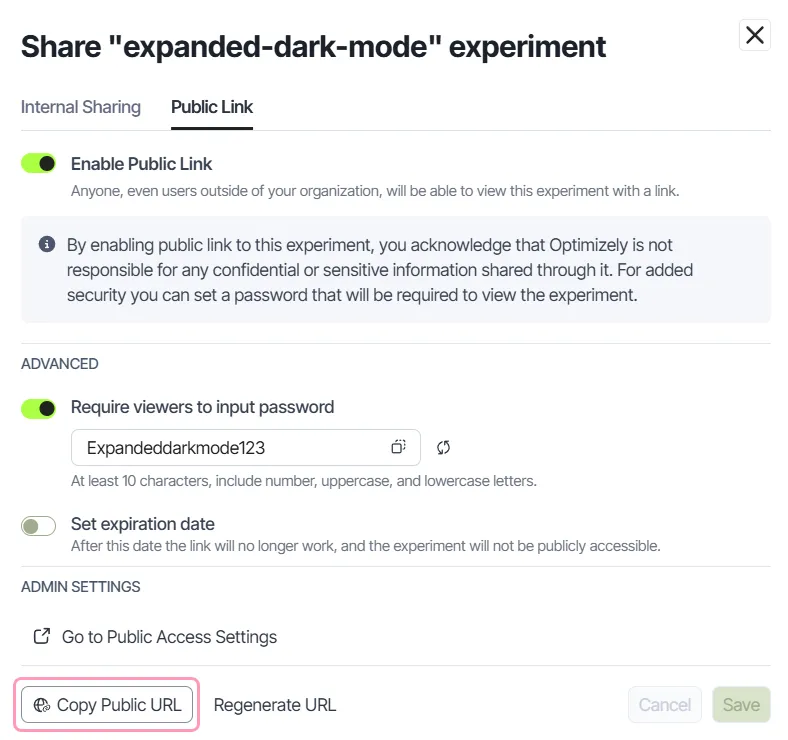
You can now send the link to your recipients.
To stop sharing, turn off Enable Public Link and confirm. Anyone with the link loses access to the experiment results.
Require a password
You can add a password so viewers authenticate before the results display.
- On the Public Link tab, turn on Require viewers to input password.
- Enter a password, or click Generate to create a random one. The password must contain at least 10 characters, including a number, an uppercase letter, and a lowercase letter.
- Click Save.
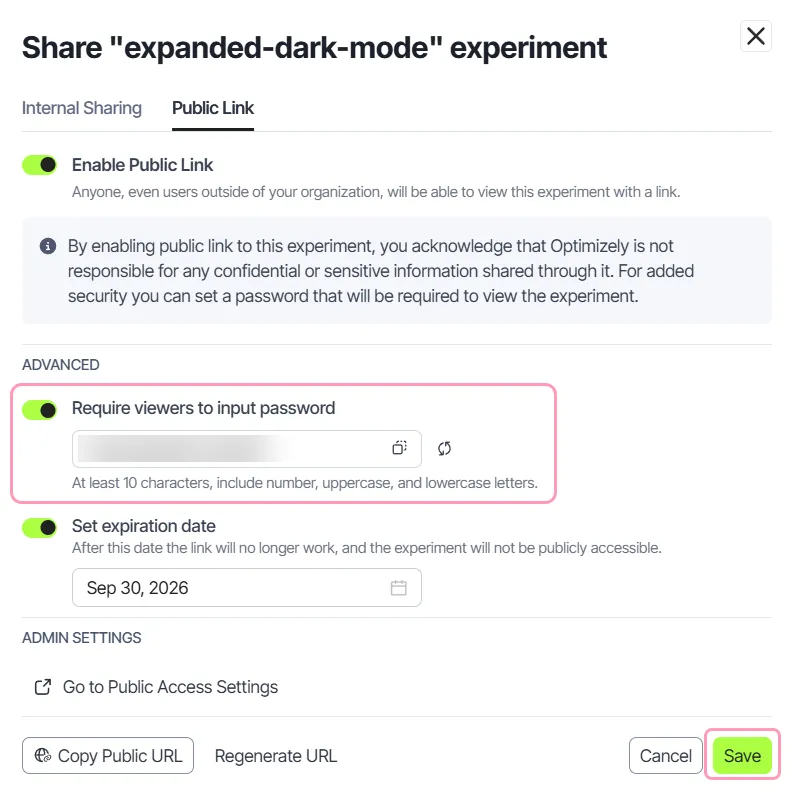
To remove the password, turn off Require viewers to input password and click Save. The results then open for anyone who holds the link, without a password prompt.
Set an expiration date
Set an expiration date to limit how long the results stay public.
- On the Public Link tab, turn on Set expiration date.
- Choose a future date.
- Click Save.
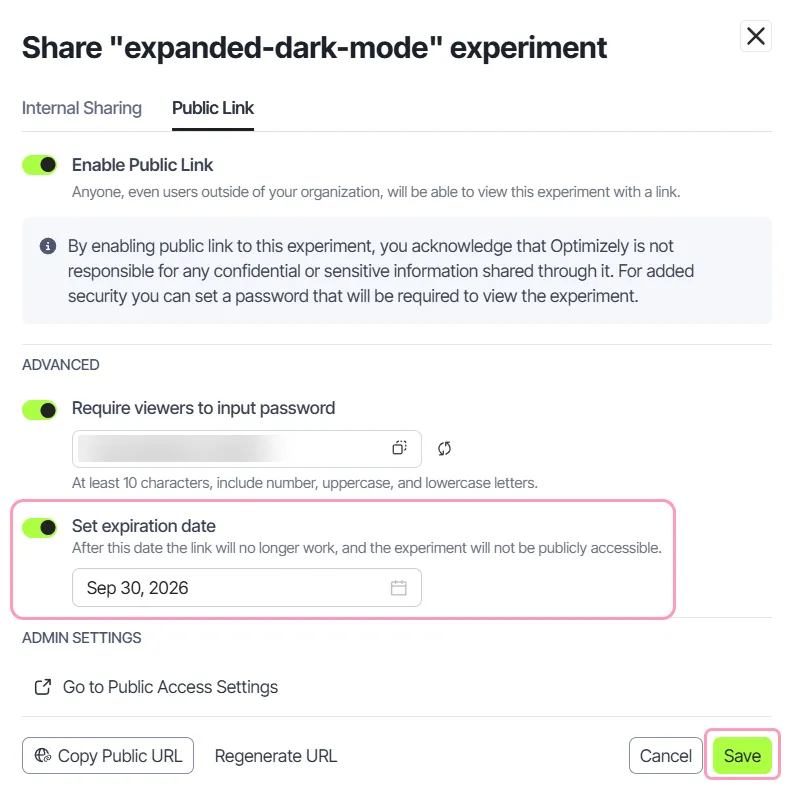
After the expiration date, the link stops working and viewers lose access to the results.
Regenerate or disable a link
Regenerate a link when the address reaches someone outside your intended audience. On the Public Link tab, click Regenerate URL. Analytics revokes the current link and creates a replacement address. Regeneration also clears the password and the expiration date, so set both again on the replacement link.
To stop sharing, turn off Enable Public Link and confirm. Anyone with the link loses access to the experiment results.
Viewer experience
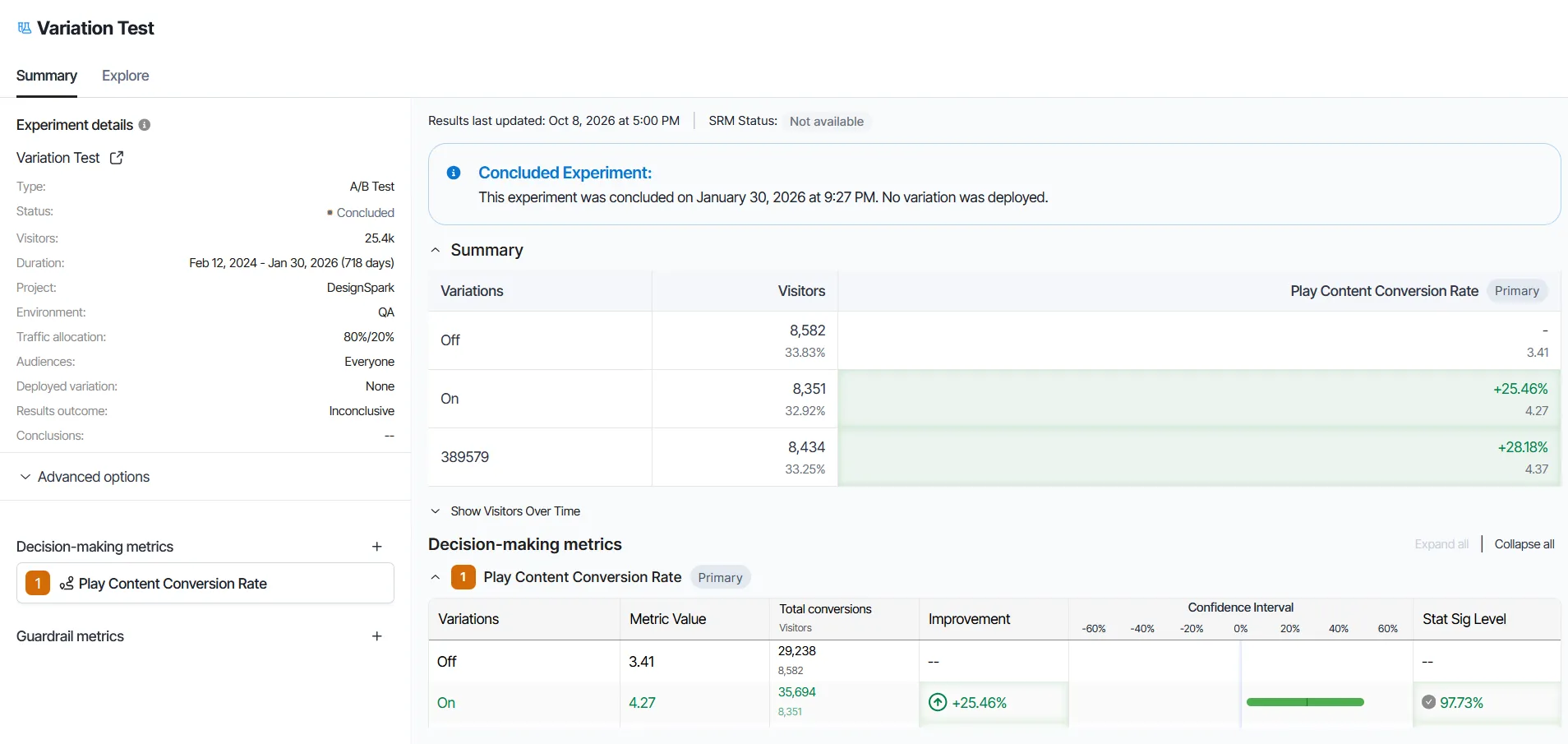
A viewer who opens the link reaches a read-only results page with the Summary and Explore tabs.
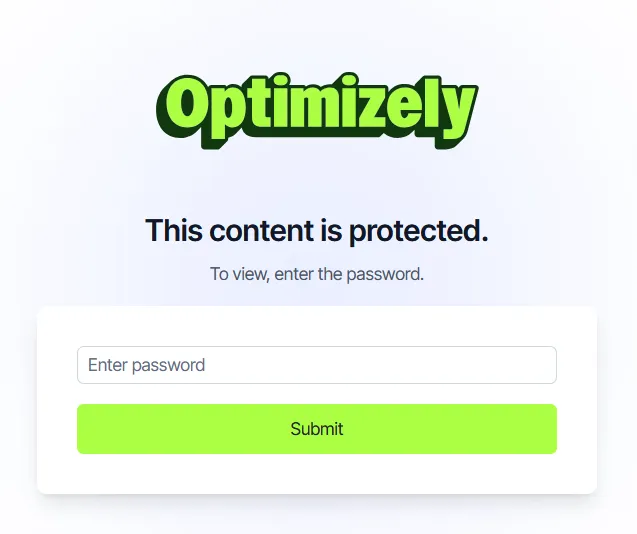
A password-protected link prompts the viewer for the password first. After five incorrect attempts, Analytics blocks further attempts for two minutes and displays the remaining wait time.
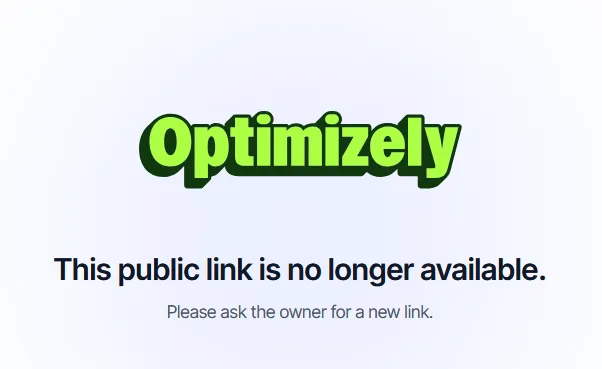
When a link expires or a user disables it, the viewer sees a message that the link no longer works. The message prompts the viewer to request a replacement from the experiment owner.
Manage experiment links as an administrator
Administrators review every public link for the application on the Public Access page. Go to Settings > Public Access. The table identifies each link by Name and Entity Type. The Expires In, Password, and Enabled columns report the current state of a link.
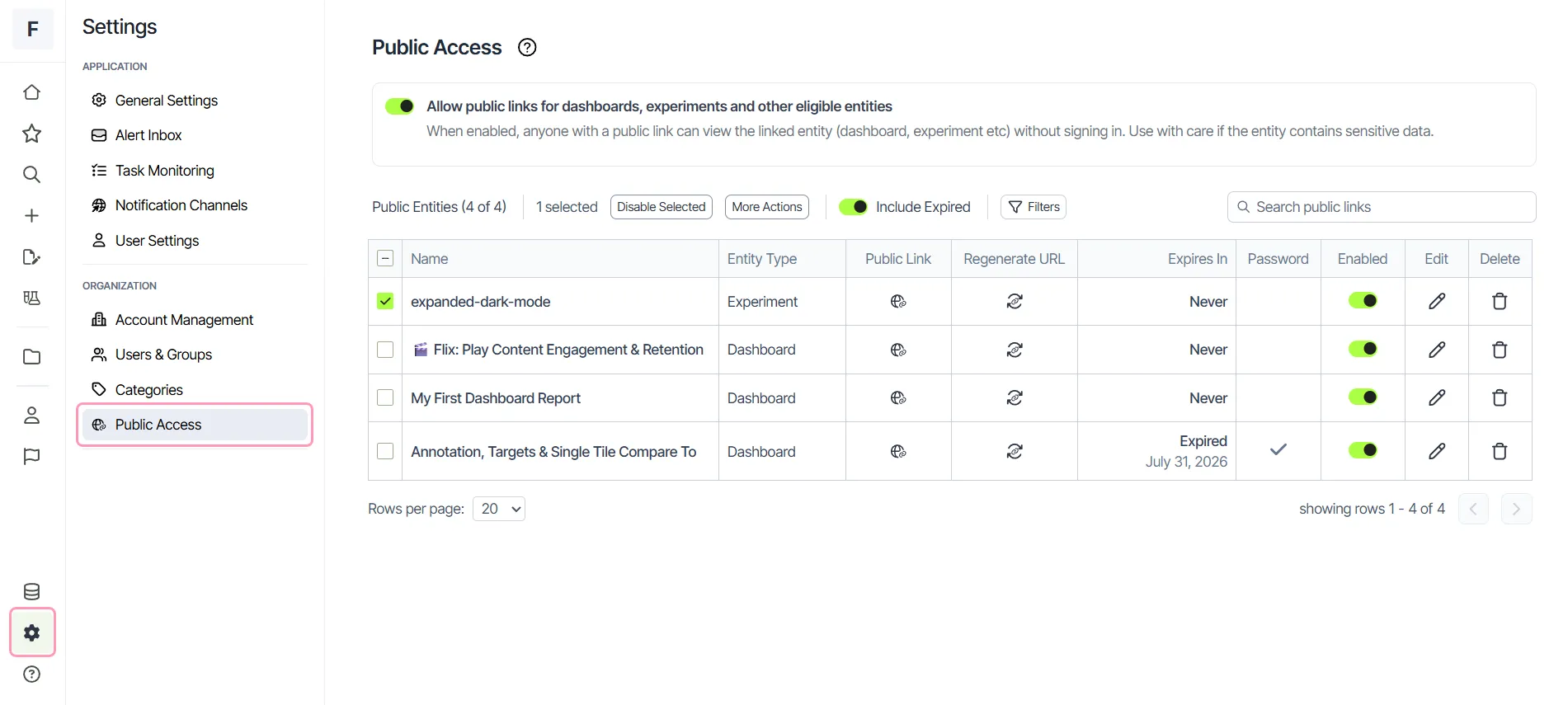
Use the following controls to find and manage public links:
- Entity Type – Check this column to tell an experiment link from a dashboard link.
- Filters – Click Filters and select Experiment to list experiment links only. Select All Types to clear the filter.
- Search public links – Find a link by experiment name.
- Include Expired – Add expired links to the list.
- Enabled – Turn an individual link off to revoke access, and on again to restore it.
- Edit – Update the password or the expiration date on a link.
- Delete – Remove a single link permanently.
- Disable Selected – Select one or more rows, then turn off every selected link.
- More Actions – Select one or more rows, then apply a bulk change such as enabling or deleting several links.