Comment in CMP
2 min
Comments keep feedback, decisions, and approvals next to the work they belong to, so your team does not track them in email or chat. Optimizely Content Marketing Platform (CMP) uses the same comment editor everywhere, so these options work the same way wherever a comment box displays.
Where to comment
CMP supports comments on the following items:
- Tasks – Comment on the task itself or on an individual workflow step. See Manage tasks.
- Campaigns – Comment in the Campaign Details, Comments, and Attachments panel. See Manage campaigns.
- Work requests and pitch requests – Comment on the request as it moves through review. See Work requests.
- Content – Highlight text and comment inline on the passage the feedback refers to. See Edit content.
Assets use a separate annotation tool, where a comment attaches to a point or a region of the file. See Manage asset versions and Proofread assets.
Work with comments
Open the item you want to discuss, click Comments, enter your comment in the comment box, and post it. The comment box and the thread below it support the following actions:
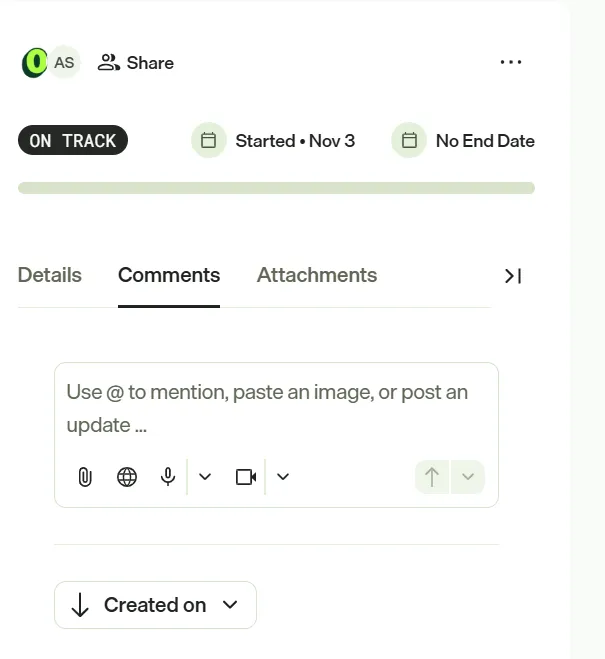
- Format text – Apply bold, italics, underline, strikethrough, bulleted lists, numbered lists, text color, highlight, hyperlinks, and emojis.
- Mention a colleague – Use an @-mention to bring someone into the discussion. Mentioned users receive a notification in CMP, by email, or both, depending on their notification settings.
- When you mention someone who does not have access to the item, CMP prompts you to grant them Can View, Can Comment, or Can Edit access. See Manage permissions and custom roles.
- Paste an image – Paste an image into the comment box to display it in the body of the comment instead of below it as a separate attachment.
- Attach a file – Attach a file from the comment box, or drag the file into the comment box. Click an attachment title to open it in the Preview Panel or to download it.
- Keep a comment private – A comment is public by default and notifies everyone who watches the item. A private comment notifies only the users you mention. Set the visibility before you post the comment.
- Record audio or video – Start the recording from the comment box, select the microphone and, for video, the camera, record your message, insert the recording, and post the comment. Record video when a screen recording demonstrates the exact behavior you want to raise.
- Schedule a comment – Choose Schedule from the post options, set the date and time, and confirm. CMP holds the comment until then, and the recipient sees it and receives the notification at that time, not when you wrote it.
- Sort comments – Sort by Created on or by the date a comment was last updated, and reverse the order to put either the newest or the oldest comment first. The sort control displays below the comment box.
- Reply to a comment – Threads support three levels: the original comment, a reply, and a reply to that reply. A discussion therefore stays grouped under the comment that started it.
- Resolve a comment – A resolved comment no longer displays in the thread, so only open items remain. Select Show Resolved to display resolved comments, and click Re-open to return one to the active thread.
- Edit or delete a comment – Click More (...) on a comment you posted.
- Summarize a thread – Click Summarize this thread. Optimizely Mark reads the thread and returns a summary of the discussion.
- Preview a linked item – Hover over a link or mention to see what the link points to without leaving the thread. CMP displays a preview card for each of the following:
- Task – Title, task ID, and status.
- Campaign – Title, campaign ID, and status.
- User – Name, email address, and job title.
- External link – A preview of the linked page. Display an external link as a plain link, as a hover preview, or as an inline preview.