Optimizely Digital Asset Management Asset Picker
The Optimizely Digital Asset Management (DAM) Asset Picker lets you browse an asset collection.
Important
A developer must install and integrate the asset picker with Optimizely Content Management System (CMS) and create a button to access the DAM. See also DAM in CMS 12 in the Platform Integrations developer guide. Also, you must log in for the first time you use the DAM library. Thereafter, the asset picker displays.
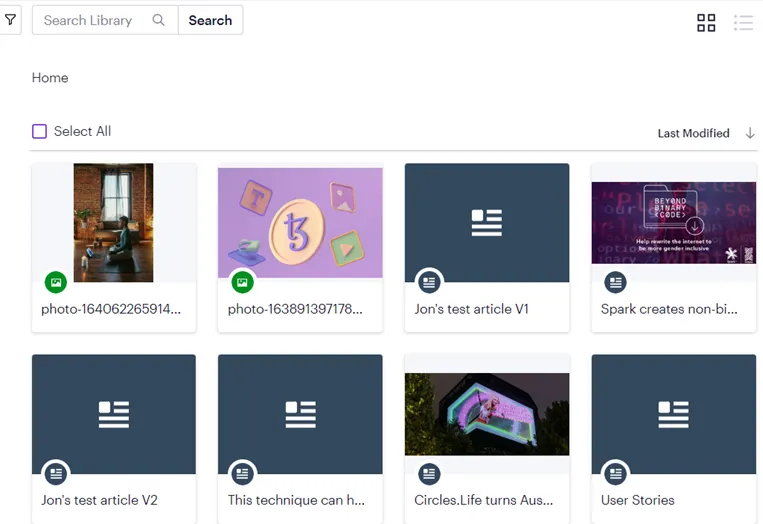
If your page has button access to the DAM asset picker, click it to open a window. Log into CMP, select an instance from the pop-up window, and then select the assets you want to use.
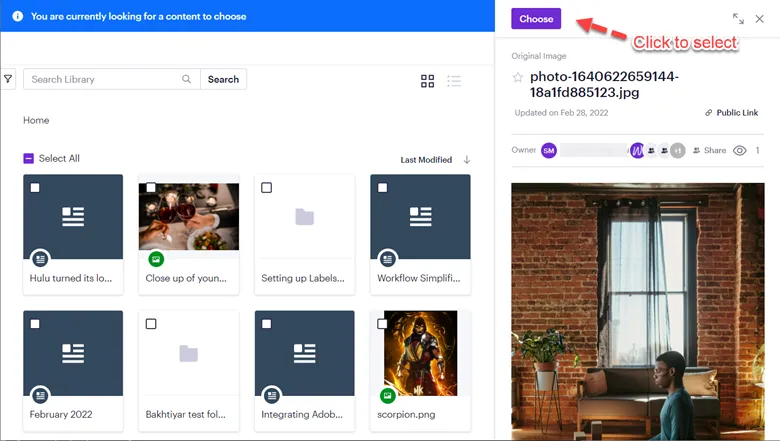
You can select an asset, which displays its metadata as shown in the following image. Click Choose to finalize the selections.
Note
The Projects feature is not yet supported in the DAM asset picker.