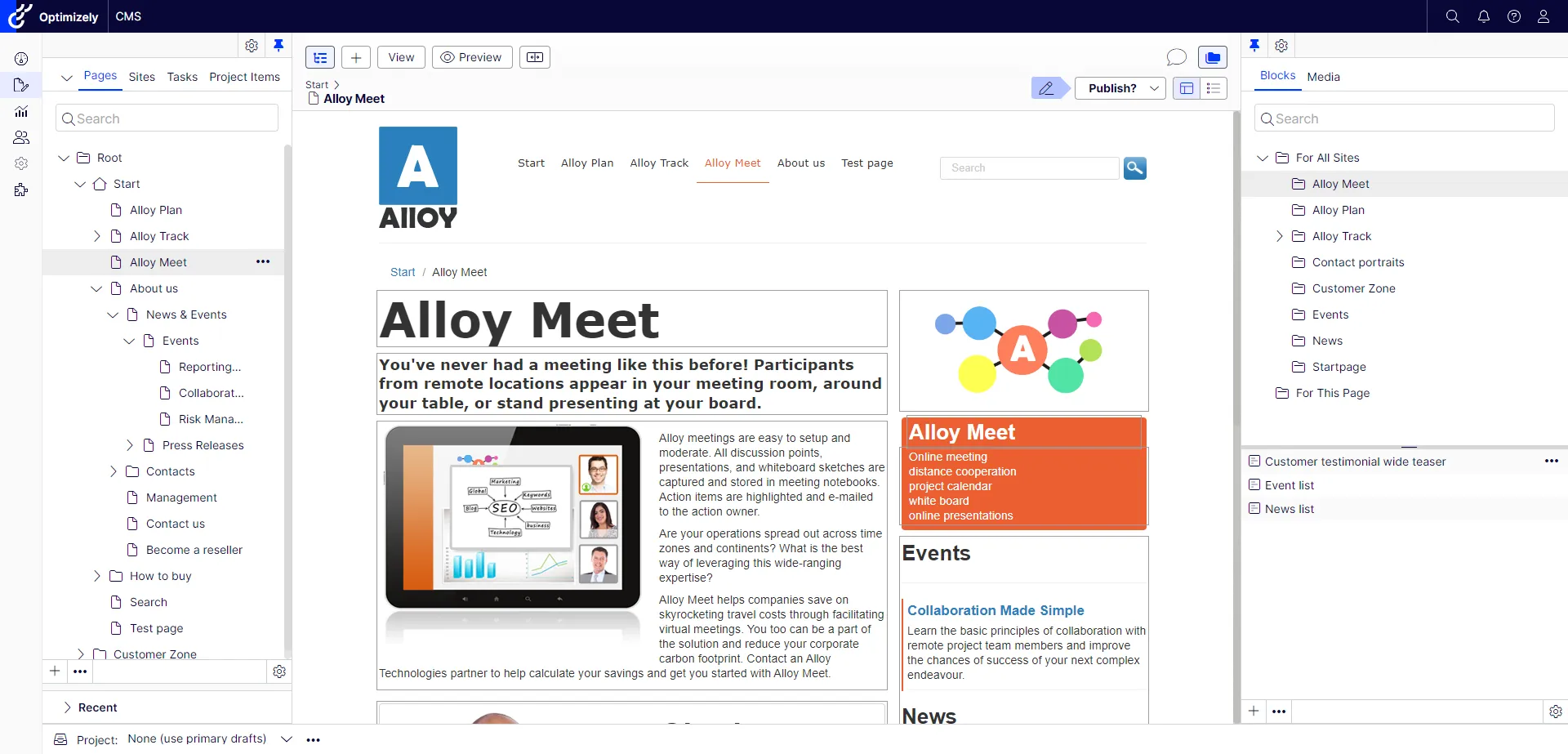
Get started with CMS
Optimizely Content Management System (CMS) provides powerful web content management capabilities, available through an intuitive user interface, letting experienced and occasional users work efficiently with content.
Note
The Optimizely Digital Experience Platform (DXP) contains many features to support you in your daily work. Depending on how your solution is set up, some features described in this documentation may not be available to you. Contact your system administrator to find out more.
When your Optimizely system and related services are set up, you will receive the permission keys and credentials needed to access the user interface. The set up depends on what parts of the Optimizely platform you have in your implementation, such as Optimizely Content Management System (CMS) or Optimizely Commerce Connect, Optimizely Campaign, Optimizely Search & Navigation, and the products in the Optimizely Personalization suite.
Access features
As an editor or administrator, you usually log in to your website using a specified URL, a login button, or a link. Enter your username and password in the Optimizely login dialog box, and click Log In.
After logging in, what you are allowed to do depends on your implementation and access rights, because these control the options you see. The Optimizely quick access menu displays in the upper right corner when logged in.
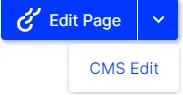
Selecting CMS Edit takes you to the edit view and other system parts.
To access the Optimizely CMS edit view, select CMS Edit in the Optimizely quick access menu.
What do you want to do?
- Manage website content – Optimizely Content Management System (CMS) Create and edit web pages, add links and images, and work with content blocks and web forms. Manage content approvals and publishing.
- Manage products, discounts, and orders – Optimizely Commerce Connect Enrich product information with text and images, create discounts for sales campaigns, manage markets, and work with orders.
- Create automated omnichannel campaigns – Optimizely Campaign Manage recipient lists, create mailings, and set up automated campaigns for pushing marketing messages in multiple channels. See the section.
- Optimize site search – Optimizely Search & Navigation Analyze search terms, add search optimization based on visitor actions, and create "best bets" to promote selected website content.
- Manage personalized content recommendations – Optimizely Content Recommendations Display targeted articles based on tracking of visitor behavior, and define content strategies for your website. Analysis of a unique profile lets you deliver the most relevant content to each visitor.
- Manage personalized product recommendations – Optimizely Product Recommendations Create and configure a merchandising campaign, to display personalized recommendations from the product catalog, for display on multiple devices.
- Manage triggers and email recommendations – Optimizely Triggered Messages and Optimizely Email Recommendations Create personalized email messages that are automatically triggered by visitor behavior, for example to act on abandoned shopping carts.
- Other features – Optimizely Apps There are many integrations and extensions available for Optimizely, for example for A/B testing, Google Analytics, and marketing automation features.
Related topics
- PaaS CMS courses at Optimizely Academy for self-paced CMS 12 configuration and use.
- Versioned user guides and release notes (legacy, 2021 and earlier)
- Released functionality (legacy, 2021 and earlier)
- Obsolete functionality (legacy, 2021 and earlier)