Configure Real-Time Segments for Web Experimentation
Prerequisites
- An Optimizely Web Experimentation account.
- An Optimizely Data Platform (ODP) account.
🚧 Important The ODP snippet is optional if you select the Web • Visitor ID in step 7 in the followint steps, or if you do not use ODP as your customer data platform (CDP) and are implementing the passthrough version of this integration.
If you add the ODP snippet to your site, it must be before the Web Experimentation snippet so that the Web Experimentation snippet can pull the ID that the ODP snippet generates.
Integration considerations
- Third-party CDP – If you do not use ODP as your CDP, you still need an ODP account, but you do not have to implement the ODP snippet on your site. To configure the Real-Time Segments for Web Experimentation integration using a third-party CDP, skip to Integrate with other CDPs.
- ODP – If you use ODP as your CDP, continue to Configure Real-Time Segments for Web Experimentation.
Configure Real-Time Segments for Web Experimentation
- In Web Experimentation, go to Settings > Integrations > Real-Time Segments.
- Toggle the integration status to On.
- Click You can find your API key in ODP to go to the APIs page in ODP.
- On the APIs page in ODP, copy the value in the KEY fields on both the Public and Private tabs.
- Go back to Web Experimentation and paste these values into the corresponding fields (ODP Public Key (required) and ODP Private Key (required)).
- Select your region from the ODP Host (required) drop-down list.
- Select your desired User ID:
- ODP • VUID – The ID that ODP assigns to each customer cookie. This is the default ID for the integration.
- Web • Visitor ID – (Default) The ID that your Web Experimentation snippet is using. Depending on your snippet settings, this is either the default Optimizely visitor ID or another ID of your choice.
🚧 Important For help with selecting the User ID, see Select your User ID.
- Select your desired Confidence Level for the User ID you selected above.
- Low confidence – Low confidence identifiers are unique to a device or browser and may resolve to multiple customers in certain situations. Select this option when there is a weak degree of confidence that your chosen User ID accurately represents a single customer.
📘 Note Low confidence is the only option available if you select ODP • VUID for your User ID.
- High confidence – High confidence identifiers are unique to an individual customer. Select this option only when you have a high degree of confidence that your chosen User ID accurately represents a single customer.
📘 Note For more information on identifier confidence levels, see Overview of customer identity and resolution.
Select your User ID
When deciding which User ID to select, consider the following requirements for each option:
ODP • VUID
- You must implement both the ODP and Optimizely snippets on your site.
- You must have the ODP snippet activating before the Optimizely snippet.
- You can not implement the ODP snippet asynchronously.
- This is a low-confidence identifier.
Web • Visitor ID
- You must implement the Web Experimentation snippet on your site.
- Implementing the ODP snippet is optional. If you choose not to implement it, just implement the Web Experimentation snippet, then skip directly to Use ODP real-time segments in your Optimizely experiments.
- You can keep your performance budget for your site lower by only implementing one snippet as opposed to implementing both.
- You can select whether you want this to be a low-confidence or high-confidence identifier.
Integrate with other CDPs
🚧 Important If you use ODP as your CDP, do not complete this section. Skip to Use ODP real-time segments in your Optimizely experiments.
If you use a third-party CDP:
- Configure the third-party CDP integration in ODP:
- In Web Experimentation, go to Settings > Integrations > Real-Time Segments.
- Toggle the integration status to On.
- Click You can find your API key in ODP to go to the APIs page in ODP.
- On the APIs page in ODP, copy the value in the KEY fields on both the Public and Private tabs.
- Go back to Web Experimentation and paste these values into the corresponding fields (ODP Public Key (required) and ODP Private Key (required)).
- Select your region from the ODP Host (required) drop-down list.
- Select the Passthrough Implementation checkbox.
- Select an Identifier Type.
🚧 Important You should select an identifier type that matches the identifier sent from your CDP to ODP to increase the likelihood of user bucketing. For help with selecting the Identifier Type, see the user documentation on identifier types.
- Enter the Identifier Name.
Use ODP real-time segments in your Web Experimentation experiments
Now you can begin building audiences in Web Experimentation using ODP's pre-built and custom real-time segments.
📘 Note The segments on the Customers > Segments page in ODP are not available for use in this integration.
Create an audience using ODP's real-time segments
You can create and add an audience directly on your experiment (described below), or you can create the audience outside of the experiment (using the audience builder) and then add it to your experiment later.
To add an audience directly to your experiment:
- Within your experiment, go to Audiences.
- From the Search and add audiences drop-down list, select Create new audience.
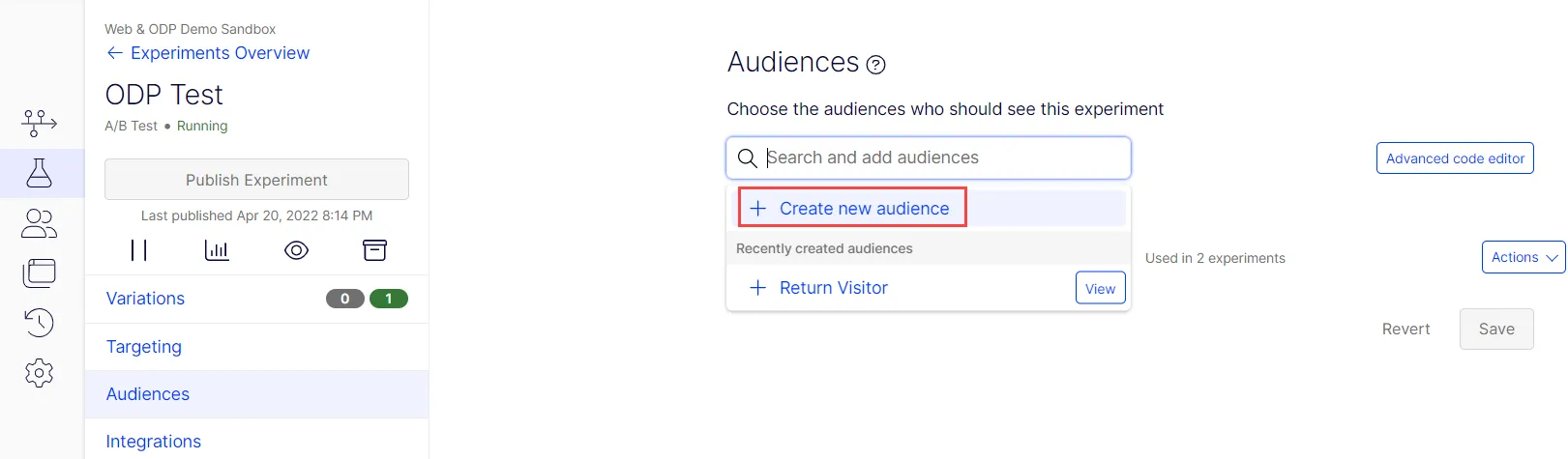
- Complete the Name (required) and Description (optional) fields.
- In the audience condition options on the right, expand Advanced Audience Targeting.
- Drag and drop either Custom Segments or Pre-built Segments to the Audience Conditions section.
- Configure the audience as desired (the real-time segments from ODP display in the Select an audience drop-down list).
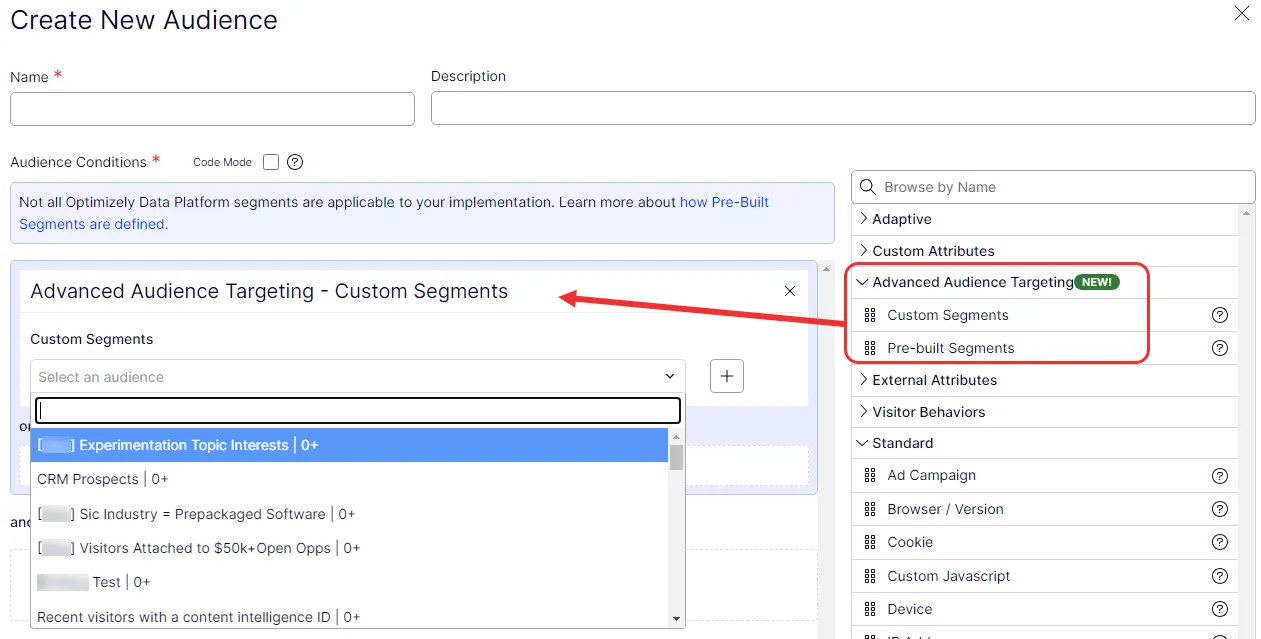
- Click Save Audience.
- On the Audiences page, click Save.
📘 Note You must add the audience to an experiment. The Web Experimentation snippet does not evaluate ODP real-time segment membership unless you add an audience that uses ODP real-time segments to a live experiment that is being activated. In other words, you need to add the audience you create (using the previous steps) to an experiment to see this integration function on a particular webpage.
This also means that if you are checking for a value that could change ODP real-time segment membership mid-session, a page needs to be activated for an experiment using an audience to force re-evaluation (as it normally would for any other audience condition). For more information, see order of activation.
Troubleshoot the integration
If you do not see the issue you are experiencing, contact Optimizely Support.
Visitors are not getting bucketed into experiments
In rare cases, you may reach ODP's public API key daily request limit of one million. This prevents Web Experimentation from bucketing visitors into experiments that use Real-Time Segments for Web Experimentation. Other experiments continue to work, and experiments using Real-Time Segments for Web Experimentation resume the next day.
It is extremely improbable that hitting the ODP public API key daily request limit would cause a sample ratio mismatch (SRM). SRM is related to overall traffic allocation to experiments, not traffic distribution among variations.
If you reach the ODP public API key request limit and the API calls fail for the rest of the day, there may be a slight delay in reaching statistical significance. While the time to the conclusion of a test is driven by an accumulation of evidence, it is mainly driven by an accumulation of evidence where there is a consistent, compelling effect to be found. What impacts the speed to a conclusion is more about a thoughtfully designed experiment.
Check which real-time segments you are assigned to in ODP
When Real-Time Segments for Web Experimentation is enabled, Optimizely makes a request to the ODP GraphQL API to retrieve the current visitor's assigned real-time segments. To inspect the data returned by that call, open the developer console and check the value of this attribute:
window["optimizely"].get("visitor")['vendor.odp']['audiences']The content of this array should be populated with any real-time segments to which you are currently assigned.
If you do not see any real-time segments in the odp.audiences[] array, first check to see if you are a member of the returning_visitors real-time segment by going away from the page and returning to it. If you see yourself in the returning_visitors real-time segment on your second visit to the page, the problem most likely is that you do not belong to any other segments, or those segments have not been enabled for that page.
If, however, you are not in the returning_visitors real-time segment, it is likely that the ODP tracker is disabled. This often happens when a visitor deletes their browser cookies mid-session. In this case, the ODP tracker needs to reacquire a tracking cookie before it can identify the user. If the ODP JavaScript snippet cannot find the cookie, ODP returns an empty array of audience memberships. You can reset the cookie by logging out and back into the site.