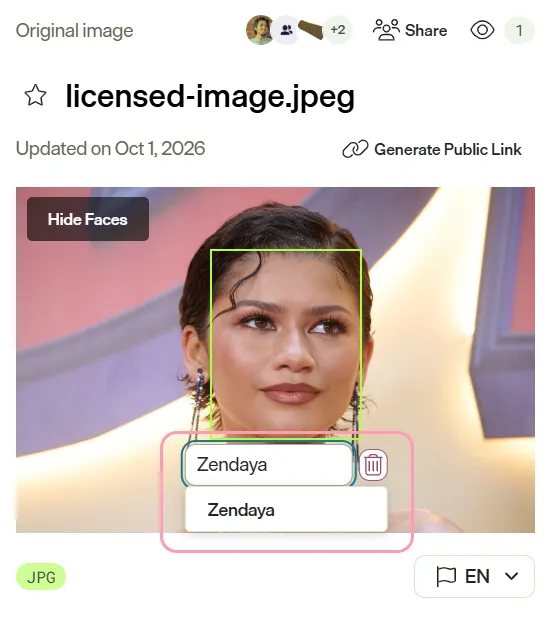
Facial recognition
Facial recognition detects faces in images you upload to the Library in Optimizely Content Marketing Platform (CMP). Label faces to identify people and see which images include them. This helps you find and manage people across your library without opening each asset.
Before you begin
Facial recognition is off by default. An administrator must turn it on. CMP detects faces only in images uploaded after you enable the feature.
Turn on facial recognition
Only administrators can turn facial recognition on or off. To turn it on:
- Go to Settings > Asset Management.
- In the Face Recognition section, select Enable Face Recognition.
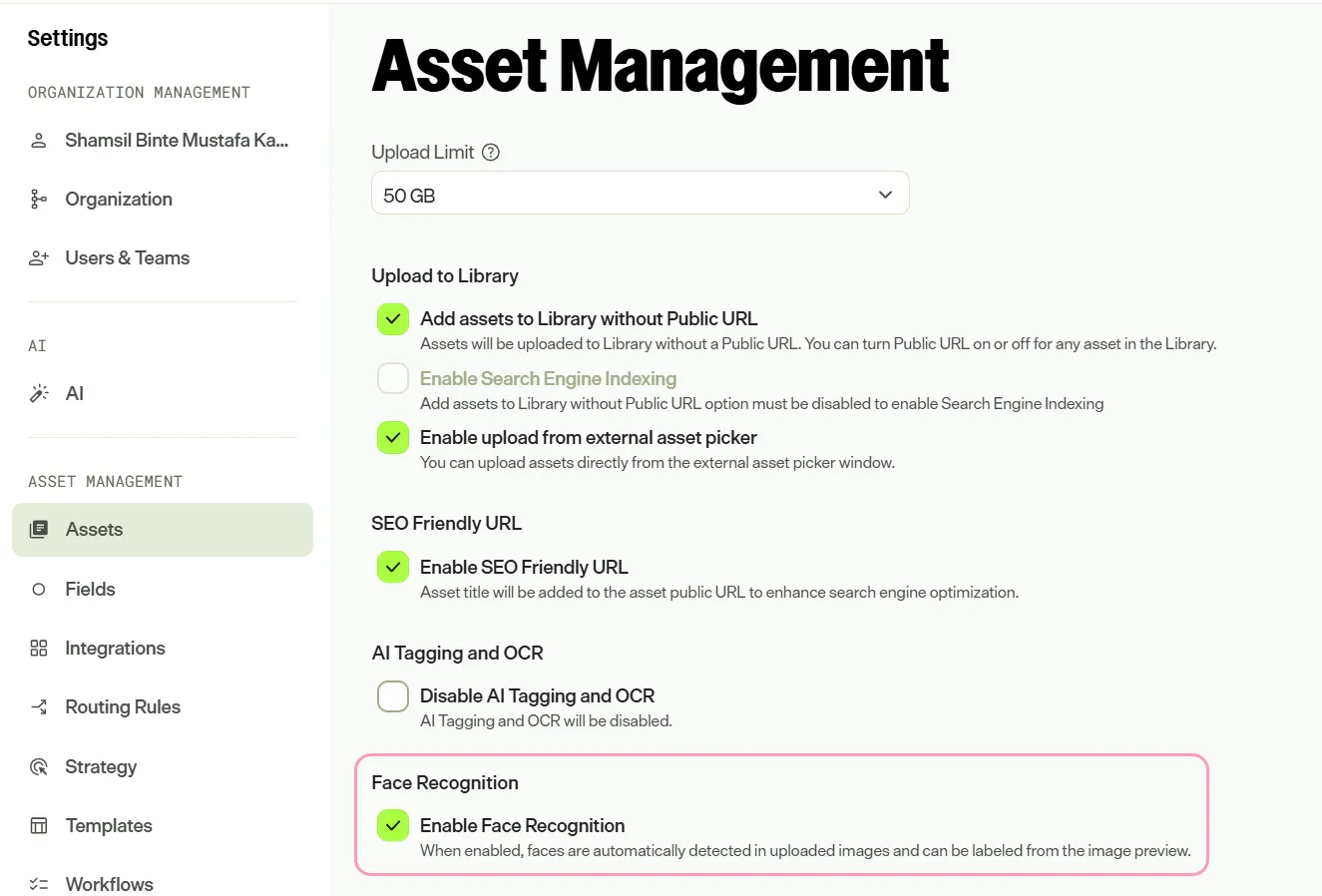
When facial recognition is enabled, CMP automatically detects faces in images you upload.
Label faces from the Face Detection page
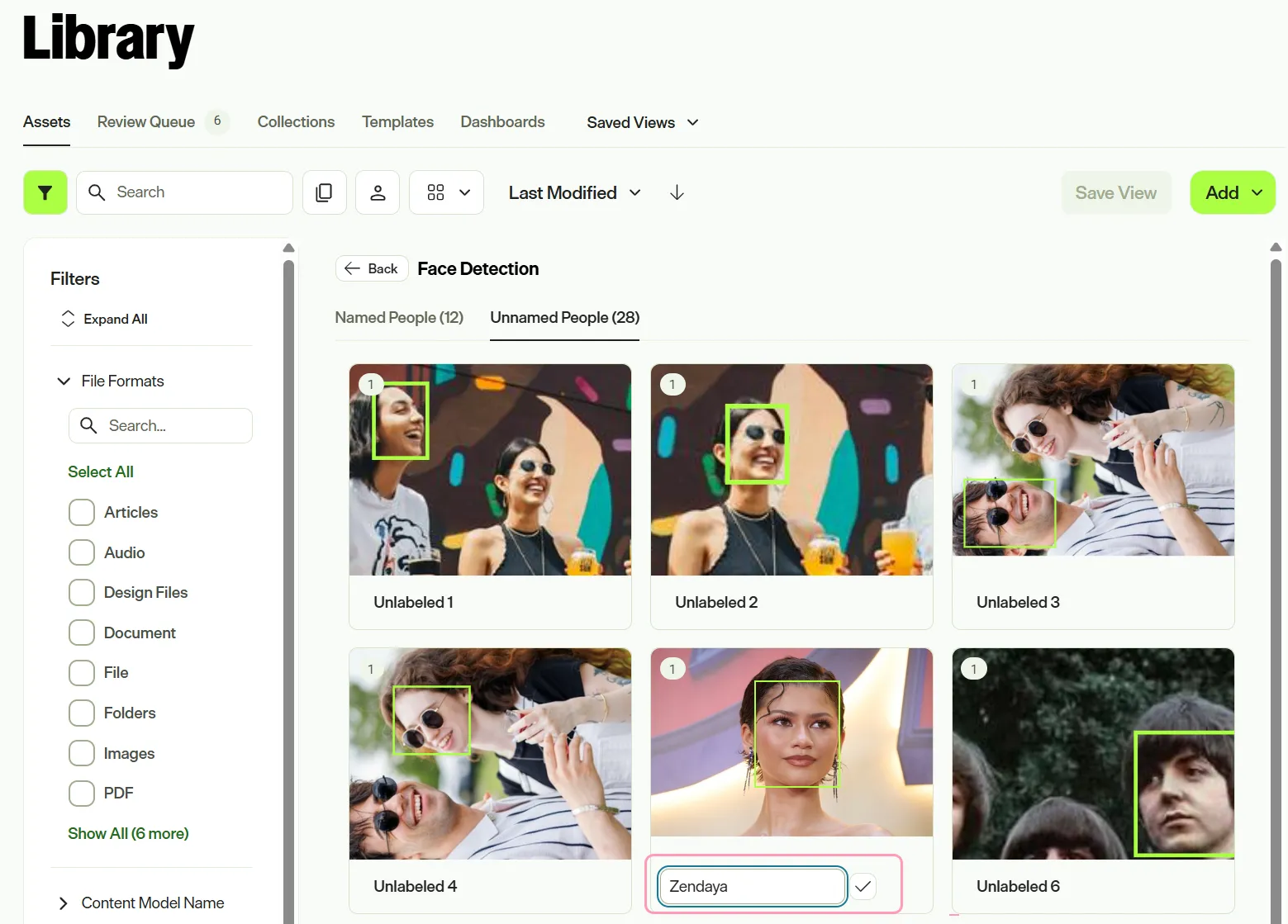
The Face Detection page lists detected faces in the Named People and Unnamed People tabs. A green box marks each face. CMP labels each face Unlabeled followed by a number until you name it.
To label a face:
- In the Library, select Face Detection in the toolbar.

- Select the Unnamed People tab.
- Enter a name in the text field below a face.
- Select the images that display the same person in the More appearances of NAME window. You can choose multiple images.
- Click Rename.
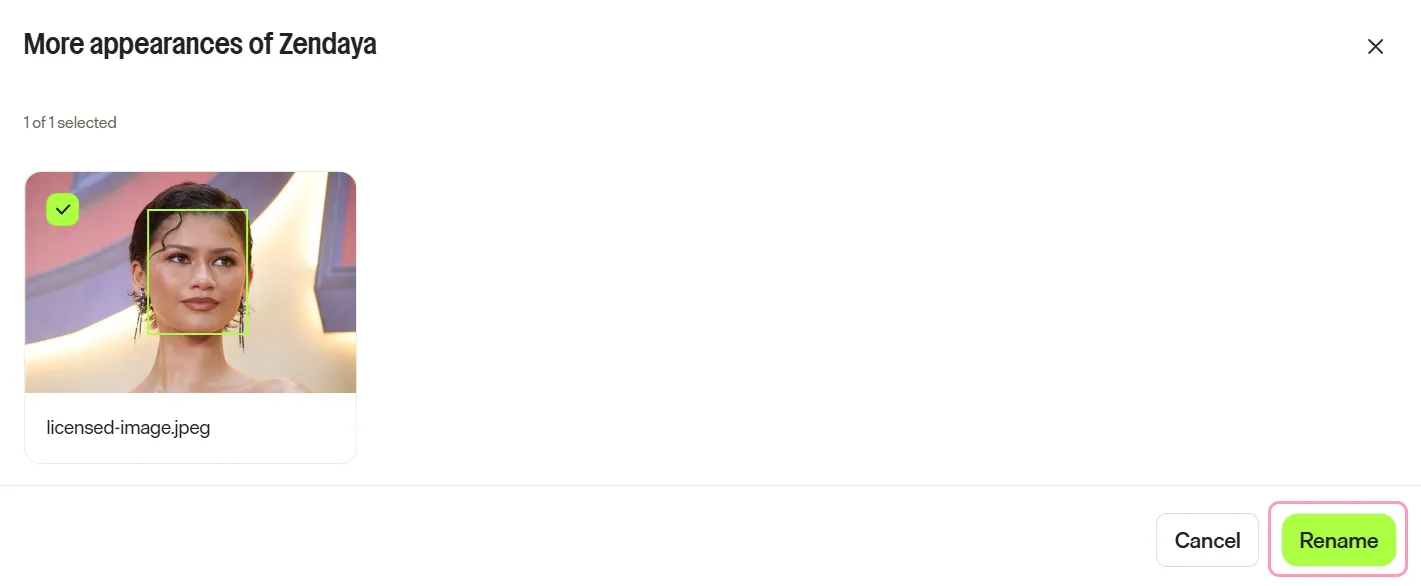
CMP applies the name to each selected image and moves the face to the Named People tab.
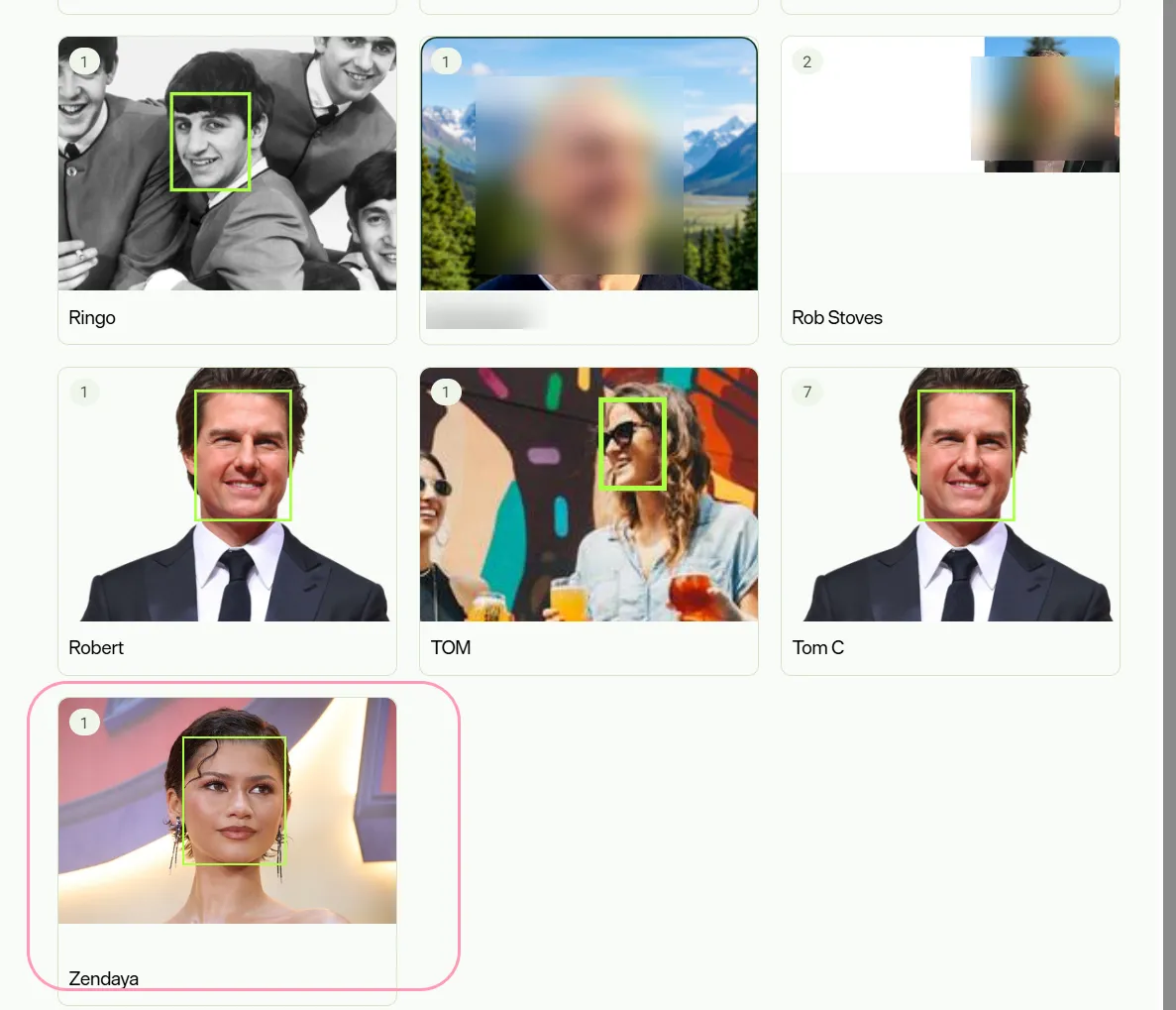
CMP recognizes any image you upload of the same person:
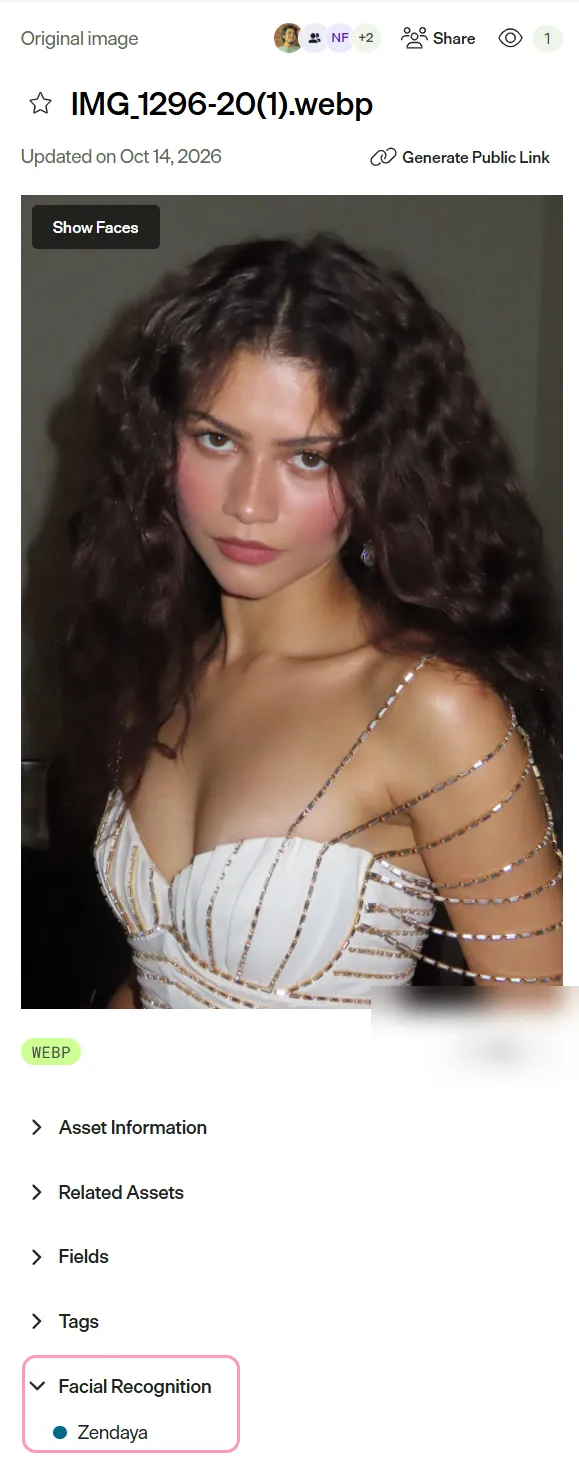
Label faces in an asset
Label faces directly in an asset by completing the following steps:
- Open an asset and select Show Faces on the image. CMP marks each detected face with its name or Add name.
- Select Add name on a face, or expand the Facial Recognition section and click Add name to enter a name.
- Select Hide Faces to hide the face markers.
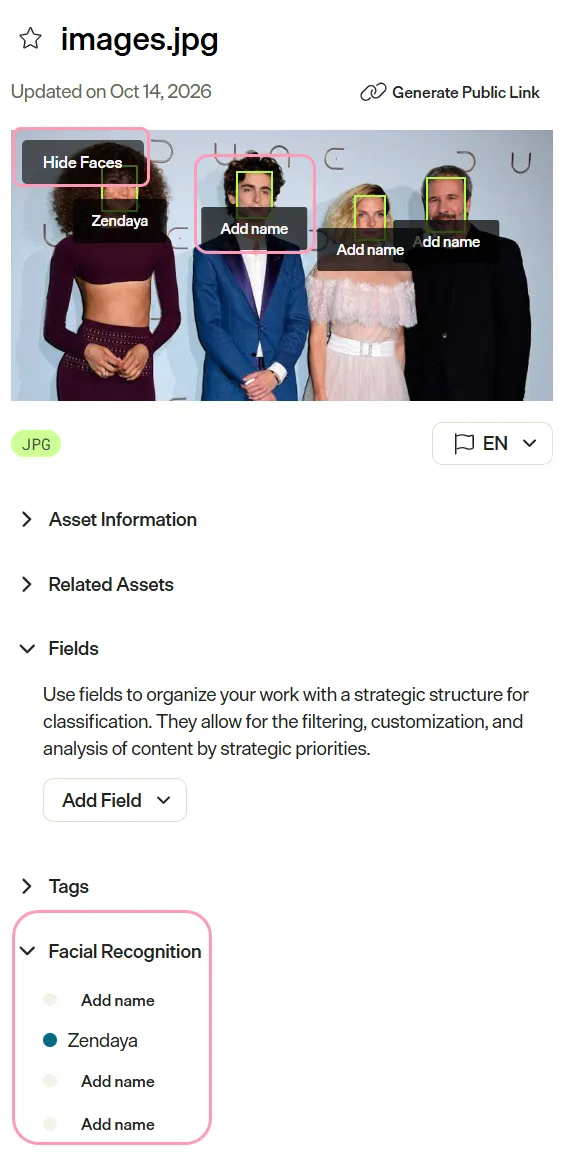
Rename or remove a name
Users with permission to manage facial recognition tags can rename or remove a name after it has been assigned in the following places:
- In the Face Detection page:
- Select the name field for a detected person.
- Enter a new name or click the delete icon to delete it.
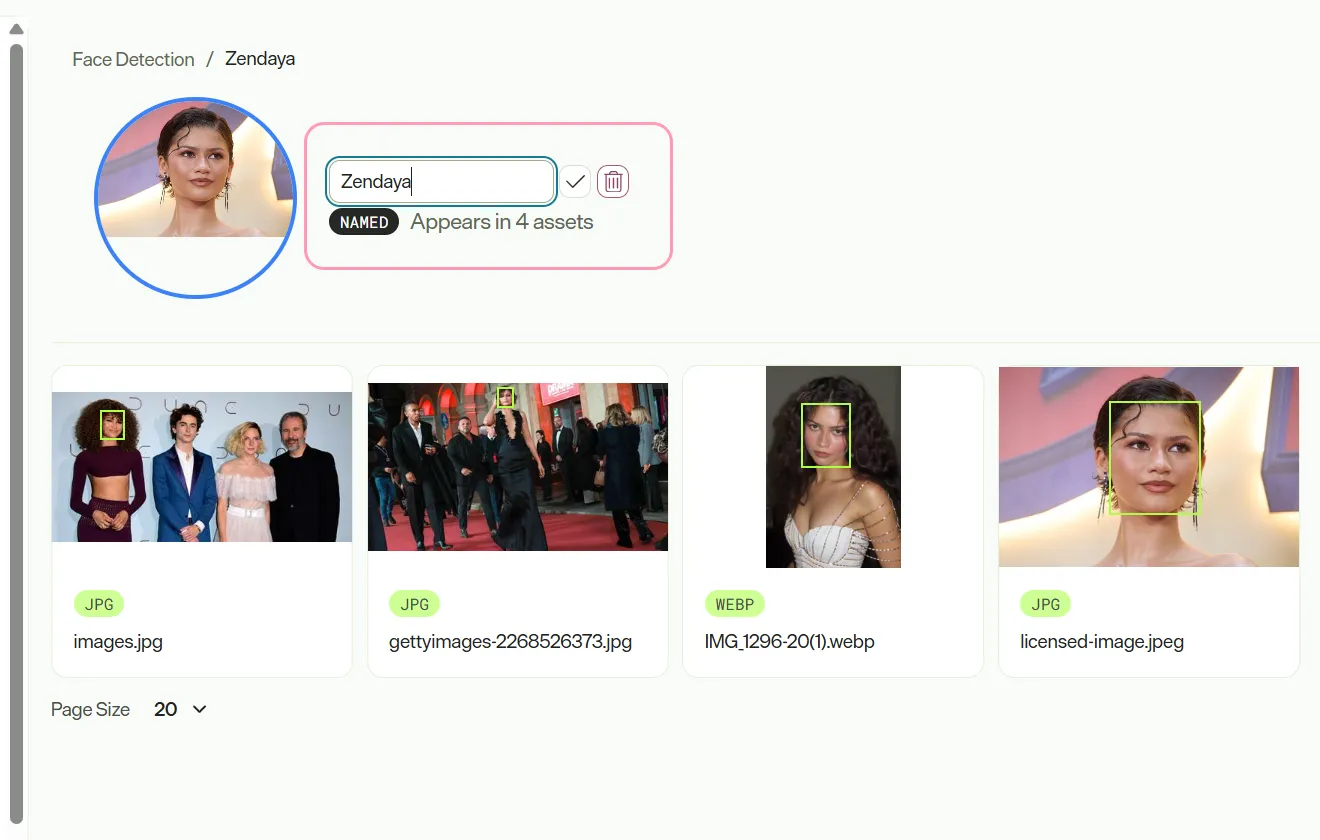
- In the Facial Recognition section of an asset:
- Click the edit icon next to the name.
- Enter a new name or click the delete icon to delete it.
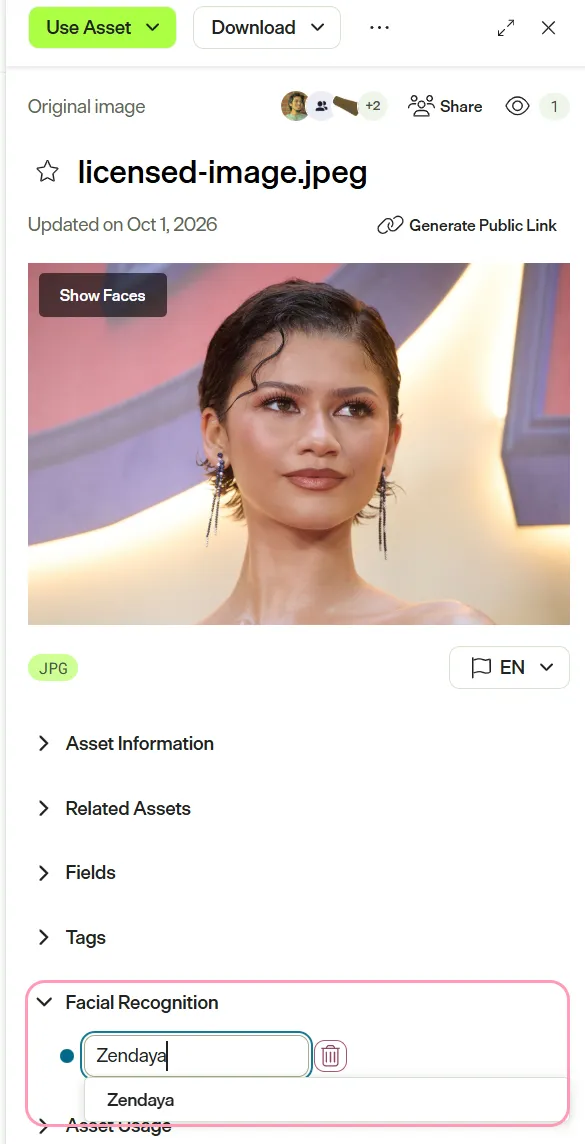
- Enable Show Faces and click a face to rename or remove the name.