Events
An event indicates an activity separate from a campaign or task.
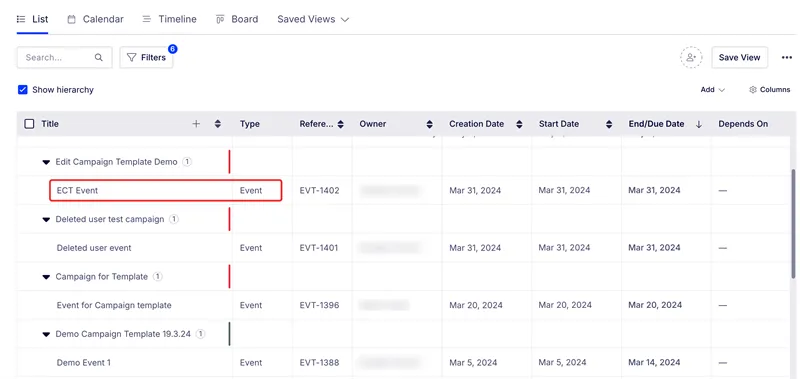
The following example shows an event in the list view of the Plan module:
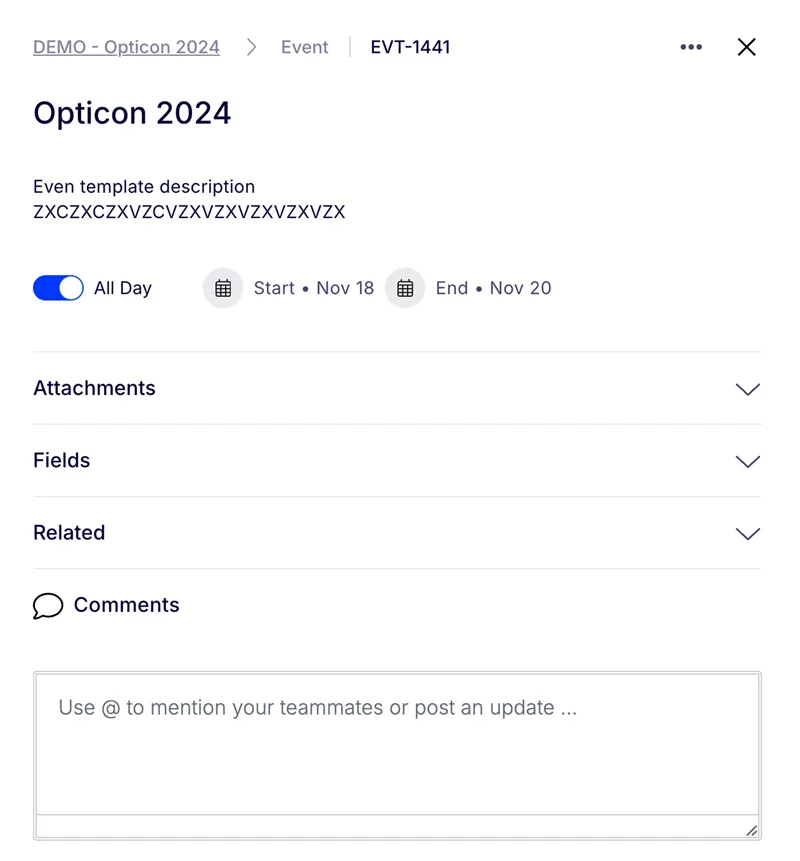
When you click an event from the Plan module, the event opens a drawer view on the right-hand side.
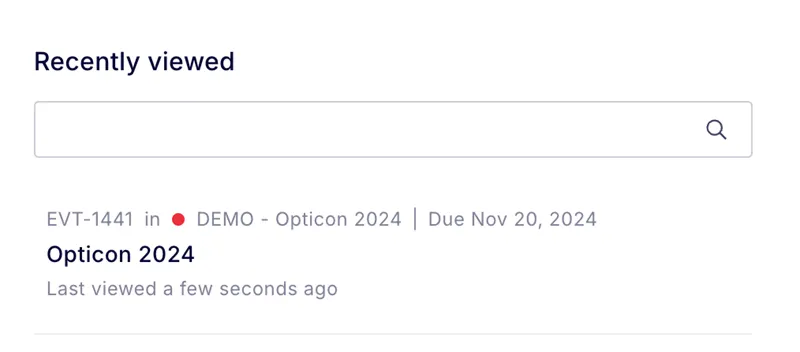
After accessing an event, it displays in the Recently Viewed section of the Home page:
Add a campaign
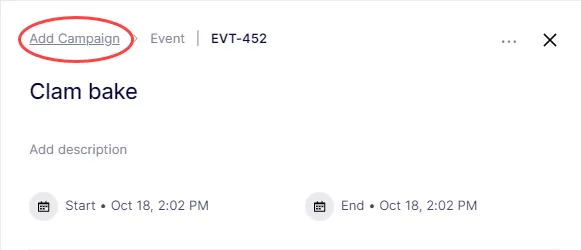
If you created an event without an associated campaign, you can add the campaign to the existing event by clicking Add Campaign.
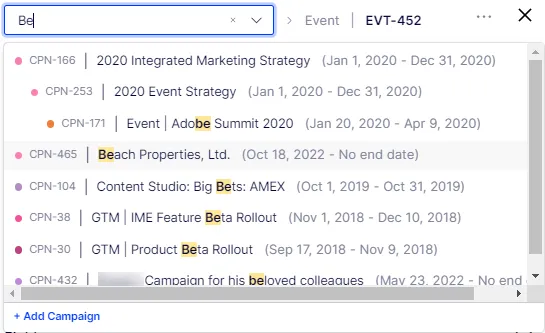
A selection menu displays existing campaigns (or create one). You can start typing to find the campaign you want.
Add assets
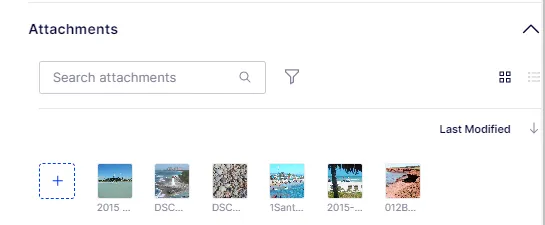
You can add assets to an event by clicking + to upload attachments.
Add fields
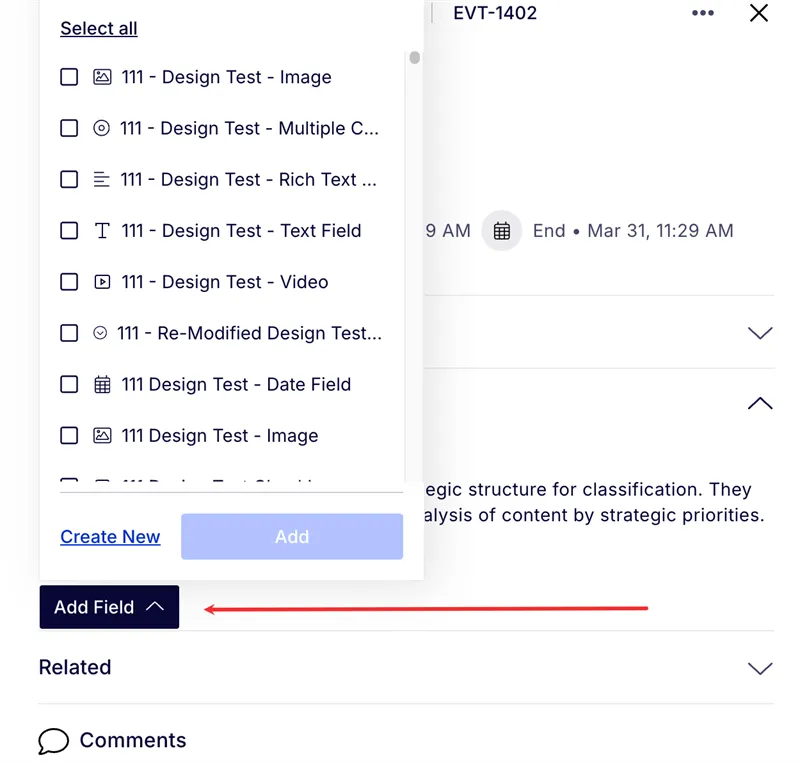
Click Add Field to select one or more fields to add to an event. You can also create a new field.
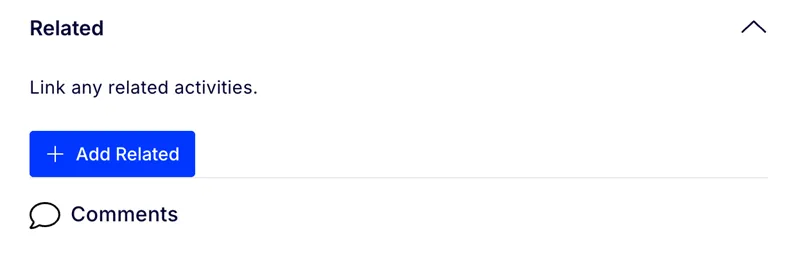
Add related events
Open the Related section and select a related event.
Add comments
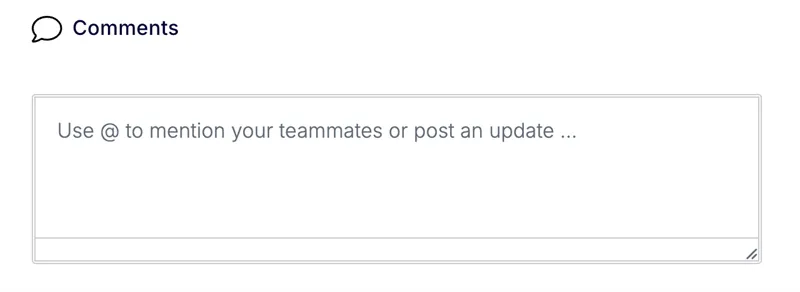
Enter comments about your event. You can also @ your teams and teammates and attach assets with your comments.
Set day and time
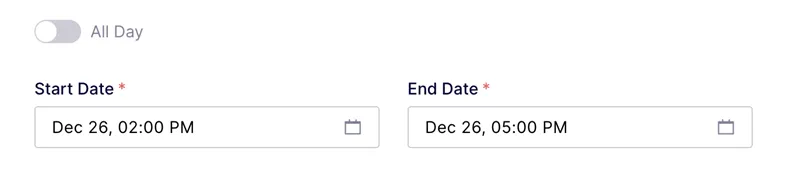
You can create event durations as All Day or as defined by a Start Date (and time) and an End Date (and time). All-day events displays on the same calendar days across time zones. Intra-day events are displayed based on the time zone of the user who set up the event.