Install Shopware integration
6 min
Note
This topic is for administrators and developers with administration access rights in Shopware.
This topic describes how to install the Shopware integration with Optimizely Campaign.
To install the Shopware integration, do the following:
- After you receive the download link to the software package (ZIP archive) from customer support, download the file and log in to the back-end of Shopware using administrator rights.
- Go to Configuration > Plugin Manager.
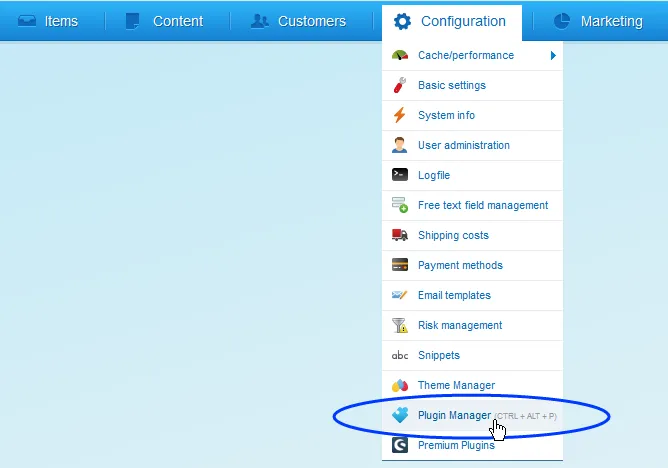
Image: Plugin Manager menu item
- Click Installed.
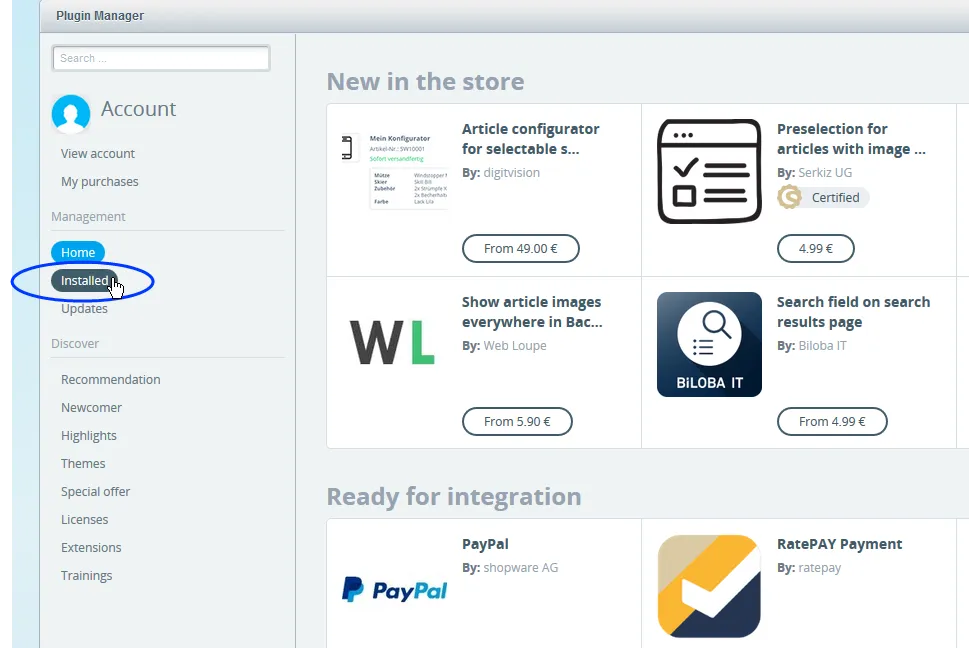
- Ensure that the Cron plug-in is installed.
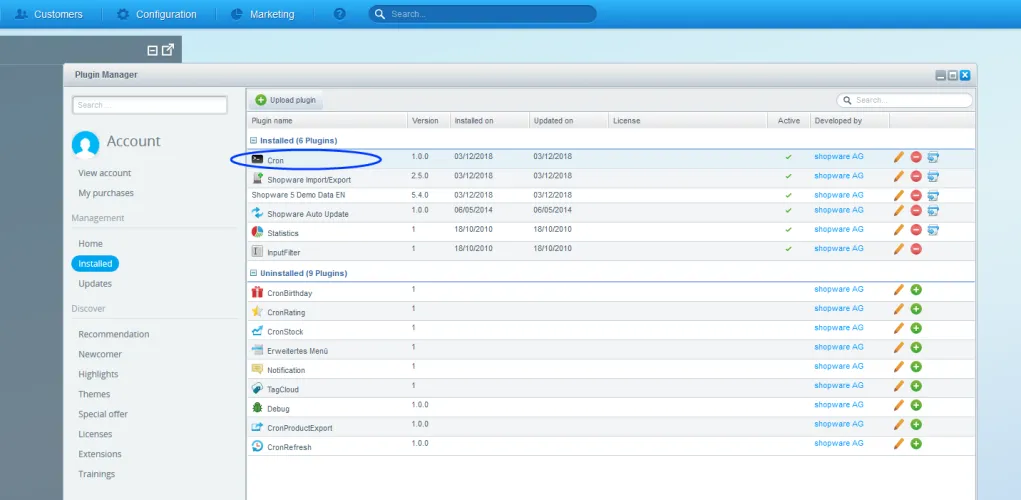
Image: Verify Cron plugin
Note
The Cron plug-in is included in the standard Shopware installation. If it is not installed, look for the Cron plug-in in the Uninstalled section, and click Install

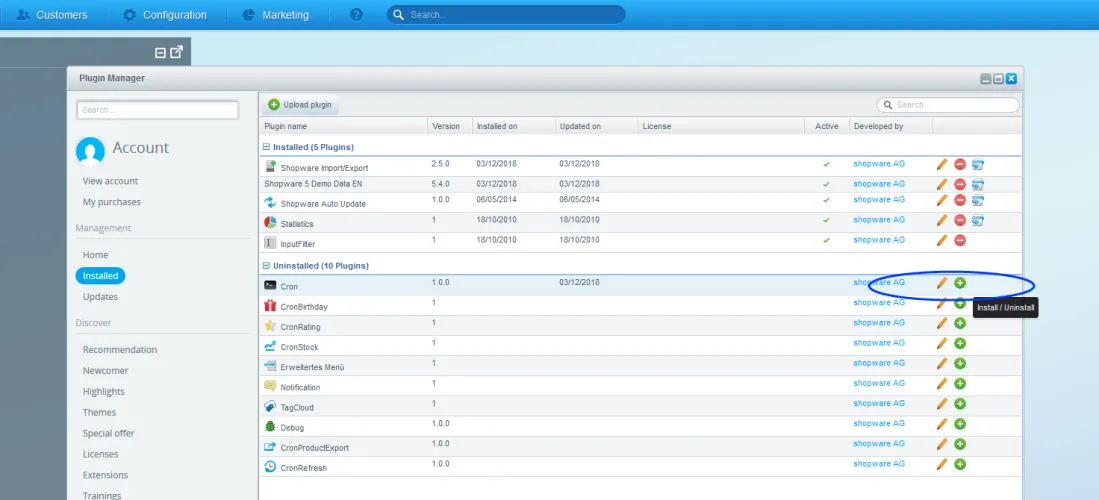
Image: Locate Cron plugin
- Click Upload plug-in to upload the Shopware integration.
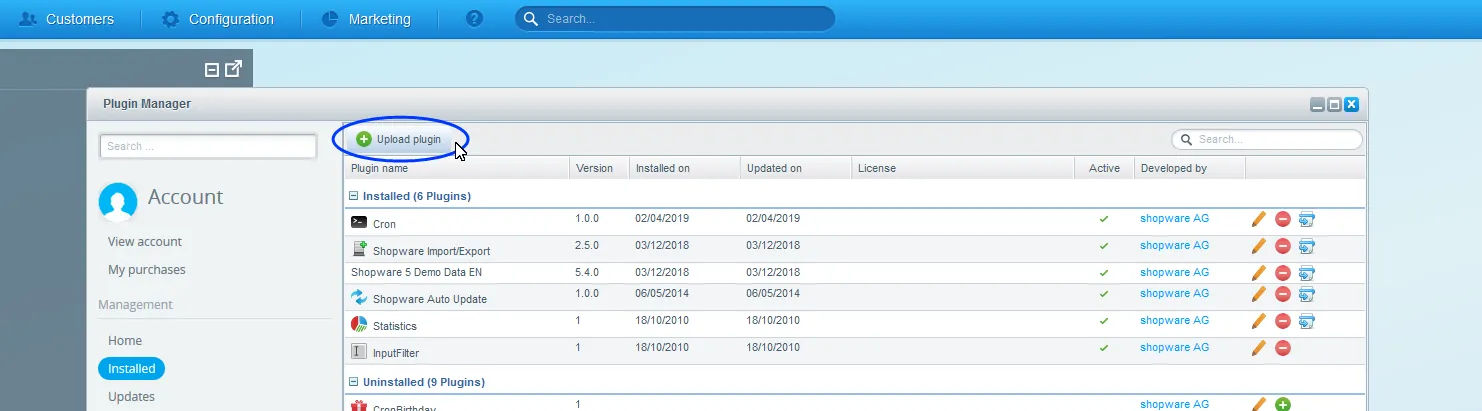
Image: Upload plugin
- Click Select and go to the location where you saved the ZIP archive of the Shopware integration.
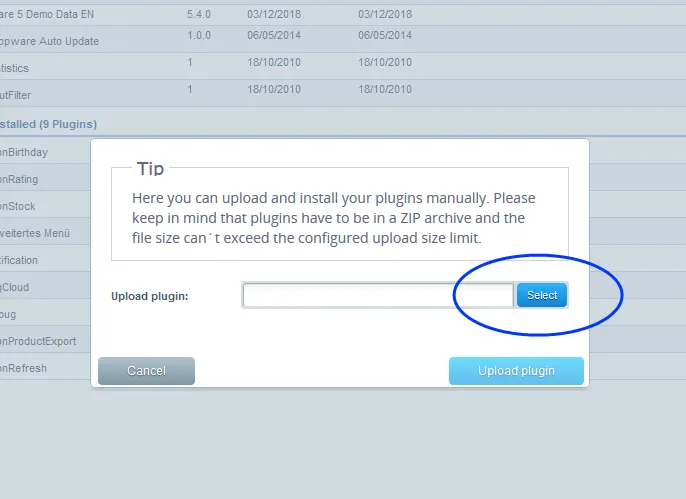
Image: Select ZIP file
- Click Upload plug-in. When uploaded, the Shopware integration is displayed in the Uninstalled section with the name Episerver Campaign.
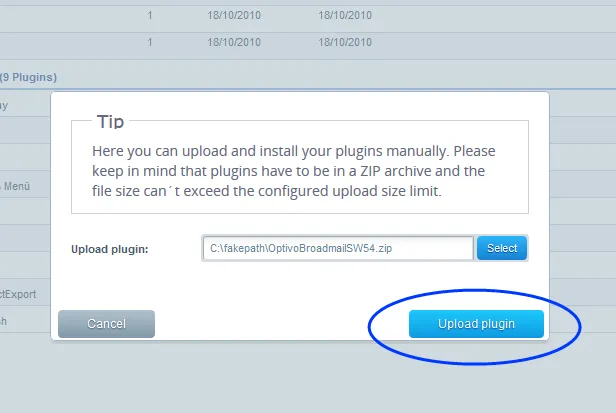
Image: Upload plugin
- Click Install to install the integration. The installation begins. You may be asked to clear individual caches. Confirm by clicking Yes. When finished, you are asked to activate the integration.

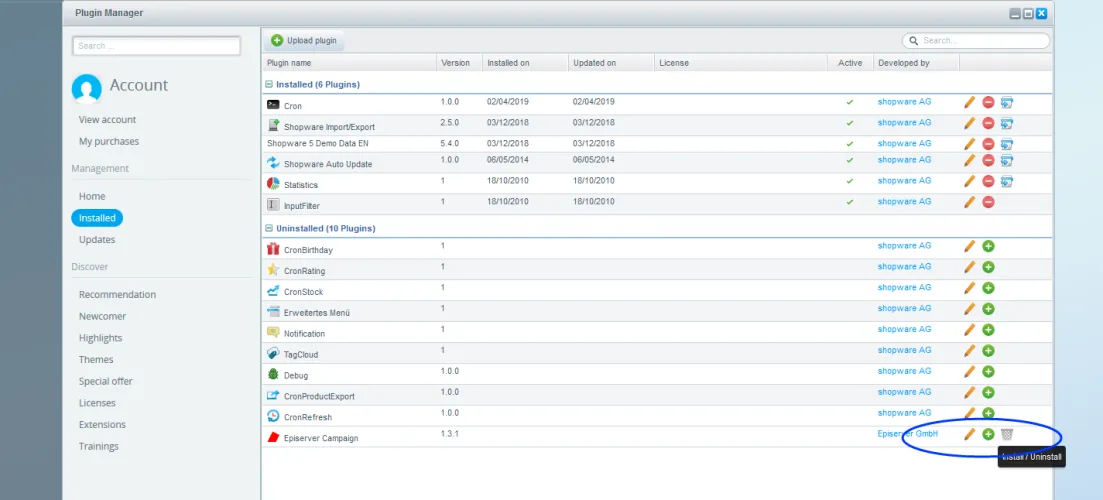
Image: Install plugin
- Click Activate.
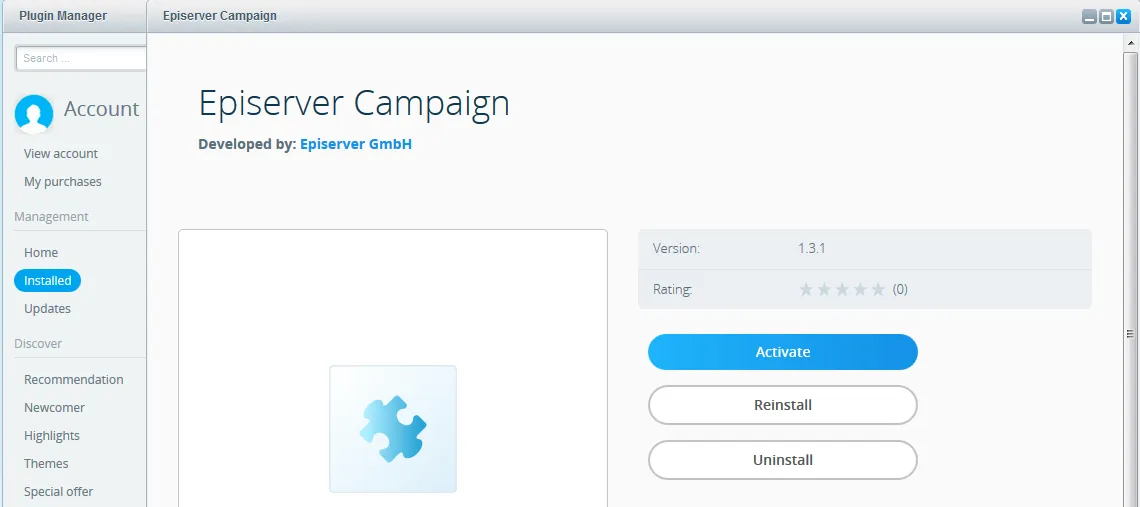
Image: View plugin
When completed, the installation is displayed under the Installed section in the Plugin Manager window.
Note
To change the installation settings at a later time, click Edit

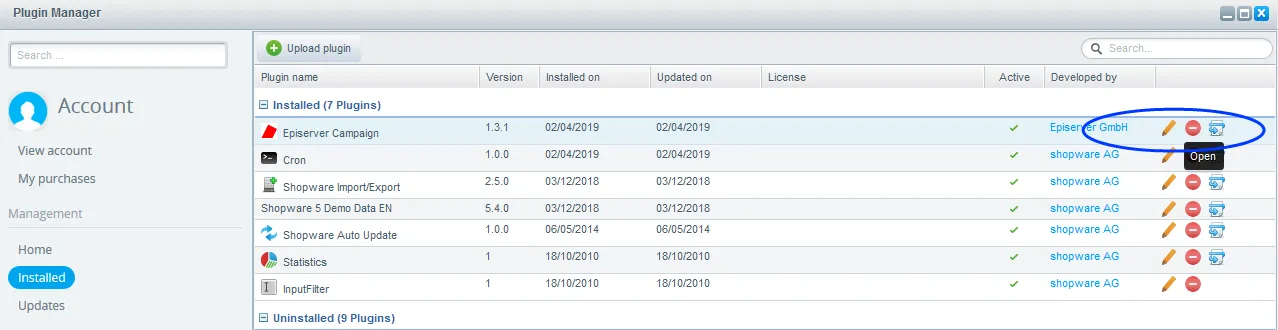
Image: Edit plugin
Installing an update
If you receive an updated version of the Shopware integration from customer support, do the following to delete the old version and install the upgrade:
- Log in to the back end of Shopware using administrator rights.
- Go to Configuration > Plugin Manager.
- On the left side of the menu bar, click Installed.
- Locate the Shopware integration named Episerver Campaign in the Plugin Manager and click Uninstall . When completed, the integration appears under Uninstalled. During the uninstallation, you are asked if you want to keep the data from the old version. Confirm to retain the data in accordance with your requirements.

- Click Delete to delete the old version, and confirm by clicking Yes.

- Install the new version by following Steps 5–9 in the previous section.
Uninstalling the integration
- Log in to the back end of Shopware using administrator rights.
- Go to Configuration > Plugin Manager.
- On the left side of the menu bar, click Installed.
- Locate the Shopware integration named Episerver Campaign in the Plugin Manager and click Uninstall . When completed, the integration appears under Uninstalled.

- Click Delete to delete the old version, and confirm by clicking Yes.
