Manage color palettes
A color palette sets the default colors of the data series in every chart in an application. A data series is one set of values in a chart, such as one line or one group of bars. Set a palette once so explorations and dashboards match your brand without per-chart color edits.
Choose one of the predefined palettes, or build custom palettes that match your brand. Org Admins create, edit, and remove custom palettes from the Color Palette drop-down list. Org Admins also set any palette as the application default.
Changing application settings requires the Org Admin role. See Roles.
Set the application default palette
Set the application default palette so every chart in the application uses the same colors.
To set the application default palette, follow these steps:
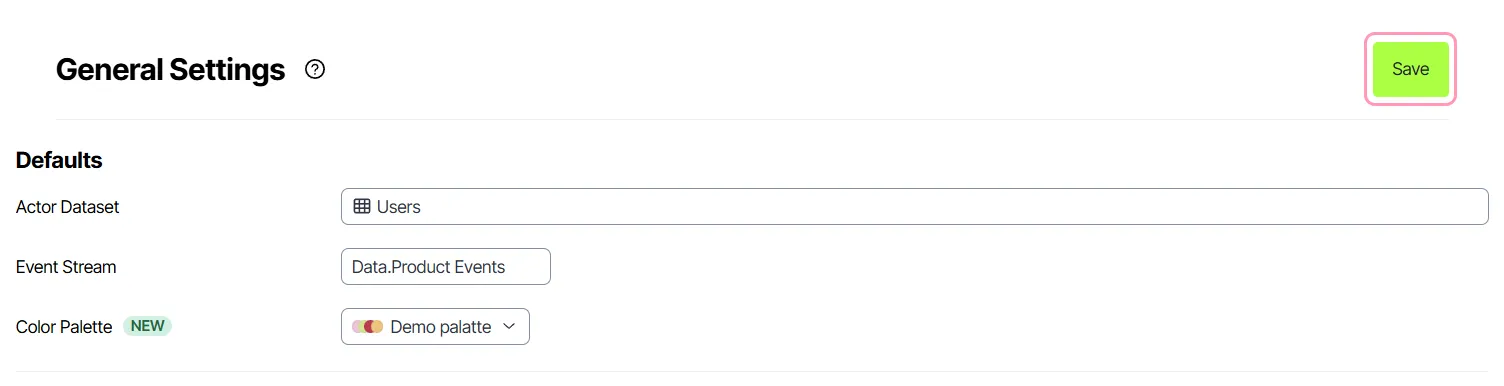
- Go to Settings > General Settings.
- Select a palette from the Color Palette drop-down list.
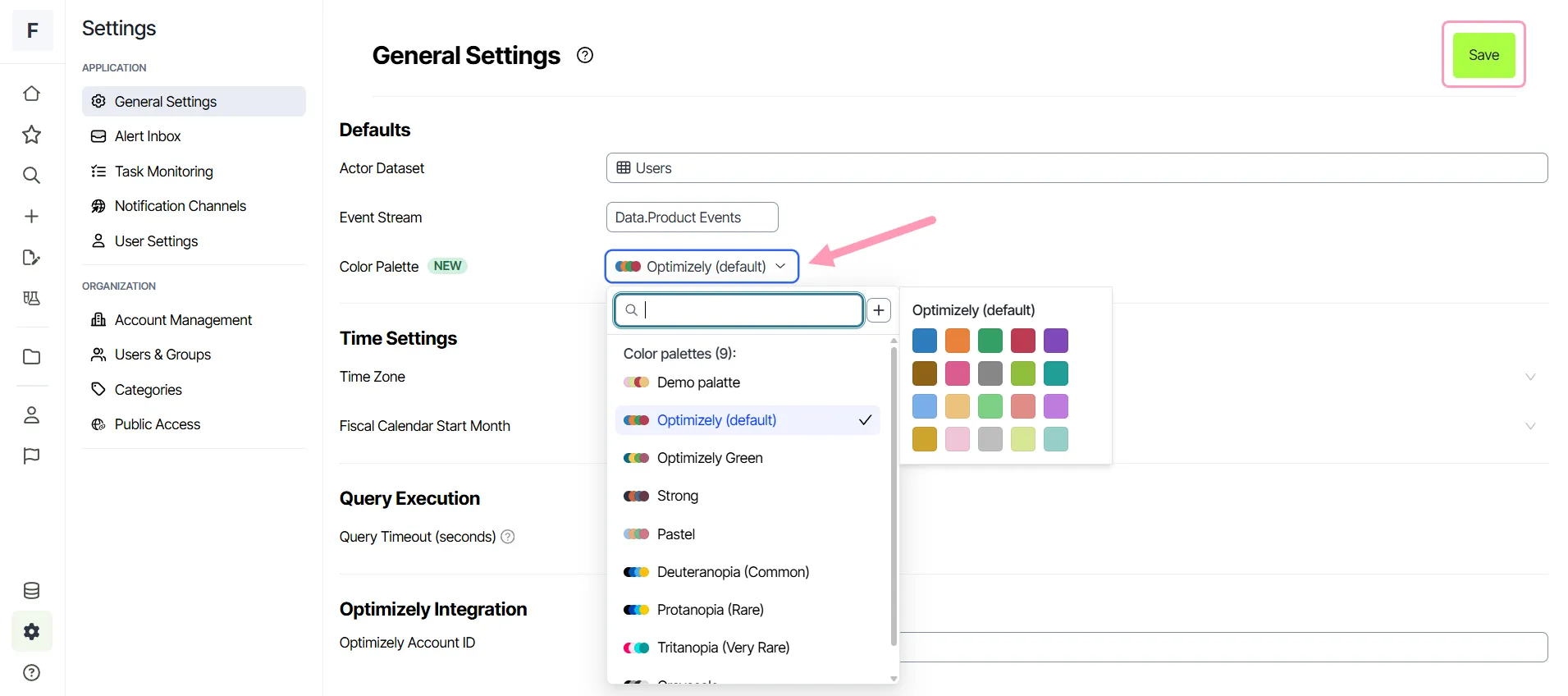
- Click Save.
Create a custom palette
Create a custom palette when the predefined palettes do not match your brand colors. Charts that use the palette draw their series colors in the order you set.
To create a custom palette, follow these steps:
- Open the Color Palette drop-down list.
- Click Add New Color Palette.
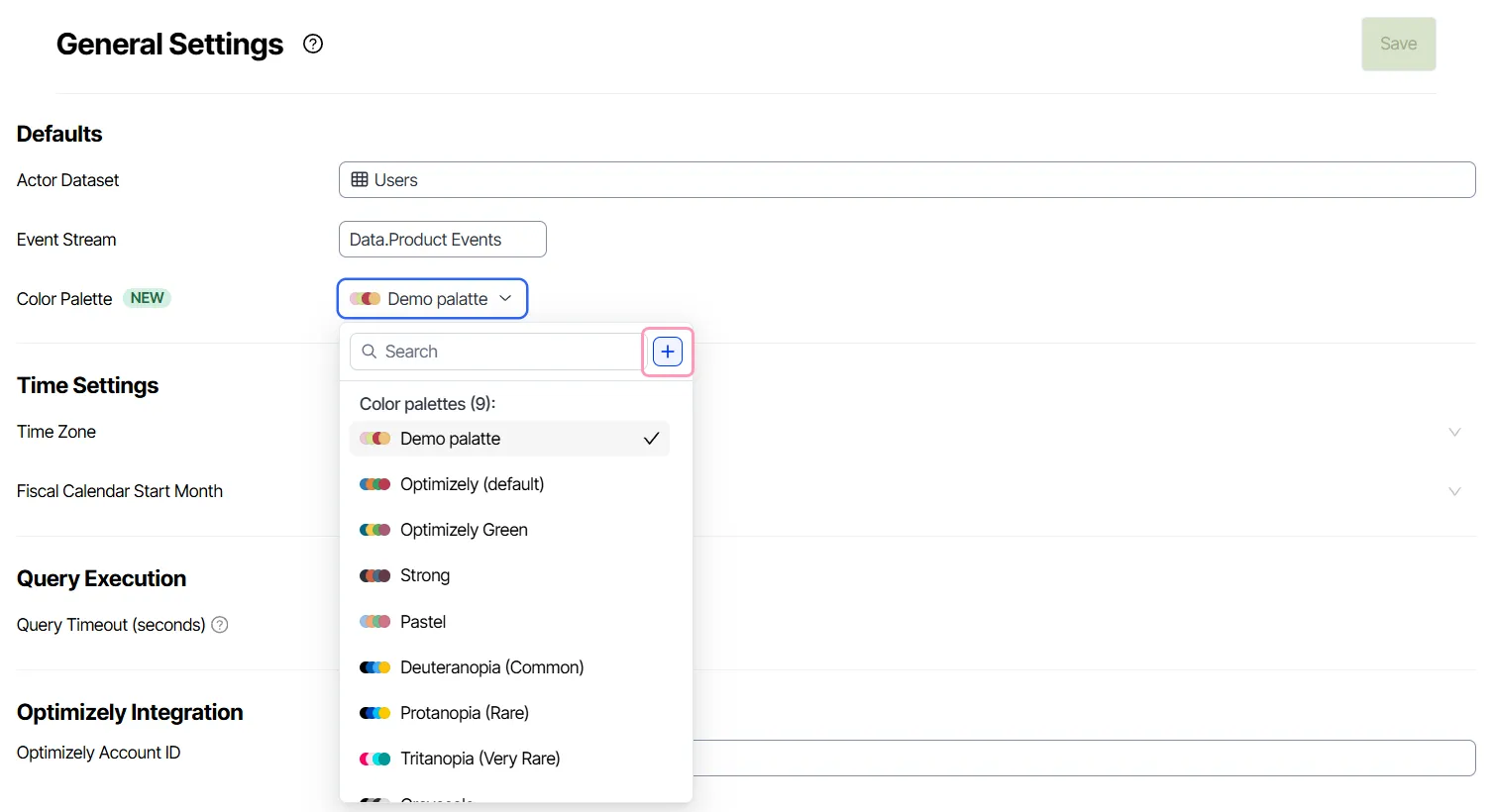
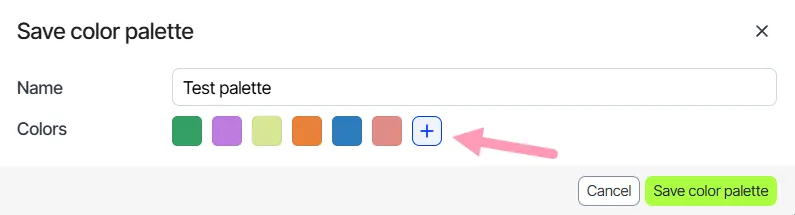
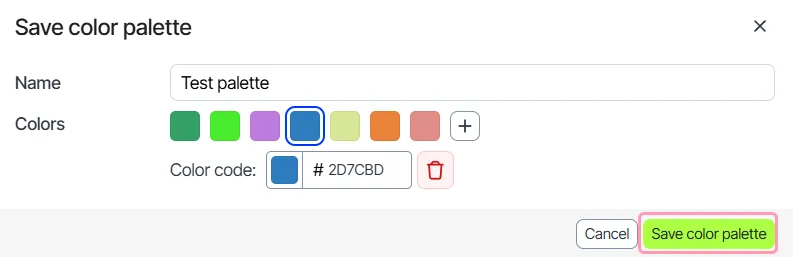
- Enter a name in the Name field. Each palette name must be unique.
- Click Add color to add a swatch (a sample of one palette color).
- Enter a hexadecimal (hex) color code in the Color code field, such as 602D58.
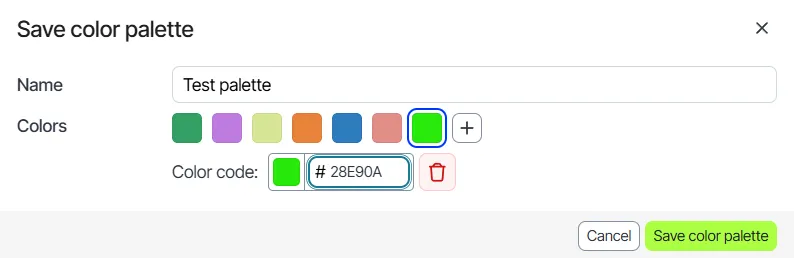
- (Optional) Click the swatch to open the color picker.
- (Optional) Set the opacity percentage.
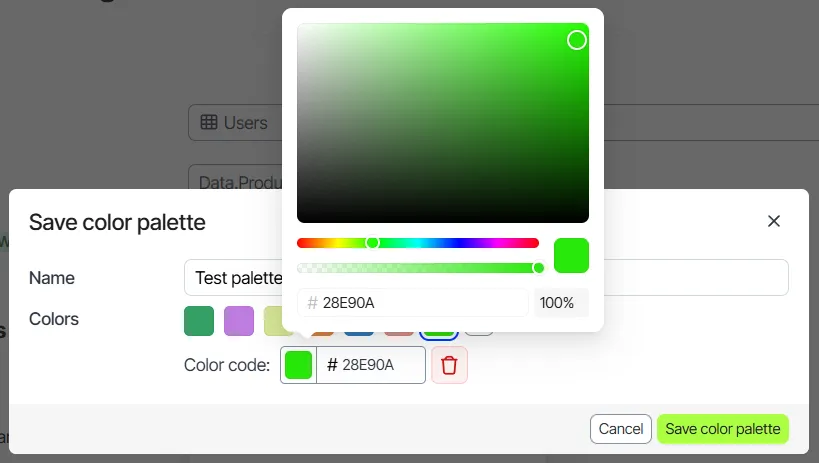
- Repeat steps 4 to 7 for each color in the palette.
- Drag the swatches into the order in which charts use the colors.
- Click Save color palette.
- Click Save.
To remove a color while you create or edit a palette, click its swatch. Then click Remove color.
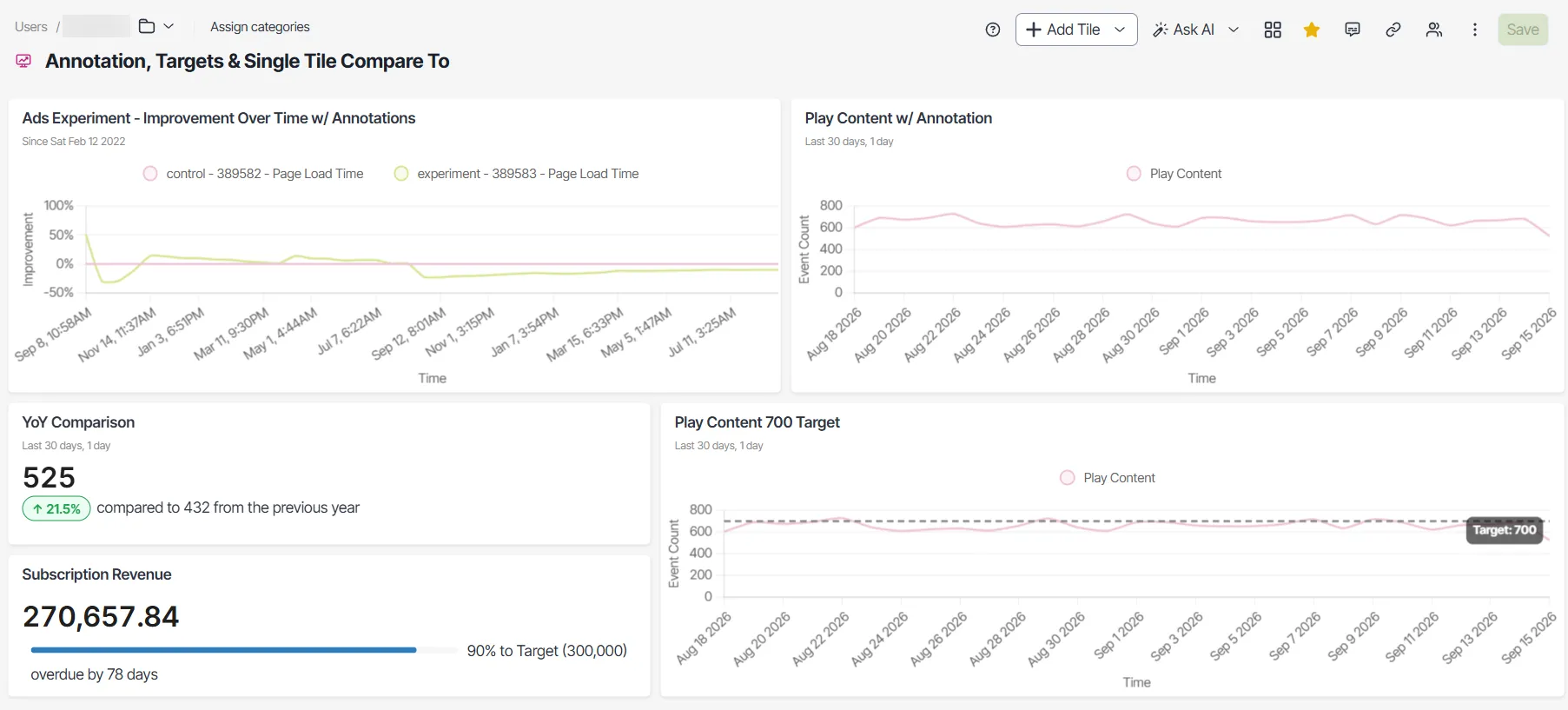
To check the result, open an exploration or dashboard that uses the application default palette.
Edit a custom palette
Edit a custom palette to rename it, adjust its colors, or make it the application default. Every chart that uses the palette picks up the changes. You do not rebuild the palette or recolor charts one by one.
Only custom palettes have an actions menu in the Color Palette drop-down list. To change a predefined palette, duplicate it from an exploration. Then edit the copy.
To edit a custom palette, follow these steps:
- Open the Color Palette drop-down list.
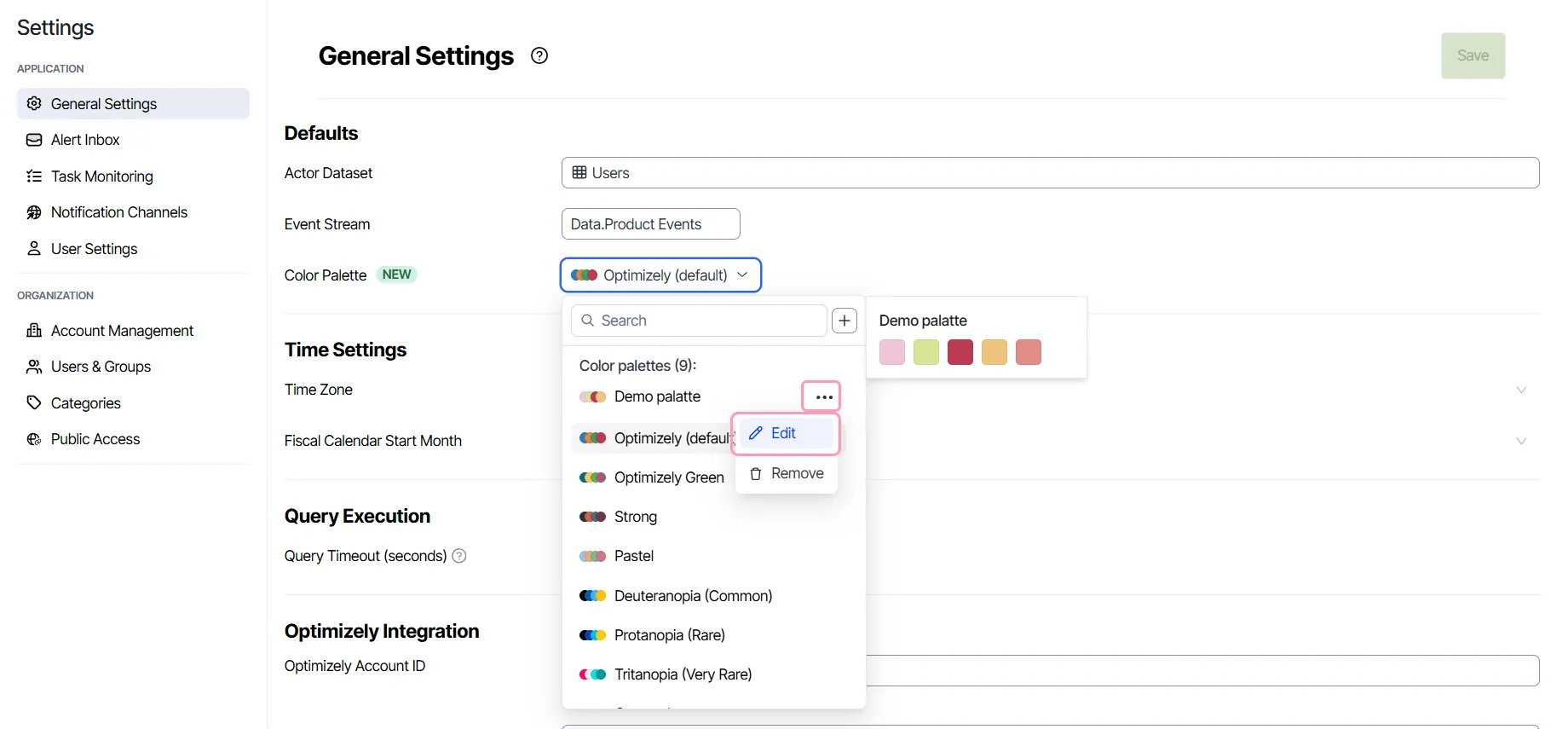
- Hover over the custom palette, and click More (⋯).
- Select Edit. The Edit color palette window opens.
- (Optional) Enter a different name in the Name field.
- (Optional) Add, change, remove, or reorder colors as described in Create a custom palette.
- (Optional) Select Make default to set the palette as the application default.
- Click Save changes.
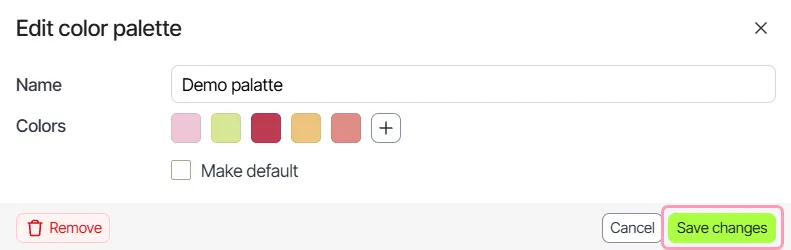
You do not need to click Save in General Settings after you select Make default. The Make default checkbox is unavailable for the current application default palette.
Remove a custom palette
Remove custom palettes your team no longer uses to keep the Color Palette drop-down list short. Removal is permanent. Explorations that applied the removed palette keep its colors.
To remove a custom palette, follow these steps:
- In the Color Palette drop-down list, click More (⋯).
- Select Remove.
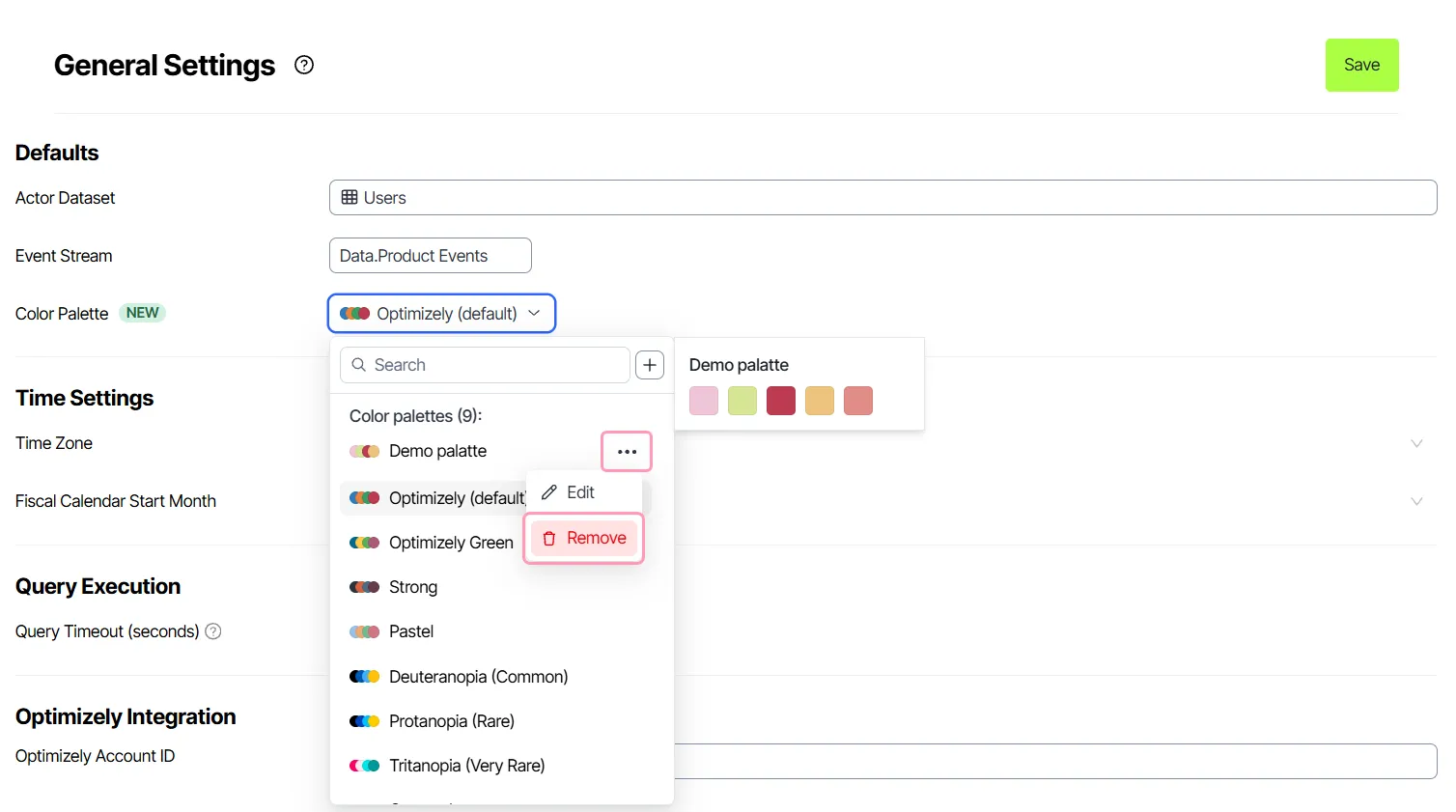
- Click Remove in the Remove palette window to confirm.
To remove the palette from the Edit color palette window instead, click Remove. Then click Confirm.
If you remove the application default palette, the Color Palette drop-down list switches to Optimizely (default). Until you click Save, charts use the Optimizely (default) colors. Click Save to make Optimizely (default) the application default.
Palette scope and overrides
Several settings affect chart colors. The following rules decide which colors a chart uses:
- Scope – The application default palette applies to the whole application. Every user in the application sees the same default colors.
- Exploration override – A palette saved with an exploration replaces the application default for that exploration only. See Override the palette for an exploration.
- Measure color override – A color set on a single measure takes priority over the palette color. To set the color, use Measure Color in the visualization Style tab. To return to the palette color, click Reset to default. See Visualization.
- Existing charts – Charts that already exist pick up palette changes the next time they load.
Override the palette for an exploration
Give one exploration its own palette without changing the application default. Every other exploration and dashboard keeps the application default palette. To keep the palette, you need permission to save the exploration.
To override the palette for an exploration, follow these steps:
- Open the exploration.
- In the chart legend, point to a series, and click the pencil icon.
- Select a palette from the Color drop-down list.
- Click Apply. Analytics recolors every series in the chart with the colors of the selected palette, in palette order.
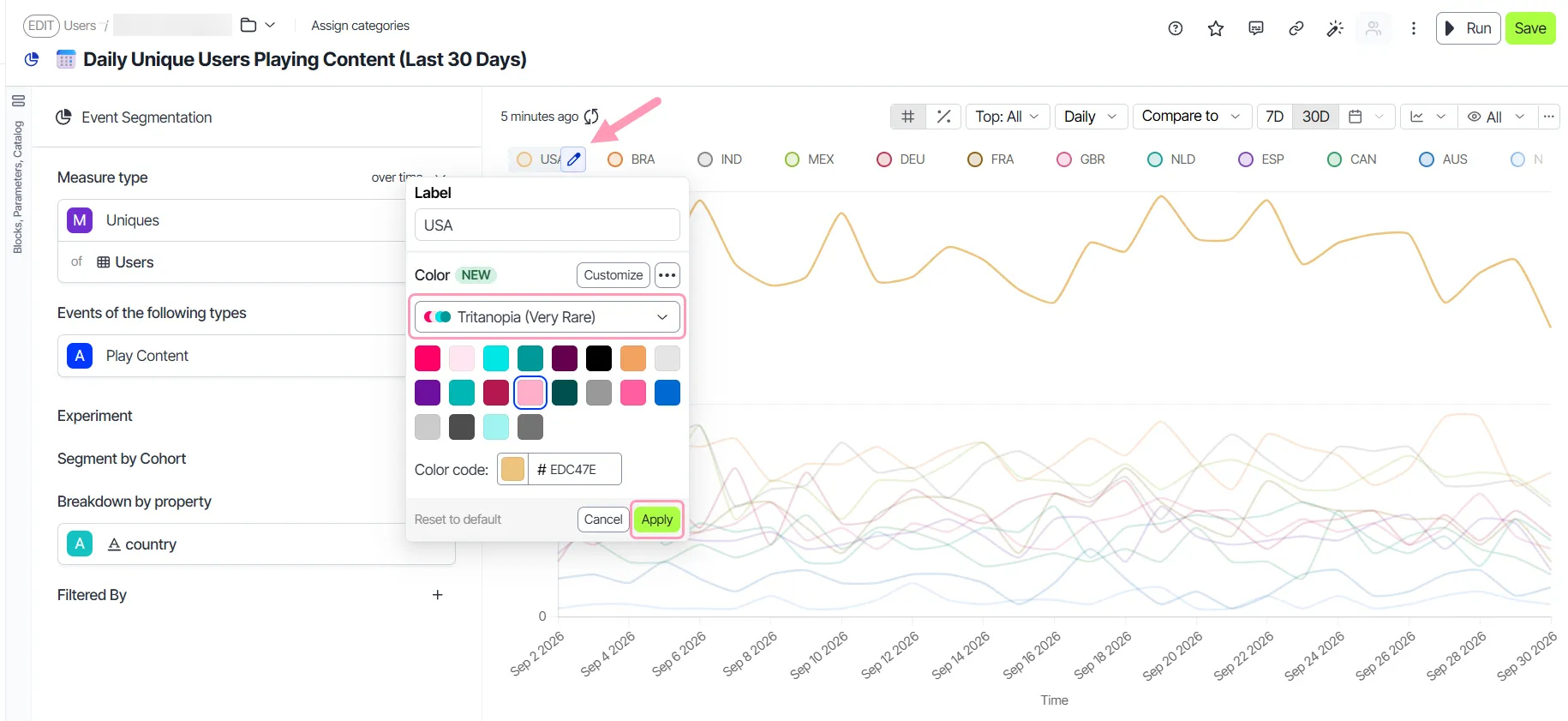
- Click Save to save the exploration.
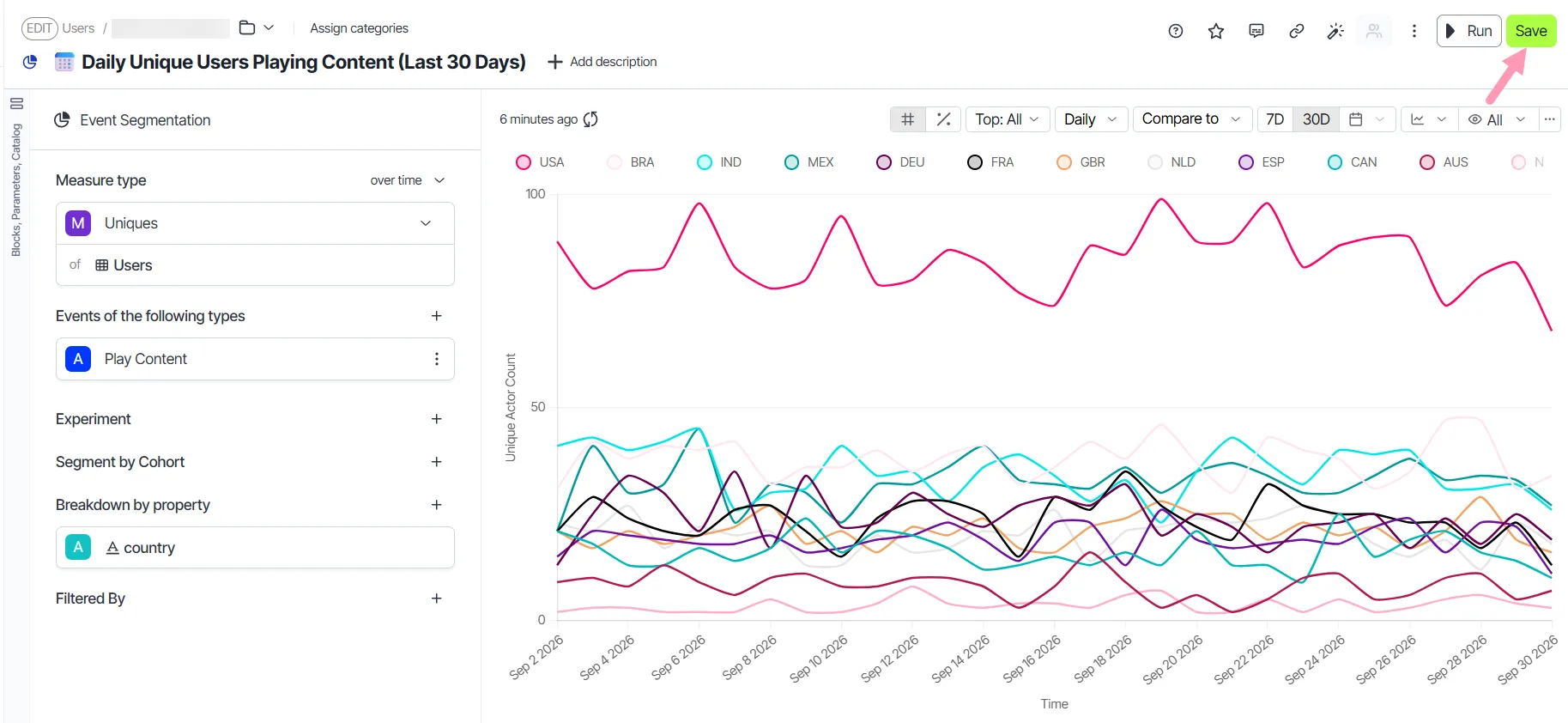
The palette persists only after you save the exploration.
To recolor only the selected series, click a swatch or enter a hex value in the Color code field. Then click Apply.
Manage palettes from an exploration
Manage palettes from an exploration to reuse or adjust a palette while you work in a chart. Open the Color section from the chart legend, and click the More (⋯). Each action applies to the palette selected in the Color drop-down list.
The menu includes the following actions:
- Rename – Change the name of the selected custom palette.
- Duplicate – Copy the selected palette as a custom palette. The copy keeps the colors and adds (copy) to the end of the name. Duplicate a predefined palette to use it as the starting point for a custom palette.
- Make default – Set the selected palette as the application default. You do not need to click Save in General Settings.
- Delete – Delete the selected custom palette. Confirm the deletion in the Delete palette window.
Create a custom palette from an exploration to start from the colors of an existing palette. Only Org Admins see Customize.
To create a custom palette from an exploration, follow these steps:
- Select the palette to start from in the Color drop-down list.
- Click Customize.
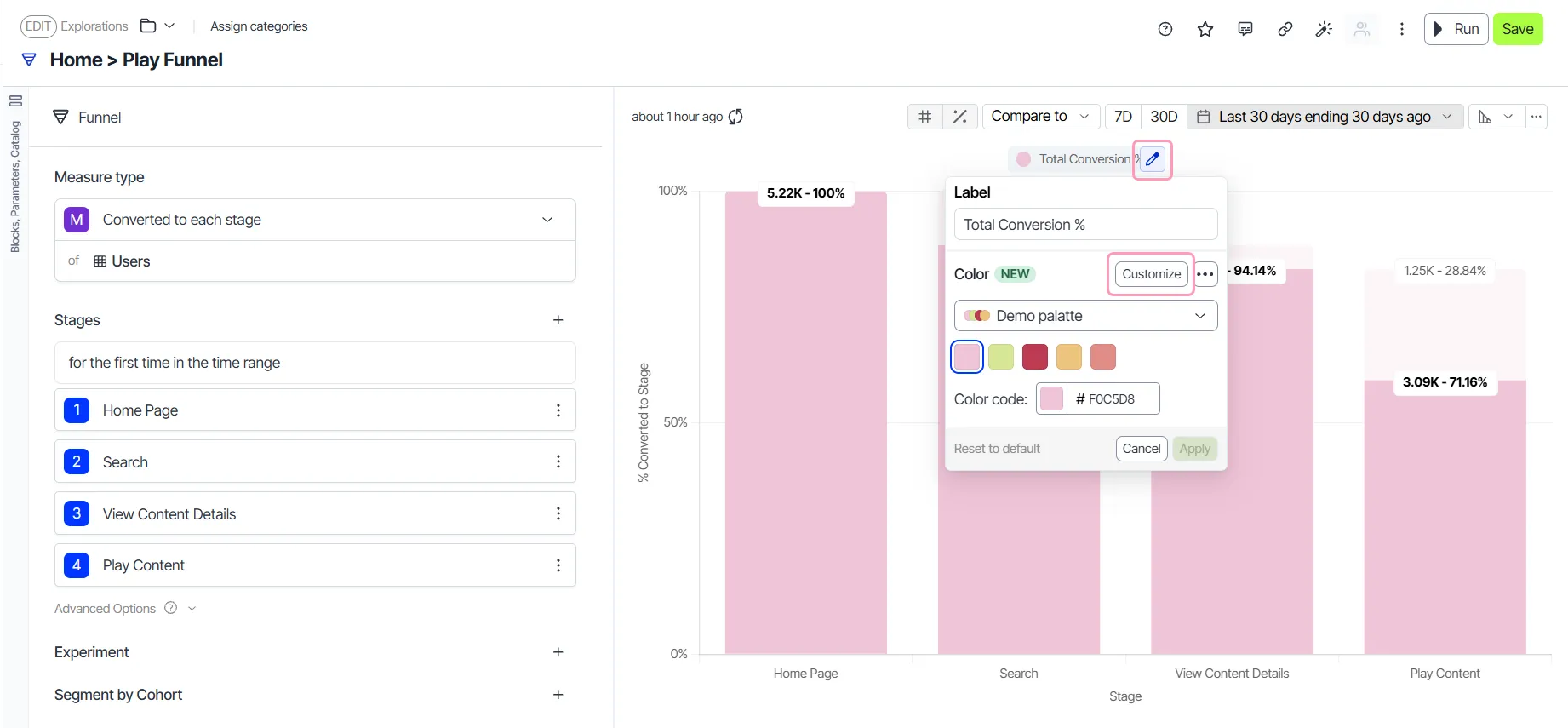
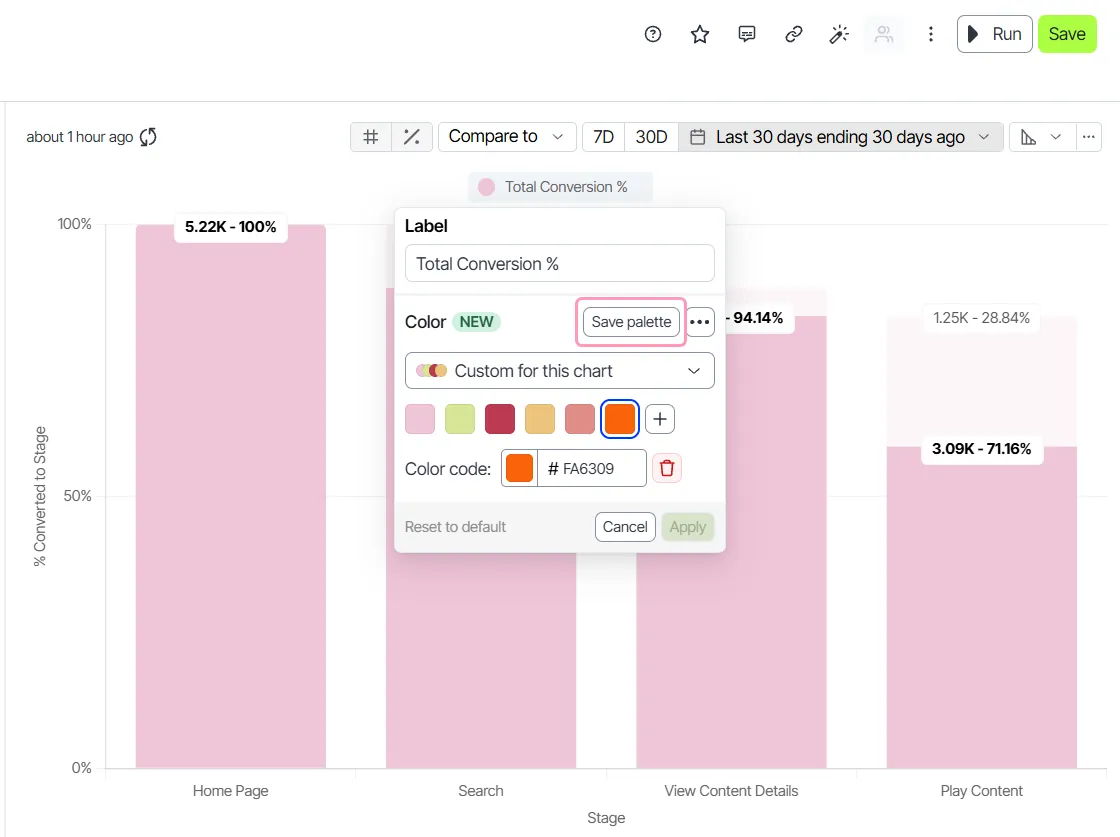
- Add, change, remove, or reorder colors as described in Create a custom palette.
- Click Save palette.
- Enter a Name.
- Click Save color palette.
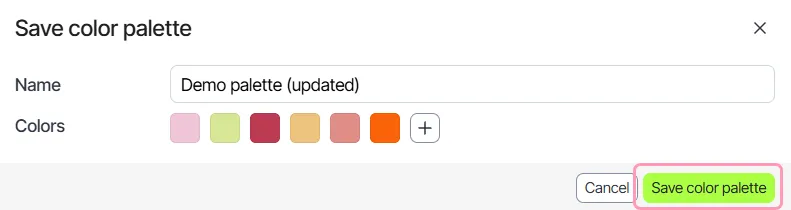
- Click Apply to use the color palette in the exploration.
- Click Save.