Application settings
You can configure application settings to optimize performance by setting defaults, adjusting schema, and enabling features like materialization and audience. You can also manage sampling, rules, and feature flags to tailor your application's functionality.
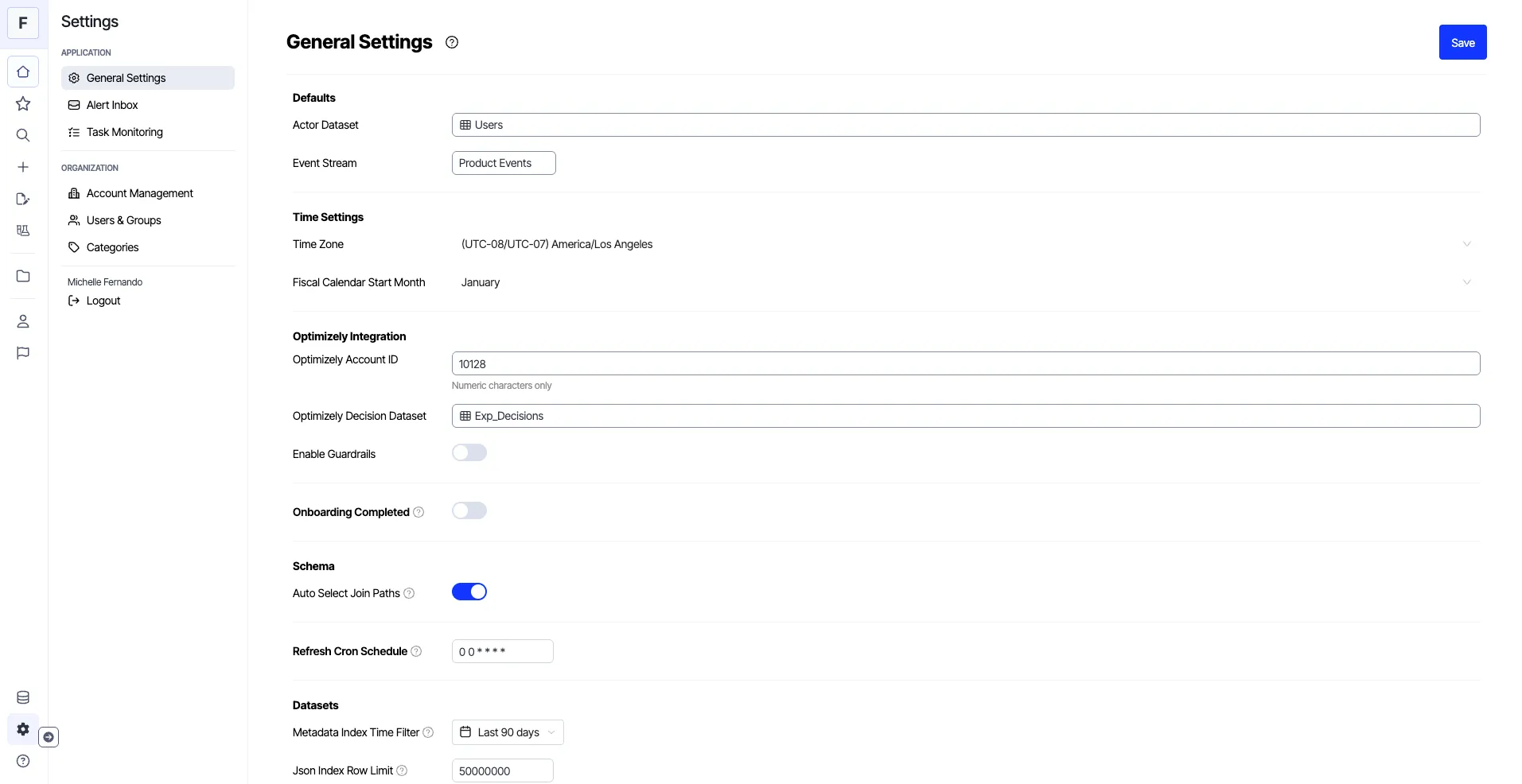
Configure application settings
General Settings
- Go to Settings > General Settings.
- Set Defaults for various behavioral analytics templates.
- Actor dataset – Set Users as the default actor dataset in a funnel.
- Event Stream – Enter Product Events for events inside the funnel and retention charts.

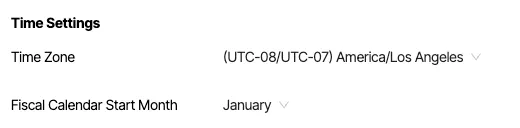
- Set the Time Zone and Fiscal Calendar Start Month for your application under Time Settings.
- (For Experimentation customers) Enter the Optimizely Account ID, select the Optimizely Decision Dataset, and enable guardrails by toggling the option in the Optimizely Integration section.

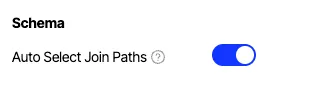
- Adjust application-level settings related to the data warehouse and query schema in the Schema section.
- Configure shorter join paths and let Analytics infer the intended join path based on the number of edges.
- Enable the Schema setting carefully, as it might generate unexpected SQL queries.
- Set the Refresh Cron Schedule at which you want to run materializations and dataset indexing.

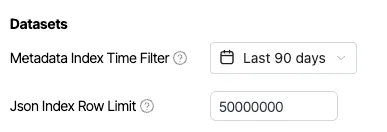
- Configure the Metadata Index Time Filter to set event time filters for indexing distinct column values and JSON fields, and use the Json Index Row Limit to control the number of rows processed in the Datasets section.
- Set chart preferences like faster response and higher precision in the Sampling section.
- Use the Always Highlight High Errors toggle to highlight high errors during sampling.
- Set the error threshold (0-100%), above which red dots display in the High Error Limit field.
- Specify the proportion of JSON data to be indexed in the JSON Indexing Sampling Rate field.

- Enable Materialization to create materialized tables in the data warehouse, enhancing performance.
- Specify the Database and Schema for these tables. For BigQuery, the Database and Schema fields correspond to the BigQuery project name and dataset name.
- Set the Refresh Cron Schedule for the tables using cron syntax.

- Configure Rules for your application.
- Define criteria to trigger alerts.
- Enable and set the Refresh Cron Schedule.
- Rules execute periodically based on the provided cron expression. To enable the optional rules feature in Analytics, contact [email protected].

- Configure the Audience, which publishes a cohort to the warehouse.
- Enable and specify the Database and Schema fields.
- Toggle Enabled Periodic Refresh for regular updates.

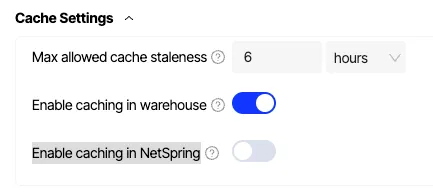
- Configure the following under Cache Settings:
- Set the maximum time up to which you see a cached exploration result in the Max allowed cache staleness field. After this set time, you can calculate fresh results from the latest data in the warehouse.
- Use the Enable caching in warehouse toggle to cache query results in the data warehouse, to improve performance and reduce cost.
- Use the Enable caching in Optimizely Analytics toggle to cache query results in Optimizely Analytics memory, to further improve performance and reduce cost.
- Click Save.
Alert Inbox
Analytics lets you apply filters to your Alert Inbox by navigating to Settings > Alert Inbox. You can configure the following fields and filters:
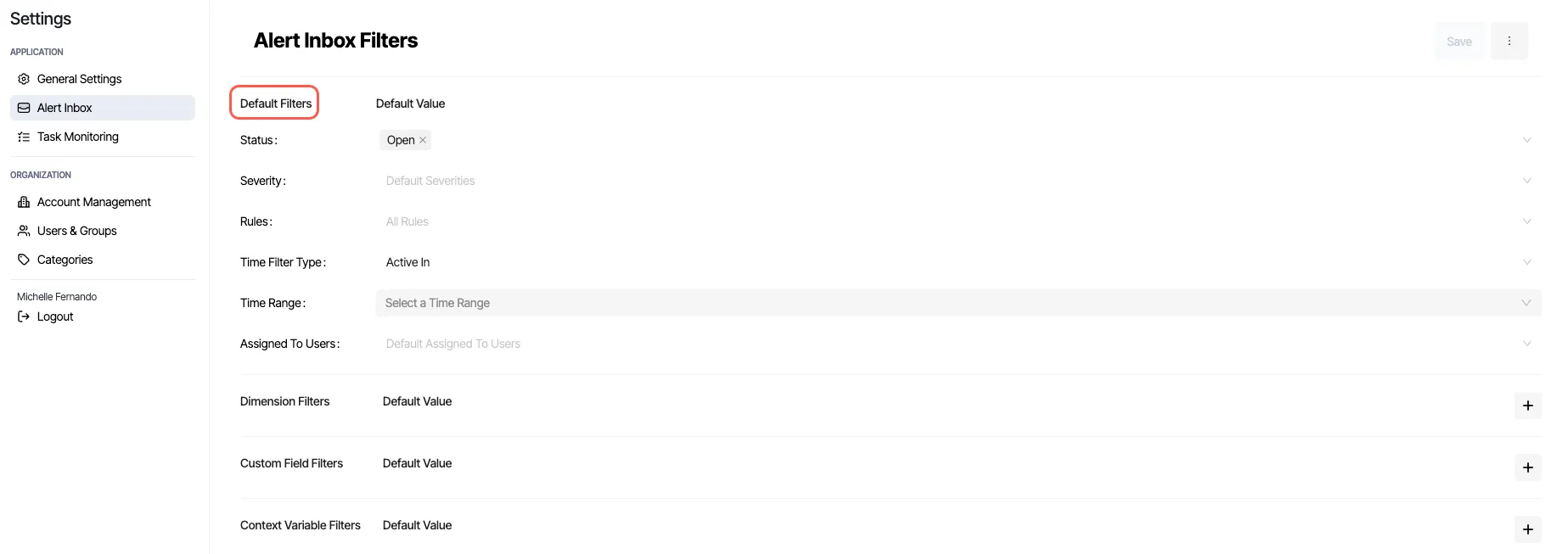
Default filters
Control the default state of your inbox filters with these options:
- Status – Choose Open or Closed to display alerts with the respective status.
- Severity – Select from Critical, Warning, Info, and Other to view alerts by severity. You can choose multiple severities, like Critical and Warning, to focus on specific alert types.
- Rules – Pick a rule to view alerts related to that specific rule.
- Time Filter Type – Select a time range type to display alerts based on timing:
- Generated in – Alerts generated within a specific time range.
- Started in – Alerts started within a specific time range.
- Active in – Alerts that were active within a specific time range.
- Time Range – Choose a relative time range or specify an absolute time range for detailed investigation.
- Assigned To Users – Filter alerts by selecting one or more users to view alerts assigned to them.
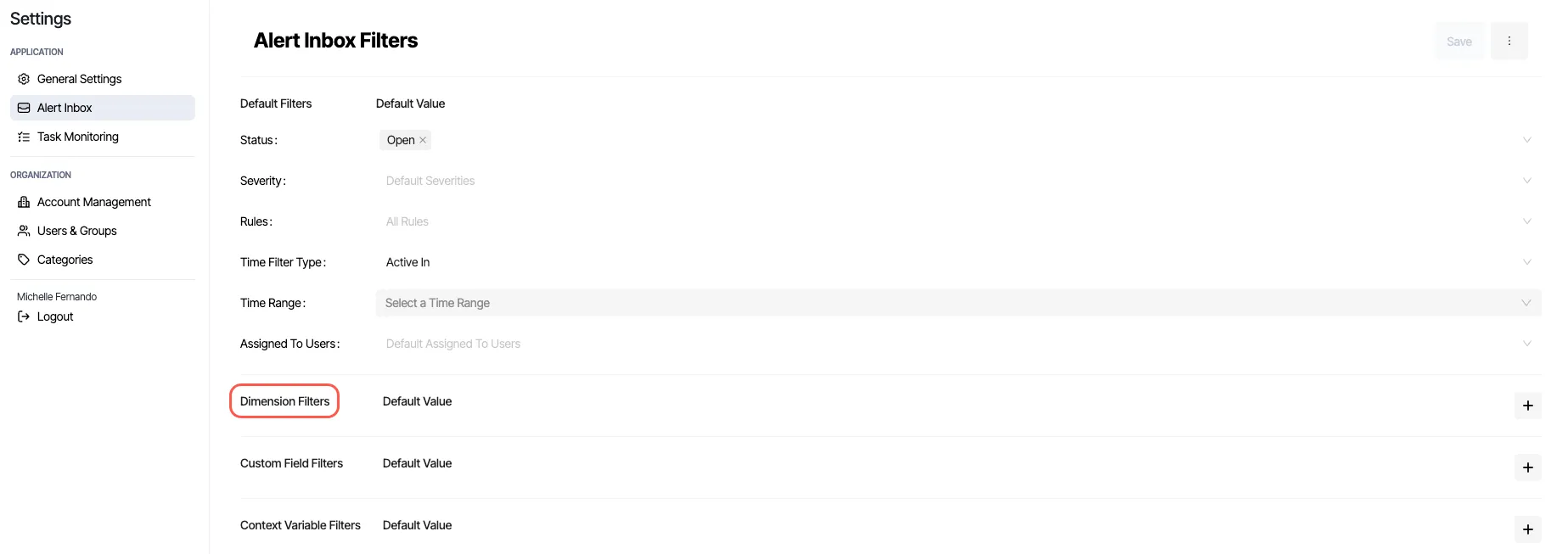
Dimension filters
A rule can have grouping dimensions that trigger alerts for specific entities when a metric is exceeded. Define Dimension Filters to filter alerts based on these grouping dimensions. Save the filter to make it available on the Alerts Inbox page.
When you finish configuring your filters, click Save.
Task Monitoring
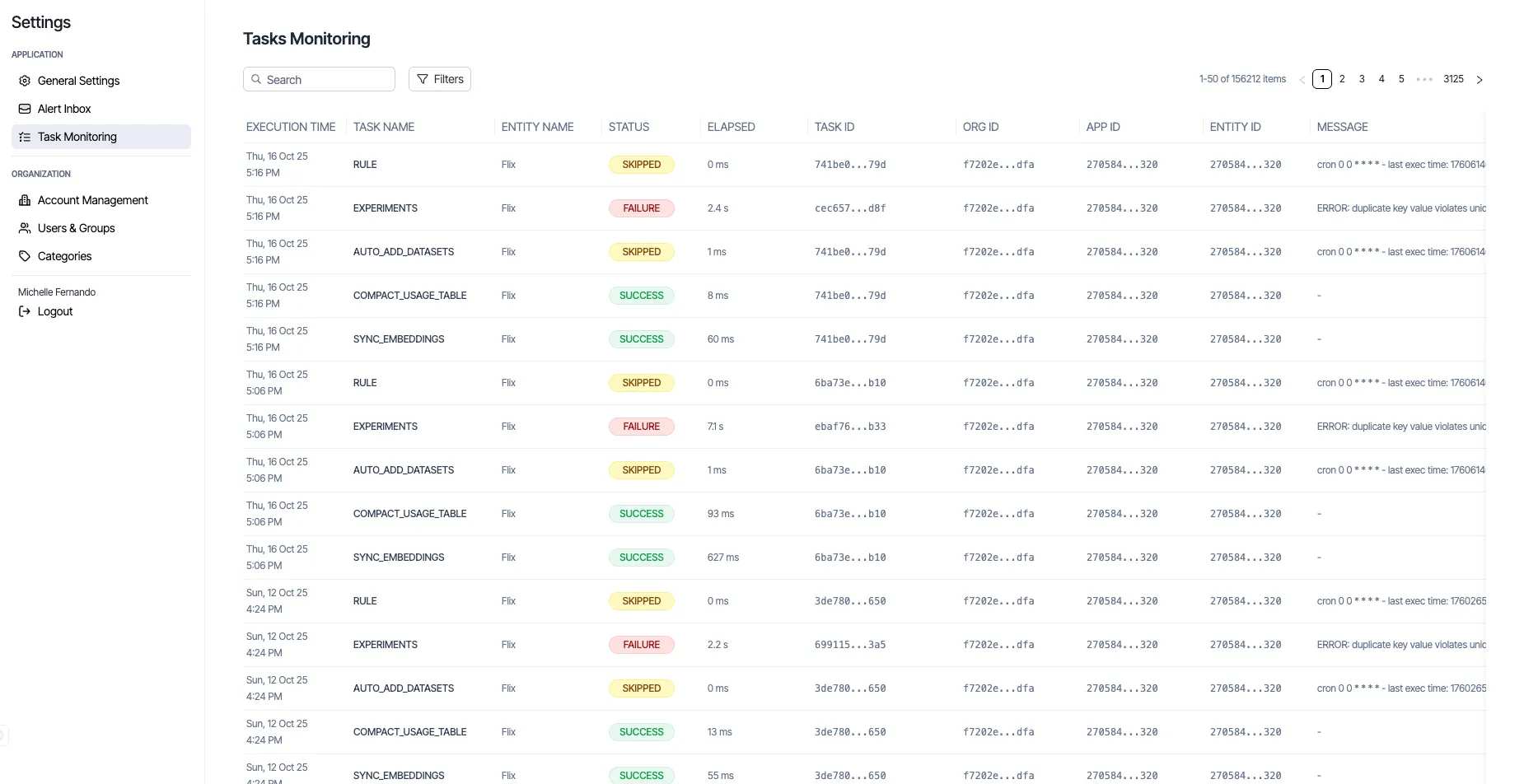
This feature provides an overview of various automated processes that run periodically within the system. These processes consistently update and maintain data across all organizational applications. The task monitoring page provides a centralized location for viewing the current execution status of each task, including its duration and frequency of execution. Logs are published for each task.
The monitoring service acts similarly to a cron job, executing tasks at regular intervals. The service currently operates every 10 minutes. During each cycle, the service performs the following steps:
- Fetch organizations – Retrieve organizations within the system.
- Fetch applications – Retrieve associated applications for each organization.
- Execute tasks – Execute a series of predefined tasks for each application.
Task overview
Each task executed by the monitoring service has specific objectives and contributes to the overall functionality and data integrity of Optimizely Analytics. The tasks are as follows:
- AUTO_ADD_DATASETS – Adds missing datasets. (Enabled: true, Logs: true)
- COMPACT_USAGE_TABLE – Updates the entities that filtering uses and sorts entities by usage. (Enabled: true, Logs: true)
- COMPUTE_EVENT_VOLUMES – Calculates the event count in each application, used for pricing purposes. (Enabled: true, Logs: true)
- EXPERIMENTS – Adds missing Optimizely experiments and refreshes all the experiments within an application. For each Optimizely experiment, a non-Optimizely experiment must have an experiment ID that is the same as the Optimizely experiment ID. If Optimizely Analytics cannot find a non-Optimizely experiment for an Optimizely experiment, this task creates a blank corresponding experiment. (Enabled: true, Logs: true)
- GUARDRAIL – Sends alerts when thresholds are reached (Enabled: true, Logs: true)
- PUBLISH_REPORT – Creates a summary of monitoring logs and sends an aggregated report to the channel you configured (for example, a Slack channel). (Enabled: false, Logs: true)
- SYNC_COLUMNS – Syncs the columns of a dataset with the warehouse. (Enabled: true, Logs: true)
- SYNC_EVENT_DESCRIPTIONS – Syncs event descriptions with warehouse descriptions. (Enabled: true, Logs: true)
- SYNC_EVENT_STATS – Fetches and saves the child columns of a dataset's event stream. (Enabled: true, Logs: true)
- SYNC_JSON_FIELDS – Refreshes JSON fields of a dataset column. (Enabled: true, Logs: true)
- SYNC_EMBEDDINGS – Syncs entity embeddings and event embeddings of an application. (Enabled: true, Logs: true)
- RULE – Executes a rule. (Enabled: true, Logs: true)
Cron jobs
Cron jobs run at recurring intervals, and you specify them using a format based on the Spring Cron Expression. You can schedule your job to run at specified times or on specific dates using cron jobs.
Define cron jobs using the Spring Cron Expression format (* * * * * *), a set of six fields in a line, each field indicating when to execute the job:
- Field 1 – Second. Accepts values 0-59.
- Field 2 – Minute. Accepts values 0-59.
- Field 3 – Hour. Accepts values 0-23.
- Field 4 – Day of the month. Accepts values 1-31.
- Field 5 – Month. Accepts values 1-12 or JAN-DEC.
- Field 6 – Day of the week. Accepts values 0-7 or MON-SUN (0 and 7 are Monday)
Example 1: Run a job every day at 3:15 PM
Cron Expression: 0 15 15 * * ?
- Field 1 (Second): 0 (at the beginning of the minute)
- Field 2 (Minute): 15 (at 15 minutes past the hour)
- Field 3 (Hour): 15 (at 3 PM)
- Field 4 (Day of the month): * (every day)
- Field 5 (Month): * (every month)
- Field 6 (Day of the week): ? (no specific day of the week)
Example 2: Run a job every Monday at midnight
Cron Expression: 0 0 0 * * MON
- Field 1 (Second): 0 (at the beginning of the minute)
- Field 2 (Minute): 0 (at 0 minutes past the hour)
- Field 3 (Hour): 0 (at midnight)
- Field 4 (Day of the month): * (every day)
- Field 5 (Month): * (every month)
- Field 6 (Day of the week): MON (only on Monday)