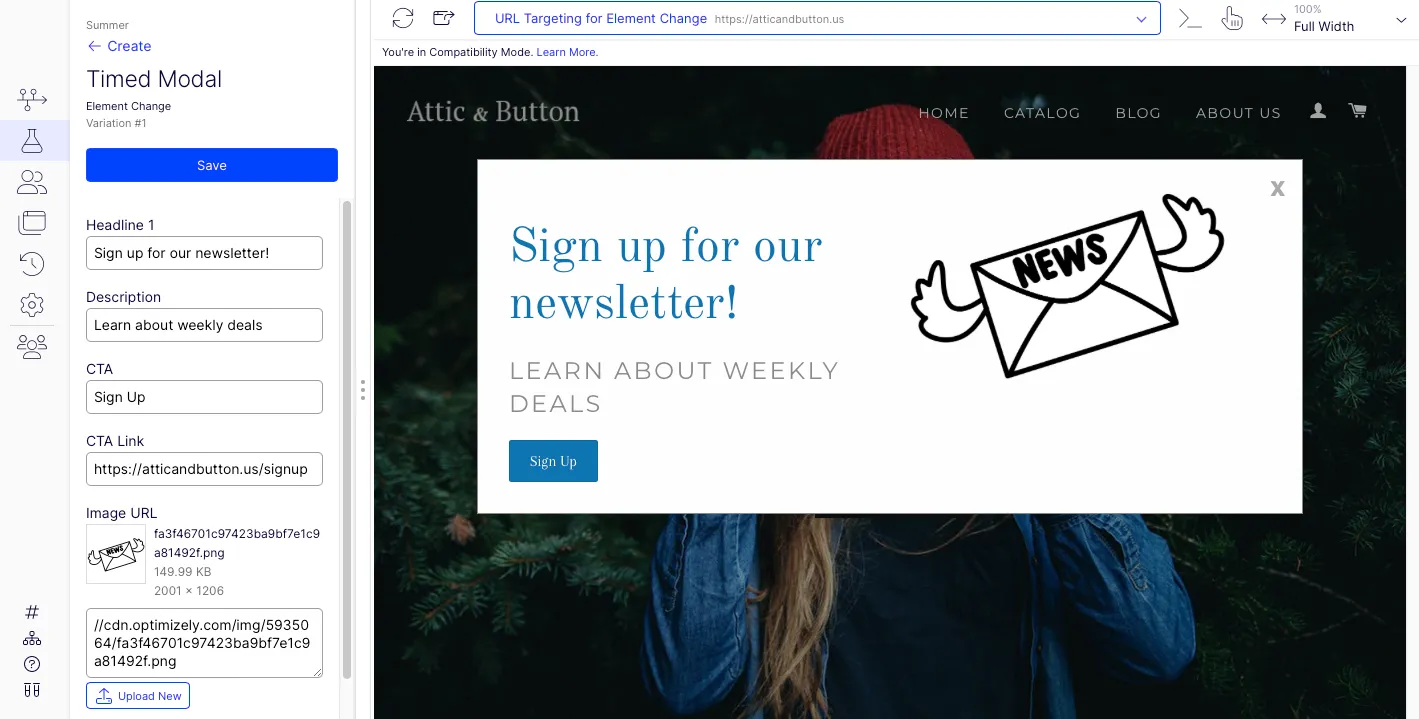
Example: Add a timed modal
3 min
- Optimizely Web Experimentation
- Optimizely Personalization
Timed modals (also called lightboxes) can emphasize a call to action on your website, like asking visitors to sign up for a newsletter or share your page on social media sites. You can add a timed modal template with Optimizely Web Experimentation to test a page with a pop-up.
Note
This template works with most websites, but it may not work with all websites.
Create a timed modal
- Go to Implementation > Templates.
- Click Create Template and select Use JSON.
- Open Timed Modal config.json and copy the code.
- Paste the code in the Create Template From JSON field and click Create Template.
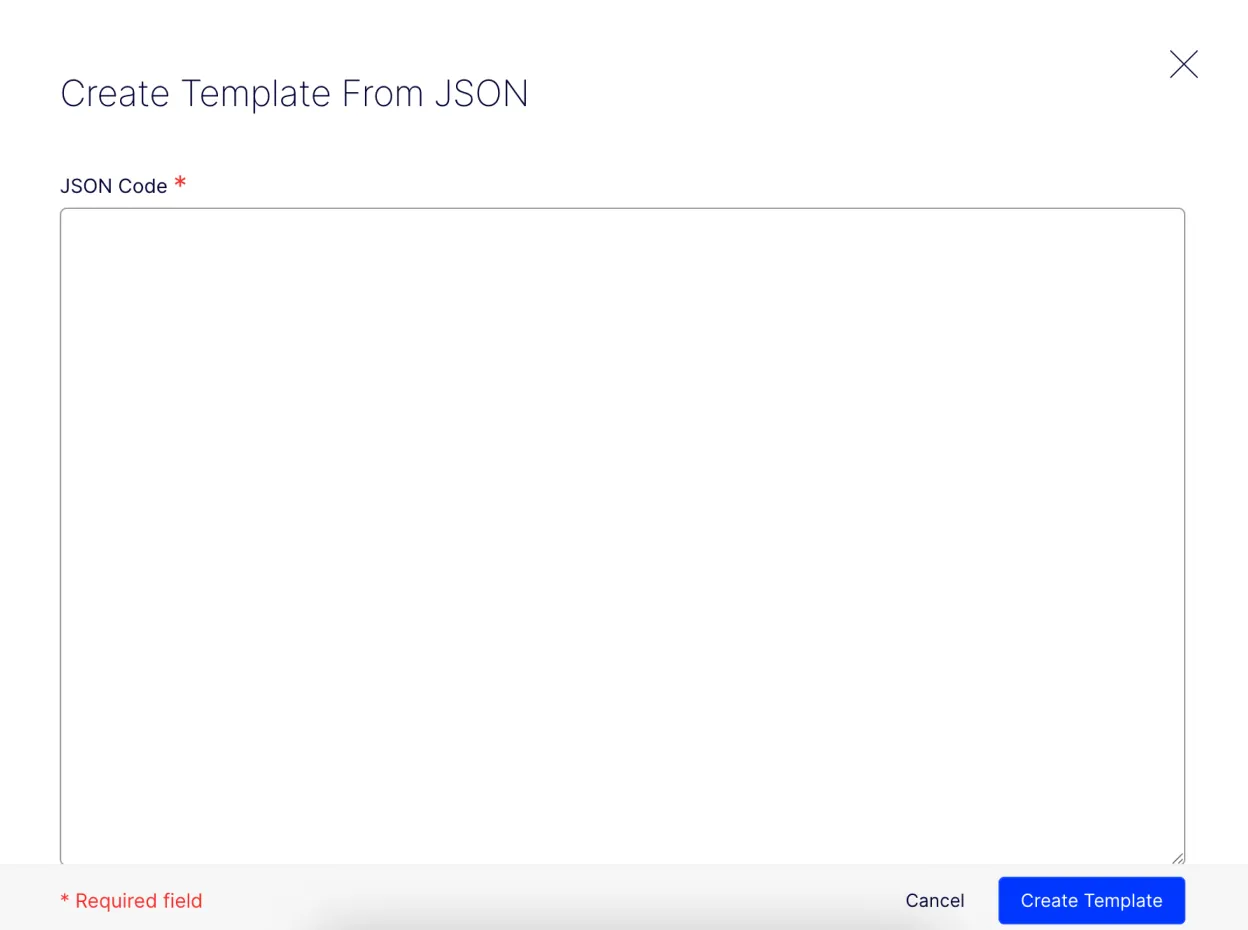
- Click the template name (Timed Modal) to open the Editor. You can change the headline, description, and call-to-action (CTA) text and link. You can also add an image to the pop-up modal.
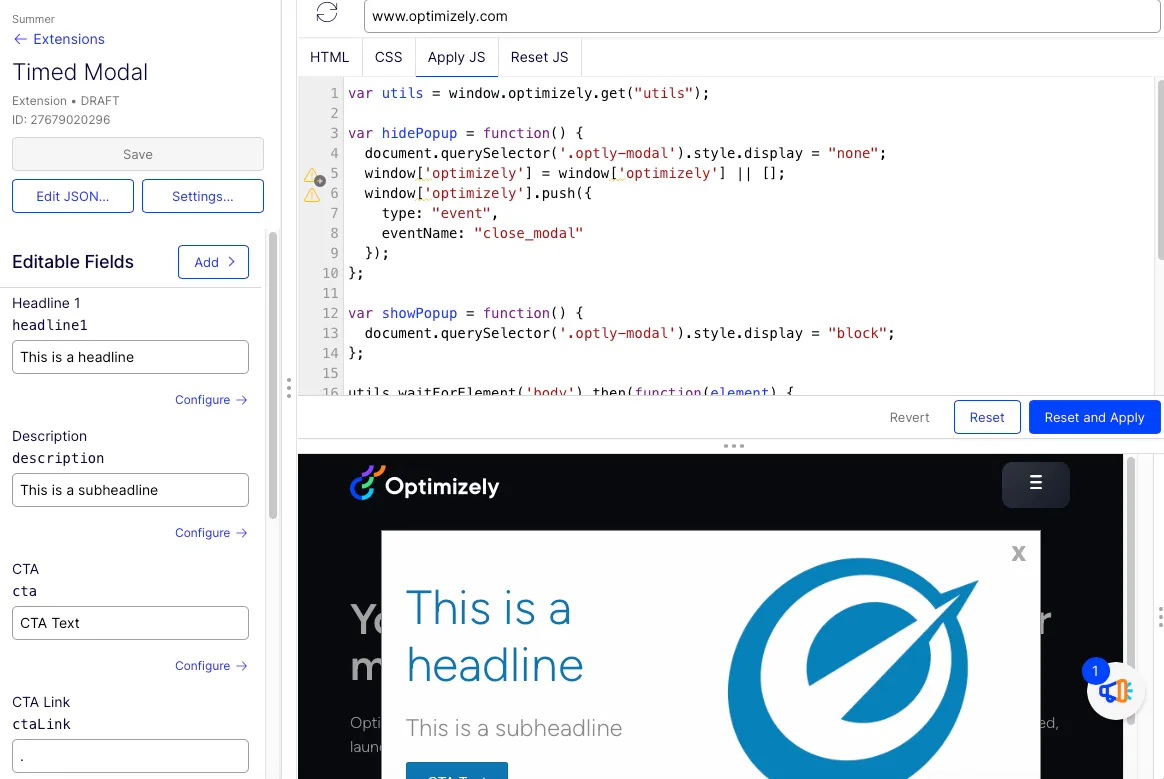
- Change the number of seconds before the modal pops up. Developers can also code extensions for modals that display after a certain user action.
- Click Save.
Enable the timed modal template
- Go to Implementation > Templates.
- Click the More icon and select Enable.
Add your timed modal to an experiment
- Go to Optimizations > Experiments and select the experiment where you want to add the modal.
- Select the variation.
- Click Create > Timed Modal.
- Customize the modal fields specifically for this experiment. You can change the headline, subheadline, call-to-action (CTA) text and link, image, and number of seconds before the modal displays.
- Click Save.